

python 实现图片裁剪小工具
更新时间:2021年02月02日 17:33:44 作者:南风丶轻语
这篇文章主要介绍了python 实现图片裁剪小工具的示例,帮助大家更好的利用python处理图片,感兴趣的朋友可以了解下
完整项目地址下载:https://github.com/rainbow-tan/rainbow/tree/master/%E8%A3%81%E5%89%AA%E5%9B%BE%E7%89%87
实现:tkinter 画布上显示图片,按下鼠标左键并且移动,实现截图
# -*- encoding=utf-8 -*-
import os
import tkinter as tk

from PIL import Image
from PIL import ImageTk

left_mouse_down_x = 0
left_mouse_down_y = 0
left_mouse_up_x = 0
left_mouse_up_y = 0
sole_rectangle = None


def left_mouse_down(event):
  # print('鼠标左键按下')
  global left_mouse_down_x, left_mouse_down_y
  left_mouse_down_x = event.x
  left_mouse_down_y = event.y


def left_mouse_up(event):
  # print('鼠标左键释放')
  global left_mouse_up_x, left_mouse_up_y
  left_mouse_up_x = event.x
  left_mouse_up_y = event.y
  corp_img(img_path, 'img/one_corp.png', left_mouse_down_x, left_mouse_down_y,
       left_mouse_up_x, left_mouse_up_y)


def moving_mouse(event):
  # print('鼠标左键按下并移动')
  global sole_rectangle
  global left_mouse_down_x, left_mouse_down_y
  moving_mouse_x = event.x
  moving_mouse_y = event.y
  if sole_rectangle is not None:
    canvas.delete(sole_rectangle) # 删除前一个矩形
  sole_rectangle = canvas.create_rectangle(left_mouse_down_x, left_mouse_down_y, moving_mouse_x,
                       moving_mouse_y, outline='red')


def right_mouse_down(event):
  # print('鼠标右键按下')
  pass


def right_mouse_up(event):
  # print('鼠标右键释放')
  pass


def corp_img(source_path, save_path, x_begin, y_begin, x_end, y_end):
  if x_begin < x_end:
    min_x = x_begin
    max_x = x_end
  else:
    min_x = x_end
    max_x = x_begin
  if y_begin < y_end:
    min_y = y_begin
    max_y = y_end
  else:
    min_y = y_end
    max_y = y_begin
  save_path = os.path.abspath(save_path)
  if os.path.isfile(source_path):
    corp_image = Image.open(source_path)
    region = corp_image.crop((min_x, min_y, max_x, max_y))
    region.save(save_path)
    print('裁剪完成,保存于:{}'.format(save_path))
  else:
    print('未找到文件:{}'.format(source_path))


if __name__ == '__main__':
  pass
  win = tk.Tk()
  frame = tk.Frame()
  frame.pack()
  screenwidth = win.winfo_screenwidth()
  screenheight = win.winfo_screenheight()
  img_path = 'img/one.png'
  # img_path = 'img/bg.jpg'
  # img_path = 'img/test.jpg'
  # img_path = 'img/pic.gif'
  image = Image.open(img_path)
  image_x, image_y = image.size
  if image_x > screenwidth or image_y > screenheight:
    print('The picture size is too big,max should in:{}x{}, your:{}x{}'.format(screenwidth,
                                          screenheight,
                                          image_x,
                                          image_y))
  img = ImageTk.PhotoImage(image)
  canvas = tk.Canvas(frame, width=image_x, height=image_y, bg='pink')
  i = canvas.create_image(0, 0, anchor='nw', image=img)
  canvas.pack()
  canvas.bind('<Button-1>', left_mouse_down) # 鼠标左键按下
  canvas.bind('<ButtonRelease-1>', left_mouse_up) # 鼠标左键释放
  canvas.bind('<Button-3>', right_mouse_down) # 鼠标右键按下
  canvas.bind('<ButtonRelease-3>', right_mouse_up) # 鼠标右键释放
  canvas.bind('<B1-Motion>', moving_mouse) # 鼠标左键按下并移动
  win.mainloop()
原图one.png
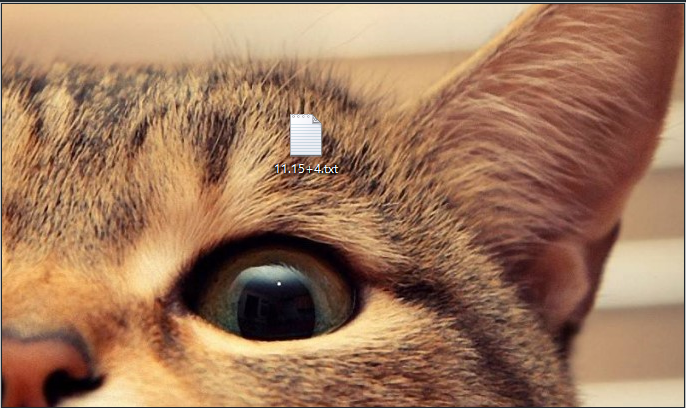
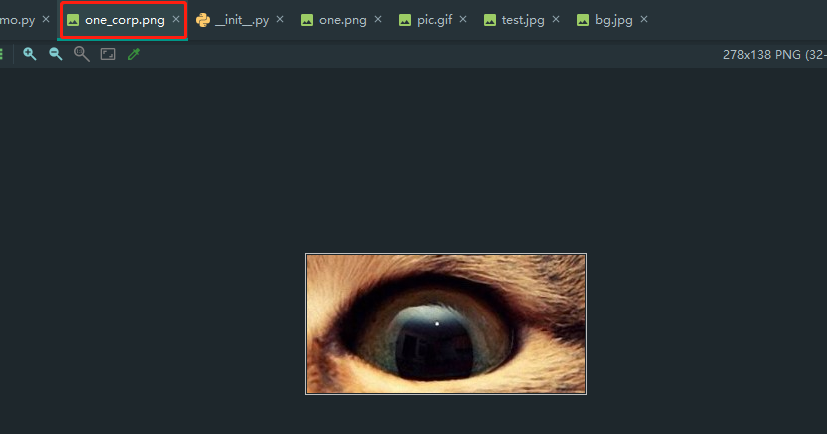
运行


one_corp.png
以上就是python 实现图片裁剪小工具的详细内容,更多关于python 图片裁剪的资料请关注脚本之家其它相关文章!
相关文章
 这篇文章主要给大家介绍了python中模块查找的原理与方式,文中通过示例代码介绍的非常详细,对大家的学习或工作具有一定的参考学习价值,需要的朋友们下面跟着小编来一起学习学习吧。2017-08-08
python GUI库图形界面开发之PyQt5工具栏控件QToolBar的详细使用方法与实例
这篇文章主要介绍了python GUI库图形界面开发之PyQt5工具栏控件QToolBar的详细使用方法与实例,需要的朋友可以参考下2020-02-02 这篇文章主要介绍了python数据结构树和二叉树简介,需要的朋友可以参考下2014-04-04
 虽然matplotlib默认的坐标轴定位器与格式生成器可以满足大部分需求,但是并非对每一幅图都合适,本文主要介绍了Matplotlib自定义坐标刻度的使用示例,感兴趣的可以了解一下2023-11-11
 这篇文章主要介绍了如何利用PyQT5制作简易的敏感词检测工具。可以根据敏感词库文件筛选,查看输入的文本中是否包含敏感词汇,从而过滤出相关的敏感词。感兴趣的可以了解一下2022-02-02
 Jupyter Notebook是一个开源的交互式编程环境,用于创建和共享包含实时代码、文本等,本文主要来和大家分享一些有趣的Jupyter Notebook魔法命令,需要的可以参考一下2023-07-07
 你是不是也厌倦了每天重复表单填写的工作,是时候让技术来帮助我们解放双手了,下面小编就为大家介绍一下如何使用Selenium和Python来自动填充和提交表单2023-09-09
 这篇文章主要介绍了python使用多线程不断刷新网页的方法,涉及Python多线程thread及time模块操作技巧,具有一定参考借鉴价值,需要的朋友可以参考下2015-03-03
 这篇文章主要介绍了如何爬取通过ajax加载数据的网站,文中通过示例代码介绍的非常详细,对大家的学习或者工作具有一定的参考学习价值,需要的朋友可以参考下2019-08-08
 这篇文章主要介绍了python re模块findall()函数实例解析,具有一定借鉴价值,需要的朋友可以参考下2018-01-01
最新评论