

一篇文章告诉你如何用事件委托实现JavaScript留言板功能
更新时间:2021年12月27日 09:53:33 作者:小高今天早睡了吗?
这篇文章主要为大家介绍了事件委托实现JavaScript留言板功能,具有一定的参考价值,感兴趣的小伙伴们可以参考一下,希望能够给你带来帮助
用事件委托实现留言板功能。
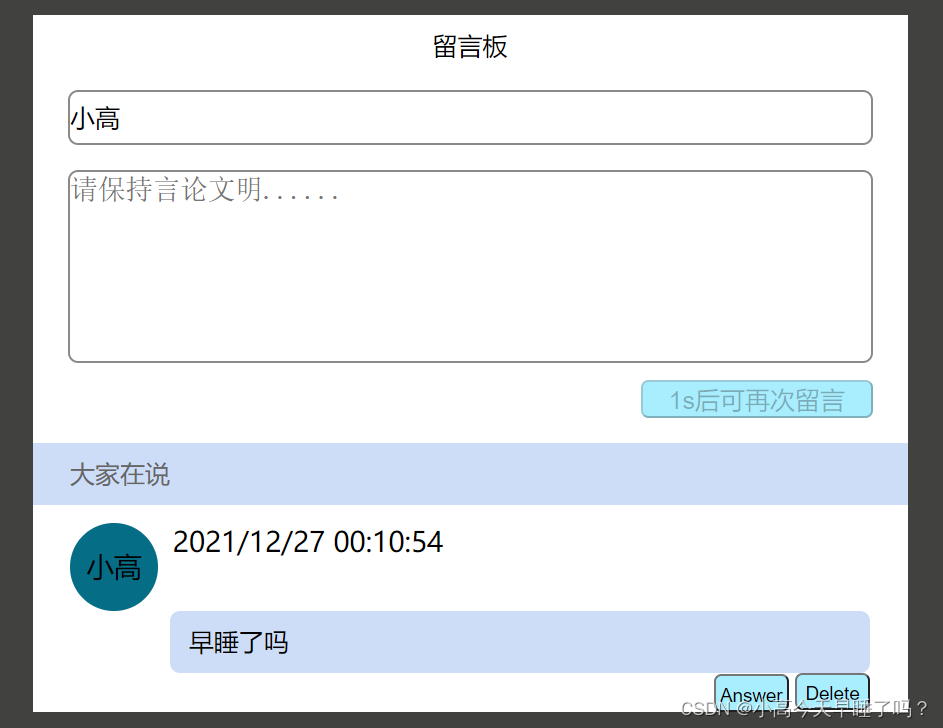
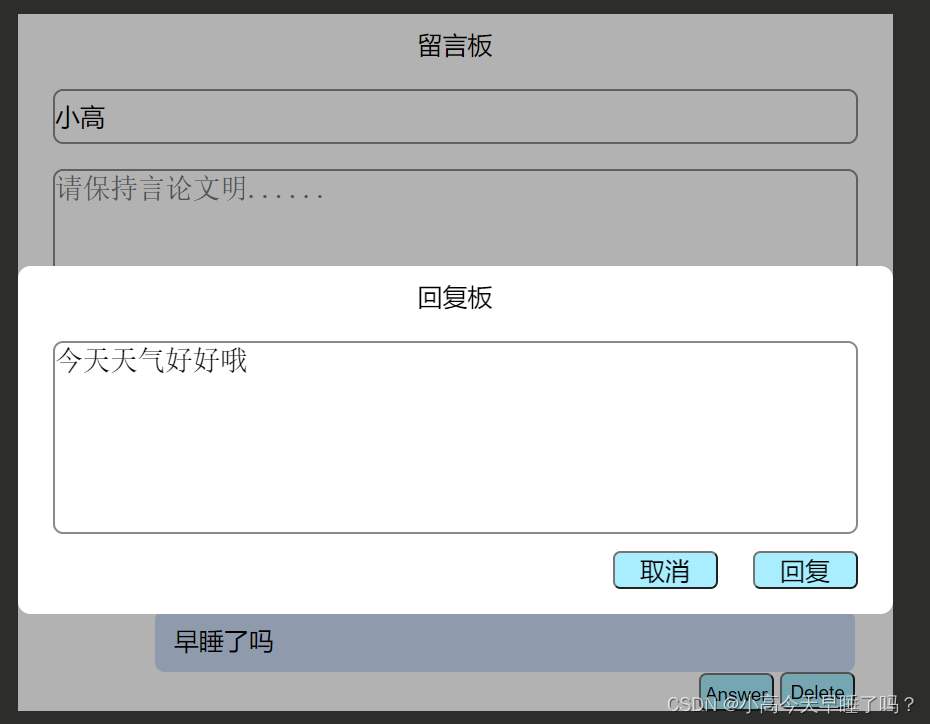
<!DOCTYPE html>
<html lang="en">
<head>
    <meta charset="UTF-8">
    <meta http-equiv="X-UA-Compatible" content="IE=edge">
    <meta name="viewport" content="width=device-width, initial-scale=1.0">
    <title>Document</title>
    <style>
        * {
            padding: 0;
            margin: 0;
        }
        body {
            width: 100%;
            height: 100%;
            background: rgb(65, 65, 63);
        }
        .bacground {
            width: 700px;
            height: 100%;
            background: white;
            margin: auto;
            margin-top: 20px;
        }
        .head,
        .pop-head {
            height: 50px;
            font-size: 20px;
            text-align: center;
            line-height: 50px;
        }
        .name {
            width: 640px;
            height: 40px;
            font-size: 20px;
            margin: 10px 28px;
            line-height: 50px;
            border-radius: 8px;
            border: 2px solid rgb(139, 137, 137);
            outline: none;
        }
        .content,
        .pop-reply {
            width: 640px;
            height: 150px;
            font-size: 22px;
            margin: 10px 28px;
            border: 2px solid rgb(139, 137, 137);
            outline: none;
            border-radius: 8px;
            resize: none;
        }
        .btn,
        .pop-btn {
            float: right;
            height: 30px;
            margin-right: 28px;
            border-radius: 6px;
            outline: none;
            font-size: 20px;
            padding: 0 20px;
            background: rgb(169, 238, 255);
        }
        h3 {
            font-size: 20px;
            color: rgb(102, 102, 102);
            background: rgb(205, 221, 248);
            margin-top: 50px;
            line-height: 50px;
            text-indent: 30px;
            font-weight: 545;
        }
        li {
            list-style: none;
            width: 640px;
            font-size: 22px;
            margin: 15px 30px;
        }
        .message-head {
            display: flex;
        }
        .message-head .photo {
            width: 70px;
            height: 70px;
            background: rgb(6, 109, 134);
            display: inline-block;
            border-radius: 50%;
            text-align: center;
            line-height: 70px;
            overflow: hidden;
        }
        .message-head .time {
            margin-left: 12px;
        }
        .liuyan,
        .reply p {
            width: 560px;
            /* height: 76px; */
            line-height: 50px;
            display: block;
            background: rgb(205, 221, 248);
            font-size: 20px;
            margin-left: 80px;
            border-radius: 8px;
            text-indent: 15px;
        }
        .delete {
            width: 60px;
            height: 30px;
            display: block;
            line-height: 30px;
            margin-left: 580px;
            /* margin-bottom: 0px; */
            border-radius: 6px;
            outline: none;
            font-size: 15px;
            background: rgb(169, 238, 255);
        }
        .answer {
            width: 60px;
            height: 30px;
            display: block;
            line-height: 30px;
            margin-top: -29px;
            margin-left: 515px;
            border-radius: 6px;
            outline: none;
            font-size: 15px;
            background: rgb(169, 238, 255);
        }
        .popup {
            width: 100vw;
            height: 100vh;
            position: fixed;
            background: rgba(0, 0, 0, .3);
            left: 0;
            top: 0;
            z-index: 10;
            display: flex;
            align-items: center;
            justify-content: center;
            display: none;
        }
        .pop-content {
            width: 700px;
            background: #fff;
            border-radius: 10px;
            overflow: hidden;
            padding-bottom: 20px;
        }
        .reply p {
            margin-top: 10px;
            background: rgba(100, 100, 100, .1);
        }
    </style>
</head>
<body>
    <div class="bacground">
        <div class="head">留言板</div>
        <input class="name" type="text" placeholder="请输入您的昵称">
        <textarea class="content" placeholder="请保持言论文明......"></textarea>
        <button class="btn">留言</button>
        <h3>大家在说</h3>
        <ul class="text">
            <!-- <li>
			<div class="message-head">
			<span class="photo">系统</span>
			<p class="time">2019-9-27 0:47:38</p>
			</div>
			<p class="liuyan">测试留言</p>
			<div class="reply">
			<p>测试回复</p>
			</div>
			<button class="delete">Delete</button>
			<button class="answer">Answer</button>
		</li> -->
        </ul>
    </div>
    <div class="popup">
        <div class="pop-content">
            <div class="pop-head">回复板</div>
            <textarea class="pop-reply" placeholder="请保持言论文明......"></textarea>
            <button class="pop-btn huiFu">回复</button>
            <button class="pop-btn quXiao">取消</button>
        </div>
    </div>
    <script>
        //在事件委托中,每一个if都相当于一个独立的函数,因为每一次点击都会重新触发事件处理函数
        var oAns ;
        //分析:事件委托给谁? --- 共同的父元素
        document.onclick = function (e) {
            //事件处理对象,兼容IE8及以下版本的浏览器
            e = e || event ;
            // target目标  --- 具体是由哪个标签触发的
            var target = e.target ;

            //留言
            if(target.className === 'btn'){
                //获取对象
                var nickname = $('.name').value ;
                var content = $('.content').value ;
                //判断输入是否为空
                if(nickname && content){
                    //创建一个标签
                    var oLi = document.createElement('li') ;
                    //插入新内容
                    oLi.innerHTML = `
                    <div class="message-head">
                        <span class="photo">${nickname}</span>
                        <p class="time">2019-9-27 0:47:38</p>
                    </div>
                    <p class="liuyan">${content}</p>
                    <div class="reply">
                    </div>
                    <button class="delete">Delete</button>
                    <button class="answer">Answer</button>
                    `
                    //将最新的留言插入到最上面
                    $('.text').insertBefore(oLi , $('.text').firstChild) ;
                    //倒计时
                    clock(target , 3) ;
                    //留言完后清空留言板内容
                    $('.content').value = '' ;
                }else{
                    alert('输入不能为空!')
                }
                return
            }
            //删除
            if(target.className === 'delete'){
                //删除留言
                target.parentNode.remove() ;
                return
            }
            //回复
            if(target.className === 'answer'){
                //显示弹窗
                $('.popup').style.display = 'flex' ;
                //找到回复留言的地方
                oAns = target.previousElementSibling.previousElementSibling ;
                return
            }
            //确认回复
            if(target.className === 'pop-btn huiFu'){
                //拿到回复的内容
                var huiFuContent = $('.pop-reply').value ;
                if(huiFuContent){
                    //创建一个标签
                    var oP = document.createElement('p') ;
                    //将内容插入标签中
                    oP.innerHTML = huiFuContent ;
                    //将回复插入到留言的地方
                    oAns.appendChild(oP) ;
                }
                //关闭弹窗
                $('.popup').style.display = 'none' ;
                return
            }
            //取消回复
            if(target.className === 'pop-btn quXiao'){
                $('.popup').style.display = 'none' ;
                return
            }
        }
        //倒计时
        function clock(ele , time){
            if(!ele.disabled){
                ele.disabled = true ;
                ele.innerHTML = time + 's后可再次留言' ;
                var t = setInterval(function () {
                    time-- ;
                    ele.innerHTML = time + 's后可再次留言' ;
                    if(time <= 0){
                        clearInterval(t) ;
                        ele.disabled = false ;
                        ele.innerHTML = '留言' ;
                    }
                },1000)
            }
        }
        //获取对象
        function $(selector){
            return document.querySelector(selector) ;
        }
    </script>
</body>
</html>
总结
本篇文章就到这里了,希望能够给你带来帮助,也希望您能够多多关注脚本之家的更多内容!
相关文章
 这篇文章主要介绍了VCalendar的安装和使用方法,包括如何通过官网地址引入API,并在项目中全局引入main.js文件,使用VCalendar可以实现日历功能,需要的朋友可以参考下2025-01-01
 js 判断一个元素是否存在此功能在项目中很实用,本人搜集整理了一些常用技巧,需要了解的朋友可以参考下2012-12-12
 这篇文章主要介绍了javascript中in运算符用法,实例分析了in运算符的相关使用技巧,非常具有实用价值,需要的朋友可以参考下2015-04-04
 下面小编就为大家分享一篇js的函数的按值传递参数的实例,具有很好的参考价值,一起跟随小编过来看看吧,希望对大家有所帮助2017-11-11
 这篇文章主要介绍了基于JS实现省市联动效果代码的相关资料,非常实用,在日常项目开发过程中经常遇到此需求,下面小编给大家分享实现代码,需要的朋友可以参考下2016-06-06
 最近在开发小程序,产品经理提了一个需求,要求微信小程序换头像,用户剪裁图片必须是圆形。这篇文章主要介绍了微信小程序之裁剪图片成圆形 ,需要的朋友可以参考下2018-10-10
 这篇文章主要介绍了详解webpack+gulp实现自动构建部署,具有一定的参考价值,感兴趣的小伙伴们可以参考一下2017-06-06
 js 回车提交一些新手朋友还是比较陌生的,本文介绍两种实现方法:jQuery方法、JavaScript方法,感兴趣的朋友可以研究下2012-12-12
 下面小编就为大家分享一篇移动前端图片压缩上传的实例。具有很好的参考价值,希望对大家有所帮助。一起小编过来看看吧2017-12-12
 今天小编就为大家分享一篇layui问题之模拟select点击事件的实例讲解,具有很好的参考价值,希望对大家有所帮助。一起跟随小编过来看看吧2018-08-08
最新评论