

Python利用pangu模块实现文本格式化小工具
其实使用pangu做文本格式标准化的业务代码在之前就实现了,主要能够将中文文本文档中的文字、标点符号等进行标准化。
但是为了方便起来我们这里使用了Qt5将其做成了一个可以操作的页面应用,这样不熟悉python的朋友就可以不用写代码直接双击运行使用就OK了。
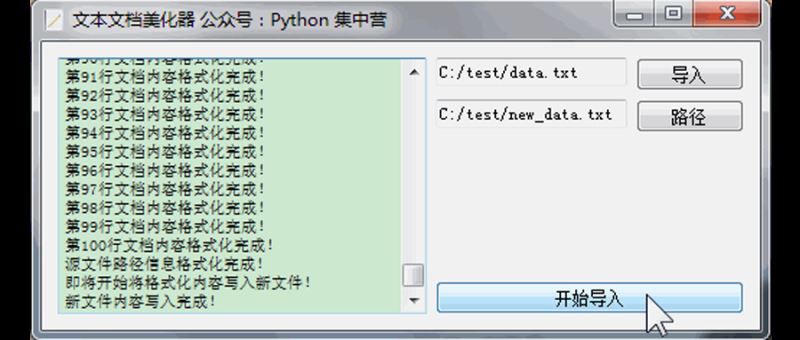
为了使文本格式的美化过程不影响主线程的使用,特地采用QThread子线程来专门的运行文本文档美化的业务过程,接下来还是采用pip的方式将所有需要的非标准模块安装一下。
pip install -i https://pypi.tuna.tsinghua.edu.cn/simple pangu

pip install -i https://pypi.tuna.tsinghua.edu.cn/simple PyQt5
将我们使用到的pyqt5应用制作模块以及业务模块pangu导入到我们的代码块中。
# It imports all the classes, attributes, and methods of the PyQt5.QtCore module into the global symbol table.
from PyQt5.QtCore import *

# It imports all the classes, attributes, and methods of the PyQt5.QtWidgets module into the global symbol table.
from PyQt5.QtWidgets import QApplication, QWidget, QHBoxLayout, QVBoxLayout, QTextBrowser, QLineEdit, QPushButton, \
    QFormLayout, QFileDialog

# It imports all the classes, attributes, and methods of the PyQt5.QtGui module into the global symbol table.
from PyQt5.QtGui import QIcon, QFont, QTextCursor

# It imports the pangu module.
import pangu

# It imports the sys module.
import sys

# It imports the os module.
import os
为了减少python模块在打包时资源占用过多,打的exe应用程序的占用空间过大的情况,这次我们只导入了能够使用到的相关python类,这个小细节大家注意一下。
下面创建一个名称为PanGuUI的python类来实现对整个应用页面的开发,将页面的布局以及组件相关的部分写到这个类中。并且给页面组件绑定好相应的槽函数从而实现页面的'点击'等功能。
# It creates a class called PanGuUI that inherits from QWidget.
class PanGuUI(QWidget):
    def __init__(self):
        """
        A constructor. It is called when an object is created from a class and it allows the class to initialize the
        attributes of a class.
        """
        super(PanGuUI, self).__init__()
        self.init_ui()

    def init_ui(self):
        """
        This function initializes the UI.
        """
        self.setWindowTitle('文本文档美化器 公众号:Python 集中营')
        self.setWindowIcon(QIcon('txt.ico'))

        self.brower = QTextBrowser()
        self.brower.setFont(QFont('宋体', 8))
        self.brower.setReadOnly(True)
        self.brower.setPlaceholderText('处理进程展示区域...')
        self.brower.ensureCursorVisible()

        self.txt_file_path = QLineEdit()
        self.txt_file_path.setPlaceholderText('源文本文档路径')
        self.txt_file_path.setReadOnly(True)

        self.txt_file_path_btn = QPushButton()
        self.txt_file_path_btn.setText('导入')
        self.txt_file_path_btn.clicked.connect(self.txt_file_path_btn_click)

        self.new_txt_file_path = QLineEdit()
        self.new_txt_file_path.setPlaceholderText('新文本文档路径')
        self.new_txt_file_path.setReadOnly(True)

        self.new_txt_file_path_btn = QPushButton()
        self.new_txt_file_path_btn.setText('路径')
        self.new_txt_file_path_btn.clicked.connect(self.new_txt_file_path_btn_click)

        self.start_btn = QPushButton()
        self.start_btn.setText('开始导入')
        self.start_btn.clicked.connect(self.start_btn_click)

        hbox = QHBoxLayout()
        hbox.addWidget(self.brower)

        fbox = QFormLayout()
        fbox.addRow(self.txt_file_path, self.txt_file_path_btn)
        fbox.addRow(self.new_txt_file_path, self.new_txt_file_path_btn)

        v_vbox = QVBoxLayout()
        v_vbox.addWidget(self.start_btn)

        vbox = QVBoxLayout()
        vbox.addLayout(fbox)
        vbox.addLayout(v_vbox)

        hbox.addLayout(vbox)

        self.thread_ = PanGuThread(self)
        self.thread_.message.connect(self.show_message)
        self.thread_.finished.connect(self.finshed)

        self.setLayout(hbox)

    def show_message(self, text):
        """
        It shows a message

        :param text: The text to be displayed
        """
        cursor = self.brower.textCursor()
        cursor.movePosition(QTextCursor.End)
        self.brower.append(text)
        self.brower.setTextCursor(cursor)
        self.brower.ensureCursorVisible()

    def txt_file_path_btn_click(self):
        """
        It opens a file dialog box and allows the user to select a file.
        """
        txt_file = QFileDialog.getOpenFileName(self, os.getcwd(), '打开文本文档',
                                               'Text File(*.txt)')
        self.txt_file_path.setText(txt_file[0])

    def new_txt_file_path_btn_click(self):
        """
        This function opens a file dialog box and allows the user to select a file to save the output to.
        """
        new_txt_file = QFileDialog.getOpenFileName(self, os.getcwd(), '打开文本文档',
                                                   'Text File(*.txt)')
        self.new_txt_file_path.setText(new_txt_file[0])

    def start_btn_click(self):
        """
        A function that is called when the start button is clicked.
        """
        self.thread_.start()
        self.start_btn.setEnabled(False)

    def finshed(self, finished):
        """
        :param finished: A boolean value that is True if the download is finished, False otherwise
        """
        if finished is True:
            self.start_btn.setEnabled(True)
创建名称为PanGuThread的子线程,将具体实现美化格式化文本字符串的业务代码块写入到子线程中。子线程继承的是QThread的PyQt5的线程类,通过创建子线程并且将子线程的信号信息传递到主线程中,在主线程的文本浏览器中进行展示达到实时跟踪执行结果的效果。
# This class is a subclass of QThread, and it's used to split the text into words
class PanGuThread(QThread):
    message = pyqtSignal(str)
    finished = pyqtSignal(bool)

    def __init__(self, parent=None):
        """
        A constructor that initializes the class.

        :param parent: The parent widget
        """
        super(PanGuThread, self).__init__(parent)
        self.working = True
        self.parent = parent

    def __del__(self):
        """
        A destructor. It is called when the object is destroyed.
        """
        self.working = True
        self.wait()

    def run(self) -> None:
        """
        > This function runs the program
        """
        try:

            txt_file_path = self.parent.txt_file_path.text().strip()
            self.message.emit('源文件路径信息读取正常!')
            new_txt_file_path = self.parent.new_txt_file_path.text().strip()
            self.message.emit('新文件路径信息读取正常!')
            list_ = []
            with open(txt_file_path, encoding='utf-8') as f:
                lines_ = f.readlines()
                self.message.emit('源文件内容读取完成!')
                n = 1
                for line_ in lines_:
                    text = pangu.spacing_text(line_)
                    self.message.emit('第{0}行文档内容格式化完成!'.format(n))
                    list_.append(text)
                    n = n + 1
                self.message.emit('源文件路径信息格式化完成!')

            self.message.emit('即将开始将格式化内容写入新文件!')
            with open(new_txt_file_path, 'a') as f:
                for line_ in list_:
                    f.write(line_ + '\n')
            self.message.emit('新文件内容写入完成!')
            self.finished.emit(True)

        except Exception as e:
            self.message.emit('文件内容读取或格式化发生异常!')


if __name__ == '__main__':
    app = QApplication(sys.argv)
    main = PanGuUI()
    main.show()
    sys.exit(app.exec_())
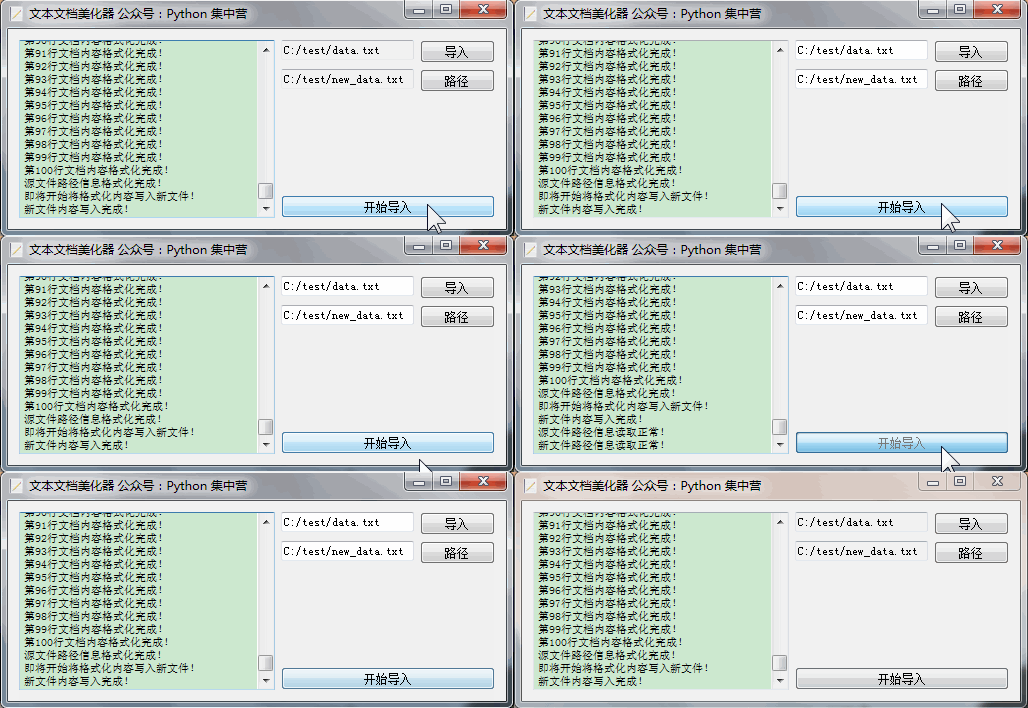
完成了开发开始测试一下效果如何,创建了两个文本文件data.txt、new_data.txt,点击'开始运行'之后会调起整个的业务子线程实现文本格式化,结果完美运行来看一下执行过程展示。
到此这篇关于Python利用pangu模块实现文本格式化小工具的文章就介绍到这了,更多相关Python pangu文本格式化内容请搜索脚本之家以前的文章或继续浏览下面的相关文章希望大家以后多多支持脚本之家!
相关文章
 大家经常会遇到一些需要预测的场景,比如预测品牌销售额,预测产品销量。本文给大家分享一波使用 LSTM 进行端到端时间序列预测的完整代码和详细解释,需要的可以参考一下2022-07-07
 这篇文章主要为大家详细介绍了如何利用Python语言实现检测照片中共有多少张人脸,文中的示例代码讲解详细,感兴趣的小伙伴可以了解一下2022-08-08
 这篇文章主要介绍了Python实现完整的事务操作,结合实例形式分析了Python操作mysql数据库相关事务操作的具体流程与实现技巧,需要的朋友可以参考下2017-06-06
 这篇文章主要介绍了Python实现报警信息实时发送至邮箱,本文通过实例代码给大家介绍的非常详细,具有一定的参考借鉴价值,需要的朋友可以参考下2019-11-11
 OrderedDict是Python标准库collections模块的一部分,下面这篇文章主要给大家介绍了关于Python中OrderedDict对象的相关资料,文中通过代码介绍的非常详细,需要的朋友可以参考下2024-08-08
python中列表(list)和元组(tuple)的深入讲解
这篇文章主要给大家介绍了关于python中列表(list)和元组(tuple)的相关资料,文中通过示例代码介绍的非常详细,对大家的学习或者工作具有一定的参考学习价值,需要的朋友们下面随着小编来一起学习学习吧2021-03-03 在本篇文章中小编给大家分享了关于Python异常处理的相关知识点以及对应的实例内容,需要的朋友们学习下。2019-02-02
 这篇文章主要介绍了Python3.5面向对象与继承,结合图文与实例形式详细分析了Python3.5面向对象与继承的相关概念、原理、实现方法及操作注意事项,需要的朋友可以参考下2019-04-04
 今天小编就为大家分享一篇Python调用graphviz绘制结构化图形网络示例,具有很好的参考价值,希望对大家有所帮助。一起跟随小编过来看看吧2019-11-11
 这篇文章主要介绍了PyQt5打开文件对话框QFileDialog实例代码,分享了相关代码示例,小编觉得还是挺不错的,具有一定借鉴价值,需要的朋友可以参考下2018-02-02
最新评论