

ASP.NET Web API教程 创建Admin视图详细介绍
更新时间:2012年11月14日 13:56:50 作者:
现在我们转入客户端,并添加一个能够使用从Admin控制器而来的数据的页面。通过给控制器发送AJAX请求的方式,该页面将允许用户创建、编辑,或删除产品
Now we'll turn to the client side, and add a page that can consume data from the Admin controller. The page will allow users to create, edit, or delete products, by sending AJAX requests to the controller.
现在我们转入客户端,并添加一个能够使用从Admin控制器而来的数据的页面。通过给控制器发送AJAX请求的方式,该页面将允许用户创建、编辑,或删除产品。
In Solution Explorer, expand the Controllers folder and open the file named HomeController.cs. This file contains an MVC controller. Add a method named Admin:
在“解决方案资源管理器”中,展开Controllers文件夹,并打开名为HomeController.cs的文件。这个文件是一个MVC控制器。添加一个名称为Admin的方法:
public ActionResult Admin()
{
string apiUri= Url.HttpRouteUrl("DefaultApi", new { controller = "admin", });
ViewBag.ApiUrl = new Uri(Request.Url, apiUri).AbsoluteUri.ToString();
return View();
}
The HttpRouteUrl method creates the URI to the web API, and we store this in the view bag for later.
HttpRouteUrl方法创建了发送给Web API的URI,我们随后把它存储在视图包(view bag)中。
Next, position the text cursor within the Admin action method, then right-click and select Add View. This will bring up the Add View dialog.
下一步,把文本光标定位到Admin动作方法的内部,然后右击,并选择“添加视图”。这会带出“添加视图”对话框(见图2-20)。
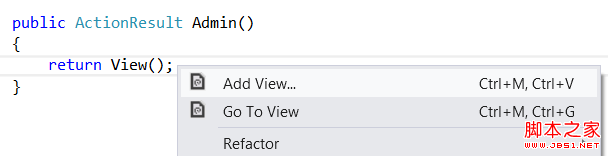
图2-20. 添加视图
In the Add View dialog, name the view "Admin". Select the check box labeled Create a strongly-typed view. Under Model Class, select "Product (ProductStore.Models)". Leave all the other options as their default values.
在“添加视图”对话框中,将此视图命名为“Admin”。选中标签为“创建强类型视图”的复选框。在“模型类”下面,选择“Product (ProductStore.Models)”。保留所有其它选项为其默认值(如图2-21)。
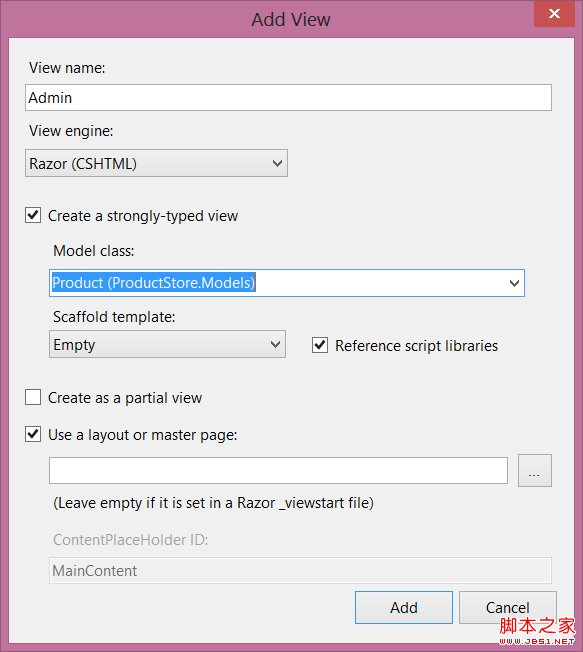
图2-21. “添加视图”对话框的设置
Clicking Add adds a file named Admin.cshtml under Views/Home. Open this file and add the following HTML. This HTML defines the structure of the page, but no functionality is wired up yet.
点击“添加”,会把一个名称为Admin.cshtml的文件添加到Views/Home下。打开这个文件,并添加以下HTML。这个HTML定义了页面的结构,但尚未连接功能。
<div class="content">
<div class="float-left">
<ul id="update-products">
<li>
<div><div class="item">Product ID</div><span></span></div>
<div><div class="item">Name</div> <input type="text" /></div>
<div><div class="item">Price ($)</div> <input type="text" /></div>
<div><div class="item">Actual Cost ($)</div> <input type="text" /></div>
<div>
<input type="button" value="Update" />
<input type="button" value="Delete Item" />
</div>
</li>
</ul>
</div>
<div class="float-right">
<h2>Add New Product</h2>
<form id="product">
@Html.ValidationSummary(true)
<fieldset>
<legend>Contact</legend>
@Html.EditorForModel()
<p>
<input type="submit" value="Save" />
</p>
</fieldset>
</form>
</div>
</div>
Create a Link to the Admin Page
创建到Admin页面的链接
In Solution Explorer, expand the Views folder and then expand the Shared folder. Open the file named _Layout.cshtml. Locate the ul element with id = "menu", and an action link for the Admin view:
在“解决方案资源管理器”中,展开Views文件夹,然后展开Shared文件夹。打开名称为_Layout.cshtml的文件。定位到id = "menu"的ul元素,和一个用于Admin视图的动作链接:
<li>@Html.ActionLink("Admin", "Admin", "Home")</li>
In the sample project, I made a few other cosmetic changes, such as replacing the string “Your logo here”. These don't affect the functionality of the application. You can download the project and compare the files.
在这个例子项目中,我做了几个其它装饰性的修改,如替换了字符串“Your logo here(这是你的logo)”。这些不会影响此应用程序的功能。你可以下载这个项目并比较此文件。
Run the application and click the “Admin” link that appears at the top of the home page. The Admin page should look like the following:
运行该应用程序,并点击出现在首页顶部的这个“Admin”链接。Admin页面看上去应当像这样(见图2-22):
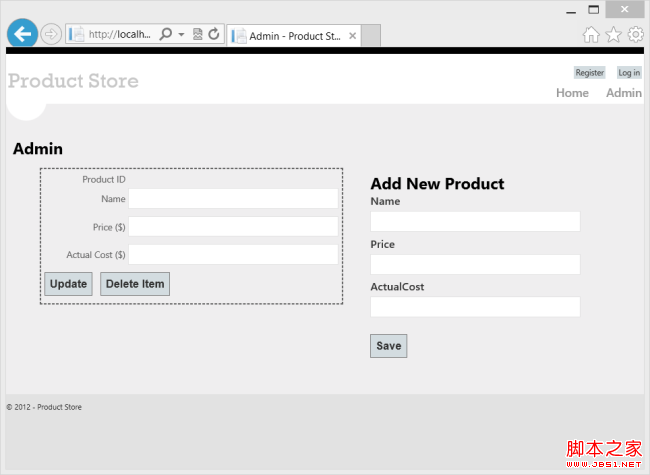
图2-22. Admin页面
Right now, the page doesn't do anything. In the next section, we'll use Knockout.js to create a dynamic UI.
此刻,这个页面不做任何事情。在下一小节中,我们将使用Knockout.js来创建一个动态UI。
Add Authorization
添加授权
The Admin page is currently accessible to anyone visiting the site. Let's change this to restrict permission to administrators.
Admin此刻可以被任何访问网站的人所访问。让我们做点修改,把许可限制到管理员。
Start by adding an "Administrator" role and an administrator user. In Solution Explorer, expand the Filters folder and open the file named InitializeSimpleMembershipAttribute.cs. Locate the SimpleMembershipInitializer constructor. After the call to WebSecurity.InitializeDatabaseConnection, add the following code:
先从添加“Administrator(管理员)”角色和administrator用户开始。在“解决方案资源管理器”中,展开Filters文件夹,并打开名称为InitializeSimpleMembershipAttribute.cs的文件,定位到SimpleMembershipInitializer构造器。在对WebSecurity.InitializeDatabaseConnection的调用之后,添加以下代码:
const string adminRole = "Administrator";
const string adminName = "Administrator";
if (!Roles.RoleExists(adminRole))
{
Roles.CreateRole(adminRole);
}
if (!WebSecurity.UserExists(adminName))
{
WebSecurity.CreateUserAndAccount(adminName, "password");
Roles.AddUserToRole(adminName, adminRole);
}
This is a quick-and-dirty way to add the "Administrator" role and create a user for the role.
这是添加“Administrator”角色并为该角色创建用户的一种快速而直接的方式。
In Solution Explorer, expand the Controllers folder and open the HomeController.cs file. Add the Authorize attribute to the Admin method.
在“解决方案资源管理器”中,展开Controllers文件夹,并打开HomeController.cs文件。把Authorize(授权)注解属性添加到Admin方法上:
[Authorize(Roles="Administrator")]
public ActionResult Admin()
{
return View();
}Open the AdminController.cs file and add the Authorize attribute to the entire AdminController class.
打开AdminController.cs文件,并把Authorize注解属性添加到整个AdminController类上:
[Authorize(Roles="Administrator")]
public class AdminController : ApiController
{
// ...
MVC and Web API both define Authorize attributes, in different namespaces. MVC uses System.Web.Mvc.AuthorizeAttribute, while Web API uses System.Web.Http.AuthorizeAttribute.
MVC和Web API都定义了Authorize注解属性,但位于不同的命名空间。MVC使用的是System.Web.Mvc.AuthorizeAttribute,而Web API使用System.Web.Http.AuthorizeAttribute。
Now only administrators can view the Admin page. Also, if you send an HTTP request to the Admin controller, the request must contain an authentication cookie. If not, the server sends an HTTP 401 (Unauthorized) response. You can see this in Fiddler by sending a GET request to http://localhost:port/api/admin.
现在,只有管理员才可以查看Admin页面。而且,如果对Admin控制器发送一个HTTP请求,该请求必须包含一个认证cookie。否则,服务器会发送一个HTTP 401(未授权)响应。在Fiddler中,通过发送一个http://localhost:port/api/admin的GET请求,便会看到这种情况。
现在我们转入客户端,并添加一个能够使用从Admin控制器而来的数据的页面。通过给控制器发送AJAX请求的方式,该页面将允许用户创建、编辑,或删除产品。
In Solution Explorer, expand the Controllers folder and open the file named HomeController.cs. This file contains an MVC controller. Add a method named Admin:
在“解决方案资源管理器”中,展开Controllers文件夹,并打开名为HomeController.cs的文件。这个文件是一个MVC控制器。添加一个名称为Admin的方法:
复制代码 代码如下:
public ActionResult Admin()
{
string apiUri= Url.HttpRouteUrl("DefaultApi", new { controller = "admin", });
ViewBag.ApiUrl = new Uri(Request.Url, apiUri).AbsoluteUri.ToString();
return View();
}
The HttpRouteUrl method creates the URI to the web API, and we store this in the view bag for later.
HttpRouteUrl方法创建了发送给Web API的URI,我们随后把它存储在视图包(view bag)中。
Next, position the text cursor within the Admin action method, then right-click and select Add View. This will bring up the Add View dialog.
下一步,把文本光标定位到Admin动作方法的内部,然后右击,并选择“添加视图”。这会带出“添加视图”对话框(见图2-20)。
图2-20. 添加视图
In the Add View dialog, name the view "Admin". Select the check box labeled Create a strongly-typed view. Under Model Class, select "Product (ProductStore.Models)". Leave all the other options as their default values.
在“添加视图”对话框中,将此视图命名为“Admin”。选中标签为“创建强类型视图”的复选框。在“模型类”下面,选择“Product (ProductStore.Models)”。保留所有其它选项为其默认值(如图2-21)。
图2-21. “添加视图”对话框的设置
Clicking Add adds a file named Admin.cshtml under Views/Home. Open this file and add the following HTML. This HTML defines the structure of the page, but no functionality is wired up yet.
点击“添加”,会把一个名称为Admin.cshtml的文件添加到Views/Home下。打开这个文件,并添加以下HTML。这个HTML定义了页面的结构,但尚未连接功能。
复制代码 代码如下:
<div class="content">
<div class="float-left">
<ul id="update-products">
<li>
<div><div class="item">Product ID</div><span></span></div>
<div><div class="item">Name</div> <input type="text" /></div>
<div><div class="item">Price ($)</div> <input type="text" /></div>
<div><div class="item">Actual Cost ($)</div> <input type="text" /></div>
<div>
<input type="button" value="Update" />
<input type="button" value="Delete Item" />
</div>
</li>
</ul>
</div>
<div class="float-right">
<h2>Add New Product</h2>
<form id="product">
@Html.ValidationSummary(true)
<fieldset>
<legend>Contact</legend>
@Html.EditorForModel()
<p>
<input type="submit" value="Save" />
</p>
</fieldset>
</form>
</div>
</div>
Create a Link to the Admin Page
创建到Admin页面的链接
In Solution Explorer, expand the Views folder and then expand the Shared folder. Open the file named _Layout.cshtml. Locate the ul element with id = "menu", and an action link for the Admin view:
在“解决方案资源管理器”中,展开Views文件夹,然后展开Shared文件夹。打开名称为_Layout.cshtml的文件。定位到id = "menu"的ul元素,和一个用于Admin视图的动作链接:
复制代码 代码如下:
<li>@Html.ActionLink("Admin", "Admin", "Home")</li>
In the sample project, I made a few other cosmetic changes, such as replacing the string “Your logo here”. These don't affect the functionality of the application. You can download the project and compare the files.
在这个例子项目中,我做了几个其它装饰性的修改,如替换了字符串“Your logo here(这是你的logo)”。这些不会影响此应用程序的功能。你可以下载这个项目并比较此文件。
Run the application and click the “Admin” link that appears at the top of the home page. The Admin page should look like the following:
运行该应用程序,并点击出现在首页顶部的这个“Admin”链接。Admin页面看上去应当像这样(见图2-22):
图2-22. Admin页面
Right now, the page doesn't do anything. In the next section, we'll use Knockout.js to create a dynamic UI.
此刻,这个页面不做任何事情。在下一小节中,我们将使用Knockout.js来创建一个动态UI。
Add Authorization
添加授权
The Admin page is currently accessible to anyone visiting the site. Let's change this to restrict permission to administrators.
Admin此刻可以被任何访问网站的人所访问。让我们做点修改,把许可限制到管理员。
Start by adding an "Administrator" role and an administrator user. In Solution Explorer, expand the Filters folder and open the file named InitializeSimpleMembershipAttribute.cs. Locate the SimpleMembershipInitializer constructor. After the call to WebSecurity.InitializeDatabaseConnection, add the following code:
先从添加“Administrator(管理员)”角色和administrator用户开始。在“解决方案资源管理器”中,展开Filters文件夹,并打开名称为InitializeSimpleMembershipAttribute.cs的文件,定位到SimpleMembershipInitializer构造器。在对WebSecurity.InitializeDatabaseConnection的调用之后,添加以下代码:
复制代码 代码如下:
const string adminRole = "Administrator";
const string adminName = "Administrator";
if (!Roles.RoleExists(adminRole))
{
Roles.CreateRole(adminRole);
}
if (!WebSecurity.UserExists(adminName))
{
WebSecurity.CreateUserAndAccount(adminName, "password");
Roles.AddUserToRole(adminName, adminRole);
}
This is a quick-and-dirty way to add the "Administrator" role and create a user for the role.
这是添加“Administrator”角色并为该角色创建用户的一种快速而直接的方式。
In Solution Explorer, expand the Controllers folder and open the HomeController.cs file. Add the Authorize attribute to the Admin method.
在“解决方案资源管理器”中,展开Controllers文件夹,并打开HomeController.cs文件。把Authorize(授权)注解属性添加到Admin方法上:
复制代码 代码如下:
[Authorize(Roles="Administrator")]
public ActionResult Admin()
{
return View();
}Open the AdminController.cs file and add the Authorize attribute to the entire AdminController class.
打开AdminController.cs文件,并把Authorize注解属性添加到整个AdminController类上:
[Authorize(Roles="Administrator")]
public class AdminController : ApiController
{
// ...
MVC and Web API both define Authorize attributes, in different namespaces. MVC uses System.Web.Mvc.AuthorizeAttribute, while Web API uses System.Web.Http.AuthorizeAttribute.
MVC和Web API都定义了Authorize注解属性,但位于不同的命名空间。MVC使用的是System.Web.Mvc.AuthorizeAttribute,而Web API使用System.Web.Http.AuthorizeAttribute。
Now only administrators can view the Admin page. Also, if you send an HTTP request to the Admin controller, the request must contain an authentication cookie. If not, the server sends an HTTP 401 (Unauthorized) response. You can see this in Fiddler by sending a GET request to http://localhost:port/api/admin.
现在,只有管理员才可以查看Admin页面。而且,如果对Admin控制器发送一个HTTP请求,该请求必须包含一个认证cookie。否则,服务器会发送一个HTTP 401(未授权)响应。在Fiddler中,通过发送一个http://localhost:port/api/admin的GET请求,便会看到这种情况。
相关文章
 本篇文章旨在描述如何在 ASP.NET Core项目中并以一种简便的方式启用CAP事务,因为在我们的示例中都是直接演示比较直观的方式,没有进行封装,有些初学者同学不太会,找到问我如何封装,本篇文章主要基于 Entity Framework 来进行演示2021-10-10
 这篇文章主要介绍了ASP.NET Core使用功能开关控制路由访问操作,而对于一些试验性的功能,我们并不希望用密码去控制是否允许访问,而是想用一种开关的方式开放,下面文章我们就来试着实现这个功能,需要的小伙伴可以参考一下2022-02-02
ASP.NET Core MVC 依赖注入View与Controller
本文重点给大家介绍的是ASP.NET Core MVC 之依赖注入 View 和ASP.NET Core MVC 之依赖注入 Controller的相关资料,需要的小伙伴可以参考下面文章具体内容2021-09-09
.Net Core 配置文件读取IOptions,IOptionsMonitor,IOptionsSnapshot
这篇文章主要介绍了.Net Core配置文件读取IOptions,IOptionsMonitor,IOptionsSnapshot,文章围绕主题展开详细的内容介绍,具有一定的参考价值,需要的小伙伴可以参考一下2022-09-09 这篇文章主要给大家分享的是 NET6新特新 struct优化,在.NET6中针对Struct做了一些优化,下面我们就通过一些案例来看一下.NET6中针对Struct的优化,需要的朋友可以参考一下,希望对大家有所帮助2021-11-11
 ASP遗留的二十个积习2006-07-07
 本文给大家分享的是 .NET6特新 隐式命名空间引用,如果我们要在新加一个命名空间的引用,可以在项目文件中配置增加<Using Include="命名空间"/>,如果需要移除一个命名空间可以这么做<Using Remove="命名空间"/>,下面来看看文章详细介绍内容吧,需要的朋友可以参考一下2021-11-11
 用CSS实现图片倾斜 只支持IE...2007-11-11
 .Net Core作为后起之秀直接将HttpClient扶正,并且在此基础上改良了HttpClientFactory,接下来我们就来探究一下在.Net Core中使用HttpClient处理响应压缩的机制。,需要的朋友可以参考下面文章的具体内容2021-09-09
.NET 6新特性试用Timer类之PeriodicTimer
这篇文章主要介绍了.NET 6新特性试用Timer类之PeriodicTimer,PeriodicTimer与其他Timer需要创建事件回调不同,下,下面文章详细介绍PeriodicTimer的使用方式,需要的朋友可以参考一下2022-02-02
最新评论