

通过剪贴板实现将DataGridView中的数据导出到Excel
更新时间:2014年05月05日 15:53:38 作者:
这篇文章主要介绍了如何通过剪贴板实现将DataGridView中的数据导出到Excel,需要的朋友可以参考下
将DataGridView中的数据导出到Excel中有许多方法,常见的方法是使用Office COM组件将DataGridView中的数据循环复制到Excel Cell对象中,然后再保存整个Excel Workbook。但是如果数据量太大,例如上万行数据或者有多个Excel Sheet需要同时导出,效率会比较低。可以尝试使用异步操作或多线程的方式来解决UI死锁的问题。
这里介绍一种直接通过Windows剪贴板将数据从DataGridView导出到Excel的方法。代码如下:
using System;
using System.Collections.Generic;
using System.ComponentModel;
using System.Data;
using System.Drawing;
using System.Linq;
using System.Text;
using System.Windows.Forms;
using Excel = Microsoft.Office.Interop.Excel;
using System.Reflection;
using Microsoft.Office.Interop.Excel;
namespace WindowsFormsApplication1
{
public partial class Form1 : Form
{
public Form1()
{
InitializeComponent();
this.saveFileDialog1.Filter = "Excel Workbook|*.xlsx|Excel Macro-Enabled Workbook|*.xlsm|Excel 97-2003 Workbook|*.xls";
this.saveFileDialog1.FileName = "demo.xlsx";
LoadData();
}
private void LoadData()
{
BindingList<Car> cars = new BindingList<Car>();
cars.Add(new Car("Ford", "Mustang", 1967));
cars.Add(new Car("Shelby AC", "Cobra", 1965));
cars.Add(new Car("Chevrolet", "Corvette Sting Ray", 1965));
this.dataGridView1.DataSource = cars;
}
private void toolStripButton1_Click(object sender, EventArgs e)
{
string filePath = string.Empty;
if (this.saveFileDialog1.ShowDialog() == System.Windows.Forms.DialogResult.OK)
{
filePath = this.saveFileDialog1.FileName;
}
else
{
return;
}
this.dataGridView1.SelectAll();
Clipboard.SetDataObject(this.dataGridView1.GetClipboardContent());
Excel.Application objExcel = null;
Excel.Workbook objWorkbook = null;
Excel.Worksheet objsheet = null;
try
{
objExcel = new Microsoft.Office.Interop.Excel.Application();
objWorkbook = objExcel.Workbooks.Add(Missing.Value);
objsheet = (Excel.Worksheet)objWorkbook.ActiveSheet;
objExcel.Visible = false;
objExcel.get_Range("A1", System.Type.Missing).PasteSpecial(XlPasteType.xlPasteAll, XlPasteSpecialOperation.xlPasteSpecialOperationNone, Type.Missing, Type.Missing);
objsheet.Name = "Demo";
//Set table properties
objExcel.Cells.EntireColumn.AutoFit();//auto column width
objExcel.Cells.VerticalAlignment = Microsoft.Office.Interop.Excel.Constants.xlCenter;
objExcel.Cells.HorizontalAlignment = Microsoft.Office.Interop.Excel.Constants.xlLeft;
objExcel.ErrorCheckingOptions.BackgroundChecking = false;
//save file
objWorkbook.SaveAs(filePath, Missing.Value, Missing.Value, Missing.Value, Missing.Value,
Missing.Value, Excel.XlSaveAsAccessMode.xlShared, Missing.Value, Missing.Value, Missing.Value,
Missing.Value, Missing.Value);
}
catch (Exception error)
{
MessageBox.Show(error.Message, "Error", MessageBoxButtons.OK, MessageBoxIcon.Error);
return;
}
finally
{
//Dispose the Excel related objects
if (objWorkbook != null)
{
objWorkbook.Close(Missing.Value, Missing.Value, Missing.Value);
}
if (objExcel.Workbooks != null)
{
objExcel.Workbooks.Close();
}
if (objExcel != null)
{
objExcel.Quit();
}
objsheet = null;
objWorkbook = null;
objExcel = null;
GC.Collect(); // force final cleanup.
}
}
}
public class Car
{
private string _make;
private string _model;
private int _year;
public Car(string make, string model, int year)
{
_make = make;
_model = model;
_year = year;
}
public string Make
{
get { return _make; }
set { _make = value; }
}
public string Model
{
get { return _model; }
set { _model = value; }
}
public int Year
{
get { return _year; }
set { _year = value; }
}
}
}
导出数据到Excel的操作在事件toolStripButton1_Click中,代码的第49行和50行是将DataGridView当前选中的行复制到系统剪贴板中,62行将剪贴板中的内容粘贴到Excel默认Sheet的A1单元格中。Excel会自动格式化将粘贴的内容,如下图。
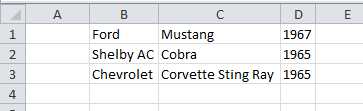
使用剪贴板导出数据过程比较简单,省去了对Excel对象的遍历和操作,缺点是无法对导出的数据进行格式和样式的设置。如果需要对导出的数据进行样式设置,可以尝试使用OpenXML的方式来修改Excel文件的样式,
这里介绍一种直接通过Windows剪贴板将数据从DataGridView导出到Excel的方法。代码如下:
复制代码 代码如下:
using System;
using System.Collections.Generic;
using System.ComponentModel;
using System.Data;
using System.Drawing;
using System.Linq;
using System.Text;
using System.Windows.Forms;
using Excel = Microsoft.Office.Interop.Excel;
using System.Reflection;
using Microsoft.Office.Interop.Excel;
namespace WindowsFormsApplication1
{
public partial class Form1 : Form
{
public Form1()
{
InitializeComponent();
this.saveFileDialog1.Filter = "Excel Workbook|*.xlsx|Excel Macro-Enabled Workbook|*.xlsm|Excel 97-2003 Workbook|*.xls";
this.saveFileDialog1.FileName = "demo.xlsx";
LoadData();
}
private void LoadData()
{
BindingList<Car> cars = new BindingList<Car>();
cars.Add(new Car("Ford", "Mustang", 1967));
cars.Add(new Car("Shelby AC", "Cobra", 1965));
cars.Add(new Car("Chevrolet", "Corvette Sting Ray", 1965));
this.dataGridView1.DataSource = cars;
}
private void toolStripButton1_Click(object sender, EventArgs e)
{
string filePath = string.Empty;
if (this.saveFileDialog1.ShowDialog() == System.Windows.Forms.DialogResult.OK)
{
filePath = this.saveFileDialog1.FileName;
}
else
{
return;
}
this.dataGridView1.SelectAll();
Clipboard.SetDataObject(this.dataGridView1.GetClipboardContent());
Excel.Application objExcel = null;
Excel.Workbook objWorkbook = null;
Excel.Worksheet objsheet = null;
try
{
objExcel = new Microsoft.Office.Interop.Excel.Application();
objWorkbook = objExcel.Workbooks.Add(Missing.Value);
objsheet = (Excel.Worksheet)objWorkbook.ActiveSheet;
objExcel.Visible = false;
objExcel.get_Range("A1", System.Type.Missing).PasteSpecial(XlPasteType.xlPasteAll, XlPasteSpecialOperation.xlPasteSpecialOperationNone, Type.Missing, Type.Missing);
objsheet.Name = "Demo";
//Set table properties
objExcel.Cells.EntireColumn.AutoFit();//auto column width
objExcel.Cells.VerticalAlignment = Microsoft.Office.Interop.Excel.Constants.xlCenter;
objExcel.Cells.HorizontalAlignment = Microsoft.Office.Interop.Excel.Constants.xlLeft;
objExcel.ErrorCheckingOptions.BackgroundChecking = false;
//save file
objWorkbook.SaveAs(filePath, Missing.Value, Missing.Value, Missing.Value, Missing.Value,
Missing.Value, Excel.XlSaveAsAccessMode.xlShared, Missing.Value, Missing.Value, Missing.Value,
Missing.Value, Missing.Value);
}
catch (Exception error)
{
MessageBox.Show(error.Message, "Error", MessageBoxButtons.OK, MessageBoxIcon.Error);
return;
}
finally
{
//Dispose the Excel related objects
if (objWorkbook != null)
{
objWorkbook.Close(Missing.Value, Missing.Value, Missing.Value);
}
if (objExcel.Workbooks != null)
{
objExcel.Workbooks.Close();
}
if (objExcel != null)
{
objExcel.Quit();
}
objsheet = null;
objWorkbook = null;
objExcel = null;
GC.Collect(); // force final cleanup.
}
}
}
public class Car
{
private string _make;
private string _model;
private int _year;
public Car(string make, string model, int year)
{
_make = make;
_model = model;
_year = year;
}
public string Make
{
get { return _make; }
set { _make = value; }
}
public string Model
{
get { return _model; }
set { _model = value; }
}
public int Year
{
get { return _year; }
set { _year = value; }
}
}
}
导出数据到Excel的操作在事件toolStripButton1_Click中,代码的第49行和50行是将DataGridView当前选中的行复制到系统剪贴板中,62行将剪贴板中的内容粘贴到Excel默认Sheet的A1单元格中。Excel会自动格式化将粘贴的内容,如下图。
使用剪贴板导出数据过程比较简单,省去了对Excel对象的遍历和操作,缺点是无法对导出的数据进行格式和样式的设置。如果需要对导出的数据进行样式设置,可以尝试使用OpenXML的方式来修改Excel文件的样式,
相关文章
 这篇文章主要介绍了asp.net中的check与uncheck关键字用法,以实例形式较为详细的分析了check与uncheck关键字的各种常见用法与使用时的注意事项,非常具有实用价值,需要的朋友可以参考下2014-10-10
 这篇文章介绍了ABP框架中的事件总线功能,文中通过示例代码介绍的非常详细。对大家的学习或工作具有一定的参考借鉴价值,需要的朋友可以参考下2022-02-02
 假如我们要同时更新几张表就必定需要使用事务操作。2010-02-02
.NET9 EFcore支持早期MSSQL数据库 ROW_NUMBER()分页功能
文章介绍了如何在.NET 9中使用EF Core实现对早期MSSQL数据库的ROW_NUMBER()分页兼容,由于EF Core 9对底层API进行了重大更新,原有的兼容代码需要重新实现,具体实现代码跟随小编一起看看吧2024-11-11
IdentityServer4实现.Net Core API接口权限认证(快速入门)
这篇文章主要介绍了IdentityServer4实现.Net Core API接口权限认证,文中通过示例代码介绍的非常详细,对大家的学习或者工作具有一定的参考学习价值,需要的朋友们下面随着小编来一起学习学习吧2020-03-03
Visual Studio 2017中找回消失的“在浏览器中查看”命令
这篇文章主要为大家详细介绍了如何在Visual Studio 2017中找回消失的“在浏览器中查看”命令,具有一定的参考价值,感兴趣的小伙伴们可以参考一下2017-03-03 MVC是一种架构设计模式,该模式主要应用于图形化用户界面(GUI)应用程序。那么什么是MVC?MVC由三部分组成:Model(模型)、View(视图)及Controller(控制器)2014-03-03
ASP.NET中Onclick与OnClientClick遇到的问题
本文主要介绍了ASP.NET中Onclick与OnClientClick遇到的问题,文中通过示例代码介绍的非常详细,对大家的学习或者工作具有一定的参考学习价值,需要的朋友们下面随着小编来一起学习学习吧2025-04-04
asp.net中3种验证码示例(实现代码)(数字,数字字母混和,汉字)
asp.net中3种验证码示例代码,分别是数字,数字字母混和,汉字,需要的朋友可以参考下2012-10-10
C#调用动态unlha32.dll解压Lha后缀的打包文件分享
这篇文章介绍了,C#调用动态unlha32.dll解压Lha后缀的打包文件,有需要的朋友可以参考一下2013-09-09
最新评论