

在ASP.NET 2.0中操作数据之六十三:GridView实现批量删除数据
导言:
在前面的教程,我们用GridView创建了一个批编辑界面。在用户需要一次性编辑多条记录的情况下,批编辑界面很有用。同理,当用户需要同时删除多条记录时,该技术也很有用.
如果你使用过邮件系统的话,你应该对这种最常见的批删除界面很熟悉:界面里每一行都包含一个checkbox,此外,还有一个“Delete All Checked Items”按钮(如图1).本教程比较短,因为我们在前面的教程已经完成大体的框架,在前面的第50章《为GridView控件添加Checkbox》里我们创建了一个包含一个checkboxes列的GridView控件;而在61章《在事务里对数据库修改进行封装》里,我们在BLL业务逻辑层里创建了一个方法,该方法使用事务来删除基于ProductID 的记录.在本教程,我们将整合这些内容来创建一个处理批删除的示例.

图1:每一行都包含一个Checkbox
第一步:创建批删除界面
由于我们在第52章已经创建了一个批删除界面,因此我们可以简单的将其拷贝到BatchDelete.aspx页面。首先,打开BatchData文件夹里的BatchDelete.aspx页面,以及EnhancedGridView文件夹里的CheckBoxField.aspx页面。在CheckBoxField.aspx页面,切换到Source模式,将<asp:Content>标签里的代码进行复制.
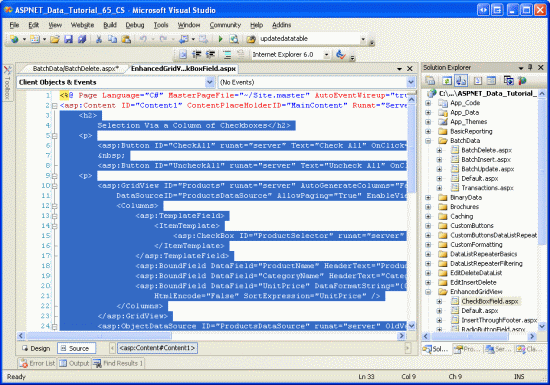
图2:复制CheckBoxField.aspx页面里的声明代码
然后,切换到BatchDelete.aspx页面的Source模式,将代码粘贴到<asp:Content>标签里.同理,将CheckBoxField.aspx.cs里面的后台代码拷贝到BatchDelete.aspx.cs里.(具体来说,就是将DeleteSelectedProducts按钮的Click event事件、ToggleCheckState方法、CheckAll 和 UncheckAll按钮的Click event事件)。完成拷贝后,BatchDelete.aspx页面的后台代码类应该包含下面的代码:
using System;
using System.Data;
using System.Configuration;
using System.Collections;
using System.Web;
using System.Web.Security;
using System.Web.UI;
using System.Web.UI.WebControls;
using System.Web.UI.WebControls.WebParts;
using System.Web.UI.HtmlControls;

public partial class BatchData_BatchDelete : System.Web.UI.Page
{
 protected void DeleteSelectedProducts_Click(object sender, EventArgs e)
 {
 bool atLeastOneRowDeleted = false;

 // Iterate through the Products.Rows property
 foreach (GridViewRow row in Products.Rows)
 {
 // Access the CheckBox
 CheckBox cb = (CheckBox)row.FindControl("ProductSelector");
 if (cb != null && cb.Checked)
 {
 // Delete row! (Well, not really...)
 atLeastOneRowDeleted = true;

 // First, get the ProductID for the selected row
 int productID = Convert.ToInt32(Products.DataKeys[row.RowIndex].Value);

 // "Delete" the row
 DeleteResults.Text += string.Format
  ("This would have deleted ProductID {0}<br />", productID);

 //... To actually delete the product, use ...
 //ProductsBLL productAPI = new ProductsBLL();
 //productAPI.DeleteProduct(productID);
 //............................................
 }
 }

 // Show the Label if at least one row was deleted...
 DeleteResults.Visible = atLeastOneRowDeleted;
 }

 private void ToggleCheckState(bool checkState)
 {
 // Iterate through the Products.Rows property
 foreach (GridViewRow row in Products.Rows)
 {
 // Access the CheckBox
 CheckBox cb = (CheckBox)row.FindControl("ProductSelector");
 if (cb != null)
 cb.Checked = checkState;
 }
 }

 protected void CheckAll_Click(object sender, EventArgs e)
 {
 ToggleCheckState(true);
 }

 protected void UncheckAll_Click(object sender, EventArgs e)
 {
 ToggleCheckState(false);
 }
}
完成上述工作后,花几分钟在浏览器里测试该页面.你应该首先看到一个GridView控件列出了前10个产品,每行列出了产品的name, category,price以及一个checkbox. 同时应该有3个按钮“Check All”, “Uncheck All”和“Delete Selected Products”.点“Check All”按钮将会选中所有的checkboxes;而“Uncheck All”按钮将释放所有的
checkboxes;点“Delete Selected Products”的话将显示一个消息,列出选中的产品的ProductID值,不过并不会真的删除产品.
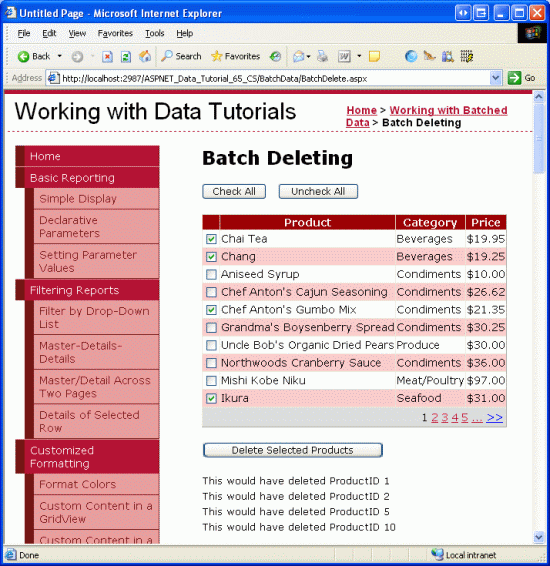
图3:CheckBoxField.aspx页面的界面搬到了BatchDeleting.aspx页面
第二步:在事务里删除选中的产品
完成界面后,剩下的事情是更新代码,以便当点击“Delete Selected Products”按钮时,使用ProductsBLL class类里的DeleteProductsWithTransaction方法来删除选中的产品.该方法是我们在第61章《在事务里对数据库修改进行封装》里添加的,它接受一系列的ProductID值,然后在一个事务里将删除对应的ProductID的记录.
DeleteSelectedProducts按钮的Click事件目前使用的foreach循环如下:
// Iterate through the Products.Rows property
foreach (GridViewRow row in Products.Rows)
{
 // Access the CheckBox
 CheckBox cb = (CheckBox)row.FindControl("ProductSelector");
 if (cb != null && cb.Checked)
 {
 // Delete row! (Well, not really...)
 atLeastOneRowDeleted = true;

 // First, get the ProductID for the selected row
 int productID = Convert.ToInt32(Products.DataKeys[row.RowIndex].Value);

 // "Delete" the row
 DeleteResults.Text += string.Format
 ("This would have deleted ProductID {0}<br />", productID);

 //... To actually delete the product, use ...
 //ProductsBLL productAPI = new ProductsBLL();
 //productAPI.DeleteProduct(productID);
 //............................................
 }
}
对每行而言,编程引用ProductSelector CheckBox控件,如果它被选中,从DataKeys collection集获取该产品的ProductID值,然后更新DeleteResults控件的Text属性以显示要删除该行.
上面的代码并不会真的删除任何的记录,因为在ProductsBLL class类里我们只是注释出了如何使用Delete方法。 不过就算实际地运用了这些删除逻辑,这些代码虽然可以删除产品但没有运用原子操作.也就是说,如果按顺序对头几个产品删除成功,如果接下来的某个产品删除失败(比如可能是违背里外键约束),那么将抛出一个异常,但是前面的删除操作并不会回滚.
为了保证使用原子操作,我们将转为使用ProductsBLLclass类的DeleteProductsWithTransaction method方法.由于该方法接受一系列的ProductID值,
我们首先需要编译这一系列的值,再将其作为参数传递出去.我们首先创建一个int类型的List<T>的实例,在foreach循环里我们需要将产品的ProductID值添加给List<T>,结束循环后,List<T>将传递给ProductsBLL class类的DeleteProductsWithTransaction method方法,用下面的代码对DeleteSelectedProducts按钮的Click事件处理器进行更新:
protected void DeleteSelectedProducts_Click(object sender, EventArgs e)
{
 // Create a List to hold the ProductID values to delete
 System.Collections.Generic.List<int> productIDsToDelete =
 new System.Collections.Generic.List<int>();

 // Iterate through the Products.Rows property
 foreach (GridViewRow row in Products.Rows)
 {
 // Access the CheckBox
 CheckBox cb = (CheckBox)row.FindControl("ProductSelector");
 if (cb != null && cb.Checked)
 {
 // Save the ProductID value for deletion
 // First, get the ProductID for the selected row
 int productID = Convert.ToInt32(Products.DataKeys[row.RowIndex].Value);

 // Add it to the List...
 productIDsToDelete.Add(productID);

 // Add a confirmation message
 DeleteResults.Text += string.Format
 ("ProductID {0} has been deleted<br />", productID);
 }
 }

 // Call the DeleteProductsWithTransaction method and show the Label
 // if at least one row was deleted...
 if (productIDsToDelete.Count > 0)
 {
 ProductsBLL productAPI = new ProductsBLL();
 productAPI.DeleteProductsWithTransaction(productIDsToDelete);

 DeleteResults.Visible = true;

 // Rebind the data to the GridView
 Products.DataBind();
 }
}
上述代码创建了一个int类型的List<T>(也就是productIDsToDelete),并用ProductID值对其进行填充,foreach循环结束后,如果至少选中了一个产品,将调用ProductsBLL 类的DeleteProductsWithTransaction method方法,并传递该List。名为DeleteResults的Label控件也将显示出来;数据重新绑定到GridView(自然,刚删除掉的记录将不会显示出来).
图4里,我们选择几个产品以删除;图5显示的是点击“Delete Selected Products”按钮后的界面.注意,在Label控件里显示的已经删除的产品的ProductID值,而这些产品已经删除掉了,并没有出现在GridView控件里.

图4:选中的产品将被删除
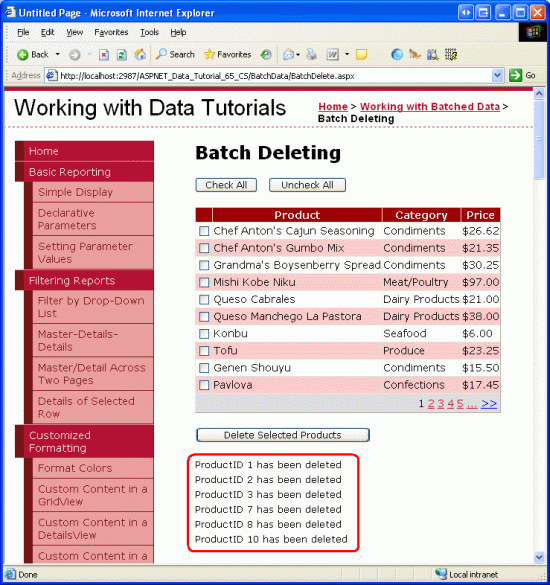
图5:被删除产品的ProductID值出现的GridView下面的Label控件里
注意:为验证DeleteProductsWithTransaction method方法的原子操作,你可以为某个产品在Order Details表里手动添加一个条目,然后尝试删除该产品(当然与其它产品一起删除).这将会违背外键约束,注意对其它产品的删除操作是如何回滚的.
总结:
创建一个批删除界面的话,我们需要创建一个包含checkboxes列的GridView控件,以及Button Web控件。当点击该按钮时,我们将删除多个产品当作一个单一原子操作.在本文,我们创建的界面整合了以前的2个章节的内容.
在下一篇,我们考察如何创建一个批插入的界面
祝编程快乐!
作者简介
本系列教程作者 Scott Mitchell,著有六本ASP/ASP.NET方面的书,是4GuysFromRolla.com的创始人,自1998年以来一直应用 微软Web技术。大家可以点击查看全部教程《[翻译]Scott Mitchell 的ASP.NET 2.0数据教程》,希望对大家的学习ASP.NET有所帮助。
相关文章

解读ASP.NET 5 & MVC6系列教程(6):Middleware详解
这篇文章主要介绍了Middleware详解,需要的朋友可以参考下2016-06-06
Microsoft .Net Remoting系列教程之三:Remoting事件处理全接触
本文主要讲解.Net Remoting中的Remoting事件处理,需要的朋友可以参考下。2016-05-05
在ASP.NET 2.0中操作数据之二十八:GridView里的Button
本文主要介绍ASP.NET 2.0在GridView,DetailsView,FormView都可以包含Buttons,LinkButtons,或ImageButtons.这些button被点击时,并激发FormView和DetailsView的ItemCommand事件,GridView的RowCommand事件,根据CommandName的值来判断哪个button被点击了,执行相应的代码。2016-05-05 在写ASP程序的时候,上传文件就是一个难人的问题,组件的、无组件的,是用化境的、风声的还是无惧的,每个人都要学习这些家伙的使用,要么就得自己去写,还要整明白多文件上传时的处理等等。2008-10-10
在ASP.NET 2.0中操作数据之四十二:DataList和Repeater数据排序(一)
本文主要介绍利用ObjectDataSource的Selecting事件进行DataList和Repeater数据排序的方法,DropDownList隐式的为我们将sort expression 和 direction保存在它的view state里,进行分页时从view state中取出条件进行排序。2016-05-05
解读ASP.NET 5 & MVC6系列教程(9):日志框架
这篇文章主要介绍了ASP.NET 5 日志框架,通过基于接口的编程机制和DI依赖注入机制,我们可以很容易实现第三方日志provider的扩展,从而将日志记录到我们想记录的任意地方,需要的朋友可以参考下2016-06-06 本文对MVC模式(模型-视图-控制器)做了简单的介绍,并演示如何添加一个控制器。2016-04-04
 Consul是HashiCorp公司推出的开源工具,Consul由Go语言开发,部署起来非常容易,只需要极少的可执行程序和配置文件,具有绿色、轻量级的特点。Consul是分布式的、高可用的、 可横向扩展的用于实现分布式系统的服务发现与配置2022-01-01
在ASP.NET 2.0中操作数据之十九:给编辑和新增界面增加验证控件
本文主要介绍如何对GridView和DetailsView的新增、编辑功能进行完善,将原来自动生成的绑定列转换为模板列,进而增加验证控件,有助于更多了解ASP.NET 2.0中新的特性。2016-05-05 本文介绍了一些.NET中用到的分布式缓存框架,和一些开源的程序,以及一些常见的类库,供大家学习参考。2016-03-03
最新评论