

JS制作图形验证码实现代码
更新时间:2020年10月19日 09:21:09 作者:qq_24147051
这篇文章主要为大家详细介绍了JS制作图形验证码实现代码,文中示例代码介绍的非常详细,具有一定的参考价值,感兴趣的小伙伴们可以参考一下
第一步我们来到要展示验证码的页面,当我们按下营业执照的时候让其,弹出一个弹框,弹框的上面就是验证码,如图一所示:

(图一)
弹框的样式如图二所示:

(图二)
我们要对验证码的值进行校验,判断验证码是否输入正确,当输入不正确的时候,我们提示错误信息,提示信息如图三所示:
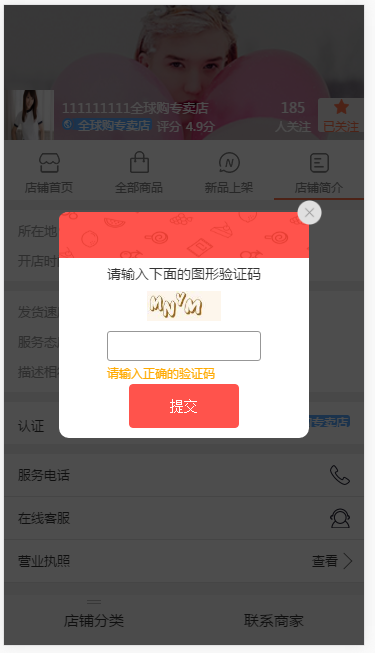
(图三)
如果页面了验证正确,这不会提示错误信息并且调到我们的目标页面,如图四所示:

(图四)
路由层描述
 /**
  供货商店铺-店铺简介
  */
  //1-在路由层进行设置,页面跳转到根目录下/buyer/vshop/info.ejs页面进行跳转,然后在回调函数中进行接口的调用
  router.get('/buyer/vshop/info', function(req, res, next) {
  //2-调用接口获取数据
  async.parallel({
  verifycode :function(fn){
  //3-调用接口获取本机的IP地址
   var args= {
   userIp: tools.getClientIp(req)
   };

   //4-调用接口verifyCodeHelper的createVcode方法获取captcha与 csnonce的数据,他们的值都是腾讯接口verifyCodeHelper返回的数据

   verifyCodeHelper.createVcode(args, function(err, result){
   if (err) {
    console.log(err);
   }
   else{
    fn(null, {
    captcha: result.data.queryUrl,
    csnonce: result.csnonce || 0
    })
   }
   });
  }
  },function(err, result){
  if (err) {
   res.end(err);
  }else{
   result.getDetail= res.shopInfo;
   var fxzStatus = res.fxzStatus || {};

  //5-进行根目录下buyer/vshop/describe页面的渲染,传递相关参数到EJS页面

   res.render("buyer/vshop/describe", {
   title: srcBizType==1 ? result.getDetail.name : "店铺简介",
   pageName:"vshopInfo",
   captcha:result.verifycode.captcha,//验证码
   isTencent: 1,
   csnonce:result.verifycode.csnonce
   });
  }
  });
 });
EJS层描述
 <%- include ../../header %>
 //1-获取路由传递的 csnonce
 <script>
 APP.newLogin= {
  csnonce: '<%- csnonce %>',
 };
 <link href="/css/vshop/describe.css?v=<%= config.version %>" rel="stylesheet" />
 <style id="dynamic"></style>
 <div class="arrow_mask"></div>
 <div class="arrow">
 <div>
  <img src="/imgs/vshop/verification-code-back.png" class="verification-code-back" />
 </div>
 <ul class="arrow-mess"> <span class="sku-close" id="btn_sku_dialog_close"> </span>
  <li>请输入下面的图形验证码</li>
  <li>
   <img id="J_BtnVerifyPicCodeTencent" src="" class="captcha" style="height:30px;margin:0 15px;" />
  </li>
  <li>
  <div class="btn_mes">
   <input class="btn_mes_text" type="text" maxlength="6">
  </div>
  </li>
 </ul>
 <div class="btn_mes2">
  <input type="button" class="license-submit" value="提交">
 </div>
 </div>
 <div data-role="container" class="body <%= pageName %>">
 <header data-role="header">
  <%- include ./widget_vshop %>
 </header>
 <section data-role="body" class="section-body">
  <div class="div-section div-section-info">
  <ul class="info1">
   <li class="gap"><div class="left">所在地</div><div class="right"><%- detail.address%></div></li>
   <li><div class="left">开店时间</div><div class="right"><%- detail.createTime%></div></li>
  </ul>
  <ul class="info2">
   <li class="gap"><div class="left">发货速度</div><div class="right"><%- detail.score.express%></div></li>
   <li class="gap"><div class="left">服务态度</div><div class="right"><%- detail.score.service%></div></li>
   <li><div class="left">描述相符</div><div class="right"><%- detail.score.describe%></div></li>
  </ul>
  <ul class="info3">
   <%if(detail.shopTypeIndex==1||detail.shopTypeIndex==2||detail.shopTypeIndex==3){var bg = '/imgs/vshop/tip.png',color='#39dda5' }else{var bg = '/imgs/vshop/tip3.png',color='#59aaff'}%>
   <li><div class="left anotherC">认证</div><div class="right textR"><span style="background: url(<%-bg%>) left 1px no-repeat;background-size: 14px 12px;"><i style="background: <%-color%>"><%- detail.shopType %></i></span></div></li>
  </ul>
  <ul class="info4">
   <li><a href="tel:<%- detail.phone%>" class="tel">服务电话</a></li>
   <li><a data-aid="<%- aid%>" class="webim">在线客服</a></li>
   <li class="business-license">
   <!--<a href="/buyer/vshop/license?aid=<%- aid%>">-->
   <a href="#">
    <span >营业执照</span>
    <label>查看<span></span></label>
   </a>

   </li>
  </ul>
  </div>
  <%- include ./footer %>
  <div id="vue_hooker">
  <child-nav></child-nav>
  <%- include ../../widget_navBtns %>
  </div>
 </section>
 </div>
 //2-获取路由传递的captcha
 <script type="text/javascript" src="<%= captcha %>"></script>
 //3-引入相关JS文件
 <script>
 seajs.use("js_cmd/vshop/home-cmd");
 </script>
 <%- include ../../footer %>
JS层描述
 /**
 这是一个公用文件,vshop首页&vshop全部商品共用
 */
 //1-引入页面所需的各个模块
 define(function (require, exports, module) {
 var $ = require("./top-suction-cmd"),
  myDialog = require("lib_cmd/myDialog-cmd"),
  main = require("js_cmd/main-cmd"),
  DataLoader = require("./tool-cmd"),
  fxzTool = require("./fxzTool-cmd"),
  Vue = require("lib_cmd/vue-cmd"),
  widget_navBtns = require("js_cmd/navBtns-cmd"),
  $eles = {},
  eles = {};

 //2-Vue实例化
 var vm = new Vue({
  data: {},
  methods: {}
 });

 //3- 页面初始化函数

 function initPage() {
  vm.$mount('#vue_hooker');
  window.scroll(0,0);
 }
 //4- 验证码相关处理函数
 function license(){
  $('.info4 .business-license').click(function (ev) { //弹层
  $('.btn_mes_text').val("");
  $('.arrow_mask').show();
  $('.arrow').show();
  $('#nav_omit').remove();
  });
  $('#btn_sku_dialog_close').click(function(ev){//弹窗
  $('.arrow_mask').hide();
  $('.arrow').hide();
  $('.btn_mes_text').val("");
  });

  $('.btn_mes_text').focus(function(){ //输入框获得焦点
  $('.btn_mes_text').val("");
  if($('.verification-code').length!=0){
   $('.verification-code').remove();
  }
  });
  $('.license-submit').click(function(){
  APP.verifyPicCode();
  });

 }

 //5- 验证码初始化函数() TSOCapObj是腾讯接口里面的方法

 function verify_initPage(){
  $('#J_BtnVerifyPicCodeTencent').on('click', function () {
  TSOCapObj.refresh();
  });
  //初始化,参数传入显示验证码的元素imgid
  TSOCapObj.init("J_BtnVerifyPicCodeTencent");
  //刷新拉取验证码图片
  TSOCapObj.refresh();

  APP.verifyPicCode= function(fn) {
  //获取用户输入
  var ans = $(".btn_mes_text").val();
  //验证答案,验证完成后会回调第二个参数传入的函数
  TSOCapObj.verify(ans , function(ret_json){
   if (ret_json.errorCode!=0) {
   $(".btn_mes_text").val("");
   TSOCapObj.refresh();
   //tip("图形验证码输入错误!");
   if($('.verification-code').length==0){
    $('.btn_mes').eq(0).append(" <div class='verification-code'>请输入正确的验证码</div>");
   }
   $('.btn_mes_text').blur(function(){
    $('.btn_mes_text').text("");
   });
   } else {
   window.location="/buyer/vshop/license?aid=" + APP.aid;
   fn(ret_json.ticket);
   }
  });
  }
 }

  //6- 页面初始化函数的执行
 $(function () {
  initPage();
  license();
  verify_initPage();
 });

 });
CCS层描述
 @import url(common.css);

 .div-section-info .info4{padding: 0}
 .div-section-info .info4 li{
 padding: 11px 14px;
 line-height: 20px;
 border-bottom: 1px solid #e6e6e6;

 }
 .div-section-info .info4 li a{
 color: #333;

 display: block;
 }
 .div-section-info .info4 li a.tel{
 background: url(/imgs/vshop/callAndMsg.png) no-repeat;
 background-size: 20px 60px;
  background-position: right 0;
 }
 .div-section-info .info4 li a.webim{
 background: url(/imgs/vshop/callAndMsg.png) no-repeat;
 background-size: 20px 60px;
 background-position: right -30px;
 }
 .div-section-info .info4 li a label{
 display: block;
 float: right;
 }

 .div-section-info .info4 li a label span{
 display: block;
 width: 12px;
 height: 12px;
 border-right:1px solid #666;
 border-bottom:1px solid #666;
 -webkit-transform:rotate(-45deg);
 float: right;
 margin-top: 4px;

 }
 .arrow_mask {
 position: fixed;
 top: 0;
 left: 0;
 bottom: 0;
 right: 0;
 z-index: 101;
 display: none;
 background: black;
 opacity: 0.7;
 }
 .arrow{
 width: 250px;
 height: 226px;
 background-color: #FFFFFF;
 position: fixed;
 top: 50%;
 left: 50%;
 z-index: 102;
 -webkit-transform: translate(-50%, -50%);
 -moz-transform: translate(-50%, -50%);
 -ms-transform: translate(-50%, -50%);
 -o-transform: translate(-50%, -50%);
 transform: translate(-50%, -50%);
 border-radius: 10px;
 display: none;
 }
 .arrow-mess li:nth-of-type(1){
 text-align: center;
 margin-bottom: 8px;
 font-size: 14px;
 color: #333333;
 }
 .arrow-mess li:nth-of-type(2){
 text-align: center;
 margin-bottom: 10px;
 }
 .arrow-mess li:nth-of-type(3) input{
 width: 100%;
 height: 30px;
 border: 1px solid #979797;
 text-align: center;
 border-radius: 3px;
 font-family: PingFangSC-Regular;
 font-size: 16px;
 color: #333333;
 letter-spacing: 0px;
 }
 .btn_mes{
 margin-bottom: 15px;
 width: 100%;
 padding-left: 48px;
 padding-right: 48px;
 position: relative;
 }
 .btn_mes2{
 width: 100%;
 padding-left: 70px;
 padding-right: 70px;
 /* position: relative; */
 position: absolute;
 bottom: 0px;
 margin-bottom: 10px;
 }

 .license-submit{
 width: 100%;
 height: 44px;
 background: #FF534C;
 border: 1px solid #FF534C;
 font-size: 14px;
 border-radius: 4px;
 color: #FFFFFF;
 }

 .sku-close {
 background: url(/imgs/vshop/verification-code-del.png) no-repeat right;
 -webkit-background-size: 25px auto;
 display: inline-block;
 width: 26px;
 height: 26px;
 position: absolute;
 right: 0px;
 top: 0px;
 margin-right: -13px;
 margin-top: -13px;
 }
 .verification-code{
 z-index: 102;
 color: #FFAA00;
 position: absolute;
 font-size: 12px;
 top: 4px;
 }
 .verification-code-back{
 width: 100%;
 position: absolute;
 height: 46px;
 }
 .arrow div:nth-of-type(1){
 position: relative;
 }
 .arrow-mess{
 margin-top: 52px;
 }
以上就是本文的全部内容,希望对大家的学习有所帮助,也希望大家多多支持脚本之家。
相关文章
 这篇文章主要介绍了微信小程序实现图片翻转效果的实例代码,代码简单易懂,非常不错,具有一定的参考借鉴价值,需要的朋友可以参考下2019-09-09
 IE浏览器打印的页眉页脚设置解决方法2009-12-12
 本篇文章主要教给大家如何在javascript中动态加载按顺序加载运行js的方法以及实现代码,需要的朋友参考学习下吧。2017-12-12
原生JavaScript实现动态省市县三级联动下拉框菜单实例代码
像平时购物选择地址时一样,通过选择的省动态加载城市列表,通过选择的城市动态加载县区列表,从而可以实现省市县的三级联动,下面使用原生的JavaScript来实现这个功能,需要的朋友参考下吧2016-02-02 这篇文章主要介绍了使用ThinkJs搭建微信中控服务的实现方法,文中通过示例代码介绍的非常详细,对大家的学习或者工作具有一定的参考学习价值,需要的朋友们下面随着小编来一起学习学习吧2019-08-08
 这篇文章主要介绍了apicloud拉起小程序并传递参数的方法示例,小编觉得挺不错的,现在分享给大家,也给大家做个参考。一起跟随小编过来看看吧2018-11-11
promise和co搭配生成器函数方式解决js代码异步流程的比较
这篇文章主要介绍了promise和co搭配生成器函数方式解决js代码异步流程的比较,在es6中引入的原生Promise为js的异步回调问题带来了一个新的解决方式co模块搭配Generator函数的同步写法,更是将js的异步回调带了更优雅的写法。感兴趣的小伙伴们可以参考一下2018-05-05 这篇文章主要介绍了JavaScript闭包原理与用法,结合实例形式分析了javascript闭包的概念、功能、常见问题及相关操作技巧,需要的朋友可以参考下2018-08-08
 这篇文章主要为大家详细介绍了JavaScript仿百度切换皮肤功能,具有一定的参考价值,感兴趣的小伙伴们可以参考一下2016-07-07
 我们经常使用 window.onload 来处理页面,当页面加载完成做一些事情。但这个 window.onload 是页面全部加载完成,甚至包括图片,下面我们就来详细探讨下window.onload的用法2015-09-09
最新评论