

uni-app微信小程序之红包雨活动完整源码
更新时间:2024年01月30日 11:47:47 作者:范特西是只猫
最近公司需求做一个微信红包雨功能,这里给大家总结下实现的方法,这篇文章主要给大家介绍了关于uni-app微信小程序之红包雨活动的相关资料,需要的朋友可以参考下
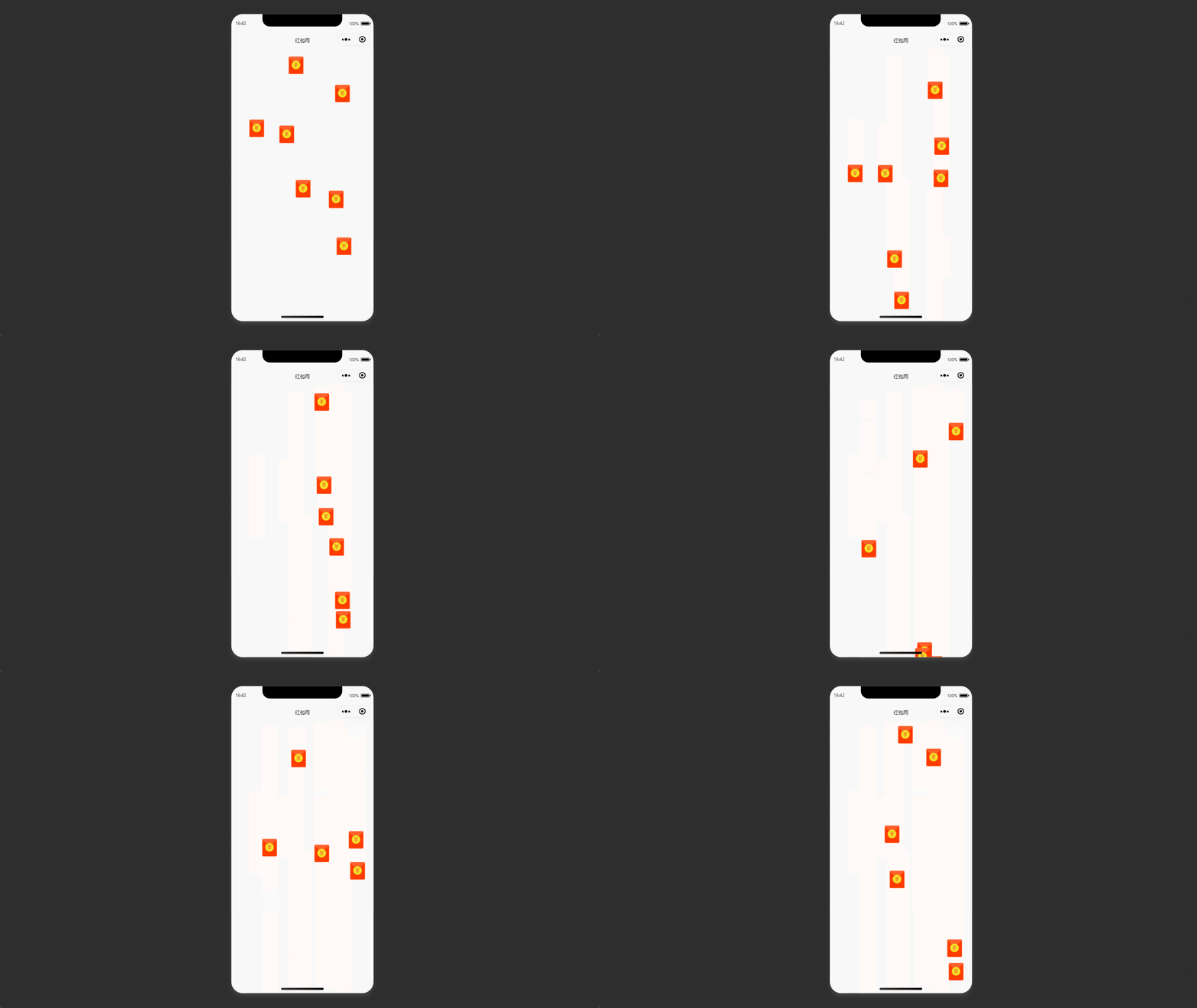
1. 页面效果
GIF录屏有点卡,实际比较丝滑
每0.5s掉落一个红包
控制4s后自动移除红包
点击红包消除红包(或者自行+1,或者弹窗需求)
2. 页面样式代码
<!-- 红包雨活动 -->
<template>
	<scroll-view scroll-y="true">
		<view class="red-envelope-rain">
			<view v-for="(redEnvelope, index) in redEnvelopes" :key="index" class="red-envelope"
				:style="{ top: redEnvelope.top + 'px', left: redEnvelope.left + 'px' }"
				@click="handleRedEnvelopeClick(index)"></view>
		</view>
	</scroll-view>
</template>

<script>
	export default {
		data() {
			return {
				redEnvelopes: [],
				redEnvelopeInterval: null,
			}
		},
		onLoad(options) {
			// 每秒创建一个红包
			setInterval(this.initializeRedEnvelopes, 500);
			// 更新红包位置,约 60 帧
			setInterval(this.moveRedEnvelopes, 1000 / 60);
		},
		beforeDestroy() {
			this.stopRedEnvelopeRain();
		},
		methods: {
			initializeRedEnvelopes() {
				const numRedEnvelopes = 20; // 红包数量
				// for (let i = 0; i < numRedEnvelopes; i++) {
				const redEnvelope = {
					id: Date.now(),
					top: 0, // 随机纵坐标
					left: Math.random() * (uni.getSystemInfoSync().windowWidth - 50), // 随机横坐标
					speed: Math.random() * 6 + 1, // 随机速度
				};
				this.redEnvelopes.push(redEnvelope);

				setTimeout(() => {
					this.redEnvelopes = this.redEnvelopes.filter(p => p.id !== redEnvelope.id);
				}, 4000); // 4秒后移除红包
			},
			startRedEnvelopeRain() {
				this.redEnvelopeInterval = setInterval(() => {
					this.moveRedEnvelopes();
				}, 1000 / 60); // 每秒60帧
			},
			stopRedEnvelopeRain() {
				clearInterval(this.redEnvelopeInterval);
			},
			moveRedEnvelopes() {
				this.redEnvelopes.forEach((redEnvelope, index) => {
					console.log(redEnvelope, "redEnvelopes")
					redEnvelope.top += redEnvelope.speed;
					if (redEnvelope.top > uni.getSystemInfoSync().windowHeight) {
						this.redEnvelopes = this.redEnvelopes.filter(p => p.id !== redEnvelope.id);
					}
				});
			},
			// 处理红包点击事件,可以增加分数或显示提示等操作
			handleRedEnvelopeClick(index) {
				// 例如:this.score += 1;
				// 或者:this.showTip = true;
				// 可以根据实际需求自行添加逻辑
				this.redEnvelopes.splice(index, 1); // 点击后移除红包
			},
		}
	}
</script>

<style lang="scss">
	.red-envelope-rain {
		position: relative;
		overflow: hidden;
		width: 100vw;
		height: 100vh;
	}

	.red-envelope {
		position: absolute;
		background-image: url('https://i-1.lanrentuku.com/2020/11/4/a9b4bcdb-75f3-429d-9c21-d83d945b088e.png?imageView2/2/w/500');
		background-size: 100rpx 100rpx;
		background-repeat: no-repeat;
		width: 100rpx;
		height: 100rpx;
	}
</style>
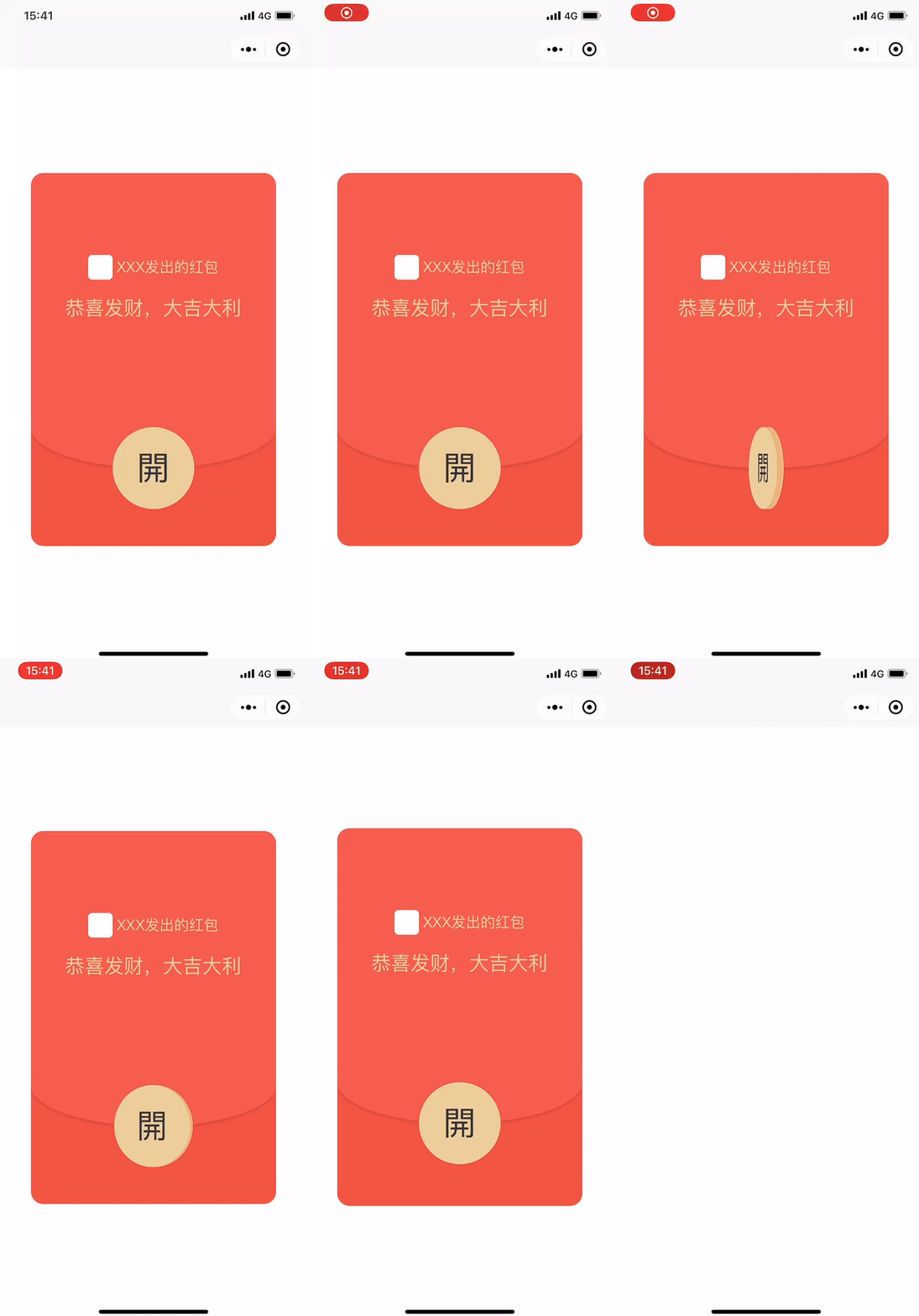
附:uniapp仿微信红包打开动画效果
<template>
	<view>
		<view v-if="packerState != 3" class="packer-box flex-column">
			<view class="packer-bg anim-ease-in" :class="{ 'anim-fade-out': packerState == 2 }"></view>
			<view class="packer-bottom-box anim-ease-in" :class="{ 'anim-out-bottom': packerState == 2 }">
				<view class="arc-bottom-edge"></view>
				<view class="packer-bottom-bg"></view>
			</view>
			<view class="packer-top-box anim-ease-in" :class="{ 'anim-out-top': packerState == 2 }">
				<view class="flex-row sender-info">
					<image class="sender-avatar"></image>
					<view>{{'XXX'}}发出的红包</view>
				</view>
				<view class="packer-greeting double-text">{{'恭喜发财,大吉大利'}}</view>
				<view class="arc-edge"></view>
				<view v-if="packerState == 1" class="anim-rotate packer-btn-pos">
					<view class="packer-btn" style="transform: translateZ(-4px);">開</view>
					<view class="packer-btn-middle" v-for="(item, index) in 7" :key="index" :style="{transform: `translateZ(${index - 3}px)`}"></view>
					<view class="packer-btn packer-btn-front">開</view>
				</view>
				<view v-else class="packer-btn packer-btn-pos" @click="openPacker">開</view>
			</view>
		</view>
	</view>
</template>

<script>
	export default {
		data() {
			return {
				packerState: 0
			}
		},
		methods: {
			openPacker() {
				// 加载数据,触发硬币旋转动画
				this.packerState = 1;
				this.request(() => {
					// 调用抢红包接口成功,触发开红包动画
					this.packerState = 2;
					// 开红包动画结束后,移除相关节点,否则会阻挡其它下层节点
					setTimeout(() => {
						this.packerState = 3;
					}, 500);
				})

			},
			request(success) {
				setTimeout(() => {
					success()
				}, 3000);
			}
		}
	}
</script>

<style>
	.flex-row {
		display: flex;
		flex-direction: row;
		position: relative;
	}
	.flex-column {
		display: flex;
		flex-direction: column;
		position: relative;
	}
	.packer-box {
		position: fixed;
		top: 0;
		bottom: 0;
		left: 0;
		right: 0;
		z-index: 99;
		color: rgb(235, 205, 153);
		padding: 60rpx;
	}

	.packer-bg {
		position: absolute;
		top: 0;
		bottom: 0;
		left: 0;
		right: 0;
		background-color: #fff;
	}

	.packer-top-box {
		width: 600rpx;
		background-color: rgb(244, 94, 77);
		text-align: center;
		margin: auto;
		transform: translateY(-160rpx);
		border-top-left-radius: 30rpx;
		border-top-right-radius: 30rpx;
		position: relative;
	}

	.sender-info {
		margin-top: 200rpx;
		justify-content: center;
		line-height: 60rpx;
		font-size: 36rpx;
	}

	.sender-avatar {
		width: 60rpx;
		height: 60rpx;
		border-radius: 10rpx;
		background-color: #fff;
		margin-right: 10rpx;
	}

	.packer-greeting {
		font-size: 48rpx;
		line-height: 60rpx;
		height: 120rpx;
		margin: 40rpx 30rpx 200rpx;
	}

	.arc-edge {
		position: relative;
	}

	.arc-edge::after {
		width: 100%;
		height: 200rpx;
		position: absolute;
		left: 0;
		top: -100rpx;
		z-index: 9;
		content: '';
		border-radius: 50%;
		background-color: rgb(244, 94, 77);
		box-shadow: 0 6rpx 6rpx 0 rgba(0, 0, 0, 0.1);
	}

	.packer-bottom-box {
		transform: translate(-50%, 0);
		width: 600rpx;
		height: 360rpx;
		border-bottom-left-radius: 30rpx;
		border-bottom-right-radius: 30rpx;
		overflow: hidden;
		position: absolute;
		bottom: calc(50% - 440rpx);
		left: 50%;
	}

	.anim-ease-in {
		animation-duration: 0.5s;
		animation-timing-function: ease-in;
		animation-fill-mode: forwards;
	}

	.anim-out-top {
		animation-name: slideOutTop;
	}

	.anim-out-bottom {
		animation-name: slideOutBottom;
	}

	.anim-fade-out {
		animation-name: fadeOut;
	}

	@keyframes fadeOut {
		from {
			opacity: 1;
		}

		to {
			opacity: 0;
		}
	}

	@keyframes slideOutTop {
		from {
			transform: translateY(-160rpx);
		}

		to {
			transform: translateY(-200%);
		}
	}

	@keyframes slideOutBottom {
		from {
			transform: translate(-50%, 0);
		}

		to {
			transform: translate(-50%, 200%);
		}
	}

	.arc-bottom-edge {
		position: relative;
	}

	.arc-bottom-edge::after {
		width: 120%;
		height: 200rpx;
		position: absolute;
		left: -10%;
		top: -100rpx;
		z-index: 8;
		content: '';
		border-radius: 50%;
		box-shadow: 0 60rpx 0 0 rgb(242, 85, 66);
	}

	.packer-bottom-bg {
		background-color: rgb(242, 85, 66);
		height: 280rpx;
		margin-top: 100rpx;
	}

	.packer-btn {
		border-radius: 50%;
		width: 200rpx;
		height: 200rpx;
		line-height: 200rpx;
		font-size: 80rpx;
		text-align: center;
		color: #333;
		background-color: rgb(235, 205, 153);
		box-shadow: 0 0 6rpx 0 rgba(0, 0, 0, 0.1);
	}
	.packer-btn-pos {
		transform: translateX(-50%);
		position: absolute;
		left: 50%;
		z-index: 10;
		bottom: -200rpx;
	}
	.packer-btn-front {
		position: absolute;
		top: 0;
		transform: translateZ(4px);
	}
	.packer-btn-middle {
		position: absolute;
		top: 0;
		border-radius: 50%;
		width: 200rpx;
		height: 200rpx;
		background-color: rgb(235, 180, 120);
	}
	.anim-rotate {
		margin-left: -100rpx;
		transform-style: preserve-3d;
		animation: rotate 1s linear infinite;
	}
	@keyframes rotate{
		0%{
			transform: rotateY(0deg);
		}
		100%{
			transform: rotateY(360deg);
		}
	}
</style>
总结
到此这篇关于uni-app微信小程序之红包雨活动的文章就介绍到这了,更多相关uni-app小程序红包雨活动内容请搜索脚本之家以前的文章或继续浏览下面的相关文章希望大家以后多多支持脚本之家!
您可能感兴趣的文章:
相关文章
 这篇文章主要介绍了一个简单的JS时间控件示例代码(JS时分秒时间控件)。需要的朋友可以过来参考下,希望对大家有所帮助2013-11-11
一文详解JS中的Map、Set、WeakMap和WeakSet
在JavaScript中,Map、Set、WeakMap和WeakSet是四个不同的数据结构,它们都有不同的特点和用途,本文详细介绍了Map、Set、WeakMap和WeakSet的用法及区别,需要的朋友可以参考下2023-04-04 这篇文章主要为大家详细介绍了js动态实现表格添加和删除操作,文中示例代码介绍的非常详细,具有一定的参考价值,感兴趣的小伙伴们可以参考一下2021-04-04
 这篇文章主要为大家详细介绍了6种JavaScript判断对象自身为空的方法,文中的示例代码讲解详细,感兴趣的小伙伴可以跟随小编一起学习一下2023-12-12
 脚本吧 - 幻宇工作室用到js,超强推荐base.js...2006-12-12
 这篇文章主要介绍了基于JS实现前端压缩上传图片的实例代码,代码简单易懂,非常不错,具有一定的参考借鉴价值 ,需要的朋友可以参考下2019-05-05
 这篇文章主要为大家详细介绍了Cordova项目实现双击返回键退出应用,具有一定的参考价值,感兴趣的小伙伴们可以参考一下2019-09-09
 这篇文章主要介绍了JavaScript this在函数中的指向及实例详解,文中通过示例代码介绍的非常详细,对大家的学习或者工作具有一定的参考学习价值,需要的朋友可以参考下2019-10-10
 这篇文章主要为大家整理了关于Bootstrap模态弹出框的慕课笔记,具有一定的参考价值,感兴趣的小伙伴们可以参考一下2017-03-03
 这篇文章主要介绍了JavaScript实现五子棋游戏的方法,结合实例形式详细分析了javascript实现五子棋游戏的具体步骤、原理与相关操作技巧,需要的朋友可以参考下2019-07-07
最新评论