

前端实现多个内容滑动轮播图效果实例
更新时间:2025年04月09日 08:25:09 作者:心.c
在前端开发中,滑动轮播图是一种常见的交互元素,用于展示多张图片或内容,这篇文章主要介绍了前端实现多个内容滑动轮播图效果的相关资料,文中给出了详细的代码示例,需要的朋友可以参考下
前几天写的前端项目当中自己写了一个比较好用的轮播组件,分享给大家
图片具有点击效果和滑动效果,这里作者放了9张图片,大家有需要可以使用~
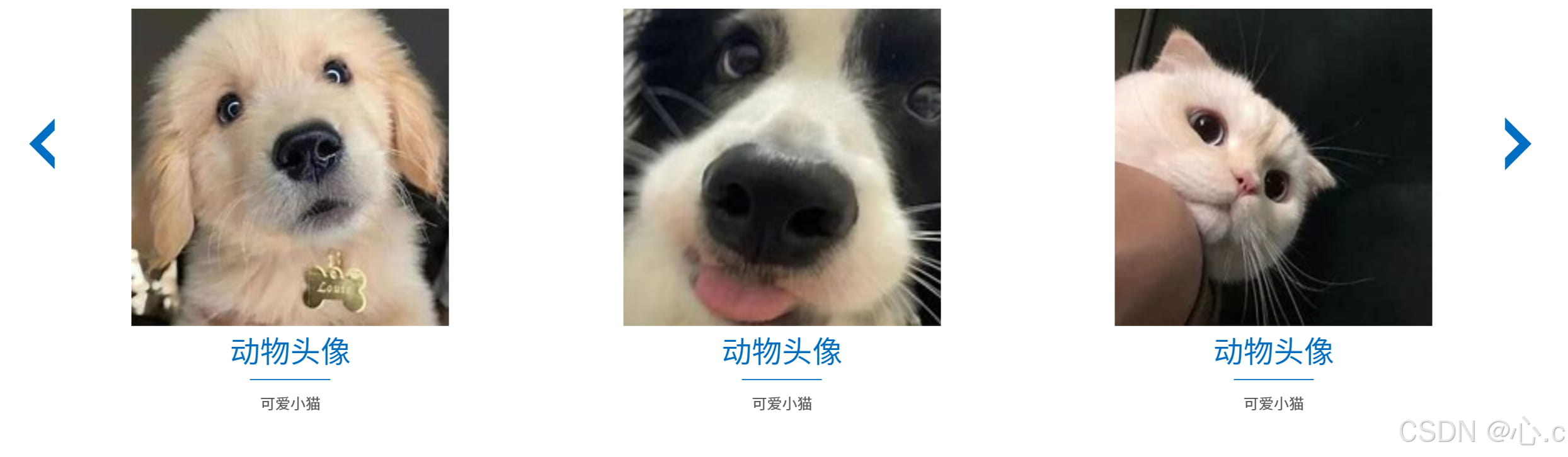
图片在这里大家可以直接进行测试


总组件代码:
这里的代码作者用的是Vue3,大家没有学过的可以使用al给你转成正常的js代码~~~
<script setup>
import { onMounted, onUnmounted } from 'vue'
onMounted(() => {
const container = document.querySelector('.product_box')
const leftIcon = document.querySelector('.left_icon')
const rightIcon = document.querySelector('.right_icon')
const items1 = document.querySelectorAll('.product_detail')
const itemCount = items1.length
let currentIndex = 0
let isAnimating = false
let autoSlideInterval
let visibleItems = 3 // 初始值
// 初始化
updateCarousel()
// 监听视窗大小变化
window.addEventListener('resize', () => {
updateCarousel()
})
function updateCarousel() {
if (isAnimating) return
isAnimating = true
// 计算位移百分比(每个项目占 1/visibleItems)
const translateX = -currentIndex * (100 / visibleItems / 1.07)
container.style.transform = `translateX(${translateX}%)`
container.style.transition = '1s'
// 重置动画状态
setTimeout(() => {
isAnimating = false
}, 500)
}
function nextSlide1() {
stopAutoSlide()
if (currentIndex >= itemCount - visibleItems) {
// 到达最后时回到第一个
currentIndex = 0
} else {
currentIndex++
}
updateCarousel()
startAutoSlide()
}
function prevSlide1() {
stopAutoSlide()
if (currentIndex <= 0) {
// 到达第一个时跳到最后
currentIndex = itemCount - visibleItems
} else {
currentIndex--
}
updateCarousel()
startAutoSlide()
}
function startAutoSlide() {
autoSlideInterval = setInterval(nextSlide1, 3000) // 每3秒切换一次
}
// 停止自动轮播的函数
function stopAutoSlide() {
if (autoSlideInterval) {
clearInterval(autoSlideInterval)
autoSlideInterval = null
}
}
// 添加按钮事件
rightIcon.addEventListener('click', nextSlide1)
leftIcon.addEventListener('click', prevSlide1)
startAutoSlide()
onUnmounted(() => {
clearInterval(autoSlideInterval)
})
})
</script>
<template>
<div class="product_content">
<div class="product_box">
<div class="product_content_box">
<div class="product_detail product_detail_1">
<div class="product_topImg">
<img src="@/assets/image1.png" alt="" />
</div>
<div class="product_h">动物头像</div>
<div class="product_hr"></div>
<div class="product_p">可爱小猫</div>
<div class="product_button" @click="toProduct('高压电器产业')"></div>
</div>
<div class="product_detail">
<div class="product_topImg">
<img src="@/assets/image2.png" alt="" />
</div>
<div class="product_h">动物头像</div>
<div class="product_hr"></div>
<div class="product_p">可爱小猫</div>
<div class="product_button" @click="toProduct('运维检修业务')"></div>
</div>
<div class="product_detail">
<div class="product_topImg">
<img src="@/assets/image3.png" alt="" />
</div>
<div class="product_h">动物头像</div>
<div class="product_hr"></div>
<div class="product_p">可爱小猫</div>
<div class="product_button" @click="toProduct('零部件制造产业')"></div>
</div>
<div class="product_detail">
<div class="product_topImg">
<img src="@/assets/image1.png" alt="" />
</div>
<div class="product_h">动物头像</div>
<div class="product_hr"></div>
<div class="product_p">可爱小猫</div>
<div class="product_button" @click="toProduct('电力储能业务')"></div>
</div>
<div class="product_detail">
<div class="product_topImg">
<img src="@/assets/image2.png" alt="" />
</div>
<div class="product_h">动物头像</div>
<div class="product_hr"></div>
<div class="product_p">可爱小猫</div>
<div class="product_button" @click="toProduct('配电网产业')"></div>
</div>
<div class="product_detail">
<div class="product_topImg">
<img src="@/assets/image1.png" alt="" />
</div>
<div class="product_h">动物头像</div>
<div class="product_hr"></div>
<div class="product_p">可爱小猫</div>
<div class="product_button" @click="toProduct('系统集成业务')"></div>
</div>
<div class="product_detail">
<div class="product_topImg">
<img src="@/assets/image2.png" alt="" />
</div>
<div class="product_h">动物头像</div>
<div class="product_hr"></div>
<div class="product_p">可爱小猫</div>
<div class="product_button" @click="toProduct('智慧配用电业务')"></div>
</div>
<div class="product_detail">
<div class="product_topImg">
<img src="@/assets/image3.png" alt="" />
</div>
<div class="product_h">动物头像</div>
<div class="product_hr"></div>
<div class="product_p">可爱小猫</div>
<div class="product_button" @click="toProduct('综合能源服务业务')"></div>
</div>
</div>
</div>
<div class="left_icon"><span class="icon iconfont"></span></div>
<div class="right_icon"><span class="icon iconfont"></span></div>
</div>
</template>
<style scoped>
.product_box {
/* overflow: hidden; */
width: 94%;
min-width: 120rem;
margin: auto;
padding-left: 1.875rem;
padding-right: 4.375rem;
}
.product_content_box {
display: flex;
width: 95%;
margin: auto;
}
.product_detail {
flex-shrink: 0;
width: calc(33.333%);
/* 每个图标占据三分之一的视口宽度 */
height: 43.75rem;
margin: 0.625rem;
color: white;
align-items: center;
justify-content: center;
transition: transform 0.3s ease;
animation: scaleIn 1s ease-in-out;
}
.product_topImg {
position: relative;
width: 26.25rem;
height: 26.25rem;
margin: auto;
cursor: pointer;
z-index: 1000;
animation: floatAnimation 3s ease-in-out infinite;
}
.product_topImg img {
width: 100%;
height: 100%;
margin-left: -0.3125rem;
margin: auto;
}
@keyframes floatAnimation {
0%,
100% {
transform: translateY(0);
}
50% {
transform: translateY(-1.5625rem);
}
}
.product_topImg:before {
content: '';
position: absolute;
top: 0;
left: 0;
width: 100%;
height: 100%;
background-size: cover;
background-position: center;
transition: opacity 1s ease;
/* 设置过渡效果 */
opacity: 0.3;
/* 默认透明 */
z-index: -1;
/* 确保在图片下方 */
}
.product_topImg:hover:before {
background-image: url('@/assets/imgs/_10_homePageImgs/circle.png');
/* 悬停时的背景图片 */
opacity: 1;
}
.product_h {
font-size: 2.5rem;
font-family: 'AlibabaPuHuiTi_2_55_Regular';
color: rgb(0, 111, 193);
text-align: center;
}
.product_hr {
width: 6.625rem;
height: 0.125rem;
background-color: #2081c9;
text-align: center;
margin: 1.25rem 0rem;
margin: auto;
margin-top: 0.625rem;
margin-bottom: 0.9375rem;
}
.product_p {
width: 21.625rem;
height: 4.5rem;
font-size: 1.25rem;
font-family: 'AlibabaPuHuiTi_2_45_Light';
color: rgb(89, 87, 87);
text-align: center;
margin: auto;
}
.product_button {
position: relative;
width: 8.6875rem;
height: 2rem;
margin: auto;
text-align: center;
background-image: url('@/assets/imgs/_10_homePageImgs/button.png');
background-size: contain;
margin-top: 1.875rem;
transition: all 0.3s ease;
cursor: pointer;
background-repeat: no-repeat;
}
.product_button:hover {
transform: scale(1.1);
/* translate(0, -0.3125rem) 使文字在Y轴方向向上移动0.3125rem,scale(1.1) 使文字放大到原来的1.1倍 */
color: #58ffa9;
/* 改变文字颜色 */
}
.product_button span {
position: absolute;
top: 0;
left: 2.1rem;
font-size: 1.125rem;
line-height: 2rem;
font-family: 'AlibabaPuHuiTi_2_45_Light';
color: rgb(0, 111, 193);
}
.left_icon .icon {
top: 10rem;
left: 3.75rem;
position: absolute;
font-size: 4.375rem;
color: #006fc1;
z-index: 100;
cursor: pointer;
}
.right_icon .icon {
position: absolute;
font-size: 4.375rem;
top: 10rem;
right: 3.125rem;
color: #006fc1;
z-index: 100;
cursor: pointer;
}
</style>
总结
到此这篇关于前端实现多个内容滑动轮播图效果的文章就介绍到这了,更多相关前端多个内容滑动轮播图内容请搜索脚本之家以前的文章或继续浏览下面的相关文章希望大家以后多多支持脚本之家!
相关文章
 这篇文章主要介绍了前端打印分页技术探讨与PrintomJs方案的相关资料,PritomJS通过手动和智能分处理策略来实现精确控制分页位置,处理文本、图片和表格、支持页眉页脚等功能,文中通过代码介绍的非常详细,需要的朋友可以参考下2026-05-05
 这篇文章主要介绍了基于javascript实现句子翻牌网页版小游戏的相关资料,需要的朋友可以参考下2016-03-03
 本文通过一系列代码片段,详细介绍了如何使用JavaScript进行DOM操作、事件处理、属性操作、内容操作、尺寸和位置获取,以及实现简单的动画效果,涵盖了基础和高级技术点,适合初学者和进阶开发者,感兴趣的朋友一起看看吧2025-01-01
 这篇文章主要介绍了JavaScript获取当前网页最后修改时间的方法,涉及javascript中document.lastModified属性的使用技巧,需要的朋友可以参考下2015-04-04
 这篇文章主要介绍了html的DOM中Event对象onblur事件用法,实例分析了onblur事件的使用范围与对应的javascript使用技巧,需要的朋友可以参考下2015-01-01
 这篇文章主要介绍了微信小程序实现动态显示和隐藏某个控件功能,涉及微信小程序事件响应及样式动态操作相关实现技巧,需要的朋友可以参考下2018-12-12
 这篇文章主要为大家详细介绍了javascript设计模式之module(模块)模式 ,感兴趣的小伙伴们可以参考一下2016-08-08
 JavaScript默认的时间格式我们一般情况下不会用,所以需要进行格式化,下面小编给大家带来了三种js date对象格式化实例代码,需要的朋友参考下吧2017-09-09
js遍历json对象所有key及根据动态key获取值的方法(必看)
下面小编就为大家带来一篇js遍历json对象所有key及根据动态key获取值的方法(必看)。小编觉得挺不错的,现在就分享给大家,也给大家做个参考。一起跟随小编过来看看吧2017-03-03
在TypeScript中迭代对象键Object.keys不起作用的原因和解决方案
在TypeScript中迭代对象键object keys可能是一场噩梦,以下是我所知道的所有解决方案,文中有详细的代码示例供大家参考,具有一定的参考价值,需要的朋友可以参考下2023-10-10
最新评论