

Linux使用tar命令进行文件归档和备份的方法
更新时间:2026年06月30日 08:40:03 作者:拾心21
归档和压缩文件对于创建备份和通过网络传输数据非常有用,tar可以将大量文件集合到一个文件(存档)中,还可以使用 gzip,bzip2或xz压缩来压缩存档,本文就给大家介绍了Linux使用tar命令进行文件归档和备份的方法,需要的朋友可以参考下
Linux 文件归档和备份
归档和压缩文件对于创建备份和通过网络传输数据非常有用。
用于创建和使用备份存档的最古老和最常用的命令之一是 tar 命令。
tar可以将大量文件集合到一个文件(存档)中,还可以使用 gzip,bzip2或xz压缩来压缩存档。
tar 命令语法
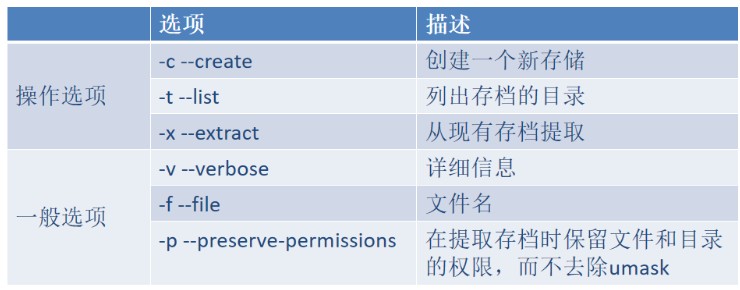
tar 包管理
打包
# 创建tar包,确保用户有权限访问目标文件
[li@centos7 ~ 21:04:06]$ tar -cf etc.tar /etc
tar: 从成员名中删除开头的“/”
tar: /etc/crypttab:无法 open: 权限不够
tar: /etc/grub.d:无法 open: 权限不够
tar: /etc/pki/CA/private:无法 open: 权限不够
tar: /etc/pki/rsyslog:无法 open: 权限不够
tar: /etc/ppp/peers/wvdial:无法 open: 权限不够
tar: /etc/ppp/chap-secrets:无法 open: 权限不够
tar: /etc/ppp/eaptls-client:无法 open: 权限不够
tar: /etc/ppp/eaptls-server:无法 open: 权限不够
tar: /etc/ppp/pap-secrets:无法 open: 权限不够
......
# 没有权限读取的文件,当然无法打包

# root用户可以打包所有文件
[root@centos7 ~ 21:06:39]# tar -cf etc.tar /etc
tar: 从成员名中删除开头的“/”
# 注意打包的时候,会将文件的第一个字符/剔除掉。解压的时候,默认解压到当前位置。

# 再次打包,如果存在相同的tar包,不会提示是否覆盖
[root@centos7 ~ 21:06:45]# tar -cf etc.tar /etc
tar: 从成员名中删除开头的“/”

# 通过添加日期,确保每天打包的文件名不一致
[root@centos7 ~ 21:07:09]# tar -cf etc-$(date +%Y%m%d).tar /etc
tar: 从成员名中删除开头的“/”
[root@centos7 ~ 21:07:44]# ls -l etc*
-rw-r--r--. 1 root root 39188480 7月  29 21:07 etc-20250729.tar
-rw-r--r--. 1 root root 39188480 7月  29 21:07 etc.tar
查看包中文件
# 查看tar包内容
[root@centos7 ~ 21:07:58]# tar -t -f etc-20250729.tar
etc/
etc/fstab
etc/crypttab
etc/mtab
etc/resolv.conf
etc/fonts/
etc/fonts/conf.d/
etc/fonts/conf.d/66-sil-nuosu.conf
.......

# 配合grep过滤
[root@centos7 ~ 21:08:50]# tar -t -f etc-20250729.tar|grep etc/host
etc/host.conf
etc/hosts
etc/hosts.allow
etc/hosts.deny
etc/hostname
提取
# 提取所有文件
[root@centos7 ~ 21:10:19]# tar -xf etc-20250729.tar

# 查看其中一个子目录
[root@centos7 ~ 21:11:48]# tree -L 1 etc/yum
etc/yum
├── pluginconf.d -> ../dnf/plugins
├── protected.d -> ../dnf/protected.d
└── vars -> ../dnf/vars

3 directories, 0 files

# 提取部分文件
[root@centos7 ~ 21:13:03]# tar -t -f etc-20250729.tar|grep etc/host
etc/host.conf
etc/hosts
etc/hosts.allow
etc/hosts.deny
etc/hostname
[root@centos7 ~ 21:13:34]# tar -xf etc-20250729.tar $(tar -t -f etc-20250729.tar|grep etc/host)
[root@centos7 ~ 21:15:22]# tree etc
etc
├── host.conf
├── hostname
└── hosts

0 directories, 3 files
tar包中追加文件
[root@centos7 ~ 21:15:36]# tar -r -f etc-20250729.tar /usr/share/doc/at/timespec
tar: 从成员名中删除开头的“/”
tar: 从硬连接目标中删除开头的“/”

[root@centos7 ~ 21:18:28]# tar -tf etc-20250729.tar |grep timespec
usr/share/doc/at/timespec
删除tar包中文件
[root@centos7 ~ 21:20:02]# tar --delete -f etc-20250729.tar usr/share/doc/at/timespec
[root@centos7 ~ 21:20:20]# tar -tf etc-20250729.tar |grep timespec
tar 包压缩管理
tar 命令支持多种压缩方法:
- gzip:-z, --gzip 文件名通常以.tar.gz结尾。最快,最老,使用最广泛。
- bzip2:-j, --bzip2 文件名通常以.tar.bz2结尾。压缩后比gzip小,没gzip使用广泛。
- xz:-J, --xz 文件名通常以.tar.xz结尾。比较新,更好的压缩比。
压缩的效果取决于被压缩的对象,例如已经压缩的图片或者rpm包,压缩效果不明显。
# 确保相关压缩工具已经安装了
[root@centos7 ~ 21:20:46]# yum install gzip bzip2 xz

# gzip压缩
[root@centos7 ~ 21:21:33]# time tar -czf etc.tar.gz /etc
tar: 从成员名中删除开头的“/”

real	0m1.050s
user	0m0.983s
sys	    0m0.064s

# bzip2 压缩
[root@centos7 ~ 21:21:59]# time tar -cjf etc.tar.bz2 /etc
tar: 从成员名中删除开头的“/”

real	0m2.557s
user	0m2.486s
sys  	0m0.041s

# xz 压缩
[root@centos7 ~ 21:22:25]# time tar -cJf etc.tar.xz /etc
tar: 从成员名中删除开头的“/”

real	0m11.739s
user	0m11.444s
sys	    0m0.268s

[root@centos7 ~ 21:23:06]# ls -lh etc.tar.*
-rw-r--r--. 1 root root  11M 7月  29 21:22 etc.tar.bz2
-rw-r--r--. 1 root root  12M 7月  29 21:21 etc.tar.gz
-rw-r--r--. 1 root root 8.3M 7月  29 21:23 etc.tar.xz

# 查看压缩的 tar 包不需要指定压缩选项
[root@centos7 ~ 21:24:08]# tar -tf etc.tar.gz
etc/
etc/fstab
etc/crypttab
etc/mtab
etc/resolv.conf
etc/fonts/
etc/fonts/conf.d/
.....
到此这篇关于Linux使用tar命令进行文件归档和备份的方法的文章就介绍到这了,更多相关Linux tar文件归档和备份内容请搜索脚本之家以前的文章或继续浏览下面的相关文章希望大家以后多多支持脚本之家!
相关文章
 这篇文章主要介绍了jenkins 实现shell脚本化定时执行任务,解决访问是jenkins构建好之后将jar远程推送到生产服务器,提前退出后台执行服务器远程脚本,脚本通过ngnx提前切走nginx代理auction sleep 1800s,半小时后执行更新重启,具体操作过程跟随小编一起看看吧2022-01-01
 选择适合你需求的脚本语言,对于大多数自动化任务,Bash脚本是一个不错的选择,因为它易于编写和理解,对于更复杂的任务,你可能需要使用Python或其他编程语言,下面给大家分享在Linux中编写自动化脚本执行重复性任务通常涉及的步骤,感兴趣的朋友跟随小编一起看看吧2024-05-05
 本文主要介绍了shell判断变量是否含某个字符串的6种方法,文中通过示例代码介绍的非常详细,对大家的学习或者工作具有一定的参考学习价值,需要的朋友们下面随着小编来一起学习学习吧2023-05-05
 今天的案例是将 对用户输入的判断的shell脚本,需要的朋友可以参考下2016-08-08
 这篇文章主要为大家分享一个监控linux进程的shell脚本,当程序异常退出时可以自动重启,涉及到捕获进程信号与重启进程的命令与知识2014-12-12
 在Linux系统管理中,sudo命令是我们日常操作中不可或缺的工具,它允许普通用户以root权限执行命令,是系统安全的重要防线,然而,在某些特定场景下,反复输入密码可能成为工作效率的瓶颈,本文将深入探讨如何安全、合理地配置sudo免密码,需要的朋友可以参考下2026-05-05
 在Shell脚本编程中,if-then-else语句提供了基于条件执行不同命令的能力,文中通过示例代码介绍的非常详细,对大家的学习或者工作具有一定的参考学习价值,需要的朋友们下面随着小编来一起学习学习吧2024-11-11
 这篇文章主要为大家详细介绍了shell脚本实现日历的屏幕控制,具有一定的参考价值,感兴趣的小伙伴们可以参考一下2019-07-07
 这篇文章主要介绍了使用shc工具加密shell脚本详解,Shc可以用来对shell脚本进行加密,可以将shell脚本转换为一个可执行的二进制文件,需要的朋友可以参考下2014-12-12
 这篇文章主要给大家介绍了关于shell脚本学习之调用脚本将文件打包zip的方法,文中通过示例代码介绍的非常详细,对大家具有一定的参考学习价值,需要的朋友们下面跟着小编一起来学习学习吧。2017-07-07
最新评论