

Android的AlertDialog详解
发布时间:2012-10-09 16:59:29 作者:佚名  我要评论
我要评论
我要评论本文对Android的AlertDialog进行详细了解
AlertDialog的构造方法全部是Protected的,所以不能直接通过new一个AlertDialog来创建出一个AlertDialog。
要创建一个AlertDialog,就要用到AlertDialog.Builder中的create()方法。
使用AlertDialog.Builder创建对话框需要了解以下几个方法:
setTitle :为对话框设置标题
setIcon :为对话框设置图标
setMessage:为对话框设置内容
setView : 给对话框设置自定义样式
setItems :设置对话框要显示的一个list,一般用于显示几个命令时
setMultiChoiceItems :用来设置对话框显示一系列的复选框
setNeutralButton :普通按钮
setPositiveButton :给对话框添加"Yes"按钮
setNegativeButton :对话框添加"No"按钮
create : 创建对话框
show :显示对话框
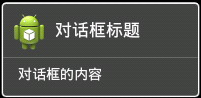
一、简单的AlertDialog
下面,创建一个简单的ALertDialog并显示它:
[java] package com.tianjf;
import android.app.Activity;
import android.app.AlertDialog;
import android.app.Dialog;
import android.os.Bundle;
public class Dialog_AlertDialogDemoActivity extends Activity {
/** Called when the activity is first created. */
@Override
public void onCreate(Bundle savedInstanceState) {
super.onCreate(savedInstanceState);
setContentView(R.layout.main);
Dialog alertDialog = new AlertDialog.Builder(this).
setTitle("对话框的标题").
setMessage("对话框的内容").
setIcon(R.drawable.ic_launcher).
create();
alertDialog.show();
}
}
package com.tianjf;
import android.app.Activity;
import android.app.AlertDialog;
import android.app.Dialog;
import android.os.Bundle;
public class Dialog_AlertDialogDemoActivity extends Activity {
/** Called when the activity is first created. */
@Override
public void onCreate(Bundle savedInstanceState) {
super.onCreate(savedInstanceState);
setContentView(R.layout.main);
Dialog alertDialog = new AlertDialog.Builder(this).
setTitle("对话框的标题").
setMessage("对话框的内容").
setIcon(R.drawable.ic_launcher).
create();
alertDialog.show();
}
}运行结果如下:
二、带按钮的AlertDialog
上面的例子很简单,下面我们在这个AlertDialog上面加几个Button,实现删除操作的提示对话框
[java] package com.tianjf;
import android.app.Activity;
import android.app.AlertDialog;
import android.app.Dialog;
import android.content.DialogInterface;
import android.os.Bundle;
public class Dialog_AlertDialogDemoActivity extends Activity {
/** Called when the activity is first created. */
@Override
public void onCreate(Bundle savedInstanceState) {
super.onCreate(savedInstanceState);
setContentView(R.layout.main);
Dialog alertDialog = new AlertDialog.Builder(this).
setTitle("确定删除?").
setMessage("您确定删除该条信息吗?").
setIcon(R.drawable.ic_launcher).
setPositiveButton("确定", new DialogInterface.OnClickListener() {
@Override
public void onClick(DialogInterface dialog, int which) {
// TODO Auto-generated method stub
}
}).
setNegativeButton("取消", new DialogInterface.OnClickListener() {
@Override
public void onClick(DialogInterface dialog, int which) {
// TODO Auto-generated method stub
}
}).
setNeutralButton("查看详情", new DialogInterface.OnClickListener() {
@Override
public void onClick(DialogInterface dialog, int which) {
// TODO Auto-generated method stub
}
}).
create();
alertDialog.show();
}
}
package com.tianjf;
import android.app.Activity;
import android.app.AlertDialog;
import android.app.Dialog;
import android.content.DialogInterface;
import android.os.Bundle;
public class Dialog_AlertDialogDemoActivity extends Activity {
/** Called when the activity is first created. */
@Override
public void onCreate(Bundle savedInstanceState) {
super.onCreate(savedInstanceState);
setContentView(R.layout.main);
Dialog alertDialog = new AlertDialog.Builder(this).
setTitle("确定删除?").
setMessage("您确定删除该条信息吗?").
setIcon(R.drawable.ic_launcher).
setPositiveButton("确定", new DialogInterface.OnClickListener() {
@Override
public void onClick(DialogInterface dialog, int which) {
// TODO Auto-generated method stub
}
}).
setNegativeButton("取消", new DialogInterface.OnClickListener() {
@Override
public void onClick(DialogInterface dialog, int which) {
// TODO Auto-generated method stub
}
}).
setNeutralButton("查看详情", new DialogInterface.OnClickListener() {
@Override
public void onClick(DialogInterface dialog, int which) {
// TODO Auto-generated method stub
}
}).
create();
alertDialog.show();
}
}在这个例子中,我们定义了三个按钮,分别是"Yes"按钮,"No"按钮以及一个普通按钮,每个按钮都有onClick事件,TODO的地方可以放点了按钮之后想要做的一些处理
看一下运行结果:

可以看到三个按钮添加到了AlertDialog上,三个没有添加事件处理的按钮,点了只是关闭对话框,没有任何其他操作。
三、类似ListView的AlertDialog
用setItems(CharSequence[] items, final OnClickListener listener)方法来实现类似ListView的AlertDialog
第一个参数是要显示的数据的数组,第二个参数是点击某个item的触发事件
[java] package com.tianjf;
import android.app.Activity;
import android.app.AlertDialog;
import android.app.Dialog;
import android.content.DialogInterface;
import android.os.Bundle;
import android.widget.Toast;
public class Dialog_AlertDialogDemoActivity extends Activity {
/** Called when the activity is first created. */
@Override
public void onCreate(Bundle savedInstanceState) {
super.onCreate(savedInstanceState);
setContentView(R.layout.main);
final String[] arrayFruit = new String[] { "苹果", "橘子", "草莓", "香蕉" };
Dialog alertDialog = new AlertDialog.Builder(this).
setTitle("你喜欢吃哪种水果?").
setIcon(R.drawable.ic_launcher)
.setItems(arrayFruit, new DialogInterface.OnClickListener() {
@Override
public void onClick(DialogInterface dialog, int which) {
Toast.makeText(Dialog_AlertDialogDemoActivity.this, arrayFruit[which], Toast.LENGTH_SHORT).show();
}
}).
setNegativeButton("取消", new DialogInterface.OnClickListener() {
@Override
public void onClick(DialogInterface dialog, int which) {
// TODO Auto-generated method stub
}
}).
create();
alertDialog.show();
}
}
package com.tianjf;
import android.app.Activity;
import android.app.AlertDialog;
import android.app.Dialog;
import android.content.DialogInterface;
import android.os.Bundle;
import android.widget.Toast;
public class Dialog_AlertDialogDemoActivity extends Activity {
/** Called when the activity is first created. */
@Override
public void onCreate(Bundle savedInstanceState) {
super.onCreate(savedInstanceState);
setContentView(R.layout.main);
final String[] arrayFruit = new String[] { "苹果", "橘子", "草莓", "香蕉" };
Dialog alertDialog = new AlertDialog.Builder(this).
setTitle("你喜欢吃哪种水果?").
setIcon(R.drawable.ic_launcher)
.setItems(arrayFruit, new DialogInterface.OnClickListener() {
@Override
public void onClick(DialogInterface dialog, int which) {
Toast.makeText(Dialog_AlertDialogDemoActivity.this, arrayFruit[which], Toast.LENGTH_SHORT).show();
}
}).
setNegativeButton("取消", new DialogInterface.OnClickListener() {
@Override
public void onClick(DialogInterface dialog, int which) {
// TODO Auto-generated method stub
}
}).
create();
alertDialog.show();
}
}运行结果如下:

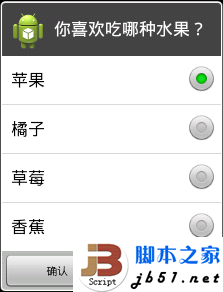
四、类似RadioButton的AlertDialog
用setSingleChoiceItems(CharSequence[] items, int checkedItem, final OnClickListener listener)方法来实现类似RadioButton的AlertDialog
第一个参数是要显示的数据的数组,第二个参数是初始值(初始被选中的item),第三个参数是点击某个item的触发事件
在这个例子里面我们设了一个selectedFruitIndex用来记住选中的item的index
[java] package com.tianjf;
import android.app.Activity;
import android.app.AlertDialog;
import android.app.Dialog;
import android.content.DialogInterface;
import android.os.Bundle;
import android.widget.Toast;
public class Dialog_AlertDialogDemoActivity extends Activity {
private int selectedFruitIndex = 0;
/** Called when the activity is first created. */
@Override
public void onCreate(Bundle savedInstanceState) {
super.onCreate(savedInstanceState);
setContentView(R.layout.main);
final String[] arrayFruit = new String[] { "苹果", "橘子", "草莓", "香蕉" };
Dialog alertDialog = new AlertDialog.Builder(this).
setTitle("你喜欢吃哪种水果?").
setIcon(R.drawable.ic_launcher)
.setSingleChoiceItems(arrayFruit, 0, new DialogInterface.OnClickListener() {
@Override
public void onClick(DialogInterface dialog, int which) {
selectedFruitIndex = which;
}
}).
setPositiveButton("确认", new DialogInterface.OnClickListener() {
@Override
public void onClick(DialogInterface dialog, int which) {
Toast.makeText(Dialog_AlertDialogDemoActivity.this, arrayFruit[selectedFruitIndex], Toast.LENGTH_SHORT).show();
}
}).
setNegativeButton("取消", new DialogInterface.OnClickListener() {
@Override
public void onClick(DialogInterface dialog, int which) {
// TODO Auto-generated method stub
}
}).
create();
alertDialog.show();
}
}
package com.tianjf;
import android.app.Activity;
import android.app.AlertDialog;
import android.app.Dialog;
import android.content.DialogInterface;
import android.os.Bundle;
import android.widget.Toast;
public class Dialog_AlertDialogDemoActivity extends Activity {
private int selectedFruitIndex = 0;
/** Called when the activity is first created. */
@Override
public void onCreate(Bundle savedInstanceState) {
super.onCreate(savedInstanceState);
setContentView(R.layout.main);
final String[] arrayFruit = new String[] { "苹果", "橘子", "草莓", "香蕉" };
Dialog alertDialog = new AlertDialog.Builder(this).
setTitle("你喜欢吃哪种水果?").
setIcon(R.drawable.ic_launcher)
.setSingleChoiceItems(arrayFruit, 0, new DialogInterface.OnClickListener() {
@Override
public void onClick(DialogInterface dialog, int which) {
selectedFruitIndex = which;
}
}).
setPositiveButton("确认", new DialogInterface.OnClickListener() {
@Override
public void onClick(DialogInterface dialog, int which) {
Toast.makeText(Dialog_AlertDialogDemoActivity.this, arrayFruit[selectedFruitIndex], Toast.LENGTH_SHORT).show();
}
}).
setNegativeButton("取消", new DialogInterface.OnClickListener() {
@Override
public void onClick(DialogInterface dialog, int which) {
// TODO Auto-generated method stub
}
}).
create();
alertDialog.show();
}
}
运行结果如下:
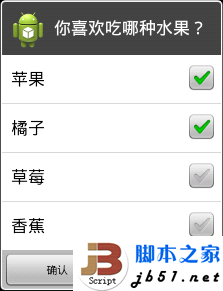
五、类似CheckBox的AlertDialog
用setMultiChoiceItems(CharSequence[] items, boolean[] checkedItems, final OnMultiChoiceClickListener listener)方法来实现类似CheckBox的AlertDialog
第一个参数是要显示的数据的数组,第二个参数是选中状态的数组,第三个参数是点击某个item的触发事件
[java] package com.tianjf;
import android.app.Activity;
import android.app.AlertDialog;
import android.app.Dialog;
import android.content.DialogInterface;
import android.os.Bundle;
import android.widget.Toast;
public class Dialog_AlertDialogDemoActivity extends Activity {
/** Called when the activity is first created. */
@Override
public void onCreate(Bundle savedInstanceState) {
super.onCreate(savedInstanceState);
setContentView(R.layout.main);
final String[] arrayFruit = new String[] { "苹果", "橘子", "草莓", "香蕉" };
final boolean[] arrayFruitSelected = new boolean[] {true, true, false, false};
Dialog alertDialog = new AlertDialog.Builder(this).
setTitle("你喜欢吃哪种水果?").
setIcon(R.drawable.ic_launcher)
.setMultiChoiceItems(arrayFruit, arrayFruitSelected, new DialogInterface.OnMultiChoiceClickListener() {
@Override
public void onClick(DialogInterface dialog, int which, boolean isChecked) {
arrayFruitSelected[which] = isChecked;
}
}).
setPositiveButton("确认", new DialogInterface.OnClickListener() {
@Override
public void onClick(DialogInterface dialog, int which) {
StringBuilder stringBuilder = new StringBuilder();
for (int i = 0; i < arrayFruitSelected.length; i++) {
if (arrayFruitSelected[i] == true)
{
stringBuilder.append(arrayFruit[i] + "、");
}
}
Toast.makeText(Dialog_AlertDialogDemoActivity.this, stringBuilder.toString(), Toast.LENGTH_SHORT).show();
}
}).
setNegativeButton("取消", new DialogInterface.OnClickListener() {
@Override
public void onClick(DialogInterface dialog, int which) {
// TODO Auto-generated method stub
}
}).
create();
alertDialog.show();
}
}
package com.tianjf;
import android.app.Activity;
import android.app.AlertDialog;
import android.app.Dialog;
import android.content.DialogInterface;
import android.os.Bundle;
import android.widget.Toast;
public class Dialog_AlertDialogDemoActivity extends Activity {
/** Called when the activity is first created. */
@Override
public void onCreate(Bundle savedInstanceState) {
super.onCreate(savedInstanceState);
setContentView(R.layout.main);
final String[] arrayFruit = new String[] { "苹果", "橘子", "草莓", "香蕉" };
final boolean[] arrayFruitSelected = new boolean[] {true, true, false, false};
Dialog alertDialog = new AlertDialog.Builder(this).
setTitle("你喜欢吃哪种水果?").
setIcon(R.drawable.ic_launcher)
.setMultiChoiceItems(arrayFruit, arrayFruitSelected, new DialogInterface.OnMultiChoiceClickListener() {
@Override
public void onClick(DialogInterface dialog, int which, boolean isChecked) {
arrayFruitSelected[which] = isChecked;
}
}).
setPositiveButton("确认", new DialogInterface.OnClickListener() {
@Override
public void onClick(DialogInterface dialog, int which) {
StringBuilder stringBuilder = new StringBuilder();
for (int i = 0; i < arrayFruitSelected.length; i++) {
if (arrayFruitSelected[i] == true)
{
stringBuilder.append(arrayFruit[i] + "、");
}
}
Toast.makeText(Dialog_AlertDialogDemoActivity.this, stringBuilder.toString(), Toast.LENGTH_SHORT).show();
}
}).
setNegativeButton("取消", new DialogInterface.OnClickListener() {
@Override
public void onClick(DialogInterface dialog, int which) {
// TODO Auto-generated method stub
}
}).
create();
alertDialog.show();
}
}运行结果如下:
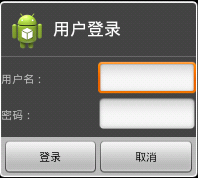
六、自定义View的AlertDialog
有时候我们不能满足系统自带的AlertDialog风格,就比如说我们要实现一个Login画面,有用户名和密码,这时我们就要用到自定义View的AlertDialog
先创建Login画面的布局文件
[html] <?xml version="1.0" encoding="utf-8"?>
<LinearLayout xmlns:android="http://schemas.android.com/apk/res/android"
android:layout_width="fill_parent"
android:layout_height="fill_parent"
android:orientation="vertical" >
<LinearLayout
android:layout_width="fill_parent"
android:layout_height="wrap_content"
android:gravity="center" >
<TextView
android:layout_width="0dip"
android:layout_height="wrap_content"
android:layout_weight="1"
android:text="@string/user" />
<EditText
android:layout_width="0dip"
android:layout_height="wrap_content"
android:layout_weight="1" />
</LinearLayout>
<LinearLayout
android:layout_width="fill_parent"
android:layout_height="wrap_content"
android:gravity="center" >
<TextView
android:layout_width="0dip"
android:layout_height="wrap_content"
android:layout_weight="1"
android:text="@string/passward" />
<EditText
android:layout_width="0dip"
android:layout_height="wrap_content"
android:layout_weight="1" />
</LinearLayout>
</LinearLayout>
<?xml version="1.0" encoding="utf-8"?>
<LinearLayout xmlns:android="http://schemas.android.com/apk/res/android"
android:layout_width="fill_parent"
android:layout_height="fill_parent"
android:orientation="vertical" >
<LinearLayout
android:layout_width="fill_parent"
android:layout_height="wrap_content"
android:gravity="center" >
<TextView
android:layout_width="0dip"
android:layout_height="wrap_content"
android:layout_weight="1"
android:text="@string/user" />
<EditText
android:layout_width="0dip"
android:layout_height="wrap_content"
android:layout_weight="1" />
</LinearLayout>
<LinearLayout
android:layout_width="fill_parent"
android:layout_height="wrap_content"
android:gravity="center" >
<TextView
android:layout_width="0dip"
android:layout_height="wrap_content"
android:layout_weight="1"
android:text="@string/passward" />
<EditText
android:layout_width="0dip"
android:layout_height="wrap_content"
android:layout_weight="1" />
</LinearLayout>
</LinearLayout>
然后在Activity里面把Login画面的布局文件添加到AlertDialog上
[java] package com.tianjf;
import android.app.Activity;
import android.app.AlertDialog;
import android.app.Dialog;
import android.content.DialogInterface;
import android.os.Bundle;
import android.view.LayoutInflater;
import android.view.View;
public class Dialog_AlertDialogDemoActivity extends Activity {
/** Called when the activity is first created. */
@Override
public void onCreate(Bundle savedInstanceState) {
super.onCreate(savedInstanceState);
setContentView(R.layout.main);
// 取得自定义View
LayoutInflater layoutInflater = LayoutInflater.from(this);
View myLoginView = layoutInflater.inflate(R.layout.login, null);
Dialog alertDialog = new AlertDialog.Builder(this).
setTitle("用户登录").
setIcon(R.drawable.ic_launcher).
setView(myLoginView).
setPositiveButton("登录", new DialogInterface.OnClickListener() {
@Override
public void onClick(DialogInterface dialog, int which) {
// TODO Auto-generated method stub
}
}).
setNegativeButton("取消", new DialogInterface.OnClickListener() {
@Override
public void onClick(DialogInterface dialog, int which) {
// TODO Auto-generated method stub
}
}).
create();
alertDialog.show();
}
}
package com.tianjf;
import android.app.Activity;
import android.app.AlertDialog;
import android.app.Dialog;
import android.content.DialogInterface;
import android.os.Bundle;
import android.view.LayoutInflater;
import android.view.View;
public class Dialog_AlertDialogDemoActivity extends Activity {
/** Called when the activity is first created. */
@Override
public void onCreate(Bundle savedInstanceState) {
super.onCreate(savedInstanceState);
setContentView(R.layout.main);
// 取得自定义View
LayoutInflater layoutInflater = LayoutInflater.from(this);
View myLoginView = layoutInflater.inflate(R.layout.login, null);
Dialog alertDialog = new AlertDialog.Builder(this).
setTitle("用户登录").
setIcon(R.drawable.ic_launcher).
setView(myLoginView).
setPositiveButton("登录", new DialogInterface.OnClickListener() {
@Override
public void onClick(DialogInterface dialog, int which) {
// TODO Auto-generated method stub
}
}).
setNegativeButton("取消", new DialogInterface.OnClickListener() {
@Override
public void onClick(DialogInterface dialog, int which) {
// TODO Auto-generated method stub
}
}).
create();
alertDialog.show();
}
}运行结果如下:
摘自 殇雲的专栏
要创建一个AlertDialog,就要用到AlertDialog.Builder中的create()方法。
使用AlertDialog.Builder创建对话框需要了解以下几个方法:
setTitle :为对话框设置标题
setIcon :为对话框设置图标
setMessage:为对话框设置内容
setView : 给对话框设置自定义样式
setItems :设置对话框要显示的一个list,一般用于显示几个命令时
setMultiChoiceItems :用来设置对话框显示一系列的复选框
setNeutralButton :普通按钮
setPositiveButton :给对话框添加"Yes"按钮
setNegativeButton :对话框添加"No"按钮
create : 创建对话框
show :显示对话框
一、简单的AlertDialog
下面,创建一个简单的ALertDialog并显示它:
[java] package com.tianjf;
import android.app.Activity;
import android.app.AlertDialog;
import android.app.Dialog;
import android.os.Bundle;
public class Dialog_AlertDialogDemoActivity extends Activity {
/** Called when the activity is first created. */
@Override
public void onCreate(Bundle savedInstanceState) {
super.onCreate(savedInstanceState);
setContentView(R.layout.main);
Dialog alertDialog = new AlertDialog.Builder(this).
setTitle("对话框的标题").
setMessage("对话框的内容").
setIcon(R.drawable.ic_launcher).
create();
alertDialog.show();
}
}
package com.tianjf;
import android.app.Activity;
import android.app.AlertDialog;
import android.app.Dialog;
import android.os.Bundle;
public class Dialog_AlertDialogDemoActivity extends Activity {
/** Called when the activity is first created. */
@Override
public void onCreate(Bundle savedInstanceState) {
super.onCreate(savedInstanceState);
setContentView(R.layout.main);
Dialog alertDialog = new AlertDialog.Builder(this).
setTitle("对话框的标题").
setMessage("对话框的内容").
setIcon(R.drawable.ic_launcher).
create();
alertDialog.show();
}
}运行结果如下:
二、带按钮的AlertDialog
上面的例子很简单,下面我们在这个AlertDialog上面加几个Button,实现删除操作的提示对话框
[java] package com.tianjf;
import android.app.Activity;
import android.app.AlertDialog;
import android.app.Dialog;
import android.content.DialogInterface;
import android.os.Bundle;
public class Dialog_AlertDialogDemoActivity extends Activity {
/** Called when the activity is first created. */
@Override
public void onCreate(Bundle savedInstanceState) {
super.onCreate(savedInstanceState);
setContentView(R.layout.main);
Dialog alertDialog = new AlertDialog.Builder(this).
setTitle("确定删除?").
setMessage("您确定删除该条信息吗?").
setIcon(R.drawable.ic_launcher).
setPositiveButton("确定", new DialogInterface.OnClickListener() {
@Override
public void onClick(DialogInterface dialog, int which) {
// TODO Auto-generated method stub
}
}).
setNegativeButton("取消", new DialogInterface.OnClickListener() {
@Override
public void onClick(DialogInterface dialog, int which) {
// TODO Auto-generated method stub
}
}).
setNeutralButton("查看详情", new DialogInterface.OnClickListener() {
@Override
public void onClick(DialogInterface dialog, int which) {
// TODO Auto-generated method stub
}
}).
create();
alertDialog.show();
}
}
package com.tianjf;
import android.app.Activity;
import android.app.AlertDialog;
import android.app.Dialog;
import android.content.DialogInterface;
import android.os.Bundle;
public class Dialog_AlertDialogDemoActivity extends Activity {
/** Called when the activity is first created. */
@Override
public void onCreate(Bundle savedInstanceState) {
super.onCreate(savedInstanceState);
setContentView(R.layout.main);
Dialog alertDialog = new AlertDialog.Builder(this).
setTitle("确定删除?").
setMessage("您确定删除该条信息吗?").
setIcon(R.drawable.ic_launcher).
setPositiveButton("确定", new DialogInterface.OnClickListener() {
@Override
public void onClick(DialogInterface dialog, int which) {
// TODO Auto-generated method stub
}
}).
setNegativeButton("取消", new DialogInterface.OnClickListener() {
@Override
public void onClick(DialogInterface dialog, int which) {
// TODO Auto-generated method stub
}
}).
setNeutralButton("查看详情", new DialogInterface.OnClickListener() {
@Override
public void onClick(DialogInterface dialog, int which) {
// TODO Auto-generated method stub
}
}).
create();
alertDialog.show();
}
}在这个例子中,我们定义了三个按钮,分别是"Yes"按钮,"No"按钮以及一个普通按钮,每个按钮都有onClick事件,TODO的地方可以放点了按钮之后想要做的一些处理
看一下运行结果:

可以看到三个按钮添加到了AlertDialog上,三个没有添加事件处理的按钮,点了只是关闭对话框,没有任何其他操作。
三、类似ListView的AlertDialog
用setItems(CharSequence[] items, final OnClickListener listener)方法来实现类似ListView的AlertDialog
第一个参数是要显示的数据的数组,第二个参数是点击某个item的触发事件
[java] package com.tianjf;
import android.app.Activity;
import android.app.AlertDialog;
import android.app.Dialog;
import android.content.DialogInterface;
import android.os.Bundle;
import android.widget.Toast;
public class Dialog_AlertDialogDemoActivity extends Activity {
/** Called when the activity is first created. */
@Override
public void onCreate(Bundle savedInstanceState) {
super.onCreate(savedInstanceState);
setContentView(R.layout.main);
final String[] arrayFruit = new String[] { "苹果", "橘子", "草莓", "香蕉" };
Dialog alertDialog = new AlertDialog.Builder(this).
setTitle("你喜欢吃哪种水果?").
setIcon(R.drawable.ic_launcher)
.setItems(arrayFruit, new DialogInterface.OnClickListener() {
@Override
public void onClick(DialogInterface dialog, int which) {
Toast.makeText(Dialog_AlertDialogDemoActivity.this, arrayFruit[which], Toast.LENGTH_SHORT).show();
}
}).
setNegativeButton("取消", new DialogInterface.OnClickListener() {
@Override
public void onClick(DialogInterface dialog, int which) {
// TODO Auto-generated method stub
}
}).
create();
alertDialog.show();
}
}
package com.tianjf;
import android.app.Activity;
import android.app.AlertDialog;
import android.app.Dialog;
import android.content.DialogInterface;
import android.os.Bundle;
import android.widget.Toast;
public class Dialog_AlertDialogDemoActivity extends Activity {
/** Called when the activity is first created. */
@Override
public void onCreate(Bundle savedInstanceState) {
super.onCreate(savedInstanceState);
setContentView(R.layout.main);
final String[] arrayFruit = new String[] { "苹果", "橘子", "草莓", "香蕉" };
Dialog alertDialog = new AlertDialog.Builder(this).
setTitle("你喜欢吃哪种水果?").
setIcon(R.drawable.ic_launcher)
.setItems(arrayFruit, new DialogInterface.OnClickListener() {
@Override
public void onClick(DialogInterface dialog, int which) {
Toast.makeText(Dialog_AlertDialogDemoActivity.this, arrayFruit[which], Toast.LENGTH_SHORT).show();
}
}).
setNegativeButton("取消", new DialogInterface.OnClickListener() {
@Override
public void onClick(DialogInterface dialog, int which) {
// TODO Auto-generated method stub
}
}).
create();
alertDialog.show();
}
}运行结果如下:

四、类似RadioButton的AlertDialog
用setSingleChoiceItems(CharSequence[] items, int checkedItem, final OnClickListener listener)方法来实现类似RadioButton的AlertDialog
第一个参数是要显示的数据的数组,第二个参数是初始值(初始被选中的item),第三个参数是点击某个item的触发事件
在这个例子里面我们设了一个selectedFruitIndex用来记住选中的item的index
[java] package com.tianjf;
import android.app.Activity;
import android.app.AlertDialog;
import android.app.Dialog;
import android.content.DialogInterface;
import android.os.Bundle;
import android.widget.Toast;
public class Dialog_AlertDialogDemoActivity extends Activity {
private int selectedFruitIndex = 0;
/** Called when the activity is first created. */
@Override
public void onCreate(Bundle savedInstanceState) {
super.onCreate(savedInstanceState);
setContentView(R.layout.main);
final String[] arrayFruit = new String[] { "苹果", "橘子", "草莓", "香蕉" };
Dialog alertDialog = new AlertDialog.Builder(this).
setTitle("你喜欢吃哪种水果?").
setIcon(R.drawable.ic_launcher)
.setSingleChoiceItems(arrayFruit, 0, new DialogInterface.OnClickListener() {
@Override
public void onClick(DialogInterface dialog, int which) {
selectedFruitIndex = which;
}
}).
setPositiveButton("确认", new DialogInterface.OnClickListener() {
@Override
public void onClick(DialogInterface dialog, int which) {
Toast.makeText(Dialog_AlertDialogDemoActivity.this, arrayFruit[selectedFruitIndex], Toast.LENGTH_SHORT).show();
}
}).
setNegativeButton("取消", new DialogInterface.OnClickListener() {
@Override
public void onClick(DialogInterface dialog, int which) {
// TODO Auto-generated method stub
}
}).
create();
alertDialog.show();
}
}
package com.tianjf;
import android.app.Activity;
import android.app.AlertDialog;
import android.app.Dialog;
import android.content.DialogInterface;
import android.os.Bundle;
import android.widget.Toast;
public class Dialog_AlertDialogDemoActivity extends Activity {
private int selectedFruitIndex = 0;
/** Called when the activity is first created. */
@Override
public void onCreate(Bundle savedInstanceState) {
super.onCreate(savedInstanceState);
setContentView(R.layout.main);
final String[] arrayFruit = new String[] { "苹果", "橘子", "草莓", "香蕉" };
Dialog alertDialog = new AlertDialog.Builder(this).
setTitle("你喜欢吃哪种水果?").
setIcon(R.drawable.ic_launcher)
.setSingleChoiceItems(arrayFruit, 0, new DialogInterface.OnClickListener() {
@Override
public void onClick(DialogInterface dialog, int which) {
selectedFruitIndex = which;
}
}).
setPositiveButton("确认", new DialogInterface.OnClickListener() {
@Override
public void onClick(DialogInterface dialog, int which) {
Toast.makeText(Dialog_AlertDialogDemoActivity.this, arrayFruit[selectedFruitIndex], Toast.LENGTH_SHORT).show();
}
}).
setNegativeButton("取消", new DialogInterface.OnClickListener() {
@Override
public void onClick(DialogInterface dialog, int which) {
// TODO Auto-generated method stub
}
}).
create();
alertDialog.show();
}
}
运行结果如下:
五、类似CheckBox的AlertDialog
用setMultiChoiceItems(CharSequence[] items, boolean[] checkedItems, final OnMultiChoiceClickListener listener)方法来实现类似CheckBox的AlertDialog
第一个参数是要显示的数据的数组,第二个参数是选中状态的数组,第三个参数是点击某个item的触发事件
[java] package com.tianjf;
import android.app.Activity;
import android.app.AlertDialog;
import android.app.Dialog;
import android.content.DialogInterface;
import android.os.Bundle;
import android.widget.Toast;
public class Dialog_AlertDialogDemoActivity extends Activity {
/** Called when the activity is first created. */
@Override
public void onCreate(Bundle savedInstanceState) {
super.onCreate(savedInstanceState);
setContentView(R.layout.main);
final String[] arrayFruit = new String[] { "苹果", "橘子", "草莓", "香蕉" };
final boolean[] arrayFruitSelected = new boolean[] {true, true, false, false};
Dialog alertDialog = new AlertDialog.Builder(this).
setTitle("你喜欢吃哪种水果?").
setIcon(R.drawable.ic_launcher)
.setMultiChoiceItems(arrayFruit, arrayFruitSelected, new DialogInterface.OnMultiChoiceClickListener() {
@Override
public void onClick(DialogInterface dialog, int which, boolean isChecked) {
arrayFruitSelected[which] = isChecked;
}
}).
setPositiveButton("确认", new DialogInterface.OnClickListener() {
@Override
public void onClick(DialogInterface dialog, int which) {
StringBuilder stringBuilder = new StringBuilder();
for (int i = 0; i < arrayFruitSelected.length; i++) {
if (arrayFruitSelected[i] == true)
{
stringBuilder.append(arrayFruit[i] + "、");
}
}
Toast.makeText(Dialog_AlertDialogDemoActivity.this, stringBuilder.toString(), Toast.LENGTH_SHORT).show();
}
}).
setNegativeButton("取消", new DialogInterface.OnClickListener() {
@Override
public void onClick(DialogInterface dialog, int which) {
// TODO Auto-generated method stub
}
}).
create();
alertDialog.show();
}
}
package com.tianjf;
import android.app.Activity;
import android.app.AlertDialog;
import android.app.Dialog;
import android.content.DialogInterface;
import android.os.Bundle;
import android.widget.Toast;
public class Dialog_AlertDialogDemoActivity extends Activity {
/** Called when the activity is first created. */
@Override
public void onCreate(Bundle savedInstanceState) {
super.onCreate(savedInstanceState);
setContentView(R.layout.main);
final String[] arrayFruit = new String[] { "苹果", "橘子", "草莓", "香蕉" };
final boolean[] arrayFruitSelected = new boolean[] {true, true, false, false};
Dialog alertDialog = new AlertDialog.Builder(this).
setTitle("你喜欢吃哪种水果?").
setIcon(R.drawable.ic_launcher)
.setMultiChoiceItems(arrayFruit, arrayFruitSelected, new DialogInterface.OnMultiChoiceClickListener() {
@Override
public void onClick(DialogInterface dialog, int which, boolean isChecked) {
arrayFruitSelected[which] = isChecked;
}
}).
setPositiveButton("确认", new DialogInterface.OnClickListener() {
@Override
public void onClick(DialogInterface dialog, int which) {
StringBuilder stringBuilder = new StringBuilder();
for (int i = 0; i < arrayFruitSelected.length; i++) {
if (arrayFruitSelected[i] == true)
{
stringBuilder.append(arrayFruit[i] + "、");
}
}
Toast.makeText(Dialog_AlertDialogDemoActivity.this, stringBuilder.toString(), Toast.LENGTH_SHORT).show();
}
}).
setNegativeButton("取消", new DialogInterface.OnClickListener() {
@Override
public void onClick(DialogInterface dialog, int which) {
// TODO Auto-generated method stub
}
}).
create();
alertDialog.show();
}
}运行结果如下:
六、自定义View的AlertDialog
有时候我们不能满足系统自带的AlertDialog风格,就比如说我们要实现一个Login画面,有用户名和密码,这时我们就要用到自定义View的AlertDialog
先创建Login画面的布局文件
[html] <?xml version="1.0" encoding="utf-8"?>
<LinearLayout xmlns:android="http://schemas.android.com/apk/res/android"
android:layout_width="fill_parent"
android:layout_height="fill_parent"
android:orientation="vertical" >
<LinearLayout
android:layout_width="fill_parent"
android:layout_height="wrap_content"
android:gravity="center" >
<TextView
android:layout_width="0dip"
android:layout_height="wrap_content"
android:layout_weight="1"
android:text="@string/user" />
<EditText
android:layout_width="0dip"
android:layout_height="wrap_content"
android:layout_weight="1" />
</LinearLayout>
<LinearLayout
android:layout_width="fill_parent"
android:layout_height="wrap_content"
android:gravity="center" >
<TextView
android:layout_width="0dip"
android:layout_height="wrap_content"
android:layout_weight="1"
android:text="@string/passward" />
<EditText
android:layout_width="0dip"
android:layout_height="wrap_content"
android:layout_weight="1" />
</LinearLayout>
</LinearLayout>
<?xml version="1.0" encoding="utf-8"?>
<LinearLayout xmlns:android="http://schemas.android.com/apk/res/android"
android:layout_width="fill_parent"
android:layout_height="fill_parent"
android:orientation="vertical" >
<LinearLayout
android:layout_width="fill_parent"
android:layout_height="wrap_content"
android:gravity="center" >
<TextView
android:layout_width="0dip"
android:layout_height="wrap_content"
android:layout_weight="1"
android:text="@string/user" />
<EditText
android:layout_width="0dip"
android:layout_height="wrap_content"
android:layout_weight="1" />
</LinearLayout>
<LinearLayout
android:layout_width="fill_parent"
android:layout_height="wrap_content"
android:gravity="center" >
<TextView
android:layout_width="0dip"
android:layout_height="wrap_content"
android:layout_weight="1"
android:text="@string/passward" />
<EditText
android:layout_width="0dip"
android:layout_height="wrap_content"
android:layout_weight="1" />
</LinearLayout>
</LinearLayout>
然后在Activity里面把Login画面的布局文件添加到AlertDialog上
[java] package com.tianjf;
import android.app.Activity;
import android.app.AlertDialog;
import android.app.Dialog;
import android.content.DialogInterface;
import android.os.Bundle;
import android.view.LayoutInflater;
import android.view.View;
public class Dialog_AlertDialogDemoActivity extends Activity {
/** Called when the activity is first created. */
@Override
public void onCreate(Bundle savedInstanceState) {
super.onCreate(savedInstanceState);
setContentView(R.layout.main);
// 取得自定义View
LayoutInflater layoutInflater = LayoutInflater.from(this);
View myLoginView = layoutInflater.inflate(R.layout.login, null);
Dialog alertDialog = new AlertDialog.Builder(this).
setTitle("用户登录").
setIcon(R.drawable.ic_launcher).
setView(myLoginView).
setPositiveButton("登录", new DialogInterface.OnClickListener() {
@Override
public void onClick(DialogInterface dialog, int which) {
// TODO Auto-generated method stub
}
}).
setNegativeButton("取消", new DialogInterface.OnClickListener() {
@Override
public void onClick(DialogInterface dialog, int which) {
// TODO Auto-generated method stub
}
}).
create();
alertDialog.show();
}
}
package com.tianjf;
import android.app.Activity;
import android.app.AlertDialog;
import android.app.Dialog;
import android.content.DialogInterface;
import android.os.Bundle;
import android.view.LayoutInflater;
import android.view.View;
public class Dialog_AlertDialogDemoActivity extends Activity {
/** Called when the activity is first created. */
@Override
public void onCreate(Bundle savedInstanceState) {
super.onCreate(savedInstanceState);
setContentView(R.layout.main);
// 取得自定义View
LayoutInflater layoutInflater = LayoutInflater.from(this);
View myLoginView = layoutInflater.inflate(R.layout.login, null);
Dialog alertDialog = new AlertDialog.Builder(this).
setTitle("用户登录").
setIcon(R.drawable.ic_launcher).
setView(myLoginView).
setPositiveButton("登录", new DialogInterface.OnClickListener() {
@Override
public void onClick(DialogInterface dialog, int which) {
// TODO Auto-generated method stub
}
}).
setNegativeButton("取消", new DialogInterface.OnClickListener() {
@Override
public void onClick(DialogInterface dialog, int which) {
// TODO Auto-generated method stub
}
}).
create();
alertDialog.show();
}
}运行结果如下:
摘自 殇雲的专栏
相关文章

轻松玩转虚拟机套娃! 在Hyper-V中开启嵌套虚拟化的技巧
有办法在虚拟机中创建虚拟机吗?答案是肯定的,在虚拟机中运行虚拟机是可能的,我们将其称为嵌套虚拟化,下面我们就来看看详细操作方法2025-02-19
龙蜥操作系统Anolis OS-23.x安装配置图解教程(保姆级)
本文主要介绍了安装和配置AnolisOS 23.2系统,包括分区、软件选择、设置root密码、网络配置、主机名设置和禁用SELinux的步骤,具有一定的参考价值,感兴趣的可以了解一下2025-01-20 在处理文件拷贝复制到VMware虚拟机中的任务时,有多种方法可以实现文件的高效传输,使用这些方法,可以在不同的操作系统和环境下,实现文件的快速、安全迁移,详细请看下文2024-09-24
 统信 UOS V20 桌面专业版(1070u1)正式发布,支持微信扫码登录、应用窗口缩略图,海量功能修复,详细请看下文介绍2024-08-08
怎么看自己IP地址? 不同的操作系统中查看路由器的IP地址的方法
在互联网上进行网络连接,每个设备都有一个唯一的标识,即IP地址,本文介绍了如何在不同平台上查找路由器的IP地址,包括Windows、Mac、iPhone、iPad、Android、Chrome OS和2024-07-16 很多人在使用虚拟机系统的时候,经常对虚拟机的运行速度不甚满意,甚至经常很恼火,虚拟机速度慢有很多原因,每个人需要根据自己的情况具体分析,本文根据笔者的使用经验将2024-02-21
 使用虚拟机的时候,遇到了错误,想要把错误的代码或是运行情况复制粘贴到Windows的网上论坛区求助大神,该怎么操作呢?详细请看下文介绍2024-02-21
统信UOS V20桌面专业版(1060)11月更新发布(附更新内容汇总)
国产桌面操作系统统信 UOS V20 专业版(1060)11月更新发布,这是统信 UOS V20 专业版(1060)2023 年度最后一次更新,下面我们就来看看详细的更新内容2023-12-01统信 UOS 将推 Rust 版 Bash 命令行工具 utshell(附下载地址)
统信 UOS 服务器版将于不久后推出 Rust 版 Bash,名为 utshell,旨在突破传统 Shell 所面临的安全限制,详细请看下文介绍2023-09-20UOS开机进入busybox界面怎么办 uos无法进入桌面的解决办法
UOS开机进入busybox界面怎么办?UOS系统开机黑屏进入busybox界面了,该怎么办呢?下面我们就来看看uos无法进入桌面的解决办法2023-09-06


最新评论