

基于Python开发Office文档图片提取器
更新时间:2025年01月19日 09:53:00 作者:黑客白泽
这篇文章主要为大家详细介绍了一个基于PyQt5开发的桌面应用,可以实现Office文档图片提取功能,文中的示例代码讲解详细,需要的可以参考一下
1. 简介
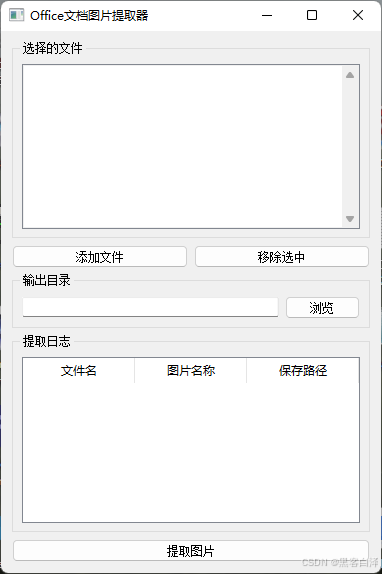
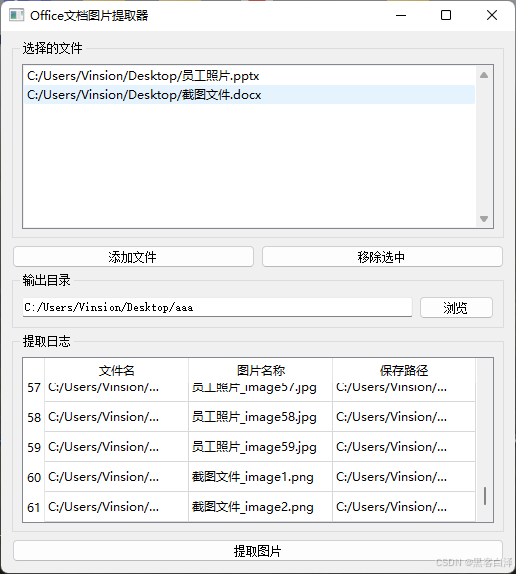
本程序是一个基于PyQt5开发的桌面应用,名为“Office文档图片批量提取工具”。其主要功能是从各种Office文档(包括.doc、.docx、.xls、.xlsx、.ppt、.pptx)中提取图片,并将提取的图片保存在指定的目录中。用户可以通过该工具批量操作多个文件,并查看提取日志。
功能简介
1.文件选择:
- 用户可以通过点击“添加文件”按钮选择多个Office文件(.doc、.docx、.xls、.xlsx、.ppt、.pptx)。
- 支持拖拽文件到文件列表中进行快速添加。
- 用户还可以通过“移除选中”按钮删除选中的文件。
2.输出目录选择:
用户可以选择保存提取图片的输出目录,确保所有提取的图片都能保存在指定位置。
3.提取功能:
- 点击“提取图片”按钮后,程序会根据文件类型自动调用相应的函数提取图片。
- 支持从.docx、.xlsx、.pptx等文件格式中提取图片。
- 对于.doc、.xls、.ppt文件,使用win32com.client处理,这需要在Windows环境下运行。
4.日志记录:
- 提取过程中的每一条记录(包括文件名、图片名称、保存路径)都会被记录在提取日志表格中,方便用户查看提取结果。
- 如果某个文件没有找到图片,或者发生错误,日志中会显示相应的提示。
5.用户界面:
- 用户界面简洁,分为多个区域:文件选择框、输出目录设置、提取日志框。
- 支持水平和垂直布局,确保界面简洁且功能齐全。
6.错误处理:
- 如果没有添加任何文件或没有选择输出目录,程序会弹出警告框提示用户。
- 在提取过程中,任何错误都会被捕获并记录到日志中,用户能够快速查看错误原因。
技术实现
PyQt5:用于构建用户界面。
docx、openpyxl、python-pptx:用于处理不同类型的Office文档。
Pillow:用于图像处理和保存。
win32com.client:用于处理Windows特定的.doc、.ppt文件。
QTableWidget:用于显示提取日志。
该程序使用户能够高效、批量地从多种Office文档中提取图像,并对提取结果进行查看和管理。
2. 运行效果
3. 相关源码
import sys
import os
from PyQt5.QtWidgets import QApplication, QWidget, QVBoxLayout, QHBoxLayout, QGridLayout, QPushButton, QLabel, QLineEdit, QFileDialog, QListWidget, QTableWidget, QTableWidgetItem, QHeaderView, QAbstractItemView, QGroupBox, QMessageBox, QSpacerItem, QSizePolicy
from PyQt5.QtCore import Qt
from PyQt5.QtGui import QDragEnterEvent, QDropEvent
from docx import Document
from PIL import Image
from io import BytesIO
from openpyxl import load_workbook
from pptx import Presentation
import win32com.client  # 用于处理 .doc 和 .ppt 文件(Windows特定)


class OptimizedUI(QWidget):
    def __init__(self):
        super().__init__()

        self.setWindowTitle("Office文档图片提取器")
        self.setGeometry(100, 100, 800, 600)

        self.init_ui()

    def init_ui(self):
        layout = QVBoxLayout(self)

        # 文件选择框
        file_frame = QGroupBox("选择的文件")
        file_layout = QVBoxLayout()
        self.file_list = QListWidget()
        self.file_list.setSelectionMode(QAbstractItemView.MultiSelection)
        file_layout.addWidget(self.file_list)

        # ScrollBar
        self.file_list.setVerticalScrollBarPolicy(Qt.ScrollBarAlwaysOn)
        file_frame.setLayout(file_layout)

        # 按钮
        button_layout = QHBoxLayout()
        add_button = QPushButton("添加文件")
        add_button.clicked.connect(self.browse_files)
        remove_button = QPushButton("移除选中")
        remove_button.clicked.connect(self.remove_files)

        button_layout.addWidget(add_button)
        button_layout.addWidget(remove_button)

        # 输出目录
        output_frame = QGroupBox("输出目录")
        output_layout = QHBoxLayout()
        self.output_folder = QLineEdit()
        browse_button = QPushButton("浏览")
        browse_button.clicked.connect(self.browse_output_folder)
        output_layout.addWidget(self.output_folder)
        output_layout.addWidget(browse_button)
        output_frame.setLayout(output_layout)

        # 提取日志框
        log_frame = QGroupBox("提取日志")
        log_layout = QVBoxLayout()
        self.log_table = QTableWidget(0, 3)
        self.log_table.setHorizontalHeaderLabels(["文件名", "图片名称", "保存路径"])
        self.log_table.horizontalHeader().setSectionResizeMode(0, QHeaderView.Stretch)
        self.log_table.horizontalHeader().setSectionResizeMode(1, QHeaderView.Stretch)
        self.log_table.horizontalHeader().setSectionResizeMode(2, QHeaderView.Stretch)
        log_layout.addWidget(self.log_table)
        log_frame.setLayout(log_layout)

        # 提取按钮
        extract_button = QPushButton("提取图片")
        extract_button.clicked.connect(self.extract_and_log)

        # 布局
        layout.addWidget(file_frame)
        layout.addLayout(button_layout)
        layout.addWidget(output_frame)
        layout.addWidget(log_frame)
        layout.addWidget(extract_button)

        self.setLayout(layout)

        # 启用拖放文件功能
        self.setAcceptDrops(True)

    def browse_files(self):
        files, _ = QFileDialog.getOpenFileNames(self, "选择文件", "", "Office Files (*.doc *.docx *.xls *.xlsx *.ppt *.pptx)")
        if files:
            self.file_list.addItems(files)

    def remove_files(self):
        selected_items = self.file_list.selectedItems()
        for item in selected_items:
            self.file_list.takeItem(self.file_list.row(item))

    def browse_output_folder(self):
        folder = QFileDialog.getExistingDirectory(self, "选择输出目录")
        if folder:
            self.output_folder.setText(folder)

    def extract_and_log(self):
        files = [self.file_list.item(i).text() for i in range(self.file_list.count())]
        output_dir = self.output_folder.text()

        if not files:
            QMessageBox.warning(self, "警告", "请至少添加一个文件。")
            return

        if not output_dir:
            QMessageBox.warning(self, "警告", "请选择输出目录。")
            return

        log_data = []  # 用于保存日志信息

        for file_path in files:
            try:
                for image_name, image_path in self.extract_images(file_path, output_dir):
                    if image_name:
                        log_data.append((file_path, image_name, image_path))
                    else:
                        log_data.append((file_path, "N/A", image_path))
            except ValueError as e:
                log_data.append((file_path, "N/A", f"错误:{str(e)}"))

        self.update_log_table(log_data)

    def update_log_table(self, log_data):
        self.log_table.setRowCount(0)  # 清空表格
        for row, log_entry in enumerate(log_data):
            self.log_table.insertRow(row)
            for col, value in enumerate(log_entry):
                self.log_table.setItem(row, col, QTableWidgetItem(value))

    def extract_images(self, file_path, output_dir):
        """根据文件类型调用不同的提取图片函数。"""
        if file_path.endswith(".docx"):
            return self.extract_images_from_docx(file_path, output_dir)
        elif file_path.endswith(".xlsx"):
            return self.extract_images_from_xlsx(file_path, output_dir)
        elif file_path.endswith(".pptx"):
            return self.extract_images_from_pptx(file_path, output_dir)
        elif file_path.endswith(".doc"):
            return self.extract_images_from_doc(file_path, output_dir)
        elif file_path.endswith(".xls"):
            return self.extract_images_from_xls(file_path, output_dir)
        elif file_path.endswith(".ppt"):
            return self.extract_images_from_ppt(file_path, output_dir)
        else:
            raise ValueError("不支持的文件类型")

    def extract_images_from_docx(self, file_path, output_dir):
        """从 .docx 文件中提取图片并保存到输出目录。"""
        try:
            doc = Document(file_path)
            image_count = 0
            for rel in doc.part.rels.values():
                if "image" in rel.target_ref:
                    image_count += 1
                    image_data = rel.target_part.blob
                    image = Image.open(BytesIO(image_data))

                    ext = image.format.lower()
                    image_name = f"{os.path.splitext(os.path.basename(file_path))[0]}_image{image_count}.{ext}"
                    image_path = os.path.join(output_dir, image_name)
                    image.save(image_path)

                    yield image_name, image_path

            if image_count == 0:
                yield None, "未找到图片。"

        except Exception as e:
            yield None, f"错误:{str(e)}"

    def extract_images_from_xlsx(self, file_path, output_dir):
        """从 .xlsx 文件中提取图片并保存到输出目录。"""
        try:
            workbook = load_workbook(file_path)
            image_count = 0
            for sheet in workbook.sheetnames:
                sheet_obj = workbook[sheet]
                for image in sheet_obj._images:
                    image_count += 1
                    image_data = image.ref
                    img = Image.open(BytesIO(image_data))

                    ext = img.format.lower()
                    image_name = f"{os.path.splitext(os.path.basename(file_path))[0]}_image{image_count}.{ext}"
                    image_path = os.path.join(output_dir, image_name)
                    img.save(image_path)

                    yield image_name, image_path

            if image_count == 0:
                yield None, "未找到图片。"

        except Exception as e:
            yield None, f"错误:{str(e)}"

    def extract_images_from_pptx(self, file_path, output_dir):
        """从 .pptx 文件中提取图片并保存到输出目录。"""
        try:
            prs = Presentation(file_path)
            image_count = 0

            for slide in prs.slides:
                for shape in slide.shapes:
                    if shape.shape_type == 13:  # 图片类型
                        image_stream = shape.image.blob  # 获取图像流

                        ext = shape.image.ext.lower()  # 使用图片的扩展名(如jpg, png)
                        image_name = f"{os.path.splitext(os.path.basename(file_path))[0]}_image{image_count + 1}.{ext}"
                        image_path = os.path.join(output_dir, image_name)

                        image = Image.open(BytesIO(image_stream))
                        image.save(image_path)

                        image_count += 1  # 图片计数
                        yield image_name, image_path

            if image_count == 0:
                yield None, "未找到图片。"

        except Exception as e:
            yield None, f"错误:{str(e)}"

    def extract_images_from_doc(self, file_path, output_dir):
        """从 .doc 文件中提取图片(Windows特定,使用win32com)。"""
        try:
            word = win32com.client.Dispatch("Word.Application")
            doc = word.Documents.Open(file_path)
            image_count = 0

            for shape in doc.Shapes:
                if shape.Type == 13:  # 图片类型
                    image_count += 1
                    image_stream = shape.PictureFormat.Picture
                    image = Image.open(BytesIO(image_stream))

                    ext = image.format.lower()
                    image_name = f"{os.path.splitext(os.path.basename(file_path))[0]}_image{image_count}.{ext}"
                    image_path = os.path.join(output_dir, image_name)
                    image.save(image_path)

                    yield image_name, image_path

            if image_count == 0:
                yield None, "未找到图片。"

        except Exception as e:
            yield None, f"错误:{str(e)}"
        finally:
            word.Quit()

    def extract_images_from_xls(self, file_path, output_dir):
        """从 .xls 文件中提取图片(Windows特定,使用xlrd或openpyxl)。"""
        try:
            import xlrd
            workbook = xlrd.open_workbook(file_path)
            image_count = 0
            yield None, "暂不支持的图片提取。"

        except Exception as e:
            yield None, f"错误:{str(e)}"

    def extract_images_from_ppt(self, file_path, output_dir):
        """从 .ppt 文件中提取图片(Windows特定,使用win32com)。"""
        try:
            ppt = win32com.client.Dispatch("PowerPoint.Application")
            presentation = ppt.Presentations.Open(file_path)
            image_count = 0

            for slide in presentation.Slides:
                for shape in slide.Shapes:
                    if shape.Type == 13:  # 图片类型
                        image_count += 1
                        image_stream = shape.PictureFormat.Picture
                        image = Image.open(BytesIO(image_stream))

                        ext = image.format.lower()
                        image_name = f"{os.path.splitext(os.path.basename(file_path))[0]}_image{image_count}.{ext}"
                        image_path = os.path.join(output_dir, image_name)
                        image.save(image_path)

                        yield image_name, image_path

            if image_count == 0:
                yield None, "未找到图片。"

        except Exception as e:
            yield None, f"错误:{str(e)}"
        finally:
            ppt.Quit()

    def dragEnterEvent(self, event):
        """处理拖拽进入事件"""
        if event.mimeData().hasUrls():
            event.acceptProposedAction()

    def dropEvent(self, event):
        """处理拖拽释放事件"""
        for url in event.mimeData().urls():
            file_path = url.toLocalFile()
            if os.path.isfile(file_path):
                self.file_list.addItem(file_path)

# 运行应用
if __name__ == "__main__":
    app = QApplication(sys.argv)
    window = OptimizedUI()
    window.show()
    sys.exit(app.exec_())
到此这篇关于基于Python开发Office文档图片提取器的文章就介绍到这了,更多相关Python Office文档图片提取器内容请搜索脚本之家以前的文章或继续浏览下面的相关文章希望大家以后多多支持脚本之家!
相关文章

使用python把xmind转换成excel测试用例的实现代码
这篇文章主要介绍了使用python把xmind转换成excel测试用例的实现代码,本文给大家介绍的非常详细,对大家的学习或工作具有一定的参考借鉴价值,需要的朋友可以参考下2020-10-10 这篇文章主要介绍了Python 读写 Matlab Mat 格式数据的操作,具有很好的参考价值,希望对大家有所帮助。一起跟随小编过来看看吧2021-05-05
Python with关键字,上下文管理器,@contextmanager文件操作示例
这篇文章主要介绍了Python with关键字,上下文管理器,@contextmanager文件操作,结合实例形式分析了Python使用with关键字及上下文管理器、contextmanager进行文件打开、读写、关闭等操作的相关实现技巧,需要的朋友可以参考下2019-10-10 这篇文章主要介绍了如何使用 Python 和 wxPython 库创建一个简单的图形用户界面(GUI)应用程序,用于对 PDF 文件进行加密,感兴趣的小伙伴可以了解下2023-08-08
 这篇文章主要为大家详细介绍了Python根据文件URL(本地路径或网络路径)将文件转为Base64字符串,文中的示例代码讲解详细,感兴趣的小伙伴可以了解下2025-08-08
 这篇文章主要为大家详细介绍了利用Python分析学校四六级过关情况,具有一定的参考价值,感兴趣的小伙伴们可以参考一下2017-11-11
 这篇文章主要介绍了python中的全局变量用法,详细分析了Python全局变量使用中的利弊与相关技巧,需要的朋友可以参考下2015-06-06
 这篇文章主要介绍了python查看包版本、更新单个包、卸载单个包,本文通过实例代码给大家介绍的非常详细,对大家的学习或工作具有一定的参考借鉴价值,需要的朋友可以参考下2022-12-12
Python打包工具PyInstaller的安装与pycharm配置支持PyInstaller详细方法
这篇文章主要介绍了Python打包工具PyInstaller的安装与pycharm配置支持PyInstaller详细方法,需要的朋友可以参考下2020-02-02 这篇文章主要介绍了Python实现的Excel文件读写类,涉及Python针对Excel常见的读写、打印等操作技巧,具有一定参考借鉴价值,需要的朋友可以参考下2015-07-07
最新评论