

Python实现Markdown格式消除工具
更新时间:2025年02月12日 09:39:13 作者:py小王子
这篇文章主要为大家详细介绍了如何使用 Python 和 PyQt5 库来创建一个简单易用的 Markdown 格式消除工具,并且支持实时预览和文件保存功能,需要的可以了解下
01 引言
在日常使用 Markdown 编写文档时,我们有时会需要将 Markdown 格式的文本转换为纯文本,去除其中的各种标记符号,如标题符号、列表符号、代码块标记等。手动去除这些标记不仅效率低下,还容易出错。本文将介绍如何使用 Python 和 PyQt5 库来创建一个简单易用的 Markdown 格式消除工具,并且支持实时预览和文件保存功能。
02 环境准备
在开始之前,我们需要安装一些必要的库。主要用到的是 PyQt5 用于创建图形用户界面(GUI),以及 Python 内置的 re 库用于正则表达式匹配,用于去除 Markdown 格式。可以使用以下命令来安装 PyQt5:
pip install PyQt5
03 实现思路
我们的 Markdown 格式消除工具主要包含以下几个部分:
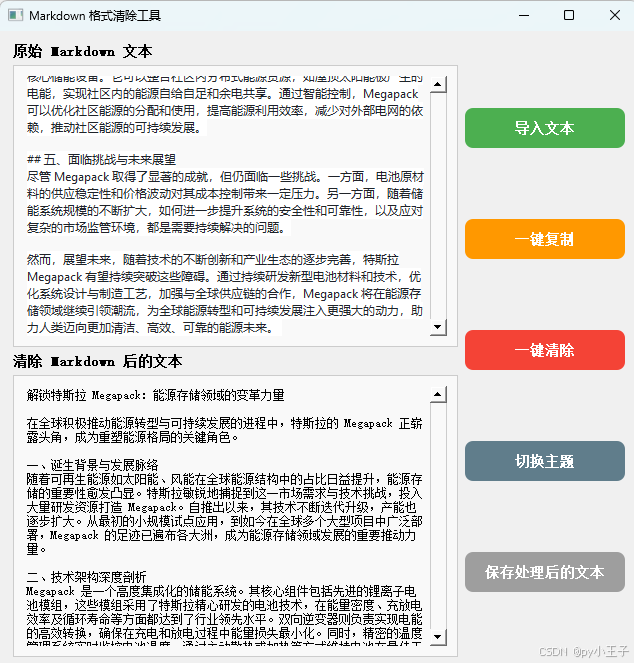
图形用户界面(GUI):使用 PyQt5 创建一个窗口,包含输入框、输出框和一些操作按钮,如导入文本、清除格式、复制文本、保存文本等。
Markdown 格式处理:使用正则表达式匹配 Markdown 标记符号,并将其替换为空字符串,从而实现格式消除。
实时预览:当用户在输入框中输入或修改 Markdown 文本时,实时更新输出框中的纯文本内容。
文件操作:支持直接拖入或导入 Markdown 文件和保存处理后的纯文本文件。
04 完整代码
import sys
import re
from PyQt5.QtWidgets import (
    QApplication, QWidget, QVBoxLayout, QTextEdit, QPushButton, QLabel, QFileDialog, QHBoxLayout
)
from PyQt5.QtGui import QFont, QClipboard
from PyQt5.QtCore import Qt, pyqtSlot


class MarkdownRemoverApp(QWidget):
    def __init__(self):
        super().__init__()
        self.dark_theme = False  # 初始为亮色主题
        self.setAcceptDrops(True)  # 启用拖放功能
        self.init_ui()

    def init_ui(self):
        """初始化界面"""
        # 设置窗口标题和大小
        self.setWindowTitle("Markdown 格式清除工具")
        self.setGeometry(100, 100, 800, 800)

        # 设置全局字体
        font = QFont("Arial", 12)
        self.setFont(font)

        # 整体水平布局
        main_h_layout = QHBoxLayout()

        # 左侧文本编辑区域垂直布局
        left_v_layout = QVBoxLayout()

        # 原始 Markdown 文本部分
        self.left_label = QLabel("原始 Markdown 文本")
        self.left_label.setStyleSheet("font-size: 14px; font-weight: bold;")
        self.left_text_edit = QTextEdit()
        self.left_text_edit.setStyleSheet("background-color: #f9f9f9; border: 1px solid #ccc; padding: 10px;")
        left_v_layout.addWidget(self.left_label)
        left_v_layout.addWidget(self.left_text_edit)

        # 清除 Markdown 后的文本部分
        self.right_label = QLabel("清除 Markdown 后的文本")
        self.right_label.setStyleSheet("font-size: 14px; font-weight: bold;")
        self.right_text_edit = QTextEdit()
        self.right_text_edit.setStyleSheet("background-color: #f9f9f9; border: 1px solid #ccc; padding: 10px;")
        left_v_layout.addWidget(self.right_label)
        left_v_layout.addWidget(self.right_text_edit)

        # 右侧按钮垂直布局
        right_v_layout = QVBoxLayout()

        # 导入文本按钮
        self.import_button = QPushButton("导入文本")
        self.import_button.setStyleSheet("""
            QPushButton {
                background-color: #4CAF50;
                color: white;
                font-family: Arial;
                font-size: 14px;
                font-weight: bold;
                padding: 12px 20px;
                border-radius: 8px;
                border: none;
                box-shadow: 0 4px 8px rgba(0, 0, 0, 0.2);
            }
            QPushButton:hover {
                background-color: #66BB6A;
                box-shadow: 0 6px 12px rgba(0, 0, 0, 0.3);
            }
            QPushButton:pressed {
                background-color: #388E3C;
                box-shadow: 0 2px 4px rgba(0, 0, 0, 0.2);
                transform: translateY(2px);
            }
        """)
        self.import_button.setCursor(Qt.PointingHandCursor)
        self.import_button.clicked.connect(self.import_text)

        # 一键复制按钮
        self.copy_button = QPushButton("一键复制")
        self.copy_button.setStyleSheet("""
            QPushButton {
                background-color: #FF9800;
                color: white;
                font-family: Arial;
                font-size: 14px;
                font-weight: bold;
                padding: 12px 20px;
                border-radius: 8px;
                border: none;
                box-shadow: 0 4px 8px rgba(0, 0, 0, 0.2);
            }
            QPushButton:hover {
                background-color: #FFB74D;
                box-shadow: 0 6px 12px rgba(0, 0, 0, 0.3);
            }
            QPushButton:pressed {
                background-color: #F57C00;
                box-shadow: 0 2px 4px rgba(0, 0, 0, 0.2);
                transform: translateY(2px);
            }
        """)
        self.copy_button.setCursor(Qt.PointingHandCursor)
        self.copy_button.clicked.connect(self.copy_text)

        # 一键清除按钮
        self.clear_all_button = QPushButton("一键清除")
        self.clear_all_button.setStyleSheet("""
            QPushButton {
                background-color: #F44336;
                color: white;
                font-family: Arial;
                font-size: 14px;
                font-weight: bold;
                padding: 12px 20px;
                border-radius: 8px;
                border: none;
                box-shadow: 0 4px 8px rgba(0, 0, 0, 0.2);
            }
            QPushButton:hover {
                background-color: #EF5350;
                box-shadow: 0 6px 12px rgba(0, 0, 0, 0.3);
            }
            QPushButton:pressed {
                background-color: #D32F2F;
                box-shadow: 0 2px 4px rgba(0, 0, 0, 0.2);
                transform: translateY(2px);
            }
        """)
        self.clear_all_button.setCursor(Qt.PointingHandCursor)
        self.clear_all_button.clicked.connect(self.clear_all_text)

        # 主题切换按钮
        self.theme_button = QPushButton("切换主题")
        self.theme_button.setStyleSheet("""
            QPushButton {
                background-color: #607D8B;
                color: white;
                font-family: Arial;
                font-size: 14px;
                font-weight: bold;
                padding: 12px 20px;
                border-radius: 8px;
                border: none;
                box-shadow: 0 4px 8px rgba(0, 0, 0, 0.2);
            }
            QPushButton:hover {
                background-color: #78909C;
                box-shadow: 0 6px 12px rgba(0, 0, 0, 0.3);
            }
            QPushButton:pressed {
                background-color: #546E7A;
                box-shadow: 0 2px 4px rgba(0, 0, 0, 0.2);
                transform: translateY(2px);
            }
        """)
        self.theme_button.setCursor(Qt.PointingHandCursor)
        self.theme_button.clicked.connect(self.toggle_theme)

        # 保存处理后文本按钮
        self.save_button = QPushButton("保存处理后的文本")
        self.save_button.setStyleSheet("""
            QPushButton {
                background-color: #9E9E9E;
                color: white;
                font-family: Arial;
                font-size: 14px;
                font-weight: bold;
                padding: 12px 20px;
                border-radius: 8px;
                border: none;
                box-shadow: 0 4px 8px rgba(0, 0, 0, 0.2);
            }
            QPushButton:hover {
                background-color: #BDBDBD;
                box-shadow: 0 6px 12px rgba(0, 0, 0, 0.3);
            }
            QPushButton:pressed {
                background-color: #757575;
                box-shadow: 0 2px 4px rgba(0, 0, 0, 0.2);
                transform: translateY(2px);
            }
        """)
        self.save_button.setCursor(Qt.PointingHandCursor)
        self.save_button.clicked.connect(self.save_text)

        # 将按钮添加到右侧按钮布局
        right_v_layout.addWidget(self.import_button)
        right_v_layout.addWidget(self.copy_button)
        right_v_layout.addWidget(self.clear_all_button)
        right_v_layout.addWidget(self.theme_button)
        right_v_layout.addWidget(self.save_button)

        # 将左侧文本编辑区域布局和右侧按钮布局添加到整体水平布局
        main_h_layout.addLayout(left_v_layout)
        main_h_layout.addLayout(right_v_layout)

        # 设置主布局
        self.setLayout(main_h_layout)

        # 连接文本改变信号实现实时预览
        self.left_text_edit.textChanged.connect(self.update_preview)

    @pyqtSlot()
    def update_preview(self):
        """实时更新清除 Markdown 格式后的文本预览"""
        markdown_text = self.left_text_edit.toPlainText()
        cleaned_text = self._remove_markdown(markdown_text)
        self.right_text_edit.setPlainText(cleaned_text)

    def import_text(self):
        """导入文本文件"""
        # 打开文件选择对话框
        file_path, _ = QFileDialog.getOpenFileName(
            self, "选择文本文件", "", "文本文件 (*.txt);;所有文件 (*)"
        )

        if file_path:
            # 读取文件内容
            try:
                with open(file_path, "r", encoding="utf-8") as file:
                    content = file.read()
                # 将内容加载到左侧文本框
                self.left_text_edit.setPlainText(content)
            except Exception as e:
                print(f"读取文件出错: {e}")

    def copy_text(self):
        """将清除 Markdown 格式后的文本复制到剪贴板"""
        clipboard = QApplication.clipboard()
        cleaned_text = self.right_text_edit.toPlainText()
        clipboard.setText(cleaned_text)

    def clear_all_text(self):
        """一键清除左右文本框的内容"""
        self.left_text_edit.clear()
        self.right_text_edit.clear()

    def _remove_markdown(self, text):
        """
        移除 Markdown 格式并返回纯文本
        """
        # 转换转义字符
        text = re.sub(r'\\([\\`*{}[\]()\#+\-.!_>~|])', r'\1', text)

        # 删除代码块(多行)
        text = re.sub(r'```[\s\S]*?```', '', text)

        # 删除行内代码
        text = re.sub(r'`([^`]+)`', r'\1', text)

        # 处理图片和链接
        text = re.sub(r'!\[(.*?)\]\([^)]*\)', r'\1', text)  # 图片
        text = re.sub(r'\[(.*?)\]\([^)]*\)', r'\1', text)  # 链接

        # 处理粗体/斜体
        text = re.sub(r'\*\*(\*?[\s\S]+?)\*\*', r'\1', text)  # **bold**
        text = re.sub(r'__([\s\S]+?)__', r'\1', text)  # __underline__
        text = re.sub(r'\*([\s\S]+?)\*', r'\1', text)  # *italic*
        text = re.sub(r'_([\s\S]+?)_', r'\1', text)  # _italic_

        # 清除标题符号
        text = re.sub(r'^#+\s*', '', text, flags=re.MULTILINE)

        # 清除列表符号(支持多级列表)
        text = re.sub(r'^([\s]*[-*+]|\d+\.)\s+', '', text, flags=re.MULTILINE)

        # 清除引用块符号
        text = re.sub(r'^>\s*', '', text, flags=re.MULTILINE)

        # 清除分隔线
        text = re.sub(r'^[-*_]{3,}\s*$', '', text, flags=re.MULTILINE)

        # 合并多余空行并去除首尾空白
        text = re.sub(r'\n{3,}', '\n\n', text)
        return text.strip()

    def toggle_theme(self):
        if self.dark_theme:
            # 切换到亮色主题
            self.setStyleSheet("")
            self.left_text_edit.setStyleSheet("background-color: #f9f9f9; border: 1px solid #ccc; padding: 10px;")
            self.right_text_edit.setStyleSheet("background-color: #f9f9f9; border: 1px solid #ccc; padding: 10px;")
            self.left_label.setStyleSheet("font-size: 14px; font-weight: bold;")
            self.right_label.setStyleSheet("font-size: 14px; font-weight: bold;")
            self.dark_theme = False
        else:
            # 切换到暗色主题
            self.setStyleSheet("background-color: #212121; color: white;")
            self.left_text_edit.setStyleSheet("background-color: #424242; border: 1px solid #616161; padding: 10px; color: white;")
            self.right_text_edit.setStyleSheet("background-color: #424242; border: 1px solid #616161; padding: 10px; color: white;")
            self.left_label.setStyleSheet("font-size: 14px; font-weight: bold; color: white;")
            self.right_label.setStyleSheet("font-size: 14px; font-weight: bold; color: white;")
            self.dark_theme = True

    def save_text(self):
        """保存处理后的文本到指定文件"""
        file_path, _ = QFileDialog.getSaveFileName(self, "保存文件", "", "文本文件 (*.txt)")
        if file_path:
            try:
                text = self.right_text_edit.toPlainText()
                with open(file_path, 'w', encoding='utf-8') as file:
                    file.write(text)
            except Exception as e:
                print(f"保存文件出错: {e}")

    def dragEnterEvent(self, event):
        """处理拖入事件,检查是否是文件"""
        if event.mimeData().hasUrls():
            for url in event.mimeData().urls():
                if url.toLocalFile().endswith(('.txt', '.md')):
                    event.acceptProposedAction()
                    return
        event.ignore()

    def dropEvent(self, event):
        """处理放下事件,读取文件内容并加载到左侧文本框"""
        for url in event.mimeData().urls():
            file_path = url.toLocalFile()
            if file_path.endswith(('.txt', '.md')):
                try:
                    with open(file_path, 'r', encoding='utf-8') as file:
                        content = file.read()
                    self.left_text_edit.setPlainText(content)
                except Exception as e:
                    print(f"读取文件出错: {e}")


# 主程序入口
if __name__ == "__main__":
    app = QApplication(sys.argv)
    window = MarkdownRemoverApp()
    window.show()
    sys.exit(app.exec_())
05 运行结果
到此这篇关于Python实现Markdown格式消除工具的文章就介绍到这了,更多相关Python Markdown格式消除内容请搜索脚本之家以前的文章或继续浏览下面的相关文章希望大家以后多多支持脚本之家!
相关文章
 这篇文章主要介绍了python numpy中mat和matrix的区别,具有很好的参考价值,希望对大家有所帮助。一起跟随小编过来看看吧2021-03-03
 今天小编就为大家分享一篇对python中大文件的导入与导出方法详解,具有很好的参考价值,希望对大家有所帮助。一起跟随小编过来看看吧2018-12-12
python自动化测试之从命令行运行测试用例with verbosity
这篇文章主要介绍了python自动化测试之从命令行运行测试用例with verbosity,是一个较为经典的自动化测试实例,需要的朋友可以参考下2014-09-09 数据脱敏(Data Masking)是在数据处理和分析过程中,对敏感信息进行处理,以保护个人隐私和企业机密的一种技术手段,数据脱敏的目的是不会泄露敏感信息,同时保持数据的可用性和分析价值,本文给大家介绍了使用Python进行有效的数据脱敏的常用方法,需要的朋友可以参考下2025-03-03
 这篇文章主要为大家详细介绍了python如何通过设置WordCloud参数实现定制词云,文中的示例代码讲解详细,感兴趣的小伙伴可以跟随小编一起学习一下2023-11-11
 这篇文章主要为大家详细介绍了Python外星人入侵游戏编程完整的实现思路,文中示例代码介绍的非常详细,具有一定的参考价值,感兴趣的小伙伴们可以参考一下2017-04-04
 os模块提供了多数操作系统的功能接口函数.当os模块被导入后,它会自适应于不同的操作系统平台,如posix或NT系统平台,os模块会根据不同的平台进行相应的操作.本节内容将对os模块提供的函数进行详细的解读.2016-10-10
 今天小编就为大家分享一篇Tensorflow轻松实现XOR运算的方式,具有很好的参考价值,希望对大家有所帮助。一起跟随小编过来看看吧2020-02-02
 这篇文章主要介绍了pandas如何读取mysql数据问题,具有很好的参考价值,希望对大家有所帮助。如有错误或未考虑完全的地方,望不吝赐教2022-12-12
 今天小编就为大家分享一篇numpy和pandas中数组的合并、拉直和重塑实例,具有很好的参考价值,希望对大家有所帮助。一起跟随小编过来看看吧2019-06-06
最新评论