

Python如何调用spire.doc轻松读取Word文档内容
前言
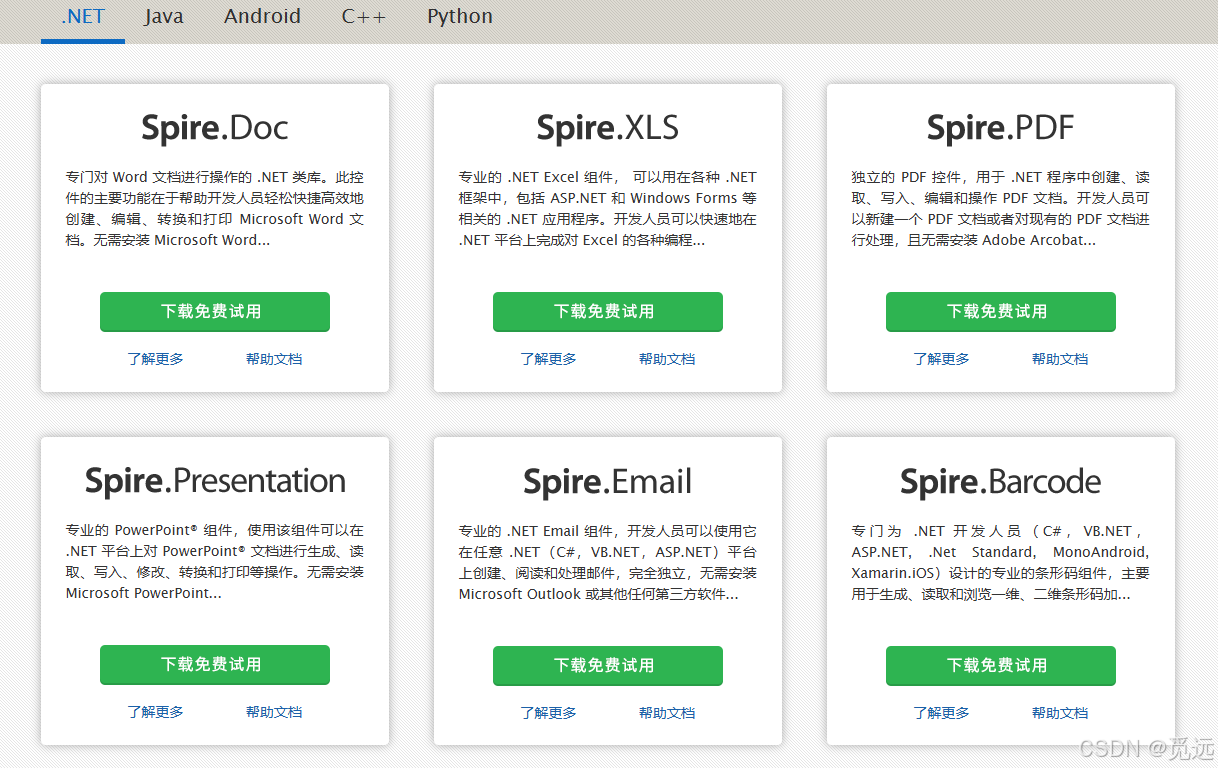
Spire.Doc for .NET 是一款专门对 Word 文档进行操作的 .NET 类库。这款控件的主要功能在于帮助开发人员轻松快捷高效的创建、编辑、转换、比较和打印 Microsoft Word 文档。作为一款独立的 Word .NET 控件,Spire.Doc for .NET 的运行系统(服务器端或客户端)均无需安装 Microsoft Word,但是它却可以将 Microsoft Word 文档的操作功能集成到任何开发人员的 .NET(ASP.NET、Windows Form、.NET Core、.NET 5.0、.NET 6.0、.NET 7.0、.NET Standard、 Xamarin 和 Mono Android)应用程序中。
spire的更多使用和方法可见:
冰蓝科技 e-iceblue | 您的办公文档开发技术专家 | C#/VB.Net Excel, Word, PowerPoint, PDF, Barcode 组件
注意,文件在读取或写入操作时必须是关闭状态,否则会报错。
读取全部文本内容
from spire.doc import *
from spire.doc.common import *

inputFile = r'自检测试报告.doc'
outputFile = r'自检测试报告.docx'

document = Document()  # 创建Document实例
document.LoadFromFile(inputFile)  # 加载Word文档
document_text = document.GetText()
print(document_text)
通过节点读取数据
Document.Sections[index] 属性可用于获取Word 文档中的特定节点。 获取后,可遍历该节中的段落、表格等。
print(len(document.Sections))  # 获取节点数量
print(document.Sections.Count)  # 获取节点数量
section = document.Sections

# 分段落获取文本内容
for i in range(document.Sections.Count):
    paragraphs = section[i].Paragraphs
    for p in range(paragraphs.Count):
        print(paragraphs[p].Text)
按页读取
因为Word文档本质上是流式文档,流式布局,所以没有“页面”的概念。为了方便页面操作,Spire.Doc for Python提供了FixedLayoutDocument类,用于将Word文档转换为固定布局。
layoutDoc = FixedLayoutDocument(document)  # 创建FixedLayoutDocument类的实例,用于将Word文档转换为固定布局。

print(layoutDoc.Pages.Count)

for p in range(layoutDoc.Pages.Count):
    page_data = layoutDoc.Pages[p]
    # print(page_data.Text)   # 按页读取文本
    cols_data = page_data.Columns
    for col in range(len(cols_data)):
        # print(cols_data[col].Text)  # 按段读取文本
        row_data = cols_data[col].Lines
        for row in range(len(row_data)):
            print(row_data[row].Text)  # 按行读取文本
读取页眉页脚
section = document.Sections

for i in range(document.Sections.Count):

    header = section[i].HeadersFooters.Header  # 获取该节的页眉对象

    footer = section[i].HeadersFooters.Footer  # 获取该节的页脚对象
    for h in range(header.Paragraphs.Count):
        headerPara = header.Paragraphs[h]
        print(headerPara.Text)

    for f in range(footer.Paragraphs.Count):
        footerPara = footer.Paragraphs[f]
        print(footerPara.Text)
遍历表格数据
document = Document()  # 创建Document实例
document.LoadFromFile(inputFile)  # 加载Word文档

for i in range(document.Sections.Count):
    section = document.Sections.get_Item(i)
    for j in range(section.Tables.Count):
        table = section.Tables.get_Item(j)

        # 遍历表格中的行
        for row in range(table.Rows.Count):
            row_data = []

            # 遍历行中的单元格
            for cell in range(table.Rows.get_Item(row).Cells.Count):
                cell_obj = table.Rows.get_Item(row).Cells.get_Item(cell)
                cell_text = ""

                # 获取单元格中的段落内容
                for paragraph_index in range(cell_obj.Paragraphs.Count):
                    paragraph = cell_obj.Paragraphs.get_Item(paragraph_index)
                    cell_text += paragraph.Text

                row_data.append(cell_text.strip())

            # 打印行数据
            print(row_data)

document.Close()
查找指定文本
def FindAllString(self ,matchString:str,caseSensitive:bool,wholeWord:bool)->List['TextSelection']
参数:
- matchString:str,要查找的内容
- caseSensitive:bool,如果为True,匹配是区分大小写的。
- wholeWord:bool,如果为True,匹配的必须是一个完整的单词。
可对查找的内容进行其他操作
document = Document()  # 创建Document实例
document.LoadFromFile(inputFile)  # 加载Word文档

textSelections = document.FindAllString("测试报告", False, True)

# 对找到的内容设置高亮显示颜色
for selection in textSelections:
    selection.GetAsOneRange().CharacterFormat.HighlightColor = Color.get_Blue()

document.SaveToFile(outputFile, FileFormat.Docx)
document.Close()
以上就是Python如何调用spire.doc轻松读取Word文档内容的详细内容,更多关于Python读取Word的资料请关注脚本之家其它相关文章!
相关文章
 Pillow 提供了颜色处理模块 ImageColor,该模块支持不同格式的颜色,可以修改RGB的颜色,具有一定的参考价值,感兴趣的可以了解一下2021-11-11
 这篇文章主要介绍了简单了解python shutil模块原理及使用方法,文中通过示例代码介绍的非常详细,对大家的学习或者工作具有一定的参考学习价值,需要的朋友可以参考下2020-04-04
 大家应该都知道redis是一个基于内存的高效的键值型非关系数据库,下面这篇文章主要给大家介绍了关于Python操作Redis的相关资料,文中通过实例代码介绍的非常详细,需要的朋友可以参考下2022-06-06
Python连接SQL server数据库并进行简单查询的操作详解
SQL Server是微软推出的重量级的数据库,本文将给大家详细介绍了一下Python连接SQL server数据库详细流程,并通过代码示例给大家讲解的非常清除,具有一定的参考价值,需要的朋友可以参考下2024-02-02 这篇文章主要介绍了Python实现微信公众平台自定义菜单实例,本文直接给出实现代码,需要的朋友可以参考下2015-03-03
 这篇文章主要介绍了python 实现打印扫描效果详情,文章围绕主题展开详细的内容介绍,具有一定的参考价值,需要的小伙伴可以参考一下2022-08-08
 这篇文章主要介绍了Python Numpy库datetime类型的处理详解,Python中自带的处理时间的模块就有time 、datetime、calendar,另外还有扩展的第三方库,如dateutil等等。。当我们用NumPy库做数据分析时,如何转换时间呢?需要的朋友可以参考下2019-07-07
 掌握Python Restful 接口测试,让你的后端服务像流水一样顺畅,本指南将带你轻松穿梭于断言和请求之间,搞定所有测试难题,一起来看,让代码在你的指尖跳舞吧!2023-12-12
 这篇文章主要介绍了Python的反射机制,帮助大家更好的理解和使用python,感兴趣的朋友可以了解下2020-09-09
 这篇文章主要为大家详细介绍了wxPython实现画图板,文中示例代码介绍的非常详细,具有一定的参考价值,感兴趣的小伙伴们可以参考一下2019-11-11
最新评论