

Python实现批量添加视频文本水印
1. 简介
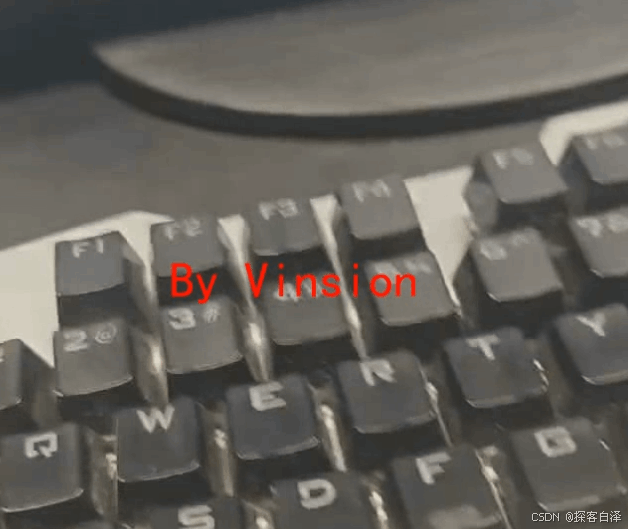
这个是一个基于PyQt5开发的视频水印批量添加工具,旨在为多个视频文件添加文本水印。用户可以自定义水印的文本内容、字体颜色、字号大小以及位置(如左上角、右上角、左下角、右下角和中心位置)。程序支持常见的视频格式,如MP4、AVI、MOV和MKV,并能够批量处理视频文件,输出带有水印的新视频。
2.功能介绍
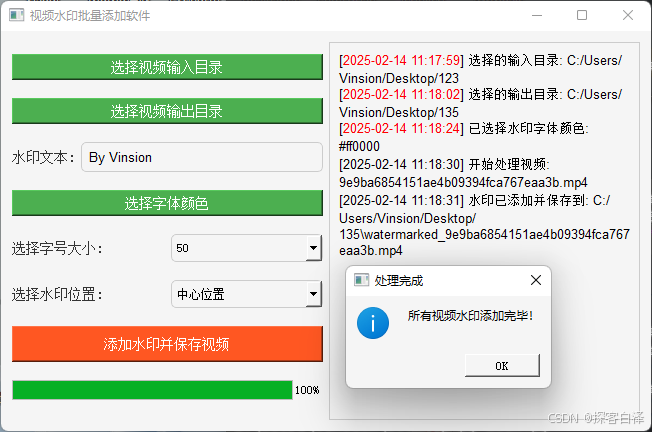
选择输入和输出目录: 用户可以通过文件对话框选择视频文件的输入目录和保存带水印视频的输出目录。
自定义水印文本: 用户可以在输入框中填写水印的文本内容,水印会被添加到视频上。
自定义水印位置: 水印可以选择显示在视频的不同位置,包括左上角、右上角、左下角、右下角和中心。
自定义水印字体颜色: 用户可以通过颜色选择器来选择水印文本的颜色,支持丰富的颜色选择。
选择水印字体大小: 提供了多个字体大小选项(20到100),用户可以根据需要选择合适的字号。
批量处理视频: 程序会遍历输入目录中的所有视频文件,逐一为其添加水印并保存到输出目录。支持的视频格式包括MP4、AVI、MOV、MKV等。
进度条与日志显示: 程序提供实时进度条,显示当前视频处理的进度。同时,日志框显示详细的处理信息和错误提示,帮助用户实时了解处理状态。
处理完成提示: 所有视频处理完成后,会弹出提示框,告知用户所有视频水印已成功添加。
3. 运行效果
4.相关源码
import os
import time
import cv2
import numpy as np
from PyQt5.QtCore import Qt, QThread, pyqtSignal, QThreadPool, QRunnable, QObject
from PyQt5.QtGui import QColor
from PyQt5.QtWidgets import QApplication, QWidget, QVBoxLayout, QPushButton, QFileDialog, QTextBrowser, QProgressBar, QComboBox, QLabel, QLineEdit, QColorDialog, QMessageBox, QHBoxLayout
from PyQt5.QtGui import QFont
from PIL import Image, ImageDraw, ImageFont

class WatermarkWorker(QObject):
    update_log_signal = pyqtSignal(str)
    update_progress_signal = pyqtSignal(int)
    processing_complete_signal = pyqtSignal()

    def __init__(self, input_dir, output_dir, watermark_text, watermark_position, watermark_color, font_size, video_file):
        super().__init__()
        self.input_dir = input_dir
        self.output_dir = output_dir
        self.watermark_text = watermark_text
        self.watermark_position = watermark_position
        self.watermark_color = watermark_color
        self.font_size = font_size
        self.video_file = video_file

    def add_watermark(self):
        input_video_path = os.path.join(self.input_dir, self.video_file)
        output_video_path = os.path.join(self.output_dir, "watermarked_" + self.video_file)

        self.update_log_signal.emit(f"[{self.get_current_time()}] 开始处理视频: {self.video_file}")

        cap = cv2.VideoCapture(input_video_path)
        frame_width = int(cap.get(cv2.CAP_PROP_FRAME_WIDTH))
        frame_height = int(cap.get(cv2.CAP_PROP_FRAME_HEIGHT))
        fourcc = cv2.VideoWriter_fourcc(*'mp4v')
        out = cv2.VideoWriter(output_video_path, fourcc, 30.0, (frame_width, frame_height))

        total_frames = int(cap.get(cv2.CAP_PROP_FRAME_COUNT))
        processed_frames = 0

        while cap.isOpened():
            ret, frame = cap.read()
            if not ret:
                break

            frame = self.add_text_watermark(frame, self.watermark_text, self.watermark_position, frame_width, frame_height)
            out.write(frame)

            processed_frames += 1
            progress = int((processed_frames / total_frames) * 100)
            self.update_progress_signal.emit(progress)

        cap.release()
        out.release()

        self.update_log_signal.emit(f"[{self.get_current_time()}] 水印已添加并保存到: {output_video_path}")
        self.update_progress_signal.emit(100)
        self.processing_complete_signal.emit()

    def add_text_watermark(self, frame, text, position, width, height):
        pil_image = Image.fromarray(cv2.cvtColor(frame, cv2.COLOR_BGR2RGB))
        draw = ImageDraw.Draw(pil_image)
        try:
            font = ImageFont.truetype("simhei.ttf", self.font_size)
        except IOError:
            font = ImageFont.load_default()

        bbox = draw.textbbox((0, 0), text, font=font)
        text_width = bbox[2] - bbox[0]
        text_height = bbox[3] - bbox[1]

        x, y = 10, 30
        if position == "左上角":
            x, y = 10, 30
        elif position == "右上角":
            x, y = width - text_width - 10, 30
        elif position == "左下角":
            x, y = 10, height - text_height - 10
        elif position == "右下角":
            x, y = width - text_width - 10, height - text_height - 10
        elif position == "中心位置":
            x, y = (width - text_width) // 2, (height - text_height) // 2

        color = (self.watermark_color.red(), self.watermark_color.green(), self.watermark_color.blue())
        draw.text((x, y), text, font=font, fill=color)

        return cv2.cvtColor(np.array(pil_image), cv2.COLOR_RGB2BGR)

    def get_current_time(self):
        return time.strftime("%Y-%m-%d %H:%M:%S", time.localtime())


class WatermarkApp(QWidget):
    def __init__(self):
        super().__init__()

        self.setWindowTitle("视频水印批量添加软件")
        self.setGeometry(300, 300, 650, 400)

        self.input_dir = ""
        self.output_dir = ""
        self.watermark_text = ""
        self.watermark_position = "center"
        self.watermark_color = QColor(255, 255, 255)
        self.font_size = 30

        self.thread_pool = QThreadPool()

        self.initUI()

    def initUI(self):
        main_layout = QHBoxLayout()
        left_layout = QVBoxLayout()

        self.setStyleSheet("background-color: #F5F5F5;")

        self.input_button = QPushButton("选择视频输入目录")
        self.input_button.setStyleSheet("background-color: #4CAF50; color: white; font-size: 14px; padding: 5px;")
        self.input_button.clicked.connect(self.select_input_directory)
        left_layout.addWidget(self.input_button)

        self.output_button = QPushButton("选择视频输出目录")
        self.output_button.setStyleSheet("background-color: #4CAF50; color: white; font-size: 14px; padding: 5px;")
        self.output_button.clicked.connect(self.select_output_directory)
        left_layout.addWidget(self.output_button)

        watermark_layout = QHBoxLayout()

        self.watermark_label = QLabel("水印文本:")
        self.watermark_label.setStyleSheet("font-size: 14px; color: #333333;")
        watermark_layout.addWidget(self.watermark_label)

        self.watermark_input = QLineEdit(self)
        self.watermark_input.setFont(QFont("Arial", 10))
        self.watermark_input.setStyleSheet("padding: 5px; border-radius: 5px; border: 1px solid #ccc;")
        self.watermark_input.textChanged.connect(self.update_watermark_text)
        watermark_layout.addWidget(self.watermark_input)

        left_layout.addLayout(watermark_layout)

        self.color_button = QPushButton("选择字体颜色")
        self.color_button.setStyleSheet("background-color: #4CAF50; color: white; font-size: 14px; padding: 5px;")
        self.color_button.clicked.connect(self.select_color)
        left_layout.addWidget(self.color_button)

        font_size_layout = QHBoxLayout()

        self.font_size_label = QLabel("选择字号大小:")
        self.font_size_label.setStyleSheet("font-size: 14px; color: #333333;")
        font_size_layout.addWidget(self.font_size_label)

        self.font_size_combo = QComboBox(self)
        self.font_size_combo.addItem("20")
        self.font_size_combo.addItem("30")
        self.font_size_combo.addItem("40")
        self.font_size_combo.addItem("50")
        self.font_size_combo.addItem("60")
        self.font_size_combo.addItem("70")
        self.font_size_combo.addItem("80")
        self.font_size_combo.addItem("90")
        self.font_size_combo.addItem("100")
        self.font_size_combo.setStyleSheet("padding: 5px; border-radius: 5px; border: 1px solid #ccc;")
        self.font_size_combo.currentTextChanged.connect(self.update_font_size)
        font_size_layout.addWidget(self.font_size_combo)

        left_layout.addLayout(font_size_layout)

        position_layout = QHBoxLayout()
        self.position_label = QLabel("选择水印位置:")
        self.position_label.setStyleSheet("font-size: 14px; color: #333333;")
        self.position_combo = QComboBox(self)
        self.position_combo.addItem("左上角")
        self.position_combo.addItem("右上角")
        self.position_combo.addItem("左下角")
        self.position_combo.addItem("右下角")
        self.position_combo.addItem("中心位置")
        self.position_combo.setStyleSheet("padding: 5px; border-radius: 5px; border: 1px solid #ccc;")
        self.position_combo.currentTextChanged.connect(self.update_watermark_position)

        position_layout.addWidget(self.position_label)
        position_layout.addWidget(self.position_combo)
        left_layout.addLayout(position_layout)

        self.process_button = QPushButton("添加水印并保存视频")
        self.process_button.setStyleSheet("background-color: #FF5722; color: white; font-size: 14px; padding: 10px;")
        self.process_button.clicked.connect(self.add_watermark)
        left_layout.addWidget(self.process_button)

        self.progress_bar = QProgressBar(self)
        self.progress_bar.setRange(0, 100)
        self.progress_bar.setValue(0)
        self.progress_bar.setTextVisible(True)
        self.progress_bar.setStyleSheet("height: 20px; background-color: #ddd;")
        left_layout.addWidget(self.progress_bar)

        self.log_browser = QTextBrowser(self)
        self.log_browser.setStyleSheet("background-color: #F5F5F5; border: 1px solid #ccc; padding: 5px;")
        self.log_browser.setFont(QFont("Arial", 10))
        main_layout.addLayout(left_layout)
        main_layout.addWidget(self.log_browser)

        self.setLayout(main_layout)

    def select_input_directory(self):
        self.input_dir = QFileDialog.getExistingDirectory(self, "选择输入目录")
        self.log_browser.append(f"[<font color='red'>{self.get_current_time()}</font>] 选择的输入目录: {self.input_dir}")

    def select_output_directory(self):
        self.output_dir = QFileDialog.getExistingDirectory(self, "选择输出目录")
        self.log_browser.append(f"[<font color='red'>{self.get_current_time()}</font>] 选择的输出目录: {self.output_dir}")

    def update_watermark_text(self):
        self.watermark_text = self.watermark_input.text()

    def update_watermark_position(self):
        self.watermark_position = self.position_combo.currentText()

    def update_font_size(self):
        self.font_size = int(self.font_size_combo.currentText())

    def select_color(self):
        color = QColorDialog.getColor(self.watermark_color, self, "选择字体颜色")
        if color.isValid():
            self.watermark_color = color
            self.log_browser.append(f"[<font color='red'>{self.get_current_time()}</font>] 已选择水印字体颜色: {self.watermark_color.name()}")

    def add_watermark(self):
        if not self.input_dir or not self.output_dir or not self.watermark_text:
            self.log_browser.append(f"[<font color='red'>{self.get_current_time()}</font>] 错误: 请检查输入目录、输出目录和水印文本")
            return

        video_files = [f for f in os.listdir(self.input_dir) if f.endswith(('.mp4', '.avi', '.mov', '.mkv'))]
        for video_file in video_files:
            # 创建WatermarkWorker实例
            worker = WatermarkWorker(self.input_dir, self.output_dir, self.watermark_text, self.watermark_position,
                                     self.watermark_color, self.font_size, video_file)
            # 连接信号
            worker.update_log_signal.connect(self.log_browser.append)
            worker.update_progress_signal.connect(self.progress_bar.setValue)
            worker.processing_complete_signal.connect(self.show_completion_message)

            # 启动处理
            worker.add_watermark()

    def show_completion_message(self):
        QMessageBox.information(self, "处理完成", "所有视频水印添加完毕!", QMessageBox.Ok)

    def get_current_time(self):
        return time.strftime("%Y-%m-%d %H:%M:%S", time.localtime())

if __name__ == '__main__':
    app = QApplication([])
    window = WatermarkApp()
    window.show()
    app.exec_()
5. 总结
这款视频水印批量添加软件通过PyQt5实现了一个简洁且功能强大的图形用户界面,支持对多个视频文件进行水印添加。用户可以轻松自定义水印的各项参数,程序在处理过程中提供实时进度条和日志显示,确保用户能够清晰了解每个视频的处理状态。该工具特别适合需要批量处理视频并添加水印的用户,提供了便捷且高效的视频编辑功能
到此这篇关于Python实现批量添加视频文本水印的文章就介绍到这了,更多相关Python视频添加水印内容请搜索脚本之家以前的文章或继续浏览下面的相关文章希望大家以后多多支持脚本之家!
相关文章
 这篇文章主要介绍了python中的断言(assert语句),具有很好的参考价值,希望对大家有所帮助。如有错误或未考虑完全的地方,望不吝赐教2022-05-05
 这篇文章主要介绍了Python设计模式编程之桥接模式的运用,桥接模式主张把抽象部分与它的实现部分分离,需要的朋友可以参考下2016-03-03
 今天小编就为大家分享一篇在django view中给form传入参数的例子,具有很好的参考价值,希望对大家有所帮助。一起跟随小编过来看看吧2019-07-07
 不知道大家有没有发现,我们在网页移动鼠标时,不同的网页会有不同的鼠标移动特效,通过移动鼠标,会形成类似蜘蛛网等等的特效,本文将用PyQt5实现这一特效,需要的可以参考一下2024-07-07
 Socket是网络编程的一个抽象概念,通常我们用一个Socket表示“打开了一个网络链接”,而打开一个Socket需要知道目标计算机的IP地址和端口号,再指定协议类型即可,这篇文章主要给大家介绍了关于Python Socket编程的相关资料,需要的朋友可以参考下2021-08-08
 今天小编就为大家分享一篇根据tensor的名字获取变量的值方式,具有很好的参考价值,希望对大家有所帮助。一起跟随小编过来看看吧2020-01-01
 命令行参数是通过sys.argv[]来获取的,sys.argv[0]是代码文件本身的路径,因此参数是从1开始的。比如设置参数为: spe2008-09-09
 这篇文章主要介绍了Django中URL的参数传递的实现,文中通过示例代码介绍的非常详细,对大家的学习或者工作具有一定的参考学习价值,需要的朋友们下面随着小编来一起学习学习吧2019-08-08
 文章介绍了Windows下Python截图的四种方法:PIL库(简单快速)、win32gui(精准控制窗口)、mss库(跨平台高性能)及win32API处理隐藏窗口,需注意窗口标题匹配、权限问题和DPI缩放调整,推荐常规截图用PIL或mss,需精准控制时使用win32API,需要的朋友可以参考下2025-10-10
 这篇文章主要为大家详细介绍了使用python3.5仿微软记事本notepad的相关资料,具有一定的参考价值,感兴趣的小伙伴们可以参考一下2016-06-06
最新评论