

Python使用Turtle实现精确计时工具
更新时间:2025年05月25日 11:25:20 作者:笨笨轻松熊
这篇文章主要为大家详细介绍了Python如何使用Turtle实现精确计时工具,文中的示例代码讲解详细,具有一定的借鉴价值,有需要的小伙伴可以参考一下
功能特点
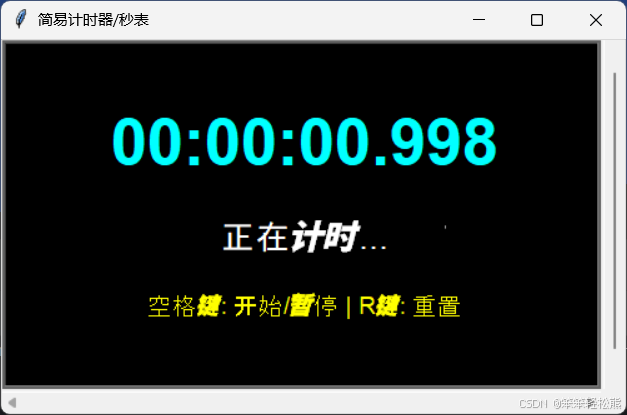
数字显示当前计时(时:分:秒.毫秒)
支持开始/暂停计时(空格键)
支持重置计时(R键)
状态显示(正在计时/已暂停/按空格键开始计时)
清晰的操作提示
使用方法
运行程序后,会显示初始时间(00:00:00.000)
按下空格键开始计时
再次按下空格键暂停计时
按下R键可以重置计时器回到00:00:00.000
程序架构设计
1.核心模块:
turtle: 提供跨平台的图形化界面绘制功能
time: 提供高精度的系统时间获取功能
2.设计模式:
采用事件驱动编程模型,通过键盘事件触发状态变更
利用全局状态管理计时器状态
3.算法原理:
时间计算:利用系统时间差值计算经过时间
状态管理:使用布尔变量控制计时器运行状态
代码详解
窗口和画笔创建
import turtle
import time

# 设置窗口和基本参数
screen = turtle.Screen()
screen.title("简易计时器/秒表")
screen.bgcolor("black")
screen.setup(width=500, height=300)
screen.tracer(0)  # 关闭自动刷新

# 创建显示时间的画笔
time_display = turtle.Turtle()
time_display.hideturtle() # 隐藏turtle的箭头图标,使绘图时只显示图形而不显示箭头
time_display.color("cyan") # 设置turtle绘图的颜色
time_display.penup()   #抬起turtle的笔,这样移动turtle时不会绘制线条
time_display.goto(0, 30)  # 将turtle移动到坐标(0, 30)的位置,准备从该点开始绘图或显示文本

# 创建状态显示的画笔
status_display = turtle.Turtle()
status_display.hideturtle()
status_display.speed(0)
status_display.color("white")
status_display.penup()
status_display.goto(0, -30)

# 创建操作提示的画笔
help_display = turtle.Turtle()
help_display.hideturtle()
help_display.speed(0)
help_display.color("yellow")
help_display.penup()
help_display.goto(0, -80)
help_display.write("空格键: 开始/暂停 | R键: 重置", align="center", font=("Arial", 14, "normal"))

# 初始化秒表变量
is_running = False
start_time = 0
accumulated_time = 0
应用知识点:
- Turtle图形对象: 创建多个Turtle对象分别负责不同UI元素的显示
- 窗口控制: 使用screen.tracer(0)关闭自动刷新以提高性能
- 坐标系统: 使用二维坐标系统合理布局界面元素
- 全局状态变量: 使用全局变量跟踪计时器状态
时间和状态显示更新
# 更新时间显示
def update_time_display(elapsed_time):
    hours = int(elapsed_time / 3600)
    minutes = int((elapsed_time % 3600) / 60)
    seconds = int(elapsed_time % 60)
    milliseconds = int((elapsed_time * 1000) % 1000)

    time_str = f"{hours:02d}:{minutes:02d}:{seconds:02d}.{milliseconds:03d}"
    time_display.clear()
    time_display.write(time_str, align="center", font=("Arial", 40, "bold"))

# 更新状态显示
def update_status():
    status_display.clear()
    if is_running:
        status = "正在计时..."
    else:
        if accumulated_time > 0:
            status = "已暂停"
        else:
            status = "按空格键开始计时"
    status_display.write(status, align="center", font=("Arial", 20, "normal"))
应用知识点:
- 时间单位转换: 将秒数转换为时、分、秒、毫秒
- 取余与整除运算: 使用整除和取余操作进行时间单位分解
- 字符串格式化: 使用f-string和格式说明符控制显示格式
- 状态条件判断: 根据多种状态组合提供不同的用户反馈
计时器控制逻辑
def toggle_timer():
    global is_running, start_time, accumulated_time

    if is_running:
        # 暂停计时
        is_running = False
        accumulated_time += time.time() - start_time
    else:
        # 开始计时
        is_running = True
        start_time = time.time()

    update_status()
应用知识点:
- 全局变量修改: 使用global关键字在函数内修改全局状态
- 高精度时间获取: 使用time.time()获取高精度Unix时间戳
- 状态切换设计: 实现简洁的状态切换逻辑
计时器重置功能
def reset_timer():
    global is_running, start_time, accumulated_time
    is_running = False
    accumulated_time = 0
    start_time = 0
    update_status()
    update_time_display(0)
应用知识点:
- 状态重置: 将所有计时相关变量重置为初始值
- 函数复用: 复用更新显示的函数,避免代码冗余
事件监听设置
# 设置键盘事件
screen.listen()
screen.onkeypress(toggle_timer, "space")  # 空格键开始/暂停
screen.onkeypress(reset_timer, "r")       # R键重置
应用知识点:
- 事件监听机制: 使用listen()方法启用事件监听
- 回调函数绑定: 将键盘事件与特定函数绑定
- 函数引用传递: 将函数名作为参数传递,不带括号
主循环及运行控制
def main():
# 初始显示
update_status()
update_time_display(0)
while True:
if is_running:
elapsed_time = accumulated_time + (time.time() - start_time)
else:
elapsed_time = accumulated_time
update_time_display(elapsed_time)
screen.update()
time.sleep(0.01) # 小延迟减轻CPU负担
# 启动程序
if __name__ == "__main__":
try:
main()
except:
print("程序已退出")
turtle.done() 应用知识点:
- 无限循环: 使用while True创建游戏主循环
- 条件计时: 根据运行状态计算不同的时间值
- 手动屏幕刷新: 使用screen.update()手动刷新画面
- 定时延迟: 使用time.sleep()控制循环速率,减轻CPU负担
- 异常处理: 使用try-except捕获可能的异常,确保程序优雅退出
- 入口点检查: 使用if __name__ == "__main__":确保直接运行时才执行主函数
完整代码
import turtle
import time

# 设置窗口和基本参数
screen = turtle.Screen()
screen.title("简易计时器/秒表")
screen.bgcolor("black")
screen.setup(width=500, height=300)
screen.tracer(0)  # 关闭自动刷新

# 创建显示时间的画笔
time_display = turtle.Turtle()
time_display.hideturtle() # 隐藏turtle的箭头图标,使绘图时只显示图形而不显示箭头
time_display.color("cyan") # 设置turtle绘图的颜色
time_display.penup()   #抬起turtle的笔,这样移动turtle时不会绘制线条
time_display.goto(0, 30)  # 将turtle移动到坐标(0, 30)的位置,准备从该点开始绘图或显示文本

# 创建状态显示的画笔
status_display = turtle.Turtle()
status_display.hideturtle()
status_display.speed(0)
status_display.color("white")
status_display.penup()
status_display.goto(0, -30)

# 创建操作提示的画笔
help_display = turtle.Turtle()
help_display.hideturtle()
help_display.speed(0)
help_display.color("yellow")
help_display.penup()
help_display.goto(0, -80)
help_display.write("空格键: 开始/暂停 | R键: 重置", align="center", font=("Arial", 14, "normal"))

# 初始化秒表变量
is_running = False
start_time = 0
accumulated_time = 0


# 更新时间显示
def update_time_display(elapsed_time):
    hours = int(elapsed_time / 3600)
    minutes = int((elapsed_time % 3600) / 60)
    seconds = int(elapsed_time % 60)
    milliseconds = int((elapsed_time * 1000) % 1000)

    time_str = f"{hours:02d}:{minutes:02d}:{seconds:02d}.{milliseconds:03d}"
    time_display.clear()
    time_display.write(time_str, align="center", font=("Arial", 40, "bold"))


# 更新状态显示
def update_status():
    status_display.clear()
    if is_running:
        status = "正在计时..."
    else:
        if accumulated_time > 0:
            status = "已暂停"
        else:
            status = "按空格键开始计时"
    status_display.write(status, align="center", font=("Arial", 20, "normal"))


def toggle_timer():
    global is_running, start_time, accumulated_time

    if is_running:
        # 暂停计时
        is_running = False
        accumulated_time += time.time() - start_time
    else:
        # 开始计时
        is_running = True
        start_time = time.time()

    update_status()

def reset_timer():
    global is_running, start_time, accumulated_time
    is_running = False
    accumulated_time = 0
    start_time = 0
    update_status()
    update_time_display(0)
# 设置键盘事件
screen.listen()
screen.onkeypress(toggle_timer, "space")  # 空格键开始/暂停
screen.onkeypress(reset_timer, "r")       # R键重置


def main():
    # 初始显示
    update_status()
    update_time_display(0)

    while True:
        if is_running:
            elapsed_time = accumulated_time + (time.time() - start_time)
        else:
            elapsed_time = accumulated_time

        update_time_display(elapsed_time)
        screen.update()
        time.sleep(0.01)  # 小延迟减轻CPU负担


# 启动程序
if __name__ == "__main__":
    try:
        main()
    except:
        print("程序已退出")
    turtle.done()
效果:
到此这篇关于Python使用Turtle实现精确计时工具的文章就介绍到这了,更多相关Python计时内容请搜索脚本之家以前的文章或继续浏览下面的相关文章希望大家以后多多支持脚本之家!
相关文章
 在本篇文章里小编给大家分享了关于python+webdriver自动化环境搭建的详细步骤以及注意点,需要的朋友们参考下。2019-06-06
 这篇文章主要介绍了python两种注释用法的示例,帮助大家开始学习和使用python 注释,感兴趣的朋友可以了解下2020-10-10
 这篇文章主要介绍了Python如何使用Gitlab API实现批量的合并分支,文中通过示例代码介绍的非常详细,对大家的学习或者工作具有一定的参考学习价值,需要的朋友可以参考下2019-11-11
 这篇文章主要介绍了Python的time模块中的常用方法整理,time模块是专门用于处理日期时间的模块,需要的朋友可以参考下2015-06-06
 今天小编就为大家分享一篇python直接获取API传递回来的参数方法,具有很好的参考价值,希望对大家有所帮助。一起跟随小编过来看看吧2018-12-12
Python3利用openpyxl读写Excel文件的方法实例
这篇文章主要给大家介绍了关于Python3利用openpyxl读写Excel文件的相关资料,文中通过示例代码介绍的非常详细,对大家的学习或者工作具有一定的参考学习价值,需要的朋友们下面随着小编来一起学习学习吧2021-02-02
Pytho爬虫中Requests设置请求头Headers的方法
这篇文章主要介绍了Pytho爬虫中Requests设置请求头Headers的方法,文中通过示例代码介绍的非常详细,对大家的学习或者工作具有一定的参考学习价值,需要的朋友们下面随着小编来一起学习学习吧2020-09-09
Tensorflow、Keras与Python版本兼容性完全解析
在深度学习的开发过程中,TensorFlow和Keras作为最流行的深度学习框架,已经成为了众多开发者和研究人员的首选,这篇文章主要介绍了Tensorflow、Keras与Python版本兼容性的相关资料,需要的朋友可以参考下2025-11-11 这篇文章主要为大家详细介绍了Python如何利用Pygame实现接小弹珠游戏,即用挡板接住会反弹的小球,随着次数的增多,速度变快,分数增多,感兴趣的可以了解一下2022-12-12
 这篇文章主要介绍了详解python里使用正则表达式的全匹配功能的相关资料,希望通过本文能帮助到大家,需要的朋友可以参考下2017-10-10
最新评论