

Python绘制TSP、VRP问题求解结果图全过程
更新时间:2025年09月25日 11:01:00 作者:Q.V.Q
本文介绍用Python绘制TSP和VRP问题的静态与动态结果图,静态图展示路径,动态图通过matplotlib.animation模块实现动画效果,保存为GIF需安装PIL库支持
【代码】Python绘制TSP、VRP问题求解结果图(包含静态图与动态图)。
一、静态图
import matplotlib.pyplot as plt


def plot_tour(data, best_path, is_save):
    """
    绘制旅行图
    :param data: 包含位置坐标的字典类型数据
    :param best_path: 最优旅行路径
    :param is_save: 是否保存绘图
    :return:
    """
    x = []
    y = []
    text_list = []
    for v in best_path:
        x.append(data[v][0])
        y.append(data[v][1])
        text_list.append(str(v))

    for i in range(len(text_list)):
        plt.text(x[i], y[i], text_list[i], ha='center', va='center_baseline')

    plt.plot(x, y, 'co--', linewidth=2, markersize=12)
    if is_save:
        plt.savefig("best_tour.png")
    plt.show()


def vrp():
    data = {
        1: (710.0, 1310.0),
        2: (630.0, 1660.0),
        3: (40.0, 2090.0),
        4: (750.0, 1100.0),
        5: (750.0, 2030.0),
        6: (1030.0, 2070.0),
        7: (1650.0, 650.0),
        8: (1490.0, 1630.0),
        9: (790.0, 2260.0),
        10: (1150.0, 1760.0),
        11: (840.0, 550.0),
        12: (1170.0, 2300.0),
        13: (970.0, 1340.0),
        14: (510.0, 700.0),
        15: (750.0, 900.0),
        16: (1280.0, 1200.0),
        17: (230.0, 590.0),
        18: (460.0, 860.0),
        19: (1040.0, 950.0),
        20: (590.0, 1390.0),
        21: (830.0, 1770.0),
        22: (490.0, 500.0),
        23: (1840.0, 1240.0),
        24: (1260.0, 1500.0),
        25: (1280.0, 790.0),
        26: (490.0, 2130.0),
        27: (1460.0, 1420.0),
        28: (1260.0, 1910.0),
        29: (360.0, 1980.0)
    }
    best_path = [1, 4, 15, 18, 17, 14, 22, 11, 19, 25, 7, 23, 27, 8, 24, 16, 13, 1,
                 1, 21, 10, 28, 6, 12, 9, 5, 26, 29, 3, 2, 20, 1]
    plot_tour(data, best_path, False)


def tsp():
    data = {
        1: (1150.0, 1760.0),
        2: (630.0, 1660.0),
        3: (40.0, 2090.0),
        4: (750.0, 1100.0),
        5: (750.0, 2030.0),
        6: (1030.0, 2070.0),
        7: (1650.0, 650.0),
        8: (1490.0, 1630.0),
        9: (790.0, 2260.0),
        10: (710.0, 1310.0),
        11: (840.0, 550.0),
        12: (1170.0, 2300.0),
        13: (970.0, 1340.0),
        14: (510.0, 700.0),
        15: (750.0, 900.0),
        16: (1280.0, 1200.0),
        17: (230.0, 590.0),
        18: (460.0, 860.0),
        19: (1040.0, 950.0),
        20: (590.0, 1390.0),
        21: (830.0, 1770.0),
        22: (490.0, 500.0),
        23: (1840.0, 1240.0),
        24: (1260.0, 1500.0),
        25: (1280.0, 790.0),
        26: (490.0, 2130.0),
        27: (1460.0, 1420.0),
        28: (1260.0, 1910.0),
        29: (360.0, 1980.0)
    }
    best_path = [1, 28, 6, 12, 9, 5, 26, 29, 3, 2, 20, 10, 4, 15, 18, 17,
                 14, 22, 11, 19, 25, 7, 23, 27, 8, 24, 16, 13, 21, 1]
    plot_tour(data, best_path, False)


vrp()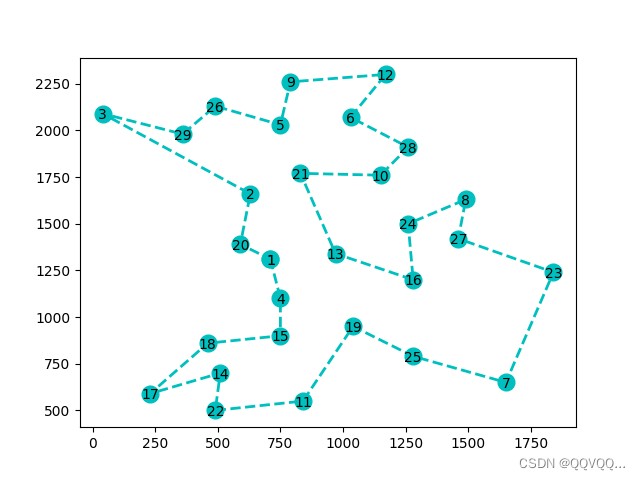
TSP结果图
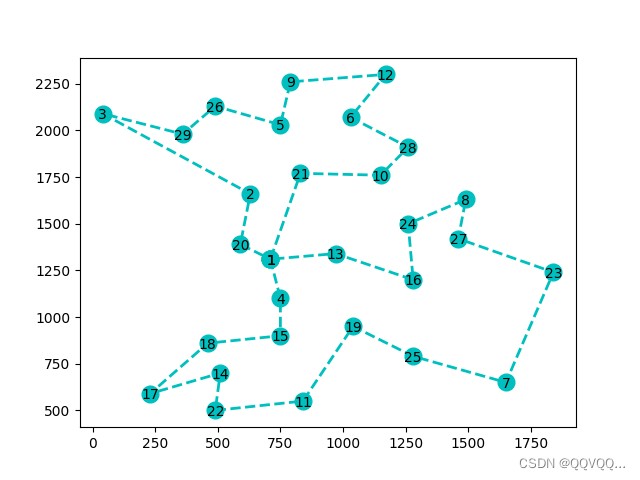
VRP结果图
二、动态图
原理:
利用matplotlib的animation模块进行动态图的制作,其中保存为gif图片时需要使用PIL包,否则无法保存。
import matplotlib.pyplot as plt
import matplotlib.animation as animation
import PIL


def plot_tour(data, best_path, is_save):
    """
    绘制旅行图
    :param data: 包含位置坐标的字典类型数据
    :param best_path: 最优旅行路径
    :param is_save: 是否保存绘图
    :return:
    """
    fig, ax = plt.subplots()
    x = []
    y = []
    figure_list = []
    text_list = []
    for v in best_path:
        x.append(data[v][0])
        y.append(data[v][1])
        text_list.append(str(v))

        ax.plot(x, y, 'c^', linewidth=2, markersize=15)
        ax.text(data[v][0], data[v][1], str(v), ha='center', va='center_baseline', size=8)

        figure = ax.plot(x, y, '--', linewidth=2, markersize=20)

        figure_list.append(figure)
    ani = animation.ArtistAnimation(fig, figure_list, interval=200, repeat_delay=0)

    # 保存图片
    ani.save("test.gif")

    plt.show()


def vrp():
    data = {
        1: (1150.0, 1760.0),
        2: (630.0, 1660.0),
        3: (40.0, 2090.0),
        4: (750.0, 1100.0),
        5: (750.0, 2030.0),
        6: (1030.0, 2070.0),
        7: (1650.0, 650.0),
        8: (1490.0, 1630.0),
        9: (790.0, 2260.0),
        10: (710.0, 1310.0),
        11: (840.0, 550.0),
        12: (1170.0, 2300.0),
        13: (970.0, 1340.0),
        14: (510.0, 700.0),
        15: (750.0, 900.0),
        16: (1280.0, 1200.0),
        17: (230.0, 590.0),
        18: (460.0, 860.0),
        19: (1040.0, 950.0),
        20: (590.0, 1390.0),
        21: (830.0, 1770.0),
        22: (490.0, 500.0),
        23: (1840.0, 1240.0),
        24: (1260.0, 1500.0),
        25: (1280.0, 790.0),
        26: (490.0, 2130.0),
        27: (1460.0, 1420.0),
        28: (1260.0, 1910.0),
        29: (360.0, 1980.0)
    }
    best_path = [10, 4, 15, 18, 17, 14, 22, 11, 19, 25, 7, 23, 27, 8, 24, 16, 13, 10,
                 10, 21, 1, 28, 6, 12, 9, 5, 26, 29, 3, 2, 20, 10]
    plot_tour(data, best_path, False)


def tsp():
    data = {
        1: (1150.0, 1760.0),
        2: (630.0, 1660.0),
        3: (40.0, 2090.0),
        4: (750.0, 1100.0),
        5: (750.0, 2030.0),
        6: (1030.0, 2070.0),
        7: (1650.0, 650.0),
        8: (1490.0, 1630.0),
        9: (790.0, 2260.0),
        10: (710.0, 1310.0),
        11: (840.0, 550.0),
        12: (1170.0, 2300.0),
        13: (970.0, 1340.0),
        14: (510.0, 700.0),
        15: (750.0, 900.0),
        16: (1280.0, 1200.0),
        17: (230.0, 590.0),
        18: (460.0, 860.0),
        19: (1040.0, 950.0),
        20: (590.0, 1390.0),
        21: (830.0, 1770.0),
        22: (490.0, 500.0),
        23: (1840.0, 1240.0),
        24: (1260.0, 1500.0),
        25: (1280.0, 790.0),
        26: (490.0, 2130.0),
        27: (1460.0, 1420.0),
        28: (1260.0, 1910.0),
        29: (360.0, 1980.0)
    }
    best_path = [1, 28, 6, 12, 9, 5, 26, 29, 3, 2, 20, 10, 4, 15, 18, 17,
                 14, 22, 11, 19, 25, 7, 23, 27, 8, 24, 16, 13, 21, 1]
    plot_tour(data, best_path, False)


tsp()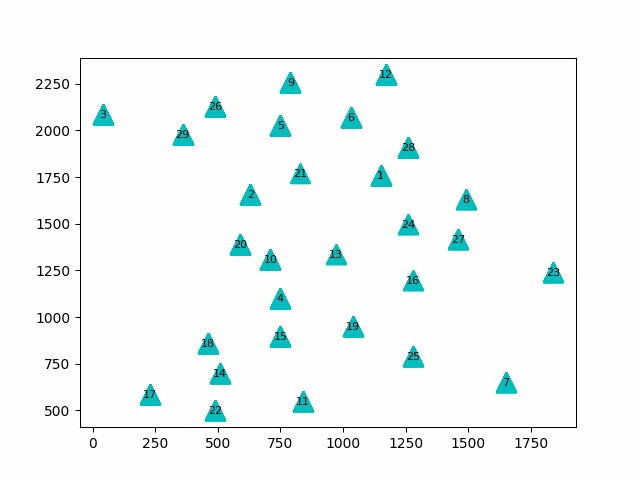
总结
以上为个人经验,希望能给大家一个参考,也希望大家多多支持脚本之家。
相关文章
 这篇文章主要介绍了Python基于opencv实现的简单画板功能,结合实例形式分析了Python使用opencv模块进行图形绘制的相关操作技巧,需要的朋友可以参考下2019-03-03
 这篇文章主要介绍了Python采集腾讯新闻实例,一个简单的例子,着重于实现步骤的讲解,需要的朋友可以参考下2014-07-07
Python RuntimeWarning:invalid value encounter
这篇文章主要介绍了Python RuntimeWarning:invalid value encountered in double_scalars处理,具有很好的参考价值,希望对大家有所帮助,如有错误或未考虑完全的地方,望不吝赐教2024-06-06 今天小编就为大家分享一篇python 读取Linux服务器上的文件方法,具有很好的参考价值,希望对大家有所帮助。一起跟随小编过来看看吧2018-12-12
 这篇文章主要介绍了Python如何实现回归树模型,文中讲解非常细致,帮助大家更好的理解和学习,感兴趣的朋友可以了解下2020-07-07
 这篇文章主要介绍了用Python的SimPy库简化复杂的编程模型的介绍,本文来自于官方的开发者技术文档,需要的朋友可以参考下2015-04-04
pycharm 在debug循环时快速debug到指定循环次数的操作方法
在 PyCharm 中,可以使用条件断点来实现在特定循环次数后停止调试,本文重点介绍pycharm 在debug循环时快速debug到指定循环次数的操作方法,需要的朋友可以参考下2024-04-04 这篇文章主要介绍了Python线程之定位与销毁的实现,小编觉得挺不错的,现在分享给大家,也给大家做个参考。一起跟随小编过来看看吧2019-02-02
Python处理表格dataframe时实现行转列和列转行的方法
在python中,我们可以使用pandas库来处理表格数据,而pandas库中的核心数据类型就是DataFrame,在处理DataFrame数据时,有时候需要将行转换为列,或者将列转换为行,所以本文给大家介绍了如何使用pandas库实现行转列和列转行,需要的朋友可以参考下2025-12-12 在平时工作中,文件上传是一项常见的需求,例如将应用异常时通过脚本生成的dump文件收集起来进行分析,但实现起来却可能相当复杂,在本文中,我们将探讨如何使用Flask实现文件上传功能,编写Dockerfile将应用程序通过docker部署,需要的朋友可以参考下2024-05-05
最新评论