

Python使用PaddleOCR实现PDF/图片文字识别与版面还原
更新时间:2025年11月28日 09:10:29 作者:weixin_46244623
本文介绍了如何利用 PaddleOCR 实现对 PDF 文件或图片 的文字识别,并在识别后将文本内容按照 原始版面位置 进行还原重建,感兴趣的小伙伴可以了解下
摘要
本文介绍了如何利用 PaddleOCR 实现对 PDF 文件或图片 的文字识别,并在识别后将文本内容按照 原始版面位置 进行还原重建。文章详细讲解了实现流程,包括 图像预处理、OCR 识别、版面坐标提取与重排、以及最终生成 可编辑的 PDF 或可视化输出 的过程。
本文将带你使用 PaddleOCR 实现一个完整流程:
# 升级 pip
python -m pip install --upgrade pip

# 设置清华源加速下载(可选)
pip config set global.index-url https://pypi.tuna.tsinghua.edu.cn/simple

# 安装 PaddlePaddle CPU 版本
python -m pip install paddlepaddle==3.2.0 -i https://www.paddlepaddle.org.cn/packages/stable/cpu/

# 安装辅助库
python -m pip install PyMuPDF Pillow reportlab tqdm beautifulsoup4

# 安装指定版本 PaddleOCR
python -m pip install paddleocr==3.2.0
1. 初始化 PaddleOCR(使用高精度服务器模型)
import os
import cv2
import json
import numpy as np
import base64
from xml.etree.ElementTree import Element, SubElement, tostring
from paddleocr import PaddleOCR
ocr = PaddleOCR(
    text_detection_model_name="PP-OCRv5_server_det",
    text_recognition_model_name="PP-OCRv5_server_rec",
    use_doc_orientation_classify=False,
    use_doc_unwarping=False,
    use_textline_orientation=False
)
2. 执行 OCR 识别
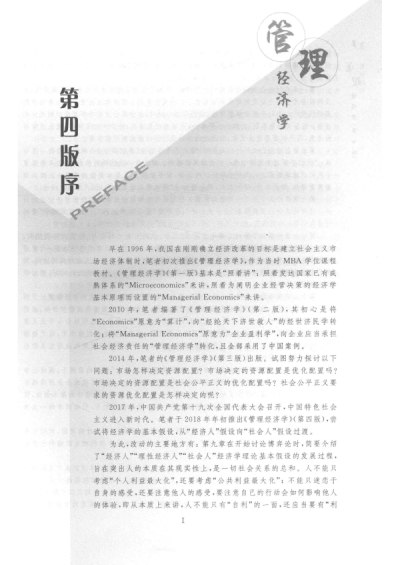
INPUT_IMG = "./page_4.png"
result = ocr.predict(INPUT_IMG)
data = result[0]  # 取第一页结果
返回结构包含:
- rec_texts: 识别的文本列表
- rec_polys: 每个文本的多边形坐标(4个点)
- input_path: 原图路径
3. 读取原图获取尺寸
orig_img = cv2.imread(data["input_path"])
img_h, img_w = orig_img.shape[:2]
print(f"原图尺寸: {img_w} x {img_h}")
4. 创建 SVG 根节点(透明背景)
svg = Element("svg", {
    "xmlns": "http://www.w3.org/2000/svg",
    "width": str(img_w),
    "height": str(img_h),
    "viewBox": f"0 0 {img_w} {img_h}",
    "style": "background:none"
})
5. 内嵌仿宋字体(Base64 编码)
FONT_PATH = os.path.expanduser("~/.paddlex/fonts/simfang.ttf")

with open(FONT_PATH, "rb") as f:
    font_data = base64.b64encode(f.read()).decode("utf-8")

style_el = SubElement(svg, "style")
style_el.text = f"""
@font-face {{
  font-family: 'SimFang';
  src: url(data:font/truetype;charset=utf-8;base64,{font_data}) format('truetype');
}}
text {{
  font-family: 'SimFang';
  fill: rgb(0,0,0);
  dominant-baseline: middle;
  text-anchor: middle;
  white-space: pre;
}}
6. 智能绘制文字(支持旋转 + 竖排)
for text, poly in zip(data["rec_texts"], data["rec_polys"]):
    if not text.strip():
        continue

    box = np.array(poly, dtype=np.float32).reshape(4, 2)
    x0, y0 = box.min(axis=0)
    x1, y1 = box.max(axis=0)
    w_box, h_box = x1 - x0, y1 - y0

    # 计算旋转角度(以左下→右下边为基准)
    angle = np.degrees(np.arctan2(box[1][1] - box[0][1], box[1][0] - box[0][0]))
    font_size = max(8, int(min(w_box, h_box) * 0.8))

    # 判断是否为竖排文字
    vertical = h_box > 2.5 * w_box and h_box > 60

    if vertical:
        # 竖排:逐字垂直排列
        cx = (x0 + x1) / 2
        y = y0
        gap = h_box / max(len(text), 1)
        for ch in text:
            text_el = SubElement(svg, "text", {
                "x": str(cx),
                "y": str(y + gap / 2),
                "font-size": str(font_size),
                "transform": f"rotate({angle},{cx},{y + gap / 2})"
            })
            text_el.text = ch
            y += gap
    else:
        # 横排:整体旋转
        cx = (x0 + x1) / 2
        cy = (y0 + y1) / 2
        text_el = SubElement(svg, "text", {
            "x": str(cx),
            "y": str(cy),
            "font-size": str(font_size),
            "transform": f"rotate({angle},{cx},{cy})"
        })
        text_el.text = text
7. 保存 SVG 文件
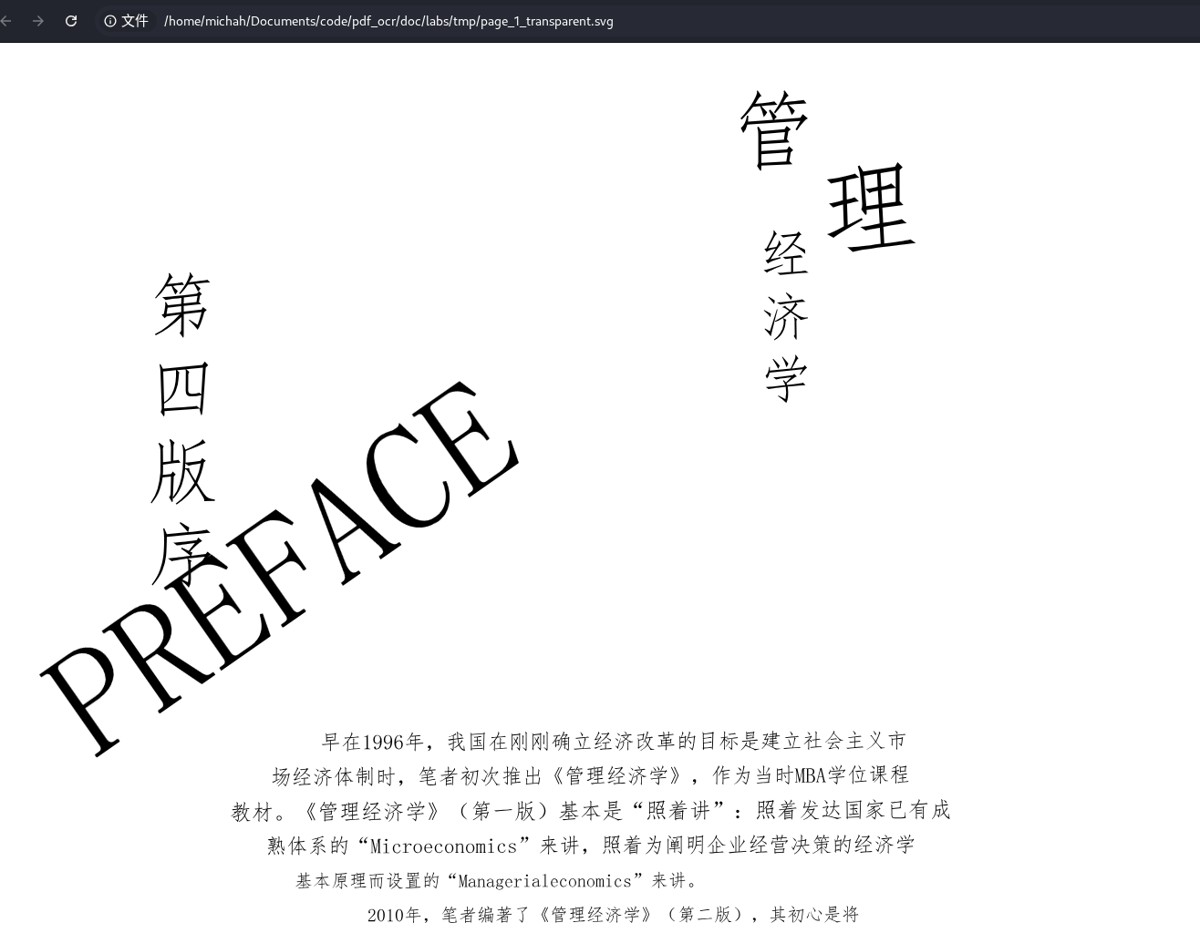
OUTPUT_SVG = "page_1_transparent.svg"
with open(OUTPUT_SVG, "wb") as f:
    f.write(tostring(svg, encoding="utf-8", xml_declaration=True))

print(f"已生成透明可复制文字 SVG: {OUTPUT_SVG}")
8.效果展示
9.完整代码
import os
import cv2
import json
import numpy as np
import base64
from xml.etree.ElementTree import Element, SubElement, tostring
from paddleocr import PaddleOCR
# ================== 配置 ==================
ocr = PaddleOCR(
    text_detection_model_name="PP-OCRv5_server_det",
    text_recognition_model_name="PP-OCRv5_server_rec",
    use_doc_orientation_classify=False,
    use_doc_unwarping=False,
    use_textline_orientation=False
)

INPUT_IMG   = "./page_4.png"
OUTPUT_PDF  = "page_1_restored.pdf"
INPUT_JSON = "./page_4_res.json"
FONT_PATH   = os.path.expanduser("~/.paddlex/fonts/simfang.ttf")
SCALE       = 3


# ================== 1. OCR 使用 predict ==================
print("正在执行 OCR: result = ocr.predict(INPUT_IMG)")
try:
    results = ocr.predict(INPUT_IMG)
except Exception as e:
    print(f"\nOCR 失败页: {e}")
    continue

# ---------- 保存 JSON + 带框图 ----------
for res_idx, res in enumerate(results):
    res.save_to_img(os.path.join(f"page_boxed.png"))
    res.save_to_json(INPUT_JSON)

# ================== 配置 ==================
FONT_PATH  = os.path.expanduser("~/.paddlex/fonts/simfang.ttf")
OUTPUT_SVG = "page_1_transparent.svg"
TEXT_COLOR = (0, 0, 0)  # 黑色文字
if not os.path.exists(FONT_PATH):
    raise FileNotFoundError(f"字体未找到: {FONT_PATH}")

# ================== 1. 加载 OCR JSON ==================
if not os.path.exists(INPUT_JSON):
    raise FileNotFoundError(f"OCR 结果未找到: {INPUT_JSON}")
with open(INPUT_JSON, "r", encoding="utf-8") as f:
     data = json.load(f)

texts = data["rec_texts"]
polys = data["rec_polys"]

input_path = data.get("input_path")
if not input_path or not os.path.exists(input_path):
    raise FileNotFoundError(f"原图未找到: {input_path}")

# ================== 2. 获取原图尺寸 ==================
orig_img = cv2.imread(input_path)
if orig_img is None:
    raise ValueError(f"无法读取原图: {input_path}")
img_h, img_w = orig_img.shape[:2]
print(f"原图尺寸: {img_w} x {img_h}")

# ================== 3. 创建 SVG 根节点 ==================
svg = Element("svg", {
    "xmlns": "http://www.w3.org/2000/svg",
    "width": str(img_w),
    "height": str(img_h),
    "viewBox": f"0 0 {img_w} {img_h}",
    "style": "background:none"
})

# ================== 4. 内嵌字体(SimFang) ==================
if not os.path.exists(FONT_PATH):
    raise FileNotFoundError(f"字体未找到: {FONT_PATH}")

with open(FONT_PATH, "rb") as f:
    font_data = base64.b64encode(f.read()).decode("utf-8")

style_el = SubElement(svg, "style")
style_el.text = f"""
@font-face {{
  font-family: 'SimFang';
  src: url(data:font/truetype;charset=utf-8;base64,{font_data}) format('truetype');
}}
text {{
  font-family: 'SimFang';
  fill: rgb({TEXT_COLOR[0]}, {TEXT_COLOR[1]}, {TEXT_COLOR[2]});
  dominant-baseline: middle;
  text-anchor: middle;
  white-space: pre;
}}
"""

# ================== 5. 绘制文字(透明背景) ==================
for text, poly in zip(texts, polys):
    if not text.strip():
        continue

    box = np.array(poly, dtype=np.float32).reshape(4, 2)
    x0, y0 = box.min(axis=0)
    x1, y1 = box.max(axis=0)
    w_box, h_box = x1 - x0, y1 - y0
    angle = np.degrees(np.arctan2(box[1][1] - box[0][1], box[1][0] - box[0][0]))
    font_size = max(8, int(min(w_box, h_box) * 0.8))

    vertical = h_box > 2.5 * w_box and h_box > 60

    if vertical:
        # 竖排文字
        cx = (x0 + x1) / 2
        y = y0
        gap = h_box / max(len(text), 1)
        for ch in text:
            text_el = SubElement(svg, "text", {
                "x": str(cx),
                "y": str(y + gap / 2),
                "font-size": str(font_size),
                "transform": f"rotate({angle},{cx},{y + gap / 2})"
            })
            text_el.text = ch
            y += gap
    else:
        # 横排文字
        cx = (x0 + x1) / 2
        cy = (y0 + y1) / 2
        text_el = SubElement(svg, "text", {
            "x": str(cx),
            "y": str(cy),
            "font-size": str(font_size),
            "transform": f"rotate({angle},{cx},{cy})"
        })
        text_el.text = text

# ================== 6. 保存透明可复制 SVG ==================
with open(OUTPUT_SVG, "wb") as f:
    f.write(tostring(svg, encoding="utf-8", xml_declaration=True))

print(f"已生成透明可复制文字 SVG: {OUTPUT_SVG}")
以上就是Python使用PaddleOCR实现PDF/图片文字识别与版面还原的详细内容,更多关于Python PaddleOCR文字识别的资料请关注脚本之家其它相关文章!
相关文章
 这篇文章主要介绍了python基于exchange函数发送邮件过程详解,文中通过示例代码介绍的非常详细,对大家的学习或者工作具有一定的参考学习价值,需要的朋友可以参考下2020-11-11
 这篇文章主要给大家介绍了关于Python中注释(多行注释和单行注释)用法的相关资料,文中通过示例代码介绍的非常详细,对大家学习或者使用Python具有一定的参考学习价值,需要的朋友们下面来一起学习学习吧2019-08-08
 这篇文章主要介绍了Python3如何日志同时输出到控制台和文件问题,具有很好的参考价值,希望对大家有所帮助,如有错误或未考虑完全的地方,望不吝赐教2023-11-11
python不相等的两个字符串的 if 条件判断为True详解
这篇文章主要介绍了python不相等的两个字符串的 if 条件判断为True详解,具有很好的参考价值,希望对大家有所帮助。一起跟随小编过来看看吧2020-03-03 今天小编就为大家分享一篇关于在cmder下安装ipython以及环境的搭建,小编觉得内容挺不错的,现在分享给大家,具有很好的参考价值,需要的朋友一起跟随小编来看看吧2018-10-10
 这篇文章主要介绍了Python 实现过滤掉列表中唯一值,文章内容主要利用Python代码实现过滤掉列表中的唯一值的功能,需要的朋友可以参考一下2021-11-11
 在Python中,字典(Dictionary)是一种强大而灵活的数据结构,它允许你存储和检索键值对,本文将深入探讨Python中各式各样的字典操作,包括基本操作、高级操作以及一些实用的技巧,通过全面的示例代码,将展示如何充分发挥字典在Python编程中的优势2023-12-12
 这篇文章主要介绍了Python获取当前页面内所有链接的方法,结合实例形式对比分析了Python常用的四种获取页面链接的方法,并附带了iframe框架内链接的获取方法,需要的朋友可以参考下2017-08-08
 Python中没有专门定义结构体的方法,但可以使用class标记定义类来代替结构体,其成员可以在构造函数__init__中定义,具体方法如下,特分享下,方便需要的朋友2013-03-03
 在本篇文章里小编给大家分享的是关于python读文件的步骤以及相关知识点,需要的朋友们参考下。2019-10-10
最新评论