

零基础上手使用Python pdfplumber提取原生PDF表格
表格神器|告别PyPDF2,用pdfplumber精准提取PDF表格
前言
在上一篇文章中,我们介绍了PyPDF2从PDF中提取文本的基本用法。但细心的读者可能已经发现了一个致命问题:PyPDF2压根不认识表格。
当你用PyPDF2提取一份财务报表PDF时,得到的是一个乱七八糟的文本流——表格的行列结构完全丢失,数据散落一地。这正是因为PyPDF2只按PDF内部操作符顺序拼接字符串,完全不理解“表格单元格”这种视觉结构。
这时,我们需要一个真正的“表格神器”——pdfplumber。
pdfplumber是基于PDFMiner.six构建的PDF解析库,其核心能力是像素级的字符定位和表格结构还原。它不仅能提取文本,更能像人类一样“看懂”PDF中表格的行列结构,将数据完整、准确地提取出来。
本文将从零开始,带你系统掌握pdfplumber的表格提取功能。全文包含8个模块,附完整可运行代码和可视化调试技巧,读完即可上手处理真实项目。
一、为什么PyPDF2提取表格会失败?——无坐标级解析的致命缺陷
1.1 对比实验:同一份表格的不同命运
先用一个直观的实验来说明问题。
用PyPDF2提取PDF中的表格:
import PyPDF2
reader = PyPDF2.PdfReader('invoice.pdf')
text = reader.pages[0].extract_text()
print(text)
输出结果:
商品名称 数量 单价 金额 笔记本 2 5000 10000 鼠标 3 100 300 合计 10300
表格的结构完全丢失,数据像一长串连续的字符串粘连在一起。这是因为PyPDF2的extract_text()方法只是简单地将PDF中的文本对象按顺序拼接,完全不考虑位置信息。
用pdfplumber提取相同的表格:
import pdfplumber
with pdfplumber.open('invoice.pdf') as pdf:
    table = pdf.pages[0].extract_table()
    for row in table:
        print(row)
输出结果:
['商品名称', '数量', '单价', '金额']
['笔记本', '2', '5000', '10000']
['鼠标', '3', '100', '300']
['合计', '', '', '10300']
数据以二维列表的形式呈现,行列结构完整保留——这正是pdfplumber的核心优势。
1.2 深度原理:PyPDF2失败的根本原因
下图清晰解释了为什么PyPDF2无法提取表格:
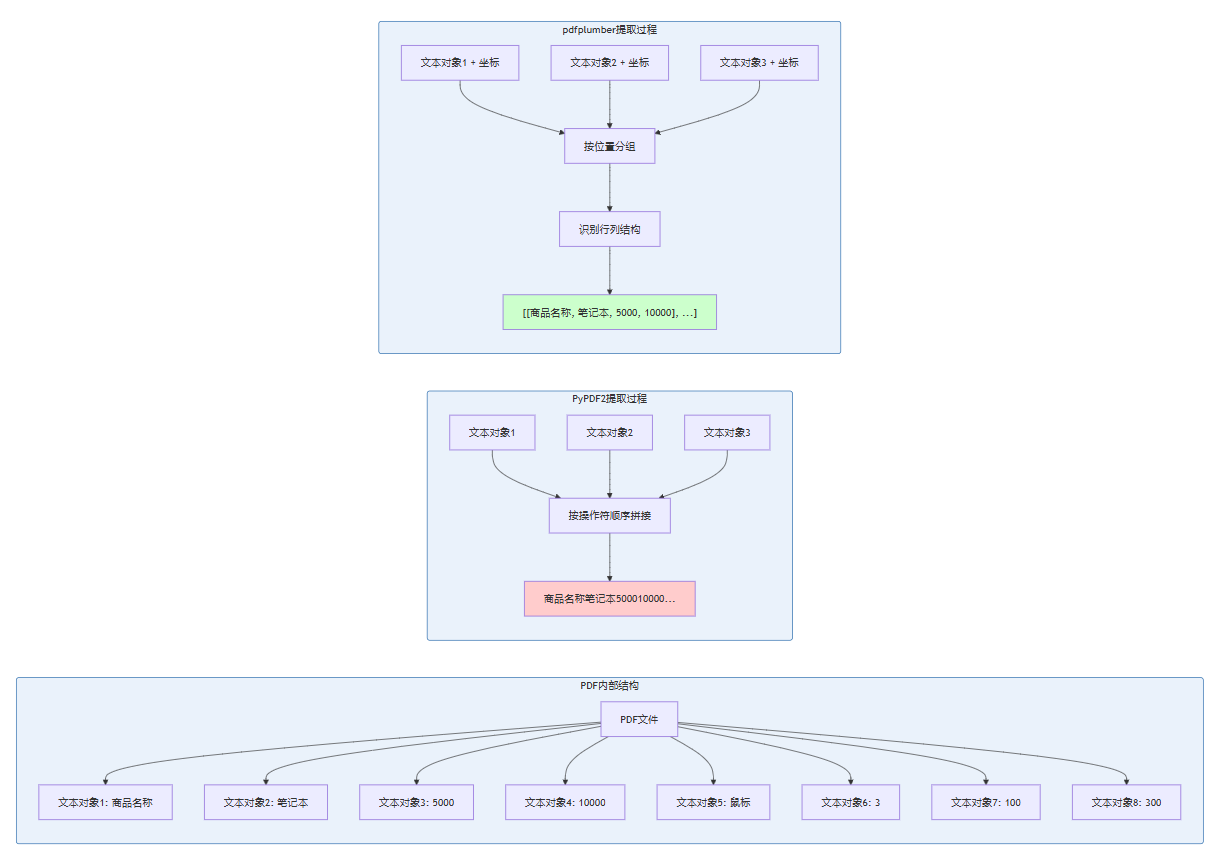
PDF本质是一种基于图形操作的页面描述语言,而非天然具备语义结构。PDF中的表格并不是一个独立的“表格对象”,而是一堆字符和线条的集合,分散在不同位置。PyPDF2只关心“有哪些字符”,完全不关心“这些字符在哪里”;而pdfplumber会记录每个字符的精确坐标(x0, y0, x1, y1),然后基于这些坐标重新构建表格的行列关系。
1.3 pdfplumber的核心优势
| 能力维度 | PyPDF2 | pdfplumber |
|---|---|---|
| 文本提取 | 简单拼接,段落错乱 | 按坐标还原布局,保留段落 |
| 表格提取 | ❌ 不支持 | ✅ 自动识别边框,还原行列 |
| 合并单元格 | ❌ 无法识别 | ✅ 自动合并 |
| 坐标定位 | ❌ 无 | ✅ 字符级精确定位 |
| 可视化调试 | ❌ 无 | ✅ to_image().draw_rects() |
| 提取指定区域 | ❌ 需手动裁剪 | ✅ crop() 区域裁剪 |
pdfplumber的优势总结为三点:表格提取精准(自动识别边框和合并单元格)、文本提取智能(按布局还原顺序)、支持细节控制(可指定提取区域)。
二、环境准备:一键安装
2.1 安装pdfplumber
pip install pdfplumber
验证安装:
python -c "import pdfplumber; print(pdfplumber.__version__)"
2.2 配套库推荐(可选)
根据实际需求,建议同时安装以下库:
# 数据处理
pip install pandas
# Excel导出
pip install openpyxl
# 可视化(Jupyter环境)
pip install matplotlib
2.3 虚拟环境配置(团队协作推荐)
# 创建虚拟环境
python -m venv pdf_env
# 激活(Windows)
pdf_env\Scripts\activate
# 激活(Mac/Linux)
source pdf_env/bin/activate
# 安装依赖
pip install pdfplumber pandas openpyxl
# 导出依赖清单
pip freeze > requirements.txt
三、基础操作:加载PDF与提取表格
3.1 加载PDF文件
import pdfplumber

# 使用with语句自动管理资源
with pdfplumber.open("example.pdf") as pdf:
    print(f"总页数: {len(pdf.pages)}")

    # 获取第一页
    first_page = pdf.pages[0]
    print(f"页面尺寸: {first_page.width} x {first_page.height}")
3.2 提取单页表格
import pdfplumber

with pdfplumber.open("report.pdf") as pdf:
    # 提取第一页的表格
    page = pdf.pages[0]
    table = page.extract_table()

    if table:
        # 打印表头
        print("表头:", table[0])
        # 打印数据行
        for row in table[1:]:
            print(row)
注意:extract_table() 默认提取页面上最大的那个表格。如果一页有多个表格,需要用 extract_tables() 提取所有表格。
3.3 提取多页所有表格
import pdfplumber

all_tables = []

with pdfplumber.open("multi_page_report.pdf") as pdf:
    for page_num, page in enumerate(pdf.pages, 1):
        tables = page.extract_tables()
        if tables:
            print(f"第{page_num}页发现 {len(tables)} 个表格")
            all_tables.extend(tables)

print(f"共提取 {len(all_tables)} 个表格")
四、基础输出:导出为Excel/CSV/Pandas
4.1 导出为CSV
import csv
import pdfplumber

def table_to_csv(pdf_path, output_csv, page_num=0):
    with pdfplumber.open(pdf_path) as pdf:
        table = pdf.pages[page_num].extract_table()

        if table:
            with open(output_csv, 'w', newline='', encoding='utf-8') as f:
                writer = csv.writer(f)
                writer.writerows(table)
            print(f"已保存至: {output_csv}")
        else:
            print("未检测到表格")

# 使用
table_to_csv("report.pdf", "output.csv")
4.2 导出为Excel(使用openpyxl)
import pdfplumber
from openpyxl import Workbook

def table_to_excel(pdf_path, excel_path, page_num=0):
    wb = Workbook()
    ws = wb.active
    ws.title = "PDF表格数据"

    with pdfplumber.open(pdf_path) as pdf:
        tables = pdf.pages[page_num].extract_tables()

        row_offset = 0
        for table_idx, table in enumerate(tables):
            if table_idx > 0:
                # 表格之间加空行
                row_offset += 1

            for i, row in enumerate(table):
                for j, cell in enumerate(row):
                    ws.cell(row=row_offset + i + 1, column=j + 1, value=cell)

            row_offset += len(table)

        wb.save(excel_path)
        print(f"已保存至: {excel_path}")

table_to_excel("report.pdf", "output.xlsx")
4.3 转换为Pandas DataFrame(最推荐)
import pandas as pd
import pdfplumber

def table_to_dataframe(pdf_path, page_num=0):
    with pdfplumber.open(pdf_path) as pdf:
        table = pdf.pages[page_num].extract_table()

        if table:
            # 第一行作为列名
            df = pd.DataFrame(table[1:], columns=table[0])
            return df
        else:
            return pd.DataFrame()

# 使用
df = table_to_dataframe("report.pdf")
print(df.head())
print(f"数据维度: {df.shape}")

# 导出为Excel
df.to_excel("output.xlsx", index=False)
4.4 批量处理文件夹内所有PDF并导出Excel
import os
import pandas as pd
import pdfplumber
from pathlib import Path

def batch_extract_tables(input_folder, output_folder):
    """批量提取文件夹内所有PDF的表格,每个PDF单独保存为一个Excel"""
    Path(output_folder).mkdir(parents=True, exist_ok=True)

    pdf_files = list(Path(input_folder).glob("*.pdf")) + list(Path(input_folder).glob("*.PDF"))

    for pdf_file in pdf_files:
        print(f"处理: {pdf_file.name}")
        all_tables = []

        with pdfplumber.open(pdf_file) as pdf:
            for page_num, page in enumerate(pdf.pages, 1):
                tables = page.extract_tables()
                for table_idx, table in enumerate(tables):
                    if table and len(table) > 1:  # 至少包含表头+一行数据
                        df = pd.DataFrame(table[1:], columns=table[0])
                        all_tables.append((page_num, table_idx + 1, df))

        # 保存到Excel,每个表格一个sheet
        if all_tables:
            output_path = Path(output_folder) / f"{pdf_file.stem}_tables.xlsx"
            with pd.ExcelWriter(output_path) as writer:
                for page_num, table_idx, df in all_tables:
                    sheet_name = f"P{page_num}_T{table_idx}"
                    # Excel sheet名称不能超过31个字符
                    df.to_excel(writer, sheet_name=sheet_name[:31], index=False)
            print(f"  ✓ 已保存 {len(all_tables)} 个表格至 {output_path.name}")
        else:
            print(f"  ✗ 未检测到有效表格")

batch_extract_tables("./pdfs", "./output")
五、进阶处理:无边框表格、跨页表格与空行过滤
5.1 表格提取策略详解
pdfplumber提供了4种表格边缘检测策略,可根据表格类型灵活选择:
| 策略 | 说明 | 适用场景 |
|---|---|---|
"lines" | 使用页面的图形线条作为单元格边界(默认) | 有明确边框线的表格 |
"lines_strict" | 仅使用图形线条,不使用矩形边 | 严格按线条划分的表格 |
"text" | 根据文本的左右/中心位置推断虚拟竖线 | 无边框表格 |
"explicit" | 仅使用用户明确指定的线条 | 定制化表格提取 |
5.2 无边框表格提取
无边框表格是pdfplumber表格提取中最常见的挑战。PDF中的表格如果没有线条,pdfplumber无法自动识别单元格边界。
解决方案:使用 "text" 策略,让pdfplumber根据文本对齐来推断表格结构。
import pdfplumber

def extract_borderless_table(pdf_path, page_num=0):
    """提取无边框表格"""
    with pdfplumber.open(pdf_path) as pdf:
        page = pdf.pages[page_num]

        # 关键:将vertical_strategy设为"text"
        table = page.extract_table({
            "vertical_strategy": "text",    # 根据文本对齐推断竖线
            "horizontal_strategy": "text",  # 根据文本对齐推断横线
            "snap_tolerance": 3,            # 线条对齐容差
        })

        return table

# 使用
table = extract_borderless_table("borderless.pdf")
if table:
    for row in table:
        print(row)
进阶技巧:对于布局复杂的无边框表格,可以先裁剪出表格区域再提取。
def extract_borderless_table_advanced(pdf_path, bbox=None):
    """高级无边框表格提取:先裁剪区域,再使用text策略"""
    with pdfplumber.open(pdf_path) as pdf:
        page = pdf.pages[0]

        # 如果指定了边界框,先裁剪
        if bbox:
            page = page.crop(bbox)  # bbox = (x0, y0, x1, y1)

        table = page.extract_table({
            "vertical_strategy": "text",
            "horizontal_strategy": "text",
            "snap_tolerance": 5,
            "intersection_tolerance": 5,
        })

        return table

# 手动指定表格区域
# 可以通过page.to_image()可视化找到坐标
table = extract_borderless_table_advanced("report.pdf", bbox=(50, 200, 550, 800))
5.3 跨页表格处理
跨页表格是另一个常见痛点:pdfplumber的extract_table()只能提取单页内的表格,无法自动合并跨页数据。
解决方案:逐页提取表格后手动合并。
import pandas as pd
import pdfplumber

def extract_multi_page_table(pdf_path, header_rows=1):
    """
    提取跨页表格,自动合并多页数据
    header_rows: 每页开头的表头行数(通常为1)
    """
    all_data = []
    header = None

    with pdfplumber.open(pdf_path) as pdf:
        for page_num, page in enumerate(pdf.pages):
            table = page.extract_table()

            if not table:
                continue

            if page_num == 0:
                # 第一页:保存表头
                header = table[:header_rows]
                # 数据行从表头之后开始
                data_rows = table[header_rows:]
            else:
                # 后续页:跳过本页的表头
                data_rows = table[header_rows:] if len(table) > header_rows else []

            all_data.extend(data_rows)

    # 构建DataFrame
    if header and all_data:
        # 将表头列表展平为列名
        columns = [cell for row in header for cell in row if cell]
        df = pd.DataFrame(all_data, columns=columns[:len(all_data[0])])
        return df
    return pd.DataFrame()

# 使用
df = extract_multi_page_table("long_report.pdf")
df.to_excel("merged_table.xlsx", index=False)
处理更复杂的跨页场景:当表格行在页面中间被截断时,需要更精细的处理。
def extract_cross_page_table_advanced(pdf_path):
    """
    高级跨页表格处理:处理行在页面中间被截断的情况
    """
    all_rows = []
    partial_row = None

    with pdfplumber.open(pdf_path) as pdf:
        for page_num, page in enumerate(pdf.pages):
            table = page.extract_table()

            if not table:
                continue

            if page_num == 0:
                # 第一页:完整表格
                all_rows.extend(table)
            else:
                # 后续页:需要判断第一行是否为上一页的续行
                # 简化处理:直接追加,实际项目中需根据业务逻辑判断
                first_row = table[0] if table else []
                if partial_row and first_row:
                    # 合并续行(假设续行第一列为空)
                    merged_row = [partial_row[i] + first_row[i] if first_row[i] else partial_row[i]
                                  for i in range(len(partial_row))]
                    all_rows.append(merged_row)
                    all_rows.extend(table[1:])
                else:
                    all_rows.extend(table)

            # 暂存最后一行,供下一页判断
            partial_row = table[-1] if table else None

    return all_rows
5.4 空行与无效数据过滤
def clean_table_data(table):
    """
    过滤空行和无效数据
    """
    if not table:
        return []

    cleaned = []
    for row in table:
        # 检查行是否全为空
        if not row or all(cell is None or str(cell).strip() == '' for cell in row):
            continue

        # 清洗每个单元格
        cleaned_row = []
        for cell in row:
            if cell is None:
                cleaned_row.append('')
            else:
                # 去除首尾空白,替换换行符
                cell_clean = str(cell).strip().replace('\n', ' ')
                cleaned_row.append(cell_clean)

        cleaned.append(cleaned_row)

    return cleaned

# 使用示例
table = page.extract_table()
clean_table = clean_table_data(table)
六、综合实战:同时提取PDF文本+表格并结构化输出
6.1 核心思路
很多PDF文档同时包含正文文本和表格数据。我们需要:
- 提取全部文本内容
- 提取所有表格内容
- 按页面顺序整合输出
import pdfplumber
import pandas as pd
from pathlib import Path

def extract_text_and_tables(pdf_path):
    """
    同时提取PDF中的文本和表格,返回结构化结果
    """
    result = {
        "metadata": {},
        "pages": []
    }

    with pdfplumber.open(pdf_path) as pdf:
        # 提取元信息
        result["metadata"] = {
            "total_pages": len(pdf.pages),
            "page_width": pdf.pages[0].width if pdf.pages else 0,
            "page_height": pdf.pages[0].height if pdf.pages else 0,
        }

        for page_num, page in enumerate(pdf.pages, 1):
            page_data = {
                "page_number": page_num,
                "text": page.extract_text() or "",
                "tables": []
            }

            # 提取表格
            tables = page.extract_tables()
            for table_idx, table in enumerate(tables):
                if table and len(table) > 1:
                    # 转换为DataFrame便于后续处理
                    df = pd.DataFrame(table[1:], columns=table[0])
                    page_data["tables"].append({
                        "table_index": table_idx + 1,
                        "dataframe": df,
                        "raw_table": table
                    })

            result["pages"].append(page_data)

    return result

# 使用示例
result = extract_text_and_tables("annual_report.pdf")
print(f"总页数: {result['metadata']['total_pages']}")

for page in result["pages"]:
    print(f"\n第{page['page_number']}页:")
    print(f"  文本长度: {len(page['text'])} 字符")
    print(f"  表格数量: {len(page['tables'])}")
6.2 提取表格后同时保留文本(排除表格区域)
有些场景需要提取“纯文本”,即排除表格区域内的内容。pdfplumber提供了精确控制方案:先提取表格获取边界框,然后在提取文本时排除这些区域。
def extract_pure_text_excluding_tables(pdf_path, page_num=0):
    """
    提取纯文本:排除表格区域内的内容
    """
    with pdfplumber.open(pdf_path) as pdf:
        page = pdf.pages[page_num]

        # 第一步:提取所有表格的边界框
        table_bboxes = []
        tables = page.find_tables()
        for table in tables:
            # 每个Table对象都有.bbox属性:(x0, y0, x1, y1)
            table_bboxes.append(table.bbox)

        # 第二步:获取所有文本对象(带坐标)
        words = page.extract_words()

        # 第三步:过滤掉位于表格区域内的文本
        pure_text_words = []
        for word in words:
            x0, top, x1, bottom = word['x0'], word['top'], word['x1'], word['bottom']

            is_in_table = False
            for bbox in table_bboxes:
                if (x0 >= bbox[0] and x1 <= bbox[2] and
                    top >= bbox[1] and bottom <= bbox[3]):
                    is_in_table = True
                    break

            if not is_in_table:
                pure_text_words.append(word['text'])

        return ' '.join(pure_text_words)

pure_text = extract_pure_text_excluding_tables("report.pdf")
print(pure_text)
七、常见问题与解决方案
7.1 表格识别失败/错位
问题现象:extract_table() 返回 None 或提取的数据行错位。
原因:表格线条不完整、文本重叠或坐标对齐偏差。
解决方案:
# 方案1:使用可视化调试找到问题
with pdfplumber.open("problem.pdf") as pdf:
    page = pdf.pages[0]
    im = page.to_image()
    im.draw_rects(page.extract_words())  # 绘制文本块
    im.save("debug.png")  # 查看图片,确认文本分布
    # 也可以使用debug_tablefinder查看表格检测结果
    page.debug_tablefinder().show()  # 在Jupyter中运行
# 方案2:调整表格检测参数
table = page.extract_table({
    "vertical_strategy": "lines",
    "horizontal_strategy": "lines",
    "snap_tolerance": 5,      # 线条对齐容差
    "join_tolerance": 3,      # 线段连接容差
    "edge_min_length": 3,     # 最小边缘长度
})

# 方案3:针对线条缺失的情况,使用lattice模式
table = page.extract_table({
    "horizontal_strategy": "lines",
    "vertical_strategy": "lines",
    "min_horizontal_line_length": 50,  # 最小横线长度
    "min_vertical_line_length": 20,    # 最小竖线长度
})
7.2 中文乱码问题
问题现象:提取的中文文本显示为乱码或方框。
原因:PDF中的中文采用特定编码(如GBK或自定义字体子集),而解析库默认以ASCII或UTF-8解码。
解决方案:
# 方案1:检查字体信息
with pdfplumber.open("chinese.pdf") as pdf:
    page = pdf.pages[0]
    # 查看页面的字体列表
    if hasattr(page, 'fonts'):
        for font in page.fonts:
            print(f"字体名: {font.get('name')}, 编码: {font.get('encoding')}")
# 方案2:尝试不同的文本提取参数
text = page.extract_text(laparams={
    "detect_vertical": True,  # 检测竖排文本
})
# 方案3:如果pdfplumber乱码严重,可考虑OCR方案
# 将PDF页面转为图像后用PaddleOCR识别
from pdf2image import convert_from_path
from paddleocr import PaddleOCR

ocr = PaddleOCR(use_angle_cls=True, lang='ch')
images = convert_from_path('chinese.pdf')
for img in images:
    result = ocr.ocr(img, cls=True)
    for line in result:
        print(line[1][0])
7.3 大文件内存溢出
问题现象:处理超过500页的PDF时内存占用持续攀升。
原因:pdfplumber在打开PDF时不会立即加载所有页面内容,但随着页面处理数量增加,已处理页面的缓存数据会逐渐累积。
解决方案:分批处理 + 及时释放资源。
def process_large_pdf_in_batches(pdf_path, batch_size=50):
    """
    分批处理大PDF文件,控制内存占用
    """
    with pdfplumber.open(pdf_path) as pdf:
        total_pages = len(pdf.pages)
        all_tables = []

        for batch_start in range(0, total_pages, batch_size):
            batch_end = min(batch_start + batch_size, total_pages)
            print(f"处理批次: {batch_start + 1} - {batch_end}")

            for page_num in range(batch_start, batch_end):
                page = pdf.pages[page_num]
                tables = page.extract_tables()
                if tables:
                    all_tables.extend(tables)

            # 批次处理后可以添加内存清理逻辑
            # 注意:pdf.pages是惰性加载的,每次访问才加载
            # 实际项目中可考虑将中间结果写入文件而非全量保存

        return all_tables

# 使用
all_tables = process_large_pdf_in_batches("large.pdf", batch_size=50)
八、完整可运行代码:发票表格提取实战案例
8.1 场景描述
财务人员需要从大量PDF电子发票中提取关键信息:发票代码、发票号码、开票日期、购买方名称、销售方名称、金额、税额、价税合计等。
下图展示了电子发票的典型布局:

8.2 完整代码实现
import pdfplumber
import pandas as pd
import re
from pathlib import Path
from typing import Dict, List, Optional

def extract_invoice_info(pdf_path: str) -> Dict:
    """
    从PDF电子发票中提取关键信息

    支持全电发票和传统增值税电子发票
    """
    result = {
        "file_name": Path(pdf_path).name,
        "invoice_code": "",
        "invoice_number": "",
        "invoice_date": "",
        "buyer_name": "",
        "seller_name": "",
        "total_amount": "",
        "total_tax": "",
        "total_amount_with_tax": "",
        "items": [],  # 商品明细列表
        "success": False
    }

    try:
        with pdfplumber.open(pdf_path) as pdf:
            page = pdf.pages[0]
            text = page.extract_text() or ""

            # 1. 提取发票基本信息(使用正则表达式)
            # 发票代码:通常为10-12位数字
            code_match = re.search(r'发票代码[::]\s*(\d{10,12})', text)
            if code_match:
                result["invoice_code"] = code_match.group(1)

            # 发票号码:通常为8位数字
            number_match = re.search(r'发票号码[::]\s*(\d{8})', text)
            if number_match:
                result["invoice_number"] = number_match.group(1)

            # 开票日期:多种格式
            date_match = re.search(r'开票日期[::]\s*(\d{4}[年/-]\d{1,2}[月/-]\d{1,2}日?)', text)
            if date_match:
                result["invoice_date"] = date_match.group(1)

            # 购买方名称
            buyer_match = re.search(r'购买方[::]?\s*名称[::]\s*(.+?)(?:\n|单位|纳税人)', text)
            if not buyer_match:
                buyer_match = re.search(r'购方名称[::]\s*(.+?)(?:\n|纳税人)', text)
            if buyer_match:
                result["buyer_name"] = buyer_match.group(1).strip()

            # 销售方名称
            seller_match = re.search(r'销售方[::]?\s*名称[::]\s*(.+?)(?:\n|纳税人)', text)
            if not seller_match:
                seller_match = re.search(r'销方名称[::]\s*(.+?)(?:\n|纳税人)', text)
            if seller_match:
                result["seller_name"] = seller_match.group(1).strip()

            # 金额汇总
            amount_match = re.search(r'价税合计[((]小写[))]\s*[¥¥]?\s*(\d+\.?\d*)', text)
            if amount_match:
                result["total_amount_with_tax"] = amount_match.group(1)

            # 2. 提取货物清单表格
            tables = page.extract_tables()
            for table in tables:
                if not table or len(table) < 2:
                    continue

                # 判断是否为货物清单表格:检查表头是否包含"货物名称"、"金额"等关键词
                header = [str(cell).lower() if cell else "" for cell in table[0]]
                header_str = " ".join(header)

                if any(keyword in header_str for keyword in ["货物", "名称", "商品", "服务", "金额", "税率", "税额"]):
                    # 找到表格列索引
                    col_indices = {}
                    for idx, col in enumerate(header):
                        col_lower = col.lower() if col else ""
                        if "货物" in col_lower or "名称" in col_lower or "商品" in col_lower or "服务" in col_lower:
                            col_indices["name"] = idx
                        elif "金额" in col_lower and "税额" not in col_lower:
                            col_indices["amount"] = idx
                        elif "税率" in col_lower:
                            col_indices["tax_rate"] = idx
                        elif "税额" in col_lower:
                            col_indices["tax_amount"] = idx
                        elif "数量" in col_lower:
                            col_indices["quantity"] = idx
                        elif "单价" in col_lower:
                            col_indices["unit_price"] = idx

                    # 提取数据行
                    for row in table[1:]:  # 跳过表头
                        if not row or all(cell is None or str(cell).strip() == "" for cell in row):
                            continue

                        item = {}
                        if "name" in col_indices:
                            item["name"] = str(row[col_indices["name"]]).strip() if row[col_indices["name"]] else ""
                        if "amount" in col_indices:
                            item["amount"] = str(row[col_indices["amount"]]).strip() if row[col_indices["amount"]] else ""
                        if "tax_rate" in col_indices:
                            item["tax_rate"] = str(row[col_indices["tax_rate"]]).strip() if row[col_indices["tax_rate"]] else ""
                        if "tax_amount" in col_indices:
                            item["tax_amount"] = str(row[col_indices["tax_amount"]]).strip() if row[col_indices["tax_amount"]] else ""
                        if "quantity" in col_indices:
                            item["quantity"] = str(row[col_indices["quantity"]]).strip() if row[col_indices["quantity"]] else ""
                        if "unit_price" in col_indices:
                            item["unit_price"] = str(row[col_indices["unit_price"]]).strip() if row[col_indices["unit_price"]] else ""

                        if item.get("name"):
                            result["items"].append(item)

            result["success"] = True

    except Exception as e:
        result["error"] = str(e)
        print(f"处理失败: {result['file_name']}, 错误: {e}")

    return result

def batch_extract_invoices(input_folder: str, output_excel: str):
    """
    批量处理文件夹内的所有发票PDF,汇总输出到Excel
    """
    input_path = Path(input_folder)
    pdf_files = list(input_path.glob("*.pdf")) + list(input_path.glob("*.PDF"))

    if not pdf_files:
        print(f"未找到PDF文件: {input_folder}")
        return

    all_results = []

    for pdf_file in pdf_files:
        print(f"处理: {pdf_file.name}")
        info = extract_invoice_info(str(pdf_file))
        all_results.append(info)

    # 转换为DataFrame
    df_main = pd.DataFrame([{
        "文件名": r["file_name"],
        "发票代码": r["invoice_code"],
        "发票号码": r["invoice_number"],
        "开票日期": r["invoice_date"],
        "购买方": r["buyer_name"],
        "销售方": r["seller_name"],
        "价税合计": r["total_amount_with_tax"],
        "是否成功": r["success"],
        "商品数量": len(r.get("items", []))
    } for r in all_results])

    # 商品明细DataFrame
    items_list = []
    for r in all_results:
        for item in r.get("items", []):
            items_list.append({
                "发票号码": r["invoice_number"],
                "商品名称": item.get("name", ""),
                "金额": item.get("amount", ""),
                "税率": item.get("tax_rate", ""),
                "税额": item.get("tax_amount", ""),
                "数量": item.get("quantity", ""),
                "单价": item.get("unit_price", "")
            })

    df_items = pd.DataFrame(items_list)

    # 保存到Excel(多Sheet)
    with pd.ExcelWriter(output_excel) as writer:
        df_main.to_excel(writer, sheet_name="发票汇总", index=False)
        if not df_items.empty:
            df_items.to_excel(writer, sheet_name="商品明细", index=False)

    print(f"\n处理完成!共 {len(all_results)} 张发票")
    print(f"成功: {df_main['是否成功'].sum()} 张")
    print(f"输出文件: {output_excel}")

# 使用示例
if __name__ == "__main__":
    # 批量处理发票
    batch_extract_invoices("./invoices", "./invoice_summary.xlsx")

    # 单张发票测试
    # info = extract_invoice_info("./invoices/single_invoice.pdf")
    # print(info)
九、总结与延伸建议
9.1 本文核心要点回顾
| 知识点 | 关键内容 |
|---|---|
| 核心优势 | 像素级坐标定位、自动识别表格行列、支持合并单元格 |
| 安装配置 | pip install pdfplumber,配套pandas/openpyxl |
| 基础提取 | extract_table() 提取最大表格,extract_tables() 提取所有 |
| 导出方式 | CSV(csv模块)、Excel(openpyxl)、DataFrame(pandas) |
| 无边框表格 | vertical_strategy="text" 策略 |
| 跨页表格 | 逐页提取后手动合并,注意表头处理 |
| 中文乱码 | 检查字体映射,必要时换OCR方案 |
| 大文件优化 | 分批处理,控制内存占用 |
9.2 工具对比:pdfplumber vs 其他PDF表格提取工具
| 工具 | 核心优势 | 适用场景 | 局限性 |
|---|---|---|---|
| pdfplumber | 像素级坐标定位,自动识别边框 | 机器生成的PDF表格(最推荐) | 扫描件无效 |
| Camelot | 支持lattice和stream双模式 | 有明确边框的表格 | 无边框表格需调参 |
| tabula-py | 简单易用,基于Java Tabula | 快速原型验证 | 需要Java环境 |
| PyMuPDF | 速度最快,功能全面 | 大型PDF批量处理 | 学习曲线较陡 |
| PyPDF2 | 轻量无依赖 | 纯文本PDF | 完全不支持表格 |
各工具在不同文档类型上的表现存在差异:Camelot在投标文件中表现最佳,而PyMuPDF在手工文档类别中表现更优。
9.3 进阶学习方向
- pandas数据处理:提取后的表格DataFrame可进行数据清洗、聚合、统计分析
- 正则表达式:结合pdfplumber提取的非表格关键信息(如发票号码、日期)
- PaddleOCR:处理扫描件PDF时,先用OCR识别再提取表格
- 可视化调试:掌握
to_image()和debug_tablefinder(),快速定位问题
9.4 一句话总结
PyPDF2只认识文字不认识表格,而pdfplumber同时认识文字和表格——这就是两者最本质的区别。
如果你只需要从PDF中提取纯文本,PyPDF2已经足够;但如果你的PDF中包含表格数据,pdfplumber是不可替代的首选工具。
以上就是零基础上手使用Python pdfplumber提取原生PDF表格的详细内容,更多关于Python pdfplumber提取PDF表格的资料请关注脚本之家其它相关文章!
相关文章

Python pandas DataFrame操作的实现代码
这篇文章主要介绍了Python pandas DataFrame操作的实现代码,小编觉得挺不错的,现在分享给大家,也给大家做个参考。一起跟随小编过来看看吧2019-06-06 下面小编就为大家分享一篇python爬虫获取京东手机图片的图文教程,具有很好的参考价值,希望对大家有所帮助。一起跟随小编过来看看吧2017-12-12
 这篇文章主要为大家介绍了Python线程同步,具有一定的参考价值,感兴趣的小伙伴们可以参考一下,希望能够给你带来帮助2021-12-12
PyTorch中torch.utils.data.DataLoader实例详解
torch.utils.data.DataLoader主要是对数据进行batch的划分,下面这篇文章主要给大家介绍了关于PyTorch中torch.utils.data.DataLoader的相关资料,文中通过实例代码介绍的非常详细,需要的朋友可以参考下2022-09-09 在 Python 中,__repr__() 是一个特殊方法,用于定义对象的字符串表示形式,本文主要介绍了Python中的__repr__()方法小结,具有一定的参考价值,感兴趣的可以了解一下2024-01-01
 这篇文章主要介绍了Python中的迭代器和生成器详解,生成器表达式是用来生成函数调用时序列参数的一种迭代器写法,生成器对象可以遍历或转化为列表或元组等数据结构,但不能切片,需要的朋友可以参考下2023-07-07
 通常,函数是无状态的:每次调用它都会从相同的初始状态开始执行,而有时候,我们希望函数在多次调用之间能够保留某些信息,这种功能可以通过给函数加上状态来实现,所以本文给大家介绍了Python给函数加上状态的多种方式,需要的朋友可以参考下2025-06-06
 这篇文章主要为大家详细介绍了python3连接MySQL数据库实例,具有一定的参考价值,感兴趣的小伙伴们可以参考一下2018-05-05
 这篇文章主要为大家详细介绍了python实现井字棋小游戏,文中示例代码介绍的非常详细,具有一定的参考价值,感兴趣的小伙伴们可以参考一下2020-03-03
 在Python中,常见的字典只能映射单个键到单个值,若需映射单个键到多值,可以通过将值存储于列表或集合中实现,使用列表可以保持元素插入顺序,而使用集合则可以去重,collections模块的defaultdict类简化了此类多值字典的创建过程2024-09-09
最新评论