

Python基于PyQt+QML实现翻页时钟效果
一、效果展示
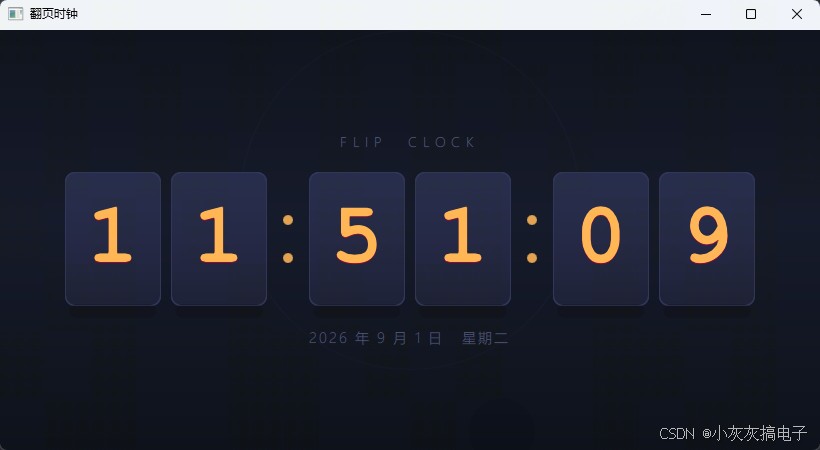
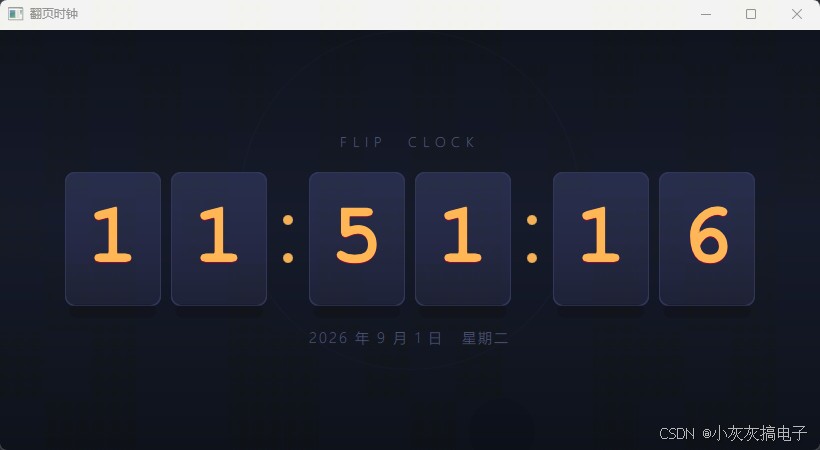
二、源码分享
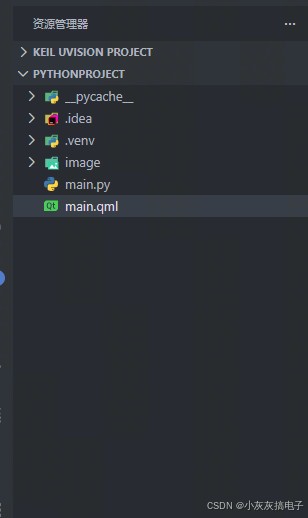
1、工程结构
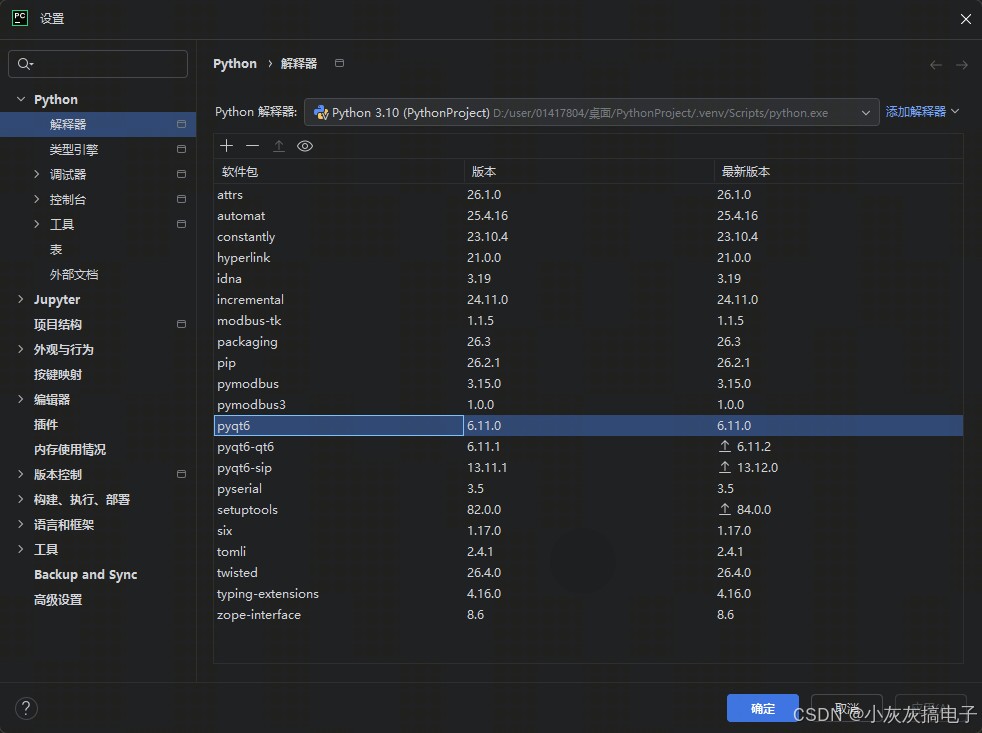
2、库安装
3、main.py
import sys
import os

from PyQt6.QtCore import QUrl
from PyQt6.QtGui import QGuiApplication
from PyQt6.QtQml import QQmlApplicationEngine


def main():
    app = QGuiApplication(sys.argv)
    engine = QQmlApplicationEngine()

    qml_path = os.path.join(os.path.dirname(os.path.abspath(__file__)), "main.qml")
    engine.load(QUrl.fromLocalFile(qml_path))

    if not engine.rootObjects():
        print("错误:无法加载 QML 文件", file=sys.stderr)
        sys.exit(-1)

    sys.exit(app.exec())


if __name__ == "__main__":
    main()
4、main.qml
import QtQuick
import QtQuick.Window
import QtQuick.Controls
import QtQuick.Layouts

ApplicationWindow {
    id: root
    visible: true
    width: 820
    height: 420
    title: "翻页时钟"
    color: "#0a0e1a"

    // ══════════════════════════════════════════════════════════
    //  内联组件:FlipDigit — 翻页数字卡片
    //  旧卡片向上滑出 → 新卡片从下方滑入(类似翻日历)
    // ══════════════════════════════════════════════════════════
    component FlipDigit: Item {
        id: card
        width: 96
        height: 134

        property int digitValue: 0
        property int shown: 0
        property int pending: 0

        onDigitValueChanged: {
            if (digitValue !== shown) {
                pending = digitValue
                flipAnim.start()
            }
        }

        Component.onCompleted: {
            shown = digitValue
            pending = digitValue
        }

        // ── 卡片容器(裁剪溢出内容)────────────────────
        Item {
            id: viewport
            anchors.fill: parent
            clip: true

            // ─── 旧卡片(当前数字)──────────────────────
            Rectangle {
                id: oldCard
                width: card.width; height: card.height
                x: 0; y: 0
                radius: 10
                border.color: "#2a3055"; border.width: 1
                gradient: Gradient {
                    GradientStop { position: 0.0;  color: "#222848" }
                    GradientStop { position: 0.5;  color: "#1e2240" }
                    GradientStop { position: 1.0;  color: "#181c32" }
                }


                Text {
                    text: card.shown
                    font.pixelSize: 86; font.weight: Font.Bold
                    font.family: "Courier New"; color: "#ffb452"
                    anchors.centerIn: parent
                    style: Text.Raised; styleColor: "#ff8c0030"
                }
            }

            // ─── 新卡片(提前设好的下一个数字)────────
            Rectangle {
                id: newCard
                width: card.width; height: card.height
                x: 0; y: card.height     // 初始藏在下方
                radius: 10
                border.color: "#2a3055"; border.width: 1
                gradient: Gradient {
                    GradientStop { position: 0.0;  color: "#222848" }
                    GradientStop { position: 0.5;  color: "#1e2240" }
                    GradientStop { position: 1.0;  color: "#181c32" }
                }


                Text {
                    text: card.pending
                    font.pixelSize: 86; font.weight: Font.Bold
                    font.family: "Courier New"; color: "#ffb452"
                    anchors.centerIn: parent
                    style: Text.Raised; styleColor: "#ff8c0030"
                }
            }
        }

        // ── 卡片外框(始终可见,覆盖在裁剪层之上)────
        Rectangle {
            width: card.width; height: card.height
            radius: 10
            color: "transparent"
            border.color: "#2a3055"; border.width: 1
        }

        // 底部柔和投影
        Rectangle {
            width: card.width - 8; height: 14; radius: 7
            anchors.top: parent.bottom
            anchors.topMargin: -2
            anchors.horizontalCenter: parent.horizontalCenter
            color: "black"; opacity: 0.22
        }

        // ══════════════════════════════════════════════════
        //  翻页动画
        // ══════════════════════════════════════════════════
        SequentialAnimation {
            id: flipAnim

            ParallelAnimation {

                // 旧卡片向上滑出
                NumberAnimation {
                    target: oldCard; property: "y"
                    from: 0; to: -card.height
                    easing.type: Easing.InQuad
                }
                NumberAnimation {
                    target: oldCard; property: "opacity"
                    from: 1.0; to: 0.0
                    easing.type: Easing.InQuad
                }

                // 新卡片从下方滑入
                NumberAnimation {
                    target: newCard; property: "y"
                    from: card.height; to: 0
                    easing.type: Easing.OutQuad
                }
                NumberAnimation {
                    target: newCard; property: "opacity"
                    from: 0.0; to: 1.0
                    easing.type: Easing.OutQuad
                }
            }

            // 重置状态
            ScriptAction { script: {
                card.shown = card.pending
                oldCard.y = 0
                oldCard.opacity = 1
                newCard.y = card.height
                newCard.opacity = 0
                if (card.digitValue !== card.shown) {
                    card.pending = card.digitValue
                    flipAnim.start()
                }
            } }
        }
    }

    // ══════════════════════════════════════════════════════════
    //  内联组件:ColonSeparator — 脉动冒号分隔符
    // ══════════════════════════════════════════════════════════
    component ColonSeparator: Item {
        width: 22
        height: 134

        Column {
            anchors.centerIn: parent
            spacing: 28

            Rectangle {
                width: 10; height: 10; radius: 5
                color: "#ffb452"
                anchors.horizontalCenter: parent.horizontalCenter
            }
            Rectangle {
                width: 10; height: 10; radius: 5
                color: "#ffb452"
                anchors.horizontalCenter: parent.horizontalCenter
            }
        }

        SequentialAnimation on opacity {
            loops: Animation.Infinite
            NumberAnimation { to: 0.25; duration: 800; easing.type: Easing.InOutQuad }
            NumberAnimation { to: 1.0;  duration: 800; easing.type: Easing.InOutQuad }
        }
    }

    // ══════════════════════════════════════════════════════════
    //  背景
    // ══════════════════════════════════════════════════════════
    Rectangle {
        anchors.fill: parent
        gradient: Gradient {
            GradientStop { position: 0.0;  color: "#080c18" }
            GradientStop { position: 0.45; color: "#0e1424" }
            GradientStop { position: 1.0;  color: "#060a14" }
        }

        // 装饰光圈
        Rectangle {
            width: 340; height: 340; radius: 170
            x: root.width / 2 - 170
            y: root.height / 2 - 210
            color: "transparent"
            border.color: "#3a4070"
            border.width: 1
            opacity: 0.08
        }
    }

    // ══════════════════════════════════════════════════════════
    //  主布局
    // ══════════════════════════════════════════════════════════
    Column {
        anchors.centerIn: parent
        spacing: 22

        // 顶部标签
        Label {
            text: "FLIP  CLOCK"
            font.pixelSize: 13
            font.letterSpacing: 6
            font.weight: Font.Light
            color: "#4e5580"
            anchors.horizontalCenter: parent.horizontalCenter
        }

        // ── 时钟行 ────────────────────────────────────────────
        Row {
            spacing: 10
            anchors.horizontalCenter: parent.horizontalCenter

            FlipDigit { digitValue: tc.hoursTens }
            FlipDigit { digitValue: tc.hoursOnes }

            ColonSeparator {}

            FlipDigit { digitValue: tc.minsTens }
            FlipDigit { digitValue: tc.minsOnes }

            ColonSeparator {}

            FlipDigit { digitValue: tc.secsTens }
            FlipDigit { digitValue: tc.secsOnes }
        }

        // ── 日期行 ────────────────────────────────────────────
        Label {
            id: dateLabel
            property var now: new Date()
            property var dayNames: ["星期日","星期一","星期二","星期三","星期四","星期五","星期六"]

            text: now.getFullYear() + " 年 "
                  + (now.getMonth() + 1) + " 月 "
                  + now.getDate() + " 日   "
                  + dayNames[now.getDay()]
            font.pixelSize: 14
            font.letterSpacing: 2
            font.weight: Font.Light
            color: "#4e5580"
            anchors.horizontalCenter: parent.horizontalCenter
        }
    }

    // ══════════════════════════════════════════════════════════
    //  时间控制器
    // ══════════════════════════════════════════════════════════
    QtObject {
        id: tc
        property int hoursTens: 0
        property int hoursOnes: 0
        property int minsTens: 0
        property int minsOnes: 0
        property int secsTens: 0
        property int secsOnes: 0

        function refresh() {
            var d = new Date()
            var h = d.getHours()
            var m = d.getMinutes()
            var s = d.getSeconds()
            hoursTens = Math.floor(h / 10)
            hoursOnes = h % 10
            minsTens  = Math.floor(m / 10)
            minsOnes  = m % 10
            secsTens  = Math.floor(s / 10)
            secsOnes  = s % 10
            dateLabel.now = d
        }
    }

    Timer {
        interval: 200
        repeat: true
        running: true
        triggeredOnStart: true
        onTriggered: tc.refresh()
    }
}
三、实现原理
1、整体架构
整个翻页时钟采用 PyQt6 + QML 的前后端分离架构:Python 端只负责创建 QML 引擎并加载界面文件,所有界面渲染、动画逻辑与时间刷新全部由 QML 声明式语言完成。这种设计让界面代码与业务逻辑解耦,也便于后续扩展。
2、Python 入口:main.py
Python 端代码非常精简,核心职责只有三件事:
- 创建
QGuiApplication应用实例; - 创建
QQmlApplicationEngine引擎,并加载同目录下的main.qml; - 进入 Qt 事件循环,等待界面交互。
qml_path = os.path.join(os.path.dirname(os.path.abspath(__file__)), "main.qml")
engine.load(QUrl.fromLocalFile(qml_path))
这里使用 QUrl.fromLocalFile 将本地路径转换为 QML 引擎可识别的 URL,避免 Windows 下盘符与反斜杠带来的路径解析问题。加载后通过 engine.rootObjects() 判断是否成功,若为空则说明 QML 文件存在语法错误或依赖缺失,直接退出。
3、QML 声明式界面
QML 的核心思想是用声明式语法描述界面结构,而不是像传统 Widget 那样用命令式代码逐行创建控件。本项目的界面由四层组成:
| 层级 | 组件 | 作用 |
|---|---|---|
| 窗口层 | ApplicationWindow | 定义窗口大小、标题、背景色 |
| 背景层 | Rectangle + Gradient | 绘制深色渐变背景与装饰光圈 |
| 内容层 | Column + Row | 垂直/水平排列时钟与日期 |
| 组件层 | FlipDigit / ColonSeparator | 翻页数字卡片与冒号分隔符 |
3.1 内联组件机制
项目使用 QML 的 component 关键字定义了两个内联组件:FlipDigit 和 ColonSeparator。内联组件类似其他语言的"类",可以在同一文件中多次实例化,且每个实例拥有独立的属性状态。
component FlipDigit: Item {
    property int digitValue: 0
    property int shown: 0
    property int pending: 0
    // ...
}
三个属性的分工如下:
digitValue:外部传入的目标数字(由时间控制器赋值);shown:当前卡片上显示的数字;pending:等待翻页显示的下一个数字。
4、翻页动画核心机制
翻页效果是本项目的视觉核心,其原理可以拆解为 “双卡片 + 位移动画 + 状态重置” 三个步骤。
4.1 双卡片结构
每个 FlipDigit 内部包含两张叠放的卡片:
- oldCard:显示当前数字,初始位于
y=0; - newCard:显示下一个数字,初始藏在下方
y=card.height。
外层再套一个 clip: true 的裁剪容器,保证卡片在滑动过程中不会溢出边界,形成干净的翻页视觉。
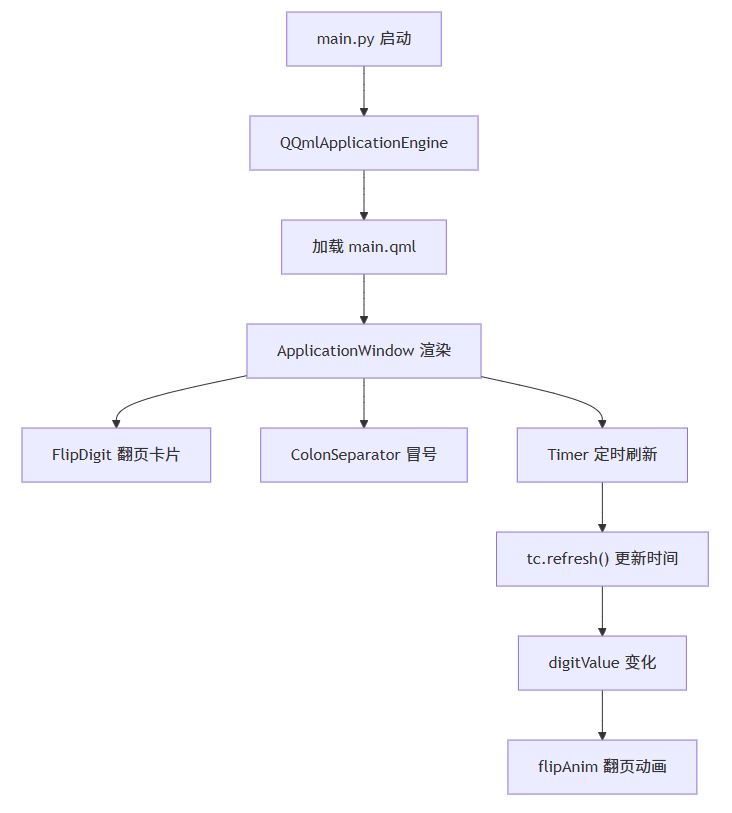
4.2 动画触发链路
当时间刷新时,属性绑定会自动触发动画,链路如下:
关键代码在 onDigitValueChanged 信号处理器中:
onDigitValueChanged: {
    if (digitValue !== shown) {
        pending = digitValue
        flipAnim.start()
    }
}
只有当新值与当前显示值不同时才触发动画,避免重复刷新造成无意义的动画堆积。
4.3 动画执行细节
flipAnim 是一个 SequentialAnimation(顺序动画),内部先执行一个 ParallelAnimation(并行动画),同时驱动两张卡片:
| 动画对象 | 属性 | 起始值 | 结束值 | 缓动曲线 |
|---|---|---|---|---|
| oldCard | y | 0 | -card.height | InQuad(加速) |
| oldCard | opacity | 1.0 | 0.0 | InQuad(加速) |
| newCard | y | card.height | 0 | OutQuad(减速) |
| newCard | opacity | 0.0 | 1.0 | OutQuad(减速) |
旧卡片加速滑出模拟"翻起"的惯性,新卡片减速滑入模拟"落下"的缓冲,一快一慢形成自然的翻页手感。
4.4 状态重置与连续翻页
动画结束后通过 ScriptAction 执行状态重置:
ScriptAction { script: {
    card.shown = card.pending
    oldCard.y = 0
    oldCard.opacity = 1
    newCard.y = card.height
    newCard.opacity = 0
    if (card.digitValue !== card.shown) {
        card.pending = card.digitValue
        flipAnim.start()
    }
} }
这里有一个精妙的处理:重置后再次检查 digitValue 是否仍不等于 shown。如果用户在动画播放期间连续修改了数字(例如秒数快速跳动),则立即启动下一次动画,保证数字不会"卡住"或丢失更新。
5、时间刷新机制
时间刷新由 Timer 组件驱动,每 200 毫秒触发一次:
Timer {
    interval: 200
    repeat: true
    running: true
    triggeredOnStart: true
    onTriggered: tc.refresh()
}
tc.refresh() 中通过 new Date() 获取当前时间,并拆分为时分秒的十位与个位:
hoursTens = Math.floor(h / 10)
hoursOnes = h % 10
之所以用 200ms 而不是 1000ms,是为了让秒数变化更及时——即使定时器因系统负载略有延迟,也能在 200ms 内捕捉到秒的跳变,避免出现"跳秒"现象。
6、冒号脉动动画
ColonSeparator 组件通过 SequentialAnimation on opacity 实现冒号的呼吸闪烁效果:
SequentialAnimation on opacity {
    loops: Animation.Infinite
    NumberAnimation { to: 0.25; duration: 800; easing.type: Easing.InOutQuad }
    NumberAnimation { to: 1.0;  duration: 800; easing.type: Easing.InOutQuad }
}
loops: Animation.Infinite 让动画无限循环,两个 NumberAnimation 交替将透明度从 1.0 降到 0.25 再升回 1.0,形成类似真实时钟秒针跳动的节奏感。
7、总结
整个翻页时钟的实现可以概括为 “声明式界面 + 属性绑定 + 状态机动画” 三者的结合:
- 声明式界面:用 QML 组件树描述界面,代码直观易维护;
- 属性绑定:
digitValue变化自动触发动画,无需手动管理刷新; - 状态机动画:双卡片滑动 + 状态重置,实现连续流畅的翻页效果。
这种模式非常适合做数字仪表盘、倒计时器、广告屏等需要动态刷新的界面场景。
以上就是Python基于PyQt+QML实现翻页时钟效果的详细内容,更多关于Python PyQt+QML翻页时钟的资料请关注脚本之家其它相关文章!
相关文章

pytorch VGG11识别cifar10数据集(训练+预测单张输入图片操作)
这篇文章主要介绍了pytorch VGG11识别cifar10数据集(训练+预测单张输入图片操作),具有很好的参考价值,希望对大家有所帮助。一起跟随小编过来看看吧2020-06-06 这篇文章主要介绍了python3之http.server模块用法,具有很好的参考价值,希望对大家有所帮助,2023-09-09
 这篇文章主要为大家详细介绍了基于MTCNN/TensorFlow实现人脸检测,具有一定的参考价值,感兴趣的小伙伴们可以参考一下2018-05-05
 本篇文章主要介绍了浅谈python jieba分词模块的基本用法,小编觉得挺不错的,现在分享给大家,也给大家做个参考。一起跟随小编过来看看吧2017-11-11
简单了解python filter、map、reduce的区别
这篇文章主要介绍了简单了解python filter、map、reduce的区别,文中通过示例代码介绍的非常详细,对大家的学习或者工作具有一定的参考学习价值,需要的朋友可以参考下2020-01-01 本文主要介绍了Python配置文件管理之ini和yaml文件读取,文中通过示例代码介绍的非常详细,对大家的学习或者工作具有一定的参考学习价值,需要的朋友们下面随着小编来一起学习学习吧2023-02-02
 这篇文章主要为大家详细介绍了适合初学者学习的Python3银行账户登录系统,具有一定的参考价值,感兴趣的小伙伴们可以参考一下2017-08-08
 这篇文章主要介绍了Softmax函数原理及Python实现过程解析,文中通过示例代码介绍的非常详细,对大家的学习或者工作具有一定的参考学习价值,需要的朋友可以参考下2020-05-05
 这篇文章主要介绍了利用Python写了一个水果忍者小游戏,2022-05-05
 这篇文章主要为大家详细介绍了Windows下Anaconda2安装NLTK的教程,具有一定的参考价值,感兴趣的小伙伴们可以参考一下2018-09-09
最新评论