

Illustrator 飘逸的丝带绘制
发布时间:2013-08-01 16:55:12 作者:佚名  我要评论
我要评论
我要评论我们用Illustrator绘制飘逸的丝带,教程的步骤写的非常清楚,英文我就不给大家翻译了,感觉大家应该能看懂吧!!如果又看不懂的童鞋存在,本站还有中文版本的,具体链接文章内告知。网页教学网站长和大家顺便一起学习下英文吧!都快忘光了!呵呵 Step 1 - draw the firs
我们用Illustrator绘制飘逸的丝带,教程的步骤写的非常清楚,英文我就不给大家翻译了,感觉大家应该能看懂吧!!如果又看不懂的童鞋存在,本站还有中文版本的,具体链接:https://www.jb51.net/Illustrator/95501.html。脚本之家站长和大家顺便一起学习下英文吧!都快忘光了!呵呵 Step 1 - draw the first part of the ribbon
A basic knowledge on how to use the pen tool and how to draw bezier curves is needed to get started with this tutorial.

Draw a curved line that looks similar to the illustration above. Hold down the shift key while dragging the handles in the last point of the curved line. Drag a vertical guide onto the curved line as shown in the picture above. To make it snap to the exact position, make sure that Smart Guides is checked (View > Smart Guides or command/control + U). Step 2 - break the curve into 2 parts
Because we'll have to apply different shades and we need to create depth into the ribbon, we need to cut the ribbon into different segments.

Select the Scissors Tool and click on the location on the path as shown in the picture above. With the Smart Guides active you'll get the 'intersect' text when your cursor is at the right spot. Now the path is cut into 2 segments. Select both segments, hold down the shift + option/alt key and drag/copy the paths vertically as shown in the picture above. Step 3 - close the paths
Close the paths as shown in the picture below, so the ribbon exists of 2 segments. Select both segments, select the Rotate Tool and click while holding down the alt/option on the location as shown below in the picture, enter 180° and click the Copy button.
 Step 4 - rotate and duplicate the 2 segments of the ribbon
Advanced users will probably just click on the exact location, hold down the alt/option and shift key while dragging the segment to the correct location as show in the picture below.
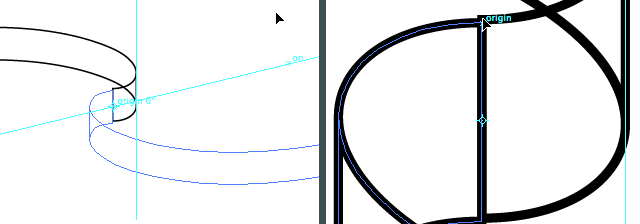
Chances are that both segments don't perfectly match. Select the 2 new segments, zoom in, and drag them to the exact location. With Smart Guides still checked it'll snap and you'll see the word 'origin' appearing. Step 5 - merge the middle segments of the ribbon into 1 segment
Select the 2 middle segments of the ribbon and click on the "Add to shape" option in the Pathfinder palette. This way Illustrator will treat these parts of the ribbon as 1 object which will make it easier when we give this segment a fill.
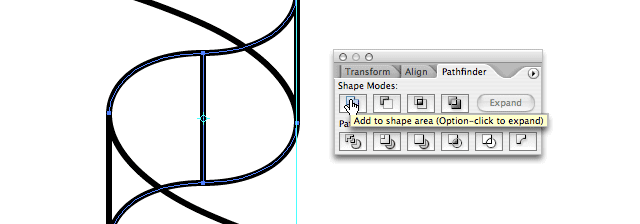 Step 6 - giving the ribbon segments a gradient fill
Our ribbon is now divided into 3 segments. All we need to do now is give each segment its own fill. To add dimension and depth we need to use a different (linear) gradient on each segment:
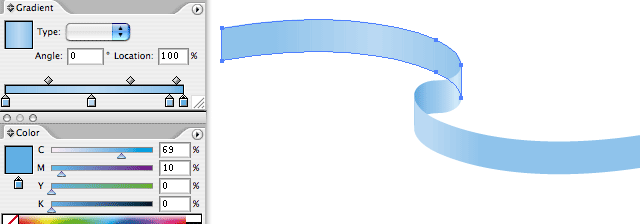
First segment gradient consists of : 50% cyan and 7% magenta, 32% cyan and 4% magenta, then again 50% cyan and 7% magenta followed by 69% cyan and 10% magenta.
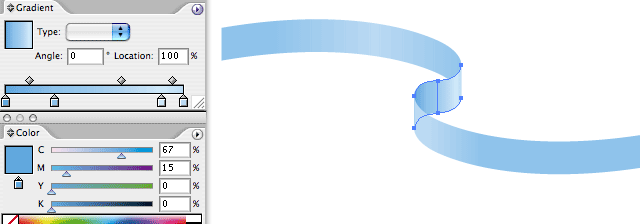
Second segment gradient consists of the following swatches : 67% cyan and 15% magenta, 50% cyan and 7% magenta, then 23% cyan followed by 31% cyan and 5% magenta.
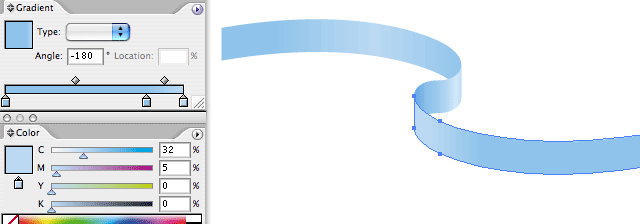
Last segment gradient consists of : 50% cyan and 7% magenta, then again 50% cyan and 7% magenta followed by 31% cyan and 5% magenta.
You probably have to use 'Send to back' or 'Bring to front' on the different segments to get them into the correct perspective. Step 7 - fine tuning the centered curve of the ribbon
As you probably have notice, the curve in the center doesn't look that natural. That's because I drew that part holding down the shift key, but this was needed to make sure the rotated ribbon would match perfectly on the original one. I can correct this very easily, but first I need to expand the 2 merged segments. Select both segments and click 'Expand' in the Pathfinder palette. This way the vertical line connecting the 2 segments disappear and we have only 2 bezier points left. Now it's a matter of dragging the handles into the preferred position to smooth the curve of the ribbon.
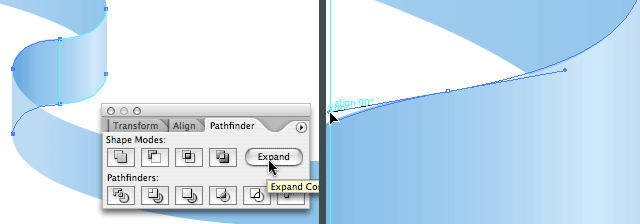
Ah! Much better don't you think? :)

You can make the ribbon larger by copying the entire ribbon and paste it next to the ribbon. You can also merge the middle segment that connects the 2 ribbons. Then you can select the entire ribbon and use the Free Distort Filter to achieve extra depth. Last but not least you can rotate the ribbon. That's what I did in my illustration.
A basic knowledge on how to use the pen tool and how to draw bezier curves is needed to get started with this tutorial.
Draw a curved line that looks similar to the illustration above. Hold down the shift key while dragging the handles in the last point of the curved line. Drag a vertical guide onto the curved line as shown in the picture above. To make it snap to the exact position, make sure that Smart Guides is checked (View > Smart Guides or command/control + U). Step 2 - break the curve into 2 parts
Because we'll have to apply different shades and we need to create depth into the ribbon, we need to cut the ribbon into different segments.
Select the Scissors Tool and click on the location on the path as shown in the picture above. With the Smart Guides active you'll get the 'intersect' text when your cursor is at the right spot. Now the path is cut into 2 segments. Select both segments, hold down the shift + option/alt key and drag/copy the paths vertically as shown in the picture above. Step 3 - close the paths
Close the paths as shown in the picture below, so the ribbon exists of 2 segments. Select both segments, select the Rotate Tool and click while holding down the alt/option on the location as shown below in the picture, enter 180° and click the Copy button.
 Step 4 - rotate and duplicate the 2 segments of the ribbon
 Advanced users will probably just click on the exact location, hold down the alt/option and shift key while dragging the segment to the correct location as show in the picture below.
Chances are that both segments don't perfectly match. Select the 2 new segments, zoom in, and drag them to the exact location. With Smart Guides still checked it'll snap and you'll see the word 'origin' appearing. Step 5 - merge the middle segments of the ribbon into 1 segment
Select the 2 middle segments of the ribbon and click on the "Add to shape" option in the Pathfinder palette. This way Illustrator will treat these parts of the ribbon as 1 object which will make it easier when we give this segment a fill.
 Step 6 - giving the ribbon segments a gradient fill
 Our ribbon is now divided into 3 segments. All we need to do now is give each segment its own fill. To add dimension and depth we need to use a different (linear) gradient on each segment:
First segment gradient consists of : 50% cyan and 7% magenta, 32% cyan and 4% magenta, then again 50% cyan and 7% magenta followed by 69% cyan and 10% magenta.
Second segment gradient consists of the following swatches : 67% cyan and 15% magenta, 50% cyan and 7% magenta, then 23% cyan followed by 31% cyan and 5% magenta.
Last segment gradient consists of : 50% cyan and 7% magenta, then again 50% cyan and 7% magenta followed by 31% cyan and 5% magenta.
You probably have to use 'Send to back' or 'Bring to front' on the different segments to get them into the correct perspective. Step 7 - fine tuning the centered curve of the ribbon
As you probably have notice, the curve in the center doesn't look that natural. That's because I drew that part holding down the shift key, but this was needed to make sure the rotated ribbon would match perfectly on the original one. I can correct this very easily, but first I need to expand the 2 merged segments. Select both segments and click 'Expand' in the Pathfinder palette. This way the vertical line connecting the 2 segments disappear and we have only 2 bezier points left. Now it's a matter of dragging the handles into the preferred position to smooth the curve of the ribbon.
Ah! Much better don't you think? :)
You can make the ribbon larger by copying the entire ribbon and paste it next to the ribbon. You can also merge the middle segment that connects the 2 ribbons. Then you can select the entire ribbon and use the Free Distort Filter to achieve extra depth. Last but not least you can rotate the ribbon. That's what I did in my illustration.
相关文章
 偏移文本或偏移路径意味着偏离了原来的位置,虽然听起来可能不太理想或杂乱无章,但在Illustrator中使用偏移技术处理文本可以给您带来一些很酷的效果,详细请看下文介绍2026-03-03
ai怎么混合两种颜色? illustrator混合两个色块的颜色的方法
ai填充不同颜色的图形重叠以后,想要将两种颜色混合,该怎么混合颜色呢?下面我们就来看看详细的教程2024-07-18 ai网格线间距默认的不是很喜欢,想要自己调整一下,该怎么调整呢?今天我们就来看看参考线调整技巧2024-05-28
ai路径平均效果怎么用? illustrator使用平均路径的教程
Adobe Illustrator中有一个路径平均功能,如何使用呢?下面小编为大家演示路径平均功能的一种使用方法2024-05-21ai保存pdf格式出现多余内容怎么解决? 去掉pdf文件多余内容的技巧
ai保存pdf格式出现多余内容怎么解决?ai中的文档保存为pdf文件的时候,发现有多余内容,该怎么操作呢?下面我们就来看看去掉pdf文件多余内容的技巧2023-12-19- ai描边在哪里?ai中想要设置描边,该怎么操作呢?下面我们就来看看ai设置描边的多种方法2023-12-19
- ai原位复制怎么用?复制图形的时候,想要原位复制粘贴,该怎么操作呢?下面我们就来看看ai原位复制快捷键介绍2023-12-19
ai怎么让文字随着路径变形? illustrator区域文字不跟着变换方向问题的
ai怎么让文字随着路径变形?选中文字后,发现文字不跟随变换区域旋转该怎么办呢?下面我们就来看看illustrator区域文字不跟着变换问题的解决办法2023-11-30ai渐变色怎么调方向? illustrator将渐变颜色反向的技巧
ai渐变色怎么调方向?ai中给图形填渐变色,想要进行反向,该怎么操作呢?下面我们就来看看illustrator将渐变颜色反向的技巧2023-11-30
Ai彩色logo怎么做反白反黑效果? ai彩色logo转化为黑白稿的技巧
Ai彩色logo怎么做反白反黑效果?设计的彩色logo想要做黑白稿,就是反黑反白效果,下面我们就来看看ai彩色logo转化为黑白稿的技巧2023-11-12
最新评论