

Illustrator 绘制矢量的卡通绿叶(不透明调板)
发布时间:2011-06-03 16:56:00 作者:佚名  我要评论
我要评论
我要评论怎样使用不透明调板创建一个自然景观的矢量图
教程细节
软件:Adobe Illustrator CS3
难易:初级
预计完成时间:30分钟
Final Product What You'll Be Creating
成品图
In this tutorial you will learn how to make an illustration for a magazine cover and learn how to use the opacity mask ,the gradient tool and the pen tool to make some leaves with water drops on them and cloudy background. This technique can be applied to many different objects. Let’s get started!
本教程你要学习怎样绘制杂志封面上的矢量图,学习怎样使用不透明调板,渐变工具,怎样使用钢笔工具绘制滴着露珠的叶子和云的背景。这种技巧可以应用在各个不同的对象上。好了,让我们现在开始吧!
Step 1
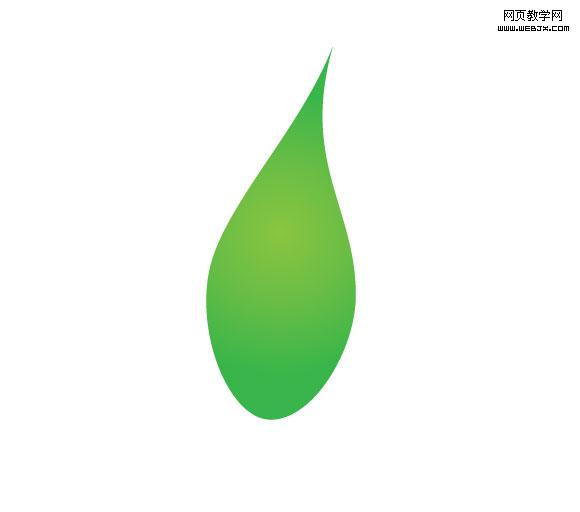
First, make a leaf shape using the Pen Tool.
1.首先,使用钢笔工具绘制出一片叶子的形状。
Step 2
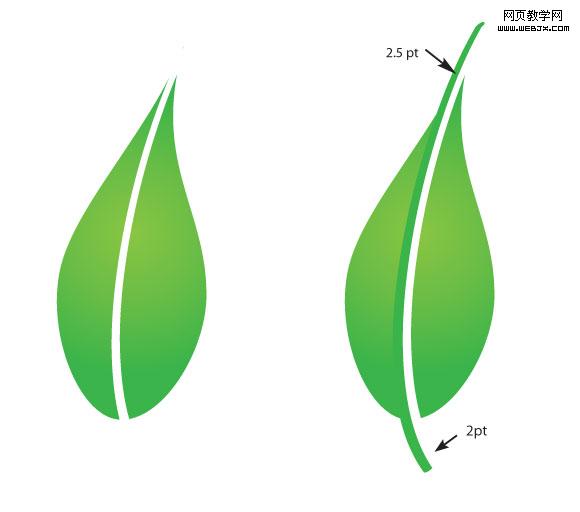
Add a white stroke along the leaf and then press (Command + C) to copy ,(Command + B) to send to the back. Now you have two strokes , the white one in the front and color the other one with green and move it a little bit to the left. Use the image below for reference.
2.沿着叶子的脉络绘制一条白色的描边,然后按Ctrl+C复制,Ctrl+B粘贴在后面。现在你有2条描边了,白色的在前面,另一条填上绿色并且绿色的这条向左移动一点。参照下图。
注:实际2.5pt,2pt没有下图所示那么粗,这里可以设定为20pt,10pt,具体可以根据图像大小自定。
Step 3
Expand the strokes (Object > Expand), select them all and from the Pathfinder panel press merge.
3.扩展描边(对象>扩展),全部选中,切到路径查找器调板,按合并按钮。
注:合并的话得不到图示的路径,我重新写一下。
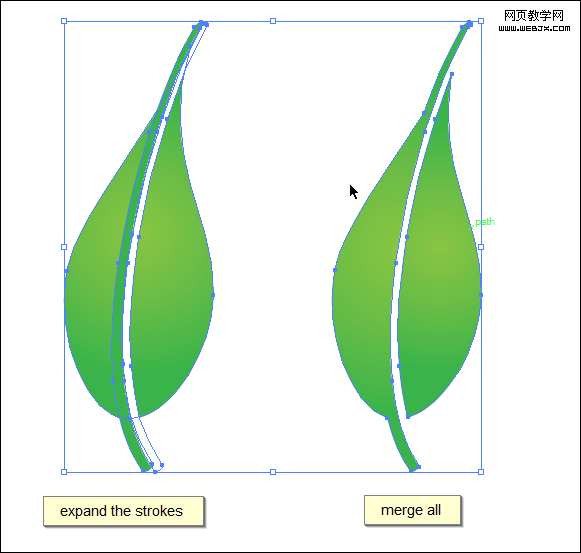
扩展描边后,叶子和扩展后的绿色描边形状相加,然后减去扩展后的白色描边(在路径查找器中完成)。完成后得到上图右边的路径。
注:白色描边的堆栈顺序必须在叶子和绿色描边形状相加后的复合路径之上。
形状相减的另一层隐义就是减去前面的形状。
相加相减之后叶子可能需要重新填色渐变,重新填色即可。
Step 4
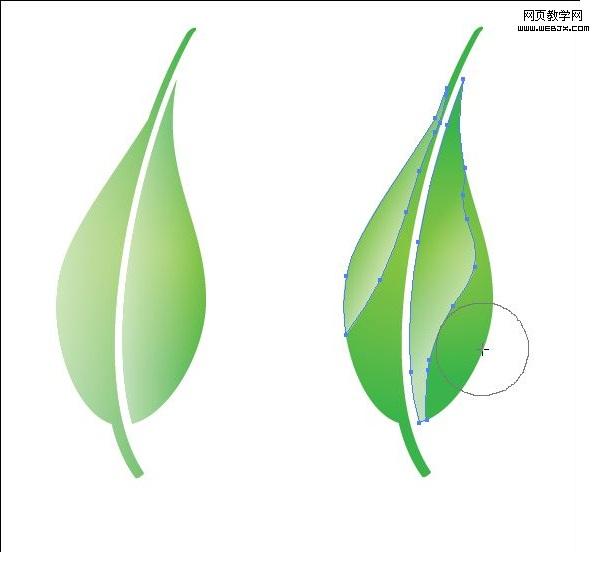
Select the leaf then press (Command + C) for copy, (Command + F) paste in front, select the copy and fill it with gradient of half opacity white to 0 opacity white. Erase parts of the leaf (like in the image) to make the leaf shine.
4.选择叶子,然后按Ctrl+C复制,Ctrl+F粘贴在前面,选择副本,填色50%不透明白色到0%不透明白色渐变。去除叶子多余的部分(如图)以创建叶子的光亮面。
Step 5
Make several leaves in the same manner, and arrange them in a manner similar to the image below.
5.用同样的方法绘制其它的叶子,然后用你喜欢的方法把它们进行排列组合,就像下图一样。

Step 6
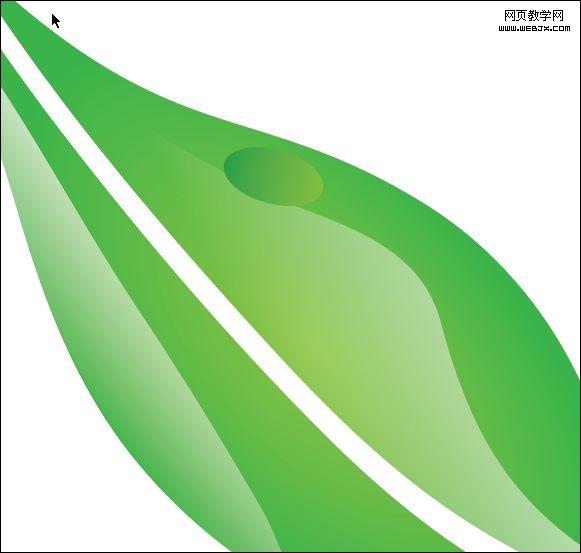
Begin making the water drop with an ellipse shape with a green gradient.
6.使用椭圆工具绘制露珠,填充绿色渐变。
Step 7
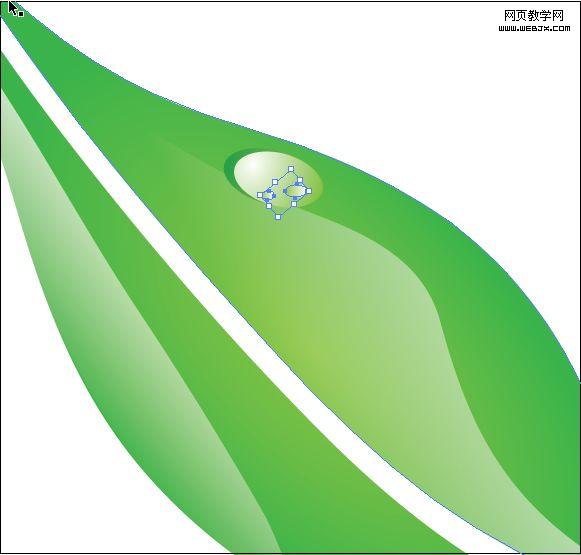
Make a smaller ellipse with a white to green gradient and add smaller ellipses inside of it.
7.绘制更小的椭圆,应用白到绿色渐变,然后再在椭圆内部绘制更小的椭圆。
Step 8
Distribute the drops on the leaves like in the image below
8.在其它叶子上也添加几滴露珠,如图所示。

露珠上的发散光,可以先绘制一个几角星(如:七角星),然后选择“效果”菜单>扭曲和变换>收缩和膨胀,收缩(负数为收缩)来实现。
Step 9
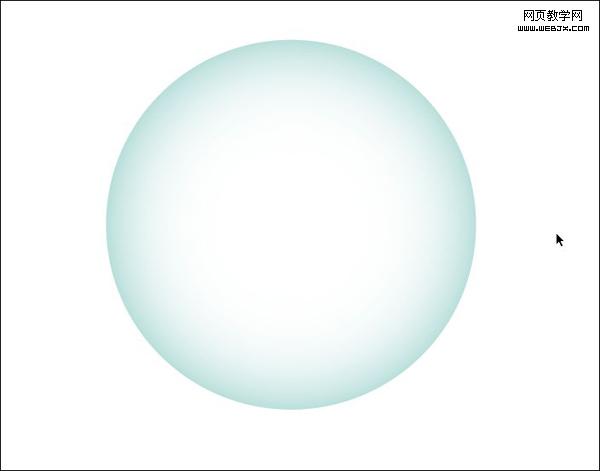
Now we will make the bubble for behind the leaves, start by making a circle with radial gradient (blue to white).
9.现在我们来绘制叶子后面的水泡,先创建一个径向渐变的圆(蓝到白渐变)。
Step 10
Like with the water drop, make circles inside with a white to transparent gradient and then add a moon shape at the bottom .
软件:Adobe Illustrator CS3
难易:初级
预计完成时间:30分钟
Final Product What You'll Be Creating
成品图
In this tutorial you will learn how to make an illustration for a magazine cover and learn how to use the opacity mask ,the gradient tool and the pen tool to make some leaves with water drops on them and cloudy background. This technique can be applied to many different objects. Let’s get started!
本教程你要学习怎样绘制杂志封面上的矢量图,学习怎样使用不透明调板,渐变工具,怎样使用钢笔工具绘制滴着露珠的叶子和云的背景。这种技巧可以应用在各个不同的对象上。好了,让我们现在开始吧!
Step 1
First, make a leaf shape using the Pen Tool.
1.首先,使用钢笔工具绘制出一片叶子的形状。
Step 2
Add a white stroke along the leaf and then press (Command + C) to copy ,(Command + B) to send to the back. Now you have two strokes , the white one in the front and color the other one with green and move it a little bit to the left. Use the image below for reference.
2.沿着叶子的脉络绘制一条白色的描边,然后按Ctrl+C复制,Ctrl+B粘贴在后面。现在你有2条描边了,白色的在前面,另一条填上绿色并且绿色的这条向左移动一点。参照下图。
注:实际2.5pt,2pt没有下图所示那么粗,这里可以设定为20pt,10pt,具体可以根据图像大小自定。
Step 3
Expand the strokes (Object > Expand), select them all and from the Pathfinder panel press merge.
3.扩展描边(对象>扩展),全部选中,切到路径查找器调板,按合并按钮。
注:合并的话得不到图示的路径,我重新写一下。
扩展描边后,叶子和扩展后的绿色描边形状相加,然后减去扩展后的白色描边(在路径查找器中完成)。完成后得到上图右边的路径。
注:白色描边的堆栈顺序必须在叶子和绿色描边形状相加后的复合路径之上。
形状相减的另一层隐义就是减去前面的形状。
相加相减之后叶子可能需要重新填色渐变,重新填色即可。
Step 4
Select the leaf then press (Command + C) for copy, (Command + F) paste in front, select the copy and fill it with gradient of half opacity white to 0 opacity white. Erase parts of the leaf (like in the image) to make the leaf shine.
4.选择叶子,然后按Ctrl+C复制,Ctrl+F粘贴在前面,选择副本,填色50%不透明白色到0%不透明白色渐变。去除叶子多余的部分(如图)以创建叶子的光亮面。
Step 5
Make several leaves in the same manner, and arrange them in a manner similar to the image below.
5.用同样的方法绘制其它的叶子,然后用你喜欢的方法把它们进行排列组合,就像下图一样。
Step 6
Begin making the water drop with an ellipse shape with a green gradient.
6.使用椭圆工具绘制露珠,填充绿色渐变。
Step 7
Make a smaller ellipse with a white to green gradient and add smaller ellipses inside of it.
7.绘制更小的椭圆,应用白到绿色渐变,然后再在椭圆内部绘制更小的椭圆。
Step 8
Distribute the drops on the leaves like in the image below
8.在其它叶子上也添加几滴露珠,如图所示。
露珠上的发散光,可以先绘制一个几角星(如:七角星),然后选择“效果”菜单>扭曲和变换>收缩和膨胀,收缩(负数为收缩)来实现。
Step 9
Now we will make the bubble for behind the leaves, start by making a circle with radial gradient (blue to white).
9.现在我们来绘制叶子后面的水泡,先创建一个径向渐变的圆(蓝到白渐变)。
Step 10
Like with the water drop, make circles inside with a white to transparent gradient and then add a moon shape at the bottom .
相关文章
 偏移文本或偏移路径意味着偏离了原来的位置,虽然听起来可能不太理想或杂乱无章,但在Illustrator中使用偏移技术处理文本可以给您带来一些很酷的效果,详细请看下文介绍2026-03-03
ai怎么混合两种颜色? illustrator混合两个色块的颜色的方法
ai填充不同颜色的图形重叠以后,想要将两种颜色混合,该怎么混合颜色呢?下面我们就来看看详细的教程2024-07-18 ai网格线间距默认的不是很喜欢,想要自己调整一下,该怎么调整呢?今天我们就来看看参考线调整技巧2024-05-28
ai路径平均效果怎么用? illustrator使用平均路径的教程
Adobe Illustrator中有一个路径平均功能,如何使用呢?下面小编为大家演示路径平均功能的一种使用方法2024-05-21ai保存pdf格式出现多余内容怎么解决? 去掉pdf文件多余内容的技巧
ai保存pdf格式出现多余内容怎么解决?ai中的文档保存为pdf文件的时候,发现有多余内容,该怎么操作呢?下面我们就来看看去掉pdf文件多余内容的技巧2023-12-19- ai描边在哪里?ai中想要设置描边,该怎么操作呢?下面我们就来看看ai设置描边的多种方法2023-12-19
- ai原位复制怎么用?复制图形的时候,想要原位复制粘贴,该怎么操作呢?下面我们就来看看ai原位复制快捷键介绍2023-12-19
ai怎么让文字随着路径变形? illustrator区域文字不跟着变换方向问题的
ai怎么让文字随着路径变形?选中文字后,发现文字不跟随变换区域旋转该怎么办呢?下面我们就来看看illustrator区域文字不跟着变换问题的解决办法2023-11-30ai渐变色怎么调方向? illustrator将渐变颜色反向的技巧
ai渐变色怎么调方向?ai中给图形填渐变色,想要进行反向,该怎么操作呢?下面我们就来看看illustrator将渐变颜色反向的技巧2023-11-30
Ai彩色logo怎么做反白反黑效果? ai彩色logo转化为黑白稿的技巧
Ai彩色logo怎么做反白反黑效果?设计的彩色logo想要做黑白稿,就是反黑反白效果,下面我们就来看看ai彩色logo转化为黑白稿的技巧2023-11-12
最新评论