

Android 使用SharedPreferrences储存密码登录界面记住密码功能
更新时间:2017年04月12日 08:48:23 作者:ly1012053441
Android存储方式有很多种,在这里所用的存储方式是SharedPreferrences, 其采用了Map数据结构来存储数据,以键值的方式存储,可以简单的读取与写入,下面通过实例代码给大家讲解下,需要的朋友参考下吧
Android存储方式有很多种,在这里所用的存储方式是SharedPreferrences, 其采用了Map数据结构来存储数据,以键值的方式存储,可以简单的读取与写入。所以比较适合我们今天做的这个项目。我们来看一下运行图:
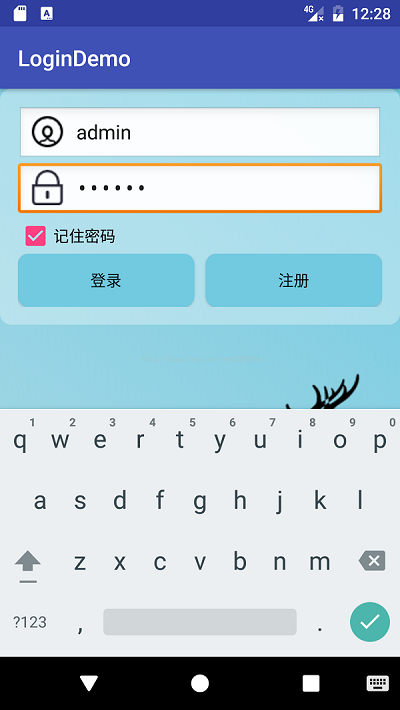
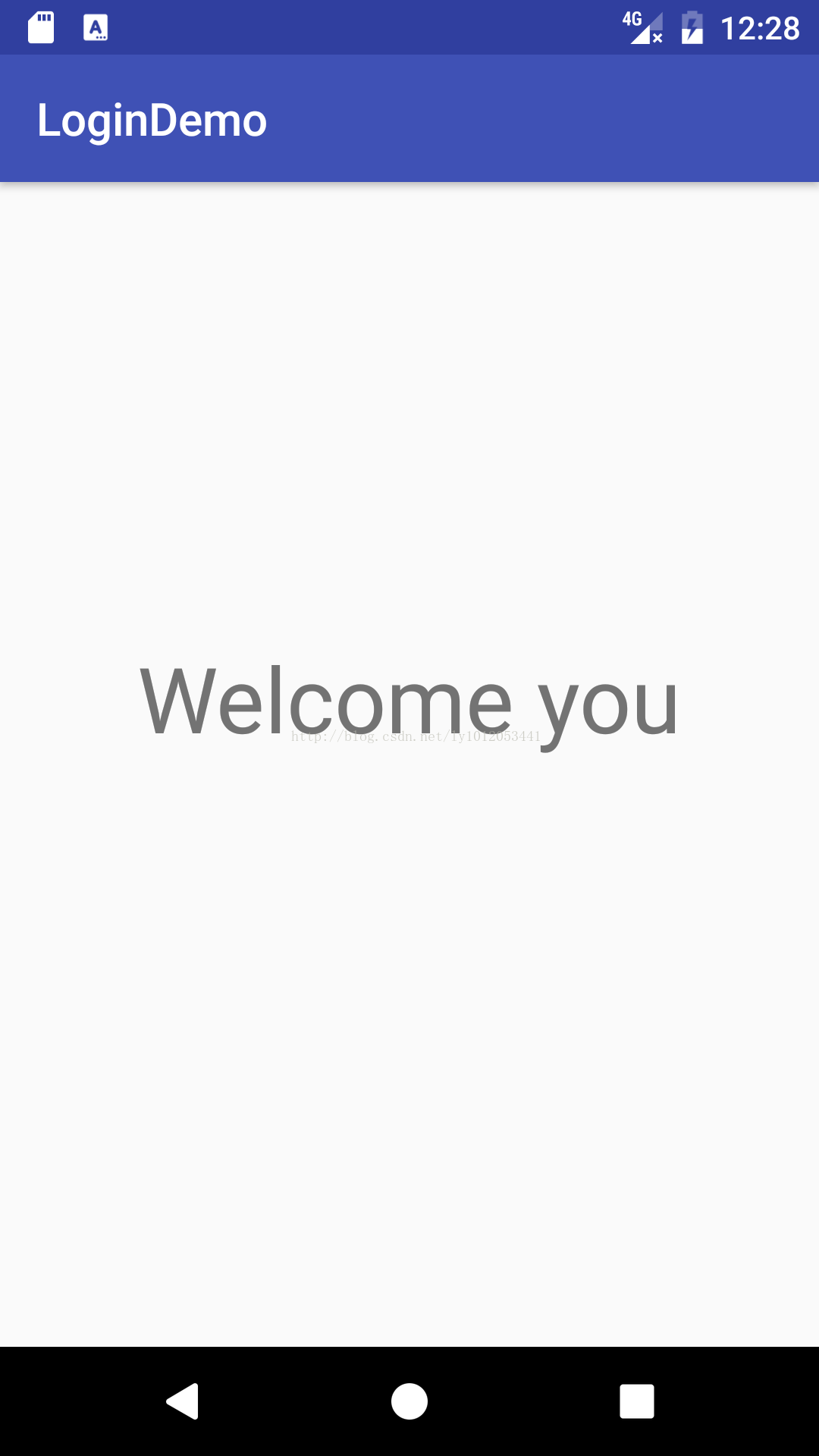
一.布局界面
1.login_top.xml
 <?xml version="1.0" encoding="utf-8"?>
<RelativeLayout xmlns:android="http://schemas.android.com/apk/res/android"
 android:orientation="vertical"
 android:layout_width="match_parent"
 android:layout_height="wrap_content"
 android:padding="@dimen/activity_horizontal_margin"
 android:background="@drawable/logintop_roundbg">
 <EditText
 android:id="@+id/etName"
 android:layout_width="match_parent"
 android:layout_height="wrap_content"
 android:ems="10"
 android:drawablePadding="10dp"
 android:background="@android:drawable/edit_text"
 android:drawableLeft="@drawable/icon_user"
 android:hint="@string/etName">
 <requestFocus></requestFocus>
 </EditText>
 <EditText
 android:id="@+id/etPassword"
 android:layout_width="match_parent"
 android:layout_height="wrap_content"
 android:layout_below="@id/etName"
 android:inputType="textPassword"
 android:ems="10"
 android:drawablePadding="10dp"
 android:background="@android:drawable/edit_text"
 android:drawableLeft="@drawable/icon_pass"
 android:hint="@string/etpassword">
 <requestFocus></requestFocus>
 </EditText>
 <CheckBox
 android:id="@+id/cbremenber"
 android:layout_width="wrap_content"
 android:layout_height="wrap_content"
 android:layout_below="@id/etPassword"
 android:text="@string/cbpass"/>
 <LinearLayout
 android:layout_width="match_parent"
 android:layout_height="wrap_content"
 android:layout_below="@id/cbremenber">
 <Button
  android:id="@+id/btnlogin"
  android:layout_width="0dp"
  android:layout_height="wrap_content"
  android:layout_weight="1"
  android:background="@drawable/btnselect"
  android:text="@string/btnlogin"
  android:onClick="login"/>
 <Button
  android:id="@+id/btnRegister"
  android:layout_width="0dp"
  android:layout_height="wrap_content"
  android:layout_weight="1"
  android:background="@drawable/btnselect"
  android:text="@string/btnRegister"
  android:layout_marginLeft="10dp"/>
 </LinearLayout>
</RelativeLayout>
2.activity_main.xml
 <?xml version="1.0" encoding="utf-8"?>
<RelativeLayout xmlns:android="http://schemas.android.com/apk/res/android"
 xmlns:tools="http://schemas.android.com/tools"
 android:id="@+id/activity_main"
 android:layout_width="match_parent"
 android:layout_height="match_parent"
 android:background="@drawable/loginbg"
 tools:context="cn.edu.bzu.logindemo.MainActivity">
 <include layout="@layout/login_top"></include>
 <ImageView
 android:layout_width="wrap_content"
 android:layout_height="wrap_content"
 android:background="@drawable/deer"
 android:layout_alignParentBottom="true"
 android:layout_alignParentRight="true"
 android:layout_alignParentEnd="true" />
</RelativeLayout>
3.activity_welcome.xml
<?xml version="1.0" encoding="utf-8"?>
<RelativeLayout xmlns:android="http://schemas.android.com/apk/res/android"
 xmlns:tools="http://schemas.android.com/tools"
 android:id="@+id/activity_welcome"
 android:layout_width="match_parent"
 android:layout_height="match_parent"
 tools:context="cn.edu.bzu.logindemo.WelcomeActivity">
 <TextView
 android:id="@+id/tvwelcome"
 android:text="Welcome you"
 android:layout_width="wrap_content"
 android:layout_height="wrap_content"
 android:layout_alignParentTop="true"
 android:layout_centerHorizontal="true"
 android:layout_marginTop="200dp"
 android:textSize="40sp"
  />
</RelativeLayout>
二.MainActivity
public class MainActivity extends AppCompatActivity {
 private EditText etName;
 private EditText etPassword;
 private SharedPreferences sharedPreferences;
 private CheckBox cbremenber;
 @Override
 protected void onCreate(Bundle savedInstanceState) {
 super.onCreate(savedInstanceState);
 setContentView(R.layout.activity_main);
 initViews();
 sharedPreferences=getSharedPreferences("remenberpassword", Context.MODE_PRIVATE);
 boolean isRemember=sharedPreferences.getBoolean("remenberpassword",false);
 if(isRemember) {
  String name = sharedPreferences.getString("name", "");
  String password = sharedPreferences.getString("password", "");
  etName.setText(name);
  etPassword.setText(password);
  cbremenber.setChecked(true);
 }
 }
 private void initViews() {
 etName=(EditText) findViewById(R.id.etName);
 etPassword=(EditText) findViewById(R.id.etPassword);
 cbremenber=(CheckBox)findViewById(R.id.cbremenber);
 }
 public void login(View view){
 String name=etName.getText().toString();
 String password=etPassword.getText().toString();
 if("admin".equals(name)&&"123456".equals(password)){
  SharedPreferences.Editor editor= sharedPreferences.edit();
  if(cbremenber.isChecked()){
  editor.putBoolean("remenberpassword",true);
  editor.putString("name",name);
  editor.putString("password",password);
  }else {
  editor.clear();
  }
  editor.commit();
  Intent intent=new Intent(this,WelcomeActivity.class);
  startActivity(intent);
  finish();
 }else {
  Toast.makeText(this,"账号或密码有误",Toast.LENGTH_LONG).show();
 }
 }
}
三.WelcomeActivity
 public class WelcomeActivity extends AppCompatActivity {
 @Override
 protected void onCreate(Bundle savedInstanceState) {
 super.onCreate(savedInstanceState);
 setContentView(R.layout.activity_welcome);
 }
}
以上所述是小编给大家介绍的Android 使用SharedPreferrences储存密码登录界面记住密码,希望对大家有所帮助,如果大家有任何疑问请给我留言,小编会及时回复大家的。在此也非常感谢大家对脚本之家网站的支持!
相关文章
 这篇文章主要介绍了Android查看文件夹大小以及删除文件夹的工具类,Android计算文件夹大小和删除目录,具有一定的参考价值,感兴趣的小伙伴们可以参考一下2018-06-06
Eclipse+ADT+Android SDK搭建安卓开发环境的实现步骤
这篇文章主要介绍了Eclipse+ADT+Android SDK搭建安卓开发环境的实现步骤,文中通过示例代码介绍的非常详细,具有一定的参考价值,感兴趣的小伙伴们可以参考一下2021-09-09
Android人脸识别Demo竖屏YUV方向调整和图片保存(分享)
下面小编就为大家分享一篇Android人脸识别Demo实现竖屏YUV方向调整和图片保存的方法。具有很好的参考价值,希望对大家有所帮助。一起跟随小编过来看看吧2017-12-12
揭秘在ListView等AdapterView上动态添加删除项的陷阱
今天遇到这么个需求,需要在运行时动态添加ListView的item,看起来很简单,实际操作过程中却遇到了麻烦,下面揭秘在ListView等AdapterView上动态添加删除项的陷阱2016-04-04 下面小编就为大家分享一篇Android调用系统裁剪的实现方法,具有很好的参考价值,希望对大家有所帮助。一起跟随小编过来看看吧2018-02-02
 这篇文章主要介绍了Android launcher中模拟按home键的实现的相关资料,需要的朋友可以参考下2017-05-05
AndroidStudio利用android-support-multidex解决64k的各种异常
这篇文章主要为大家详细介绍了AndroidStudio利用android-support-multidex解决64k的各种异常,感兴趣的小伙伴们可以参考一下2016-09-09
android使用ExpandableListView控件实现小说目录效果的例子
这篇文章主要介绍了android使用ExpandableListView控件实现小说目录效果的例子,还可以实现二级列表展示效果,需要的朋友可以参考下2014-07-07 这篇文章主要为大家详细介绍了如何通过Flutter实现编写富文本Text,文中的示例代码讲解详细,具有一定的借鉴价值,需要的可以参考一下2022-11-11
 这篇文章主要为大家详细介绍了Android自定义下拉刷新上拉加载的相关资料,需要的朋友可以参考下2016-05-05
最新评论