

Vue+Element使用富文本编辑器的示例代码
更新时间:2017年08月14日 14:40:28 作者:陈楠酒肆
本篇文章主要介绍了Vue+Element使用富文本编辑器的示例代码,具有一定的参考价值,有兴趣的可以了解一下
富文本编辑器在任何项目中都会用到,在Element中我们推荐vue-quill-editor组件,现在我就把它提供给大家,希望对大家有用。具体截图如下:
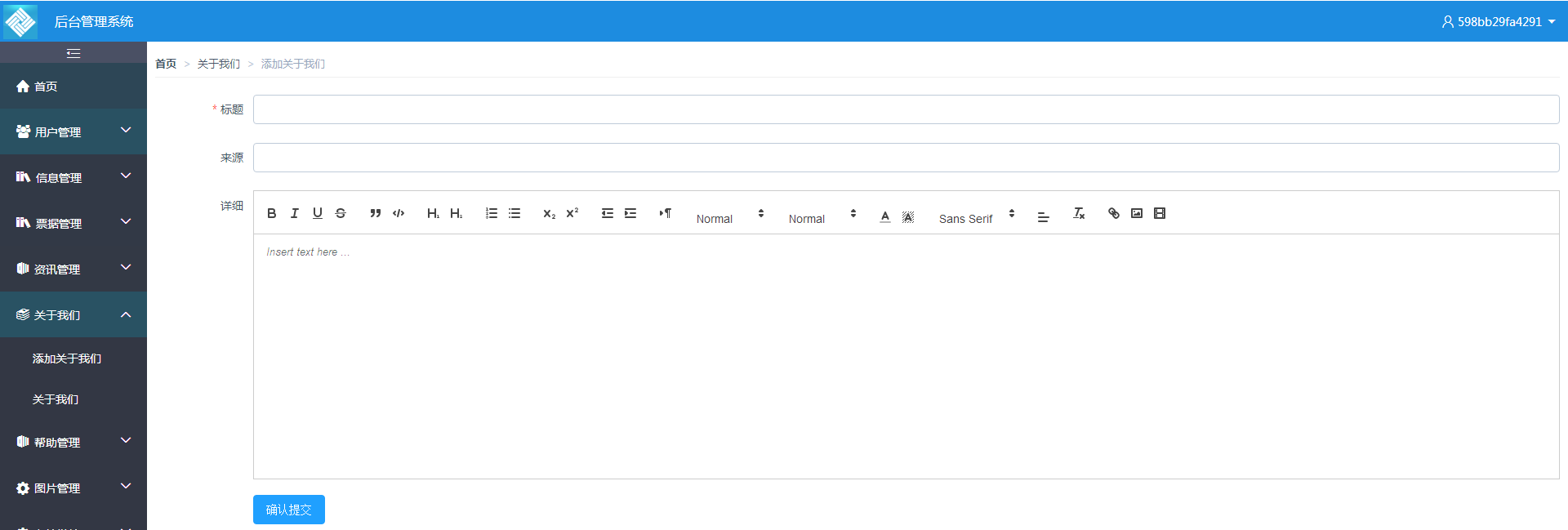
安装编辑器组件
具体方法:npm install vue-quill-editor --save
编写组件
首先我们在components文件夹里创建ue.vue组件,效果图如下:

组件
<!-- 组件代码如下 -->
<template>
 <div>
  <script id="editor" type="text/plain"></script>
 </div>
</template>
<script>
 export default {
  name: 'UE',
  data () {
   return {
    editor: null
   }
  },
  props: {
   defaultMsg: {
    type: String
   },
   config: {
    type: Object
   }
  },
  mounted() {
   const _this = this;
   this.editor = UE.getEditor('editor', this.config); // 初始化UE
   this.editor.addListener("ready", function () {
    _this.editor.setContent(_this.defaultMsg); // 确保UE加载完成后,放入内容。
   });
  },
  methods: {
   getUEContent() { // 获取内容方法
    return this.editor.getContent()
   }
  },
  destroyed() {
   this.editor.destroy();
  }
 }
</script>
在页面中使用
下面是使用代码
<template>
 <div>
  <el-row class="warp">
   <el-col :span="24" class="warp-breadcrum">
    <el-breadcrumb separator=">">
     <el-breadcrumb-item :to="{path:'/home'}"><b>首页</b></el-breadcrumb-item>
     <el-breadcrumb-item :to="{path: '/aboutus/aboutlist'}">关于我们</el-breadcrumb-item>
     <el-breadcrumb-item>添加关于我们</el-breadcrumb-item>
    </el-breadcrumb>
   </el-col>
<!--
Form 组件提供了表单验证的功能,只需要通过 rule 属性传入约定的验证规则,并 Form-Item 的 prop 属性设置为需校验的字段名即可。具体可以参考官网:http://element.eleme.io/#/zh-CN/component/form
-->
   <el-col :span="24" class="warp-main">
    <el-form ref="infoForm" :model="infoForm" :rules="rules" label-width="120px">
     <el-form-item label="标题" prop="a_title">
      <el-input v-model="infoForm.a_title"></el-input>
     </el-form-item>

     <el-form-item label="来源" prop="a_source">
      <el-input v-model="infoForm.a_source"></el-input>
     </el-form-item>
<!--使用编辑器
-->
     <el-form-item label="详细">
      <div class="edit_container">
       <quill-editor v-model="infoForm.a_content"
              ref="myQuillEditor"
              class="editer"
              :options="editorOption" @ready="onEditorReady($event)">
       </quill-editor>
      </div>
     </el-form-item>

     <el-form-item>
      <el-button type="primary" @click="onSubmit">确认提交</el-button>
     </el-form-item>
    </el-form>
   </el-col>


  </el-row>
 </div>
</template>

<script>
 import { quillEditor } from 'vue-quill-editor' //调用编辑器
 export default {
  data() {
   return {
    infoForm: {
     a_title: '',
     a_source: '',
     a_content:'',
     editorOption: {}
    },
    //表单验证
    rules: {
     a_title: [
      {required: true, message: '请输入标题', trigger: 'blur'}
     ],
     a_content: [
      {required: true, message: '请输入详细内容', trigger: 'blur'}
     ]
    },
   }
  },
  computed: {
   editor() {
    return this.$refs.myQuillEditor.quill
   }
  },
  mounted() {
   //初始化
  },
  methods: {
   onEditorReady(editor) {
   },
   onSubmit() {
    //提交
//this.$refs.infoForm.validate,这是表单验证
    this.$refs.infoForm.validate((valid) => {
     if(valid) {
      this.$post('m/add/about/us',this.infoForm).then(res => {
       if(res.errCode == 200) {
        this.$message({
         message: res.errMsg,
         type: 'success'
        });
        this.$router.push('/aboutus/aboutlist');
       } else {
        this.$message({
         message: res.errMsg,
         type:'error'
        });
       }
      });
     }
    });
   }
  },
  components: {
//使用编辑器
   quillEditor
  }
 }
</script>
以上就是全部代码,谢谢大家,希望对大家的学习有所帮助,也希望大家多多支持脚本之家。
相关文章

使用自动导入后eslint报错eslint9的问题及解决方法
本文介绍了使用`pnpm create vue@latest`创建Vue应用时,如何配置ESLint和Prettier,包括解决两者冲突以及自动导入后Eslint报错的问题,感兴趣的朋友一起看看吧2025-03-03 这篇文章主要介绍了基于Vue ECharts简易实现雷达图,本文通过实例代码图文相结合给大家介绍的非常详细,对大家的学习或工作具有一定的参考借鉴价值,需要的朋友可以参考下2022-12-12
 使用vue开发的web项目中使用图表,可以使用v-charts,本文主要介绍了vue3中使用Vchart的示例代码,具有一定的参考价值,感兴趣的可以了解一下2024-01-01
 这篇文章主要为大家详细介绍了Vue.js结合bootstrap前端实现分页和排序效果,具有一定的参考价值,感兴趣的小伙伴们可以参考一下2017-03-03
vue element ui Select选择器如何设置默认状态
这篇文章主要介绍了vue element ui Select选择器如何设置默认状态问题,具有很好的参考价值,希望对大家有所帮助,2023-10-10 这篇文章主要介绍了搭建vscode+vue环境的详细教程,本文通过图文并茂的形式给大家介绍的非常详细,对大家的学习或工作具有一定的参考借鉴价值,需要的朋友可以参考下2020-08-08
压缩Vue.js打包后的体积方法总结(Vue.js打包后体积过大问题)
大家都知道,Vuejs的 CLI工具 是基于 webpack 来实现的,所以在项目打包后,会生成的文件会很大。 主要原因是 webpack 将我们所有文件都打包成一个js文件,即使再小的项目,打包之后文件都会变得很大。 下面讲讲最近我遇到的相同问题。2020-02-02 在权限管理系统中,菜单也属于权限控制的一个资源,属于角色控制的一环。不同角色用户,登录系统后,出现的系统菜单是不同的。菜单结合路由集合,实现可访问路由的过滤,也就实现了对应角色菜单的展示和可访问路由的控制。2021-05-05
 本文主要介绍了手写Vue内置组件component的实现示例,文中通过示例代码介绍的非常详细,对大家的学习或者工作具有一定的参考学习价值,需要的朋友们下面随着小编来一起学习学习吧2022-07-07
解决vue this.$forceUpdate() 处理页面刷新问题(v-for循环值刷新等)
这篇文章主要介绍了解决vue this.$forceUpdate() 处理页面刷新问题(v-for循环值刷新等),解决方法是使用this.$forceUpdate()强制刷新,文章给大家分享了代码案例,需要的朋友参考下吧2018-07-07
最新评论