

Android编程自定义进度条颜色的方法详解
本文实例讲述了Android编程自定义进度条颜色的方法。分享给大家供大家参考,具体如下:
先看效果图:
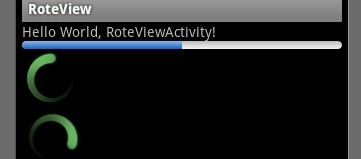
老是提些各种需求问题,我觉得系统默认的颜色挺好的,但是Pk不过,谁叫我们不是需求人员呢,改吧!
这个没法了只能看源码了,还好下载了源码, sources\base\core\res\res\ 下应有尽有,修改进度条颜色只能找progress ,因为是改变样式,首先找styles.xml
找到xml后,进去找到:
<style name="Widget.ProgressBar">
 <item name="android:indeterminateOnly">true</item>
 <itemname="android:indeterminateDrawable">@android:drawable/progress_medium_white</item>
 <item name="android:indeterminateBehavior">repeat</item>
 <item name="android:indeterminateDuration">3500</item>
 <item name="android:minWidth">48dip</item>
 <item name="android:maxWidth">48dip</item>
 <item name="android:minHeight">48dip</item>
 <item name="android:maxHeight">48dip</item>
</style>
这是那个默认转圈的,但今天我们不修改这个,我们是要改变水平进度条颜色,所以找到:
<style name="Widget.ProgressBar.Horizontal">
 <item name="android:indeterminateOnly">false</item>
 <item name="android:progressDrawable">@android:drawable/progress_horizontal</item>
 <itemname="android:indeterminateDrawable">@android:drawable/progress_indeterminate_horizontal</item>
 <item name="android:minHeight">20dip</item>
 <item name="android:maxHeight">20dip</item>
</style>
你看系统一步一步关联的,扩展性很性,低耦合,所以我们现在只要改变进度条是怎么样画出来的就行了 ,但是负责画进度条的是 <item name="android:progressDrawable"> 所以我们可以找到"drawable下的 progress_horizontal 文件,改变他就可以改变进度条颜色。
<?xml version="1.0" encoding="utf-8"?>
<!--
 Copyright (C) 2008 The Android Open Source Project
 Licensed under the Apache License, Version 2.0 (the "License");
 you may not use this file except in compliance with the License.
 You may obtain a copy of the License at
  http://www.apache.org/licenses/LICENSE-2.0
 Unless required by applicable law or agreed to in writing, software
 distributed under the License is distributed on an "AS IS" BASIS,
 WITHOUT WARRANTIES OR CONDITIONS OF ANY KIND, either express or implied.
 See the License for the specific language governing permissions and
 limitations under the License.
-->
<layer-list xmlns:android="http://schemas.android.com/apk/res/android" >
 <item android:id="@android:id/background">
 <shape>
  <corners android:radius="5dip" />
  <gradient
  android:angle="270"
  android:centerColor="#ff5a5d5a"
  android:centerY="0.75"
  android:endColor="#ff747674"
  android:startColor="#ff9d9e9d" />
 </shape>
 </item>
 <item android:id="@android:id/secondaryProgress">
 <clip>
  <shape>
  <corners android:radius="5dip" />
  <gradient
   android:angle="270"
   android:centerColor="#80ffb600"
   android:centerY="0.75"
   android:endColor="#a0ffcb00"
   android:startColor="#80ffd300" />
  </shape>
 </clip>
 </item>
 <item android:id="@android:id/progress">
 <clip>
  <shape>
  <corners android:radius="5dip" />
  <gradient
   android:angle="270"
   android:centerColor="#ffffb600"
   android:centerY="0.75"
   android:endColor="#ffffcb00"
   android:startColor="#ffffd300" />
  </shape>
 </clip>
 </item>
</layer-list>
看到没有,这是系统的进度条画出的布局条件
android:startColor="#80ffd300"
android:centerColor="#80ffb600"
android:endColor="#ff747674"
我们只要改变这个色值就能改变他的颜色,主要改变的是<item android:id="@android:id/progress">下的色值就行了。
说了这么多,到底怎么做呢,很简单:
在我们的项目下新建一个 style.xml 文件
创建一个style 标签,集成系统默认样式,然后自定义一个新的progressDrawable 文件,随后面在layout 中的progress 中引用这个文件就行。
<style name="ProgressBar_Mini" parent="@android:style/Widget.ProgressBar.Horizontal">
 <item name="android:maxHeight">50dip</item>
 <item name="android:minHeight">8dip</item>
 <item name="android:indeterminateOnly">false</item>
 <itemname="android:indeterminateDrawable">@android:drawable/progress_indeterminate_horizontal</item>
 <item name="android:progressDrawable">@drawable/progressbar_mini</item>
</style>
下面是我的 progressbar_mini 文件,改变了下android:endColor="#F5F5F5" android:startColor="#BEBEBE" 的色值
<layer-list xmlns:android="http://schemas.android.com/apk/res/android" >
 <item android:id="@android:id/background">
 <shape>
  <corners android:radius="5dip" />
  <gradient
  android:angle="270"
  android:centerY="0.75"
  android:endColor="#F5F5F5"
  android:startColor="#BEBEBE" />
 </shape>
 </item>
 <item android:id="@android:id/secondaryProgress">
 <clip>
  <shape>
  <corners android:radius="0dip" />
  <gradient
   android:angle="270"
   android:centerY="0.75"
   android:endColor="#165CBC"
   android:startColor="#85B0E9" />
  </shape>
 </clip>
 </item>
 <item android:id="@android:id/progress">
 <clip>
  <shape>
  <corners android:radius="5dip" />
  <gradient
   android:angle="270"
   android:centerY="0.75"
   android:endColor="#165CBC"
   android:startColor="#85B0E9" />
  </shape>
 </clip>
 </item>
</layer-list>
最后引用其就可以了。
<ProgressBar
 android:id="@+id/progress"
 style="@style/ProgressBar_Mini"
 android:layout_width="fill_parent"
 android:layout_height="wrap_content"
 android:progress="50" />
更多关于Android相关内容感兴趣的读者可查看本站专题:《Android开发入门与进阶教程》、《Android调试技巧与常见问题解决方法汇总》、《Android多媒体操作技巧汇总(音频,视频,录音等)》、《Android基本组件用法总结》、《Android视图View技巧总结》、《Android布局layout技巧总结》及《Android控件用法总结》
希望本文所述对大家Android程序设计有所帮助。
相关文章
 网格视图GridView的排列方式与矩阵类似,当屏幕上有很多元素(文字、图片或其他元素)需要按矩阵格式进行显示时,就可以使用GridView控件来实现2016-01-01
 这篇文章主要介绍了Android应用中拍照后获取照片路径并上传的实例分享,文中使用MultipartEntityBuilder制作了一个简单的上传工具,需要的朋友可以参考下2016-03-03
 这篇文章主要为大家详细介绍了Android滑动拼图验证码控件的使用方法,文中示例代码介绍的非常详细,具有一定的参考价值,感兴趣的小伙伴们可以参考一下2021-08-08
Kotlin coroutineContext源码层深入分析
表示一个元素或者是元素集合的接口。它有一个Key(索引)的Element实例集合,每一个Element的实例也是一个CoroutineContext,即集合中每个元素也是集合2022-11-11
Android开发教程之ContentProvider数据存储
这篇文章主要介绍了Android开发教程之ContentProvider数据存储的相关资料,需要的朋友可以参考下2016-12-12 这篇文章主要介绍了Android使用Retrofit仿微信多张图片拍照上传的相关资料,具有一定的参考价值,感兴趣的小伙伴们可以参考一下2017-01-01
 在Android上创建去耦以及容易测试代码的几乎每位迟早都要诉诸Dagger,在Kotlin中设置Dagger有一些不同,所以下面这篇文章主要给大家介绍了关于Kotlin中使用Dagger2可能遇到的坑的解决方法,需要的朋友可以参考借鉴,下面随着小编来一起学习学习吧。2017-11-11
 这篇文章主要介绍了Android图片压缩的实例详解的相关资料,android图片压缩主要有两种方式:压缩图片分辨率与压缩图片质量,需要的朋友可以参考下2017-08-08
Android 布局中的android:onClick的使用方法总结
这篇文章主要介绍了Android 布局中的android:onClick的使用方法总结的相关资料,设置点击时从上下文中调用指定的方法,这里提供实例帮助大家理解这部分内容,需要的朋友可以参考下2017-08-08 这篇文章主要为大家详细介绍了Android基于名称、修改时间、大小实现文件夹排序,具有一定的参考价值,感兴趣的小伙伴们可以参考一下2018-09-09
最新评论