

iOS tableview实现顶部拉伸效果
更新时间:2018年05月08日 14:50:48 作者:极客学伟
这篇文章主要为大家详细介绍了iOS tableview实现顶部拉伸效果,以及头部拉伸效果,具有一定的参考价值,感兴趣的小伙伴们可以参考一下
本文实例为大家分享了iOS tableview头部拉伸效果展示的具体代码,例如探探个人信息界面拉伸效果,下拉头像放大
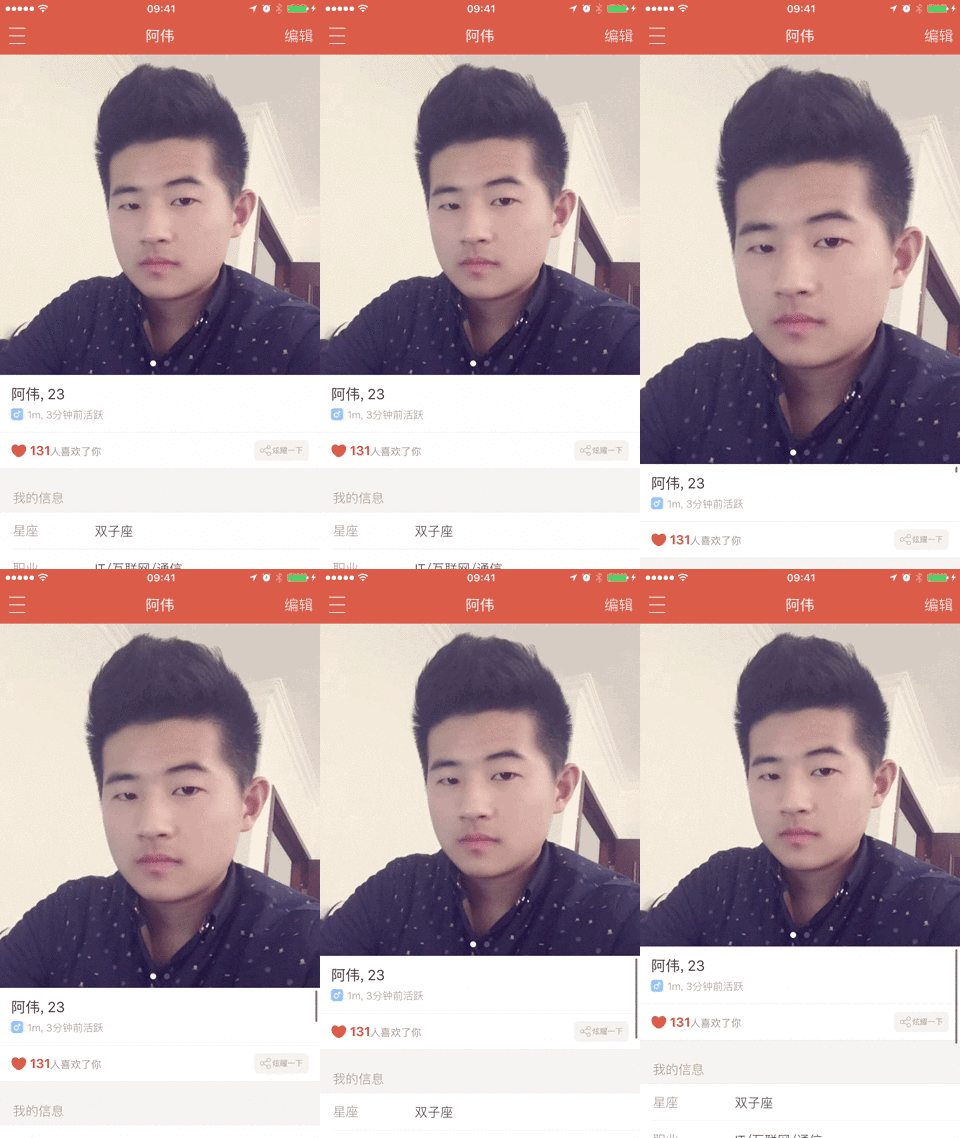
代码:
//
// PersonController.m
// Spread
//
// Created by qiuxuewei on 16/3/21.
// Copyright © 2016年 邱学伟. All rights reserved.
//

#import "PersonController.h"

@interface PersonController ()<UITableViewDataSource, UITableViewDelegate, UIScrollViewDelegate>{

}

//属性列表
/** 顶部图片视图 */
@property (nonatomic, strong) UIImageView *headerImageView;
@property (nonatomic, strong) UIView *headerBackView;
/** 个人信息界面 */
@property (nonatomic, strong) UITableView *tableView;

@end

@implementation PersonController
#pragma mark - 懒加载
-(UIView *)headerBackView{
 if (_headerBackView == nil) {
  _headerBackView = [[UIView alloc] initWithFrame:CGRectMake(0, 0, kScreenWidth, 200)];
  [_headerBackView setBackgroundColor:[UIColor lightGrayColor]];
 }
 return _headerBackView;
}
-(UIImageView *)headerImageView{
 if (_headerImageView == nil) {
  _headerImageView = [[UIImageView alloc] init];
  [_headerImageView setImage:[UIImage imageNamed:@"邱_生活.JPG"]];
  [_headerImageView setBackgroundColor:[UIColor greenColor]];
  [_headerImageView setContentMode:UIViewContentModeScaleAspectFill];
  [_headerImageView setClipsToBounds:YES];
 }
 return _headerImageView;
}
-(UITableView *)tableView{
 if (_tableView == nil) {
  _tableView = [[UITableView alloc] initWithFrame:CGRectMake(0, 0, kScreenWidth, kScreenHeight) style:UITableViewStyleGrouped];
  [_tableView setDataSource:self];
  [_tableView setDelegate:self];
 }
 return _tableView;
}

- (void)viewDidLoad {
 [super viewDidLoad];
 // Do any additional setup after loading the view from its nib.
 //添加子视图
 [self addChildViews];
}
#pragma mark - 类内方法
//添加子视图
-(void)addChildViews{
 //添加表格
 [self.view addSubview:self.tableView];
 //添加头像图片
 [self addHeaderImageView];
}
//添加头像
-(void)addHeaderImageView{
 [self.tableView setTableHeaderView:self.headerBackView];
 [self.headerImageView setFrame:self.headerBackView.bounds];
 [self.headerBackView addSubview:self.headerImageView];
}


#pragma mark - UITableViewDataSource
- (NSInteger)tableView:(UITableView *)tableView numberOfRowsInSection:(NSInteger)section{
 return 4;
}

-(NSInteger)numberOfSectionsInTableView:(UITableView *)tableView{
 return 2;
}

-(CGFloat)tableView:(UITableView *)tableView heightForRowAtIndexPath:(NSIndexPath *)indexPath{
 return 64;
}

-(void)tableView:(UITableView *)tableView didSelectRowAtIndexPath:(NSIndexPath *)indexPath{
 // 不加此句时,在二级栏目点击返回时,此行会由选中状态慢慢变成非选中状态。
 // 加上此句,返回时直接就是非选中状态。
 [tableView deselectRowAtIndexPath:indexPath animated:YES];
}

//初始化cell
-(UITableViewCell *)tableView:(UITableView *)tableView cellForRowAtIndexPath:(NSIndexPath *)indexPath{

 static NSString *ID = @"cell";
 UITableViewCell *cell = [tableView dequeueReusableCellWithIdentifier:ID];
 if (!cell) {
  cell = [[UITableViewCell alloc] initWithStyle:UITableViewCellStyleSubtitle reuseIdentifier:ID];
 }
 //初始化cell数据!
 [cell.textLabel setText:@"阿伟"];
 [cell.detailTextLabel setText:@"2016-03-22"];

 return cell;
}

//滚动tableview 完毕之后
-(void)scrollViewDidScroll:(UIScrollView *)scrollView{

 //图片高度
 CGFloat imageHeight = self.headerBackView.frame.size.height;
 //图片宽度
 CGFloat imageWidth = kScreenWidth;
 //图片上下偏移量
 CGFloat imageOffsetY = scrollView.contentOffset.y;

 NSLog(@"图片上下偏移量 imageOffsetY:%f ->",imageOffsetY);


 //上移
 if (imageOffsetY < 0) {
  CGFloat totalOffset = imageHeight + ABS(imageOffsetY);
  CGFloat f = totalOffset / imageHeight;

  self.headerImageView.frame = CGRectMake(-(imageWidth * f - imageWidth) * 0.5, imageOffsetY, imageWidth * f, totalOffset);
 }

// //下移
// if (imageOffsetY > 0) {
//  CGFloat totalOffset = imageHeight - ABS(imageOffsetY);
//  CGFloat f = totalOffset / imageHeight;
//
//  [self.headerImageView setFrame:CGRectMake(-(imageWidth * f - imageWidth) * 0.5, imageOffsetY, imageWidth * f, totalOffset)];
// }


}


- (void)didReceiveMemoryWarning {
 [super didReceiveMemoryWarning];
 // Dispose of any resources that can be recreated.
}

/*
#pragma mark - Navigation

// In a storyboard-based application, you will often want to do a little preparation before navigation
- (void)prepareForSegue:(UIStoryboardSegue *)segue sender:(id)sender {
 // Get the new view controller using [segue destinationViewController].
 // Pass the selected object to the new view controller.
}
*/

@end
以上就是本文的全部内容,希望对大家的学习有所帮助,也希望大家多多支持脚本之家。
相关文章
 这篇文章主要介绍了使用SDLocalize实现高效完成iOS多语言工作的相关资料,需要的朋友可以参考下2022-10-10
 这篇文章主要介绍了iOS编写下拉刷新控件的相关资料,iOS如何写个普通的下拉刷新的控件,需要了解的朋友可以参考下文2016-04-04
 这篇文章主要介绍了Objective-C中字符串的拼接方法小结,除了依靠NSString,文中还介绍了在宏里拼接字符串的方法,需要的朋友可以参考下2016-02-02
 这篇文章主要给大家总结介绍了关于iOS开发教程之导航栏各种右滑返回失效的解决方法,文中通过示例代码介绍的非常详细,对各位iOS具有一定的参考学习价值,需要的朋友们下面随着小编来一起学习学习吧2018-08-08
 这篇文章主要介绍了iOS实现按钮点击选中与被选中切换功能,需要的朋友可以参考下2017-07-07
 本篇文章主要介绍了iOS实现自定义起始时间选择器视图,小编觉得挺不错的,现在分享给大家,也给大家做个参考。一起跟随小编过来看看吧2017-06-06
 最近项目需求,要实现一个类似微信的的表情输入功能,今天小编抽空给大家分享iOS高仿微信表情输入功能代码,非常不错,感兴趣的朋友参考下吧2016-11-11
 这篇文章主要为大家详细介绍了iOS10全新推送功能实现代码,具有一定的参考价值,感兴趣的小伙伴们可以参考一下2016-09-09
iOS NSNotificationCenter通知中心使用小结
IOS中经常会使用到NSNotification和delegate来进行一些类之间的消息传递,这篇文章主要介绍了iOS NSNotificationCenter使用小结,小编觉得挺不错的,现在分享给大家,也给大家做个参考。一起跟随小编过来看看吧2018-11-11 这篇文章主要给大家介绍了关于如何在MAC系统下安装FFmpeg的相关资料,文中通过示例代码介绍的非常详细,对大家的学习或者工作具有一定的参考学习价值,需要的朋友们下面来一起学习学习吧2019-03-03
最新评论