

iOS实现带遮罩的弹出选项卡
更新时间:2020年02月22日 08:24:35 作者:will_han
这篇文章主要为大家详细介绍了iOS实现弹出选项卡,并附带遮罩,文中示例代码介绍的非常详细,具有一定的参考价值,感兴趣的小伙伴们可以参考一下
在我们日常开发的过程中难免会碰到一些选项的需求,下面是我针对我们该次需求做的一个小的Demo,闲话不多说了,上图片,上代码。
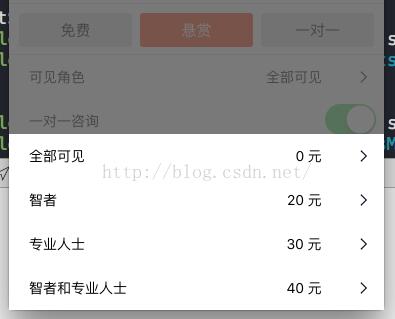
这样在我们选择上面一个Cell进行点击的时候,我会通过一个代理把数据传递到下面的页面,下面是代码
//
// LCAlertListView.h
// MeiMeiDu
//
// Created by 韩伟佳 on 16/4/6.
// Copyright © 2016年 LangCuang. All rights reserved.
//

#import <UIKit/UIKit.h>
@class LCAlertListView;

@protocol LCAlertListViewDelegate <NSObject>

-(void)alertListView:(LCAlertListView*)view didSelectedRow:(NSInteger)row;

@end

@interface LCAlertListView : UIView<UITableViewDataSource, UITableViewDelegate>

-(instancetype)initWithFrame:(CGRect)frame datas:(NSArray*)datas;
-(instancetype)initWithFrame:(CGRect)frame datas:(NSArray*)datas count:(NSArray*)counts;
@property(nonatomic, strong) id<LCAlertListViewDelegate> delegate;
@end
下面是具体实现
//
// LCAlertListView.m
// MeiMeiDu
//
// Created by 韩伟佳 on 16/4/6.
// Copyright © 2016年 LangCuang. All rights reserved.
//

#import "LCAlertListView.h"
#import "NoFreeCell.h"

static CGFloat TableViewHeight ;

@implementation LCAlertListView{
 UITableView* mTableView;
 NSArray* tableData;
 NSArray* visiableData;
 NSArray* visiableCount;
 UIButton* backgroundBtn;
}

-(instancetype)initWithFrame:(CGRect)frame datas:(NSArray*)datas{
 if (self = [super initWithFrame:frame]) {
 self.backgroundColor = [UIColor clearColor];
 backgroundBtn = [[UIButton alloc] initWithFrame:frame];
 backgroundBtn.backgroundColor = RGBA(88, 88, 88, 0.8);
 [backgroundBtn addTarget:self action:@selector(dismiss) forControlEvents:UIControlEventTouchUpInside];
 [self addSubview:backgroundBtn];
 tableData = datas;
 TableViewHeight = (datas.count + 1) * 44 + 20;
 mTableView = [[UITableView alloc] initWithFrame:CGRectMake(0, kScreenHeight, kScreenWidth, TableViewHeight) style:UITableViewStylePlain];
 [mTableView registerClass:[UITableViewCell class] forCellReuseIdentifier:@"cell"];
 mTableView.delegate = self;
 mTableView.dataSource = self;
 [self addSubview:mTableView];
 [UIView animateWithDuration:.25 animations:^{
 [mTableView setFrame:CGRectMake(0, kScreenHeight - TableViewHeight, kScreenWidth, TableViewHeight)];
 } completion:^(BOOL finished) {

 }];
 }
 return self;
}
-(instancetype)initWithFrame:(CGRect)frame datas:(NSArray*)datas count:(NSArray*)counts{
 if (self = [super initWithFrame:frame]) {
 self.backgroundColor = [UIColor clearColor];
 backgroundBtn = [[UIButton alloc] initWithFrame:frame];
 backgroundBtn.backgroundColor = RGBA(88, 88, 88, 0.8);
 [backgroundBtn addTarget:self action:@selector(dismiss) forControlEvents:UIControlEventTouchUpInside];
 [self addSubview:backgroundBtn];
 visiableData = datas;
 visiableCount = counts;
 TableViewHeight = (datas.count + 1) * 44 + 20;
 mTableView = [[UITableView alloc] initWithFrame:CGRectMake(0, kScreenHeight, kScreenWidth, TableViewHeight) style:UITableViewStylePlain];
 [mTableView registerClass:[UITableViewCell class] forCellReuseIdentifier:@"cell"];
 mTableView.delegate = self;
 mTableView.dataSource = self;
 [self addSubview:mTableView];
 [UIView animateWithDuration:.25 animations:^{
 [mTableView setFrame:CGRectMake(0, kScreenHeight - TableViewHeight, kScreenWidth, TableViewHeight)];
 } completion:^(BOOL finished) {

 }];
 }
 return self;
}


- (NSInteger)tableView:(UITableView *)tableView numberOfRowsInSection:(NSInteger)section{
 if(tableData.count > 0){
 return [tableData count];
 }else if (visiableCount.count > 0){
 return [visiableCount count];
 }
 return nil;
}

- (UITableViewCell *)tableView:(UITableView *)tableView cellForRowAtIndexPath:(NSIndexPath *)indexPath{
 UITableViewCell* cell;
 NoFreeCell *doubleCell;
 if([tableData count] <= 3 && [tableData count] > 0){
 cell = [tableView dequeueReusableCellWithIdentifier:@"cell" forIndexPath:indexPath];
 cell.textLabel.text = tableData[indexPath.row];
 return cell;

 }else {
 static NSString *identifier = @"cell0";
 doubleCell =[tableView dequeueReusableCellWithIdentifier:identifier];
 if (doubleCell == nil){
 doubleCell= [[NoFreeCell alloc]initWithStyle:UITableViewCellStyleDefault reuseIdentifier:identifier];
 doubleCell.visibleRoleLabel.text = visiableData[indexPath.row];
 doubleCell.showVisibleRoleLabel.text = visiableCount[indexPath.row];
 }
 return doubleCell;
 }

}

-(void)tableView:(UITableView *)tableView didSelectRowAtIndexPath:(NSIndexPath *)indexPath{
 NSInteger row = indexPath.row;
 [self dismiss:row];
}

-(void)dismiss:(NSInteger) row{
 if (_delegate && [_delegate respondsToSelector:@selector(alertListView:didSelectedRow:)]) {
 [_delegate alertListView:self didSelectedRow:row];
 }

 [UIView animateWithDuration:.15 animations:^{
 [mTableView setFrame:CGRectMake(0, kScreenHeight, kScreenWidth, TableViewHeight)];
 } completion:^(BOOL finished) {
 [self removeFromSuperview];
 }];

}

-(void)dismiss{
 [UIView animateWithDuration:.15 animations:^{
 [mTableView setFrame:CGRectMake(0, kScreenHeight, kScreenWidth, TableViewHeight)];
 } completion:^(BOOL finished) {
 [self removeFromSuperview];
 }];
}
@end
上面的NoFree 文件只是一个自定义的Cell,我们可以根据自己的需求自己设计,就不上传了,最后我们说说用法:
LCAlertListView* alertListView = [[LCAlertListView alloc]initWithFrame:CGRectMake(0, 0, kScreenWidth, kScreenHeight) datas:visibleRoleArray count:visibleRoleCountArray];
 alertListView.delegate = self;
 [[[self.view superview] superview] addSubview:alertListView];
下面是代理传值的使用
#pragma mark - LCAlertListViewDelegate
-(void)alertListView:(LCAlertListView *)view didSelectedRow:(NSInteger)row{
 if(didSelectedIndex == 0){
 testVisibleRole = visibleRoleArray[row];
 }else{
 testData = datas[row];
 }

 NSIndexPath *indexPath = [NSIndexPath indexPathForRow:didSelectedIndex inSection:0];
 [_myTableView reloadRowsAtIndexPaths:@[indexPath] withRowAnimation:UITableViewRowAnimationFade];
}
这样,我们的AlertTableVIew 就做好了。
以上就是本文的全部内容,希望对大家的学习有所帮助,也希望大家多多支持脚本之家。
您可能感兴趣的文章:
相关文章
 今天我们的用户输入手机号之后变成了用户的名字,没办法获取验证码,因为手机格式不对。下面通过本文给大家分享开发中苹果输入手机号变用户的名字,需要的朋友可以参考下2017-05-05
 这篇文章主要为大家介绍了fastlane自动化打包iOS APP的过程示例详解,有需要的朋友可以借鉴参考下,希望能够有所帮助,祝大家多多进步,早日升职加薪2022-07-07
 在你刚开始开发 iOS 应用时,最难避免或者是调试的就是和布局相关的问题,下面这篇文章主要给大家介绍了关于iOS布局渲染之UIView方法调用时机的相关资料,文中通过示例代码介绍的非常详细,需要的朋友可以参考下2018-07-07
 这篇文章主要给大家介绍了关于iOS中表单列表样式键盘遮挡的解决方案,文中通过示例代码将解决的方法一步步介绍的非常详细,对大家的学习或者工作具有一定的参考学习价值,需要的朋友们下面来一起看看吧2019-01-01
 下面小编就为大家分享一篇MAC中显示隐藏文件和不显示隐藏文件的方法(超简单),具有很好的参考价值,希望对大家有所帮助。一起跟随小编过来看看吧2018-01-01
 这篇文章主要介绍了iOS QQ第三方登录实现的全过程,一步一步告诉大家iOS QQ实现第三方登录的方法,感兴趣的小伙伴们可以参考一下2016-12-12
 这篇文章主要为大家详细介绍了iOS10推送开发教程,具有一定的参考价值,感兴趣的小伙伴们可以参考一下2016-09-09
 这篇文章主要介绍了剖析iOS开发中Cocos2d-x的内存管理相关操作,Cocos2d-x是开发游戏的利器,需要的朋友可以参考下2015-10-10
 本篇文章主要介绍了iOS 图片压缩方法的示例代码,主要有两种压缩图片的方法,有兴趣的可以了解一下,有兴趣的可以了解一下。2017-01-01
 CADisplayLink是一个能让我们以和屏幕刷新率相同的频率将内容画到屏幕上的定时器。本文将介绍它的使用,感兴趣的同学,可以参考下。2021-06-06
最新评论