

vue 折叠展示多行文本组件的实现代码
更新时间:2021年10月13日 15:53:11 作者:乔路非
这篇文章主要介绍了vue 折叠展示多行文本组件,自动根据传入的expand判断是否需要折叠,非常完美,文章通过实例代码给大家介绍的非常详细,需要的朋友可以参考下
折叠展示多行文本组件
折叠展示多行文本组件,自动根据传入的expand判断是否需要折叠
两种模式:展开/收起展示全文本(默认)、popover展示全文本
先上代码
<template>
  <div class="text-expand" ref="textExpand">
    <div v-if="!(showPopover && showPopoverJudge)">
      <span class="text-expand-content" :style="expandStyle">
        {{ (text === null || text === undefined || text === '') ? '--' : text }}
      </span>
      <div class="expander">
        <span
          v-if="showBtn && showBtnJudge"
        >
          <span
            v-if="!showFull"
            class="action action-expand"
            @click.stop="showFullFn(true)"
          >
            展开
            <i v-if="showBtnIcon" class="iconfont iconxiajiantou" />
          </span>
          <span
            v-else
            class="action action-pack"
            @click.stop="showFullFn(false)"
          >
            收起
            <i v-if="showBtnIcon" class="iconfont iconshangjiantou" />
          </span>
        </span>
      </div>
    </div>
    <el-popover
      v-else
      :placement="popoverPlace"
      trigger="hover">
      <div class="popover-content">
        {{ text }}
      </div>
      <span class="text-expand-content" :style="expandStyle" slot="reference">{{ text }}</span>
    </el-popover>
  </div>
</template>
<script>
export default {
  name: "TextExpand",
  props: {
    text: { // 文本内容
      type: String,
      default: () => ''
    },
    expand: { // 折叠显示行数
      type: Number,
      default: () => 3
    },
    showBtn: { // 展开、折叠按钮
      type: Boolean,
      default: true
    },
    showBtnIcon: { // 展开、折叠icon
      type: Boolean,
      default: true
    },
    showPopover: { // popover显示全文本
      type: Boolean,
      default: false
    },
    popoverPlace: { // popover位置
      type: String,
      default: 'bottom'
    }
  },
  data () {
    return {
      showFull: false, // 是否展示全文本
      expandStyle: '',
      showBtnJudge: false, // 判断是否需要折叠展示按钮
      showPopoverJudge: false // 判断是否需要折叠展示popover
    }
  },
  watch: {
    text: function (val) {
      this.judgeExpand()
    }
  },
  mounted () {
    this.judgeExpand()
  },
  methods: {
    showFullFn (value) {
      this.expandStyle = value ? '' : `display: -webkit-box;word-break: break-all;-webkit-line-clamp: ${this.expand};-webkit-box-orient: vertical;text-overflow: ellipsis;overflow: hidden;`
      this.showFull = value
    },
    judgeExpand () { // 判断是否需要折叠
      this.$nextTick(() => {
        const { expand } = this;
        const textExpandStyle = window.getComputedStyle(this.$refs.textExpand)
        const textExpandHeight = parseFloat(textExpandStyle.height) //获取总高度
        const textExpandLineHeight = parseFloat(textExpandStyle.lineHeight) //获取行高
        // 计算行高
        const rects = Math.ceil(textExpandHeight / textExpandLineHeight)
        if (rects <= expand) { // 不需要折叠展示
          this.showBtnJudge = false
          this.showPopoverJudge = false
        } else {
          this.showBtnJudge = true
          this.showPopoverJudge = true
          this.expandStyle = `display: -webkit-box;word-break: break-all;-webkit-line-clamp: ${this.expand};-webkit-box-orient: vertical;text-overflow: ellipsis;overflow: hidden;`
        }
      })
    }

  }
}
</script>
<style lang="less" scoped>
.text-expand{
  &-content{
    word-break: break-all;
    white-space: pre-wrap;
  }
  .expander {
    text-align: left;
    margin-top: 6px;
    .action {
      display: inline-block;
      font-size: 14px;
      color: #0281F0;
      cursor: pointer;
      i {
        display: inline;
        font-size: 12px;
      }
    }
    .action.action-pack {
      margin-left: 0;
    }
  }
}
.popover-content{
  max-width: 40vw;
  max-height: 30vh;
  overflow: hidden;
  word-break: break-all;
  overflow-y: auto;
}
</style>
用法
<text-expand :text="text" :expand="2" />


<text-expand :text="text" :expand="2" :showBtnIcon="false">


<text-expand :text="text" :expand="2" :showPopover="true">

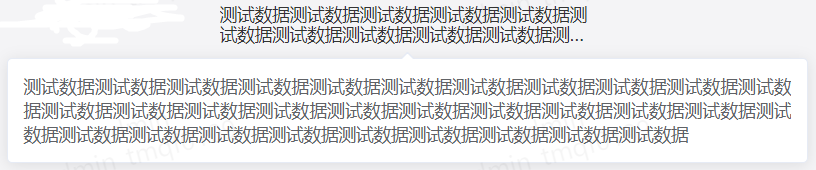
到此这篇关于vue 折叠展示多行文本组件的文章就介绍到这了,更多相关vue 折叠展示多行文本组件内容请搜索脚本之家以前的文章或继续浏览下面的相关文章希望大家以后多多支持脚本之家!
相关文章
 vue-router提供的导航钩子主要用来拦截导航,让它完成跳转或取消,本文主要介绍了vue-router之路由钩子函数应用小结,具有一定的参考价值,感兴趣的可以了解一下2024-01-01
 在V8中,JavaScript的内存空间分为栈(Stack)和堆(Heap)两部分,垃圾回收的基本思路是:查找内存中的所有变量,看哪些已经不再需要,然后释放这些变量所占用的内存,本文就给大家梳理一下V8垃圾回收系统,需要的朋友可以参考下2023-07-07
 这篇文章主要为大家介绍了el autocomplete支持分页上拉加载使用详解,有需要的朋友可以借鉴参考下,希望能够有所帮助,祝大家多多进步,早日升职加薪2022-11-11
 本文主要介绍了vue中process.env的具体使用,文中通过示例代码介绍的非常详细,对大家的学习或者工作具有一定的参考学习价值,需要的朋友们下面随着小编来一起学习学习吧2023-03-03
 这篇文章主要为大家详细介绍了Vue.js结合bootstrap前端实现分页和排序效果,具有一定的参考价值,感兴趣的小伙伴们可以参考一下2017-03-03
详解vue3+element-plus实现动态菜单和动态路由动态按钮(前后端分离)
本文需要使用axios,路由,pinia,安装element-plus,并且本文vue3是基于js而非ts的,这些环境如何搭建不做描述,需要读者自己完成,感兴趣的朋友跟随小编一起看看吧2023-11-11 这篇文章主要介绍了最适应的vue.js的form提交涉及多种插件,涉及到 vue.js动态添加css样式 ,tab切换 ,touch,表单提交,验证,toast,数据双向绑定等。需要的朋友可以参考下2018-08-08
 当我们谈论Vue的组件扩展时,经常会遇到mixin和extends这两个关键词,它们提供了一种有效的方式来共享和重用组件逻辑,本文将深入探讨Vue中mixin和extends的使用方法,并详细探讨它们的覆盖逻辑,以便你在实际项目中能够更好地应用它们2023-08-08
 这篇文章主要介绍了在vue里添加好看的lottie动画效果的方法,在vue中引入lottie非常简单,需要的朋友可以参考下2018-08-08
 这篇文章主要给大家介绍了关于vue源码之批量异步更新策略的相关资料,关于vue异步更新是我们日常开发中经常遇到的一个功能,需要的朋友可以参考下2021-05-05
最新评论