

iOS自定义滑杆效果
更新时间:2022年04月26日 17:24:41 作者:ChasingDreamsCoder
这篇文章主要为大家详细介绍了iOS自定义滑杆效果,文中示例代码介绍的非常详细,具有一定的参考价值,感兴趣的小伙伴们可以参考一下
本文实例为大家分享了iOS自定义滑杆的具体代码,供大家参考,具体内容如下
先让我们看看效果:
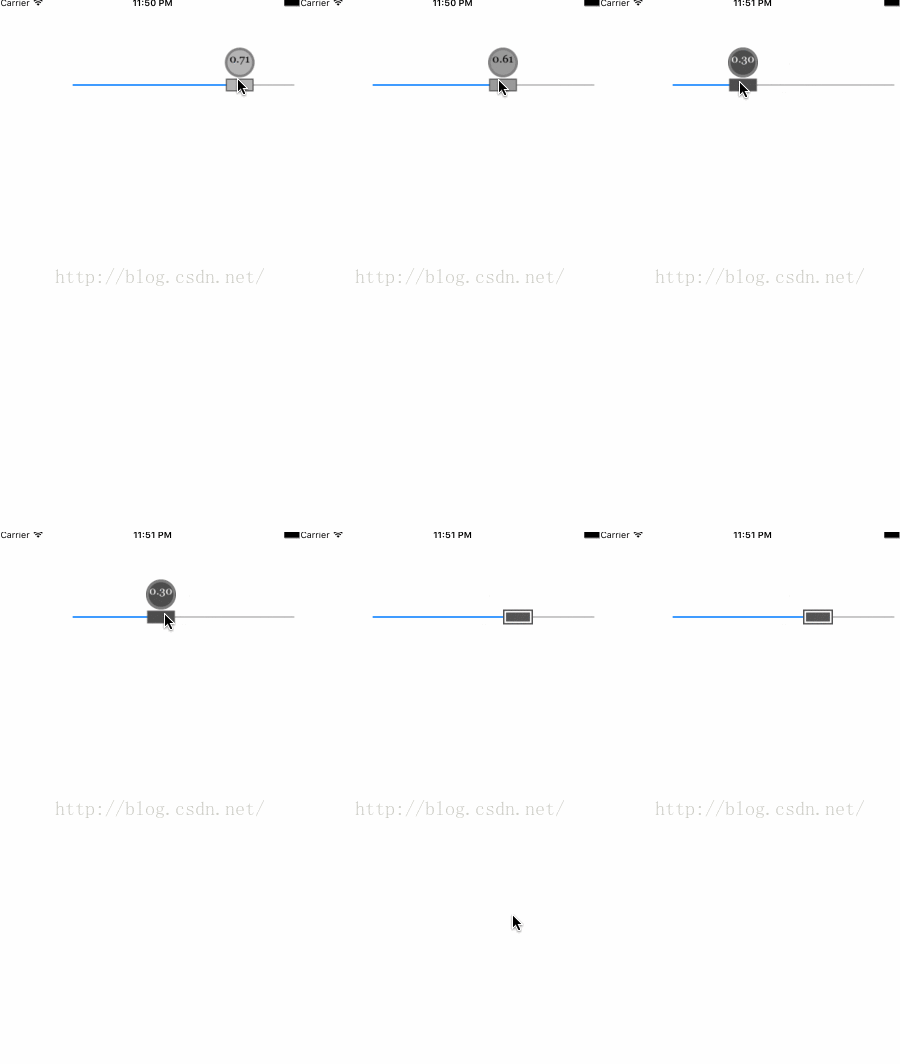
主要实现的代码:
UIImage *thumbWithLevel(float aLevel)
{
    float INSET_AMT = 1.5f;
    CGRect baseRect = CGRectMake(0, 0, 40, 100);
    CGRect thumbRect = CGRectMake(0, 40, 40, 20);

    UIGraphicsBeginImageContext(baseRect.size);
    CGContextRef context = UIGraphicsGetCurrentContext();

    [[UIColor darkGrayColor] setFill];
    CGContextAddRect(context, CGRectInset(thumbRect, INSET_AMT, INSET_AMT));
    CGContextFillPath(context);

    [[UIColor whiteColor] setStroke];
    CGContextSetLineWidth(context, 2);
    CGContextAddRect(context, CGRectInset(thumbRect, 2 * INSET_AMT, 2 * INSET_AMT));
    CGRect ellipseRect = CGRectMake(0, 0, 40, 40);
    [[UIColor colorWithWhite:aLevel alpha:1] setFill];
    CGContextAddEllipseInRect(context, ellipseRect);
    CGContextFillPath(context);

    NSString *numString = [NSString stringWithFormat:@"%0.2f",aLevel];
    UIColor *textColor = (aLevel > 0.5) ? [UIColor blackColor] : [UIColor whiteColor];
    UIFont *font = [UIFont fontWithName:@"Georgia" size:15];
    NSMutableParagraphStyle *style = [[NSMutableParagraphStyle alloc] init];
    style.lineBreakMode = NSLineBreakByCharWrapping;
    style.alignment = NSTextAlignmentCenter;
    NSDictionary *attr = @{NSFontAttributeName:font,NSParagraphStyleAttributeName:style,NSForegroundColorAttributeName:textColor};
    [numString drawInRect:CGRectInset(ellipseRect, 0, 6) withAttributes:attr];

    [[UIColor grayColor] setStroke];
    CGContextSetLineWidth(context, 3);
    CGContextAddEllipseInRect(context, CGRectInset(ellipseRect, 2, 2));
    CGContextStrokePath(context);

    UIImage *theImage = UIGraphicsGetImageFromCurrentImageContext();
    UIGraphicsEndImageContext();

    return  theImage;
}
在这里我们通过context的方法将图片画出了,对于性能有点要求,但是现在应该不在乎这点性能了
- (void)updateThumb
{
    if ((self.value < 0.98) && (ABS(self.value - previousValue) < 0.1f)) {
        return;
    }

    UIImage *customImg = thumbWithLevel(self.value);
    [self setThumbImage:customImg forState:UIControlStateHighlighted];
    previousValue = self.value;
}
通过滑块的值来使上面的值进行变化,更加的直观
[self setThumbImage:simpleThumb() forState:UIControlStateNormal];
  [self addTarget:self action:@selector(startDrag:) forControlEvents:UIControlEventTouchDown];
  [self addTarget:self action:@selector(updateThumb) forControlEvents:UIControlEventValueChanged];
  [self addTarget:self action:@selector(endDrag:) forControlEvents:UIControlEventTouchUpOutside | UIControlEventTouchUpInside];
对于不同的状态来进行不同的操作,让滑杆的用户体验度更加的完整
以上就是本文的全部内容,希望对大家的学习有所帮助,也希望大家多多支持脚本之家。
您可能感兴趣的文章:
相关文章
 这篇文章主要介绍了IOS Object-C 中Runtime详解及实例代码的相关资料,OC中的对象其实在Runtime中都会用结构体来表示,这个结构体中包含了类名、成员变量列表、方法列表、协议列表、缓存等,需要的朋友可以参考下2017-03-03
iOS中UIAlertController设置自定义标题与内容的方法
UIAlertController是iOS8推出的新概念,取代了之前的 UIAlertView和UIActionSheet(虽然现在仍可以使用,但是会有警告)。下面这篇文章主要给大家介绍了关于iOS中UIAlertController如何设置自定义标题与内容的相关资料,需要的朋友可以参考下。2017-10-10 这篇文章主要介绍了IOS中UIWebView的使用详解,涉及到初始化与三种加载方式,一些常用的属性和变量及ios7中的一些新特征,本文介绍的非常详细,感兴趣的朋友一起学习吧2016-02-02
 这篇文章主要为大家详细介绍了iOS中sqlite数据库的原生用法,sqlite数据库相信各位早已耳闻,非常轻巧的一个数据库,数据库仅一个文件,即建即用,感兴趣的小伙伴们可以参考一下32016-05-05
 这篇文章主要介绍了Objective-C编程中语句和变量的一些编写规范建议,包括三目运算符和错误处理等方面,以及对变量命名的书写建议,需要的朋友可以参考下2016-04-04
 iOS 11正式发布了,下面整理了一些该版本下的特点还有如何进行兼容适配工作需要做的事情,希望能够给你提供到帮助。2017-11-11
 下面小编就为大家分享一篇iOS APP中保存图片到相册时崩溃的解决方法,具有很好的参考价值,希望对大家有所帮助。一起跟随小编过来看看吧2017-12-12
 这篇文章主要为大家介绍了iOS Swift Lazy var View失效问题解决,有需要的朋友可以借鉴参考下,希望能够有所帮助,祝大家多多进步,早日升职加薪2023-07-07
 本篇文章主要介绍了ios常见加密解密方法(RSA、DES 、AES、MD5),小编觉得挺不错的,现在分享给大家,也给大家做个参考。一起跟随小编过来看看吧2017-02-02
iOS中长按调出菜单组件UIMenuController的使用实例
UIMenuController即是用来制作我们平时对文本长按屏幕后显示出的复制粘贴等选项菜单,下面就来详细整理一下iOS中长按调出菜单组件UIMenuController的使用实例:2016-06-06
最新评论