

Android控件之ToggleButton的使用方法
ToggleButton的状态只能是选中和未选中,并且需要为不同的状态设置不同的显示文本。
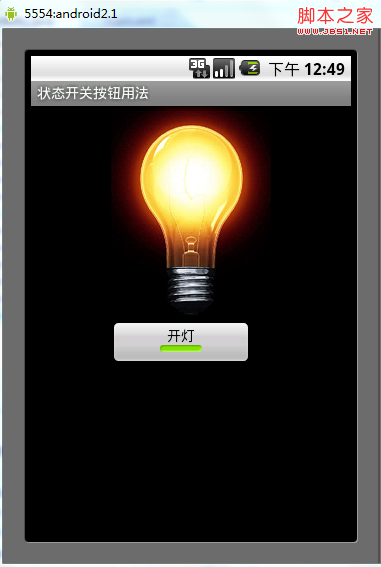
以下案例为ToggleButton的用法
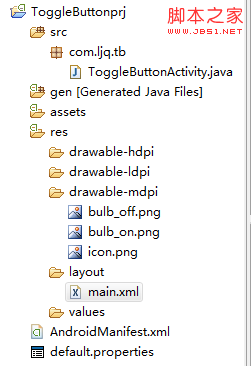
目录结构
main.xml布局文件 import android.app.Activity; public class ToggleButtonActivity extends Activity { public void onCheckedChanged(CompoundButton buttonView,
<?xml version="1.0" encoding="utf-8"?>
<LinearLayout xmlns:android="http://schemas.android.com/apk/res/android"
android:orientation="vertical"
android:layout_width="fill_parent"
android:layout_height="fill_parent">
<ImageView android:id="@+id/imageView"
android:layout_width="wrap_content"
android:layout_height="wrap_content"
android:src="@drawable/bulb_off"
android:layout_gravity="center_horizontal" />
<ToggleButton android:id="@+id/toggleButton"
android:layout_width="140dip"
android:layout_height="wrap_content"
android:textOn="开灯"
android:textOff="关灯"
android:layout_gravity="center_horizontal" />
</LinearLayout>
ToggleButtonActivity类
package com.ljq.tb;
import android.os.Bundle;
import android.widget.CompoundButton;
import android.widget.ImageView;
import android.widget.ToggleButton;
import android.widget.CompoundButton.OnCheckedChangeListener;
private ImageView imageView=null;
private ToggleButton toggleButton=null;
@Override
public void onCreate(Bundle savedInstanceState) {
super.onCreate(savedInstanceState);
setContentView(R.layout.main);
imageView=(ImageView) findViewById(R.id.imageView);
toggleButton=(ToggleButton)findViewById(R.id.toggleButton);
toggleButton.setOnCheckedChangeListener(new OnCheckedChangeListener(){
boolean isChecked) {
toggleButton.setChecked(isChecked);
imageView.setImageResource(isChecked?R.drawable.bulb_on:R.drawable.bulb_off);
}
});
}
}
相关文章

Android Secret Code(输入字符弹出手机信息)详解
这篇文章主要介绍了Android Secret Code(输入字符弹出手机信息)详解的相关资料,需要的朋友可以参考下2016-11-11 这篇文章主要介绍了Android隐藏标题状态栏的方法的相关资料,需要的朋友可以参考下2016-01-01
 select是Kotlin 1.6中的特性,即选择最快的结果。select与async、Channel结合使用,可以大大提高程序的响应速度,还可以提高程序的灵活性、扩展性2022-09-09
Android利用ViewPager实现用户引导界面效果的方法
这篇文章主要介绍了Android利用ViewPager实现用户引导界面效果的方法,结合实例形式详细分析了Android软件功能界面的初始化、view实例化、动画功能实现与布局相关技巧,需要的朋友可以参考下2016-07-07 这篇文章主要介绍了Android中的全局变量与局部变量使用小结,全局变量顾名思义就是在整个的类中或者可在多个函数中调用的变量,也称为外部变量,局部变量则是特定过程或函数中可以访问的变量,需要的朋友可以参考下2015-01-01
 这篇文章主要介绍了Android Studio获取SHA1值实例详解的相关资料,需要的朋友可以参考下2017-06-06
Android EdText编辑框禁止输入表情符号(使用正则表达式)
这篇文章主要介绍了Android EdText编辑框禁止输入表情符号使用正则表达式,需要的朋友可以参考下2017-06-06 这篇文章主要介绍了android studio打印日志语句Log.d()详解,具有很好的参考价值,希望对大家有所帮助。一起跟随小编过来看看吧2020-04-04
 这篇文章主要介绍了Android TextView 设置字体大小的方法的相关资料,需要的朋友可以参考下2016-02-02
 这篇文章主要介绍了自定义滑动按钮的例子,图文剖析Android自定义View绘制,文中示例代码介绍的非常详细,具有一定的参考价值,感兴趣的小伙伴们可以参考一下2016-03-03
最新评论