

iOS应用开发中的文字选中操作控件UITextView用法讲解
更新时间:2016年02月17日 09:08:53 作者:苹果吧
这篇文章主要介绍了iOS应用开发中的文字选中操作控件UITextView用法讲解,代码基于传统的Objective-C语言,需要的朋友可以参考下
1.创建并初始化
创建UITextView的文件,并在.h文件中写入如下代码:
复制代码 代码如下:
#import <UIKit/UIKit.h>
@interface TextViewController : UIViewController <UITextViewDelegate>
{
UITextView *textView;
}
@property (nonatomic, retain) UITextView *textView;
@end
在.m文件中初始化这个textview,写入代码如下:
复制代码 代码如下:
self.textView = [[[UITextView alloc] initWithFrame:self.view.frame]autorelease]; //初始化大小并自动释放
self.textView.textColor = [UIColor blackColor];//设置textview里面的字体颜色
self.textView.font = [UIFont fontWithName:@"Arial" size:18.0];//设置字体名字和字体大小
self.textView.delegate = self;//设置它的委托方法
self.textView.backgroundColor = [UIColor whiteColor];//设置它的背景颜色
self.textView.text = @"Now is the time for all good developers tocome to serve their country.\n\nNow is the time for all good developers to cometo serve their country.";//设置它显示的内容
self.textView.returnKeyType = UIReturnKeyDefault;//返回键的类型
self.textView.keyboardType = UIKeyboardTypeDefault;//键盘类型
self.textView.scrollEnabled = YES;//是否可以拖动
self.textView.autoresizingMask = UIViewAutoresizingFlexibleHeight;//自适应高度
[self.view addSubview: self.textView];//加入到整个页面中
2. UITextView退出键盘的几种方式
因为你点击UITextView会出现键盘,如果你退出键盘,有如下几种方式:
(1)如果你程序是有导航条的,可以在导航条上面加多一个Done的按钮,用来退出键盘,当然要先实UITextViewDelegate。代码如下:
复制代码 代码如下:
- (void)textViewDidBeginEditing:(UITextView *)textView {
UIBarButtonItem *done = [[[UIBarButtonItem alloc] initWithBarButtonSystemItem:UIBarButtonSystemItemDone target:self action:@selector(leaveEditMode)] autorelease];
self.navigationItem.rightBarButtonItem = done;
}
- (void)textViewDidEndEditing:(UITextView *)textView {
self.navigationItem.rightBarButtonItem = nil;
}
- (void)leaveEditMode {
[self.textView resignFirstResponder];
}
(2)如果你的textview里不用回车键,可以把回车键当做退出键盘的响应键。代码如下:
复制代码 代码如下:
#pragma mark - UITextView Delegate Methods
-(BOOL)textView:(UITextView *)textView shouldChangeTextInRange:(NSRange)range replacementText:(NSString *)text
{
if ([text isEqualToString:@"\n"]) {
[textView resignFirstResponder];
return NO;
}
return YES;
}
这样无论你是使用电脑键盘上的回车键还是使用弹出键盘里的return键都可以达到退出键盘的效果。
(3)还有你也可以自定义其他加载键盘上面用来退出,比如在弹出的键盘上面加一个view来放置退出键盘的Done按钮。
代码如下:
复制代码 代码如下:
UIToolbar * topView = [[UIToolbar alloc]initWithFrame:CGRectMake(0, 0, 320, 30)];
[topView setBarStyle:UIBarStyleBlack];
UIBarButtonItem * helloButton = [[UIBarButtonItem alloc]initWithTitle:@"Hello" style:UIBarButtonItemStyleBordered target:self action:nil];
UIBarButtonItem * btnSpace = [[UIBarButtonItem alloc]initWithBarButtonSystemItem:UIBarButtonSystemItemFlexibleSpace target:self action:nil];
UIBarButtonItem * doneButton = [[UIBarButtonItem alloc]initWithTitle:@"Done" style:UIBarButtonItemStyleDone target:self action:@selector(dismissKeyBoard)];
NSArray * buttonsArray = [NSArray arrayWithObjects:helloButton,btnSpace,doneButton,nil];
[doneButton release];
[btnSpace release];
[helloButton release];
[topView setItems:buttonsArray];
[tvTextView setInputAccessoryView:topView];
-(IBAction)dismissKeyBoard
{
[tvTextView resignFirstResponder];
}
(4)设置UITextView圆角问题
做法是在 #import QuartzCore/QuartzCore.h 后,便能調用[textView.layer setCornerRadius:10]; 來把 UITextView 设定圓角
(5)UITextView根据文本大小自适应高度
通过实现文本字数来确定高度,如下:
复制代码 代码如下:
NSString * desc = @"Description it is a test font, and don't become angry for which i use to do here.Now here is a very nice party from american or not!";
CGSize size = [desc sizeWithFont:[UIFont systemFontOfSize:14] constrainedToSize:CGSizeMake(240, 2000) lineBreakMode:UILineBreakModeWordWrap];
只有UILabel需要定义的numberoflines为0,即不做行数的限制。如下:
复制代码 代码如下:
[label setNumberOfLines:0];
[label setFrame:CGRectMake(40, 135, 240, size.height+10)];
[label setText:desc];
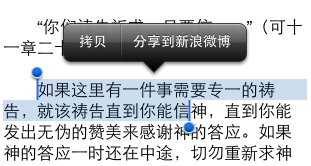
(6)UITextView自定选择文字后的菜单
在ViewDidLoad中加入:
复制代码 代码如下:
UIMenuItem *menuItem = [[UIMenuItem alloc]initWithTitle:@"分享到新浪微博" action:@selector(changeColor:)];
UIMenuController *menu = [UIMenuController sharedMenuController];
[menu setMenuItems:[NSArray arrayWithObject:menuItem]];
[menuItem release];
当然上面那个@selector里面的changeColor方法还是自己写吧,也就是说点击了我们自定义的菜单项后会触发的方法。
然后还得在代码里加上一个方法:
复制代码 代码如下:
-(BOOL)canPerformAction:(SEL)action withSender:(id)sender
{
if(action ==@selector(changeColor:))
{
if(textView.selectedRange.length>0)
return YES;
}
return NO;
}
实现后如下图:
3.一些个性化定制
总体来说个性化定制UITextView中的内容有两种方法:
(1)从文件中读取内容到UITextView,这个个人感觉使用rtfd和rtf格式文件效果非常好。
(2)使用NSAttributeString进行定制
具体方法如下:
复制代码 代码如下:
NSMutableParagraphStyle *paragraphStyle = [[NSMutableParagraphStyle alloc]init];
paragraphStyle.lineHeightMultiple = 20.f;
paragraphStyle.maximumLineHeight = 25.f;
paragraphStyle.minimumLineHeight = 15.f;
paragraphStyle.firstLineHeadIndent = 20.f;
paragraphStyle.alignment = NSTextAlignmentJustified;
NSDictionary *attributes = @{ NSFontAttributeName:[UIFont systemFontOfSize:14], NSParagraphStyleAttributeName:paragraphStyle, NSForegroundColorAttributeName:[UIColor colorWithRed:76./255. green:75./255. blue:71./255. alpha:1]
};
textView.attributedText = [[NSAttributedString alloc]initWithString:content attributes:attributes];
当然也可以初始化一个NSMutableAttributedString,然后向里面添加文字样式,最后将它赋给textView的AttributedText即可
复制代码 代码如下:
NSMutableAttributedString *atr = [[NSMutableAttributedString alloc]initWithString:detail];
[atr addAttribute:NSFontAttributeName value:[UIFont systemFontOfSize:14] range:NSMakeRange(0, detail.length)];
textView.attributedText = atr;
另外,对于textview中的链接样式,同样也可以定制
复制代码 代码如下:
NSDictionary *linkAttributes = @{NSForegroundColorAttributeName: [UIColor blueColor],
NSUnderlineColorAttributeName: [UIColor blackColor],
NSUnderlineStyleAttributeName: @(NSUnderlinePatternDash)};
self.linkTextAttributes = linkAttributes;
这里只是个简单的例子,具体还有很多属性可以自行参考头文件
相关文章
 下面小编就为大家分享一篇ios可拖动按钮实例。具有很好的参考价值,希望对大家有所帮助。一起跟随小编过来看看吧2018-03-03
 这篇文章主要介绍了在iOS中使用OpenGL ES实现绘画板的方法,文中通过示例代码介绍的非常详细,对大家的学习或者工作具有一定的参考学习价值,需要的朋友们下面随着小编来一起学习学习吧2020-03-03
 本篇文章主要介绍了iOS 使用AFN上传视频到服务器示例代码,具有一定的参考价值,有兴趣的可以了解一下。2017-04-04
 在pc端设置商家的配送范围,用户在下单时,根据用户设置的配送地点判断是否在可配送范围内,并给用户相应的提示,下面通过本文给大家分享具有实现代码,感兴趣的朋友一起学习吧2016-01-01
 本篇文章主要介绍了iOS11 WKWebView内容过滤规则详解,小编觉得挺不错的,现在分享给大家,也给大家做个参考。一起跟随小编过来看看吧2017-07-07
 这篇文章主要介绍了iOS下拉刷新 UIScrollVie异常闪动问题,非常不错,具有参考借鉴价值,需要的朋友可以参考下2017-03-03
 在iOS开发中视图的切换是很频繁的,独立的视图应用在实际开发过程中并不常见,除非你的应用足够简单。在iOS开发中常用的视图切换有三种,今天我们将一一介绍,希望大家能够喜欢。2016-04-04
IOS 开发之实现取消tableView返回时cell选中的问题
这篇文章主要介绍了IOS 开发之实现取消tableView返回时cell选中的问题的相关资料,希望通过本文能实现大家想要的功能,需要的朋友可以参考下2017-09-09 这篇文章主要给大家介绍了关于iOS Block多年以来一直的误解如何解开的相关资料,文中通过图文介绍的非常详细,对大家的学习或者工作具有一定的参考学习价值,需要的朋友们下面随着小编来一起学习学习吧2018-05-05
iOS开发之路--微博OAuth授权_取得用户授权的accessToken
本文是IOS开发之路系列文章的第二篇,讲诉的内容是如何使用微博OAuth授权,并付源码,然后详细讲解了取得用户授权的accessToken,希望对大家有所帮助2014-08-08
最新评论