

Android实战教程第四十篇之Chronometer实现倒计时
更新时间:2016年11月10日 10:57:08 作者:杨道龙
这篇文章主要介绍了Android实战教程第四十篇之Chronometer实现倒计时,具有一定的参考价值,感兴趣的小伙伴们可以参考一下
Android提供了实现按照秒计时的API,今天就是用这个API实现简单的倒计时。
来个布局:
<?xml version="1.0" encoding="utf-8"?>
<LinearLayout xmlns:android="http://schemas.android.com/apk/res/android"
 android:layout_width="fill_parent"
 android:layout_height="fill_parent"
 android:orientation="vertical" >

 <Chronometer
 android:id="@+id/myChronometer"
 android:layout_width="wrap_content"
 android:layout_height="wrap_content" />

 <LinearLayout
 android:layout_width="wrap_content"
 android:layout_height="wrap_content"
 android:orientation="horizontal" >

 <Button
  android:id="@+id/btnStart"
  android:layout_width="wrap_content"
  android:layout_height="wrap_content"
  android:text="开始计时" />

 <Button
  android:id="@+id/btnStop"
  android:layout_width="wrap_content"
  android:layout_height="wrap_content"
  android:text="停止" />

 <Button
  android:id="@+id/btnBase"
  android:layout_width="wrap_content"
  android:layout_height="wrap_content"
  android:text="复位" />

 <Button
  android:id="@+id/btnFormat"
  android:layout_width="wrap_content"
  android:layout_height="wrap_content"
  android:text="格式化" />
 </LinearLayout>

</LinearLayout>
对应活动中的代码如下:
package com.example.timer;

import android.app.Activity;
import android.os.Bundle;
import android.os.SystemClock;
import android.view.View;
import android.view.View.OnClickListener;
import android.widget.Button;
import android.widget.Chronometer;

public class MainActivity extends Activity {
 private Chronometer myChronometer = null;
 private Button btnStart = null;
 private Button btnStop = null;
 private Button btnBase = null;
 private Button btnFormat = null;

 public void onCreate(Bundle savedInstanceState) {
 super.onCreate(savedInstanceState); // 生命周期方法
 super.setContentView(R.layout.activity_main); // 设置要使用的布局管理器
 this.myChronometer = (Chronometer) super
  .findViewById(R.id.myChronometer);
 btnStart = (Button) super.findViewById(R.id.btnStart);
 btnStop = (Button) super.findViewById(R.id.btnStop);
 btnBase = (Button) super.findViewById(R.id.btnBase);
 btnFormat = (Button) super.findViewById(R.id.btnFormat);
 btnStart.setOnClickListener(new OnClickListenerStart());
 btnStop.setOnClickListener(new OnClickListenerStop());
 btnBase.setOnClickListener(new OnClickListenerBase());
 btnFormat.setOnClickListener(new OnClickListenerFormat());
 }

 private class OnClickListenerStart implements OnClickListener {

 public void onClick(View arg0) {
  myChronometer.start();

 }

 }

 private class OnClickListenerStop implements OnClickListener {

 public void onClick(View arg0) {
  myChronometer.stop();

 }

 }

 private class OnClickListenerBase implements OnClickListener {

 public void onClick(View arg0) {
  myChronometer.setBase(SystemClock.elapsedRealtime());

 }

 }

 private class OnClickListenerFormat implements OnClickListener {

 public void onClick(View arg0) {
  myChronometer.setFormat("新的显示格式:%s。");

 }

 }

}
运行跑起来看看效果:
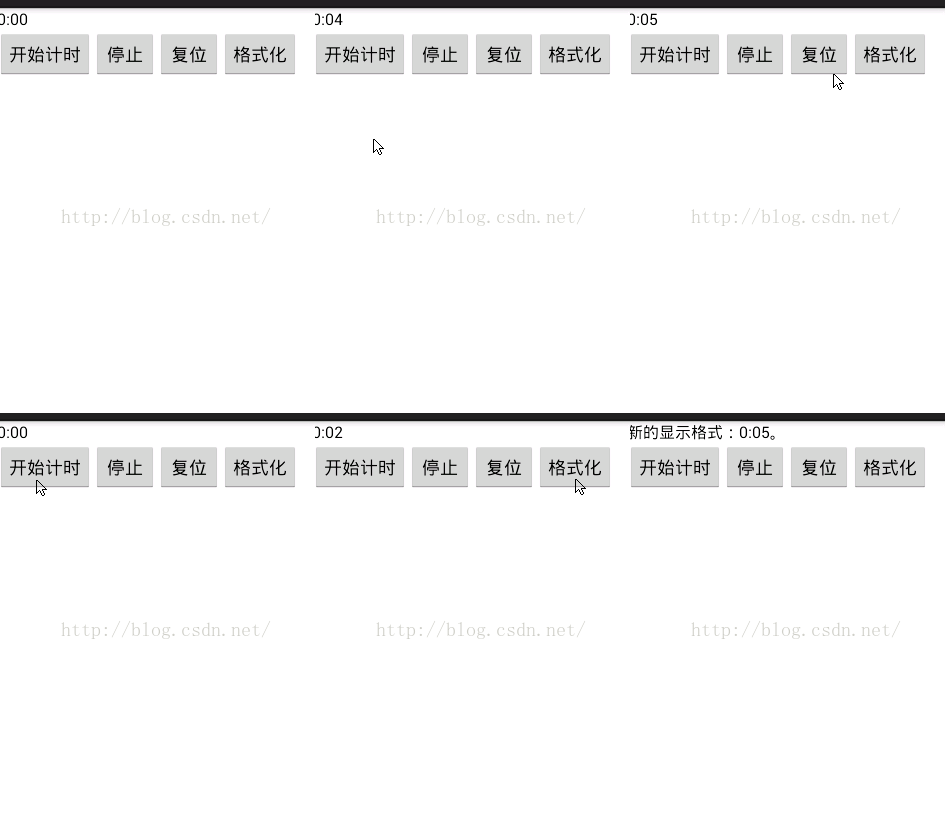
以上就是本文的全部内容,希望对大家的学习有所帮助,也希望大家多多支持脚本之家。
您可能感兴趣的文章:
- Android计时器的三种实现方式(Chronometer、Timer、handler)
- Android Chronometer控件实现计时器函数详解
- Android计时器chronometer使用实例讲解
- 学习使用Android Chronometer计时器
- android之计时器(Chronometer)的使用以及常用的方法
- Android控件Chronometer定时器的实现方法
- Android自带倒计时控件Chronometer使用方法详解
- Android利用Chronometer实现倒计时功能
- Android自定义Chronometer实现短信验证码秒表倒计时功能
- Android时分秒计时器的两种实现方法
- Android编程之计时器Chronometer简单示例
相关文章
 这篇文章主要介绍了Android中AlarmManager基本用法,结合实例形式简单分析了AlarmManager的基本类型、方法及简单使用示例,需要的朋友可以参考下2016-08-08
 LruCache是基于Lru算法实现的一种缓存机制。本文对LruCache的概念和实现原理进行介绍,通过实例分析和使用介绍,让大家更好的了解LruCache,下面跟着小编一起来看下吧2016-12-12
 这篇文章主要为大家详细介绍了android使用TextView实现跑马灯效果,文中示例代码介绍的非常详细,具有一定的参考价值,感兴趣的小伙伴们可以参考一下2020-05-05
 这篇文章主要介绍了Android ViewPager的事件冲突的解决办法的相关资料,需要的朋友可以参考下2017-06-06
 这篇文章主要为大家详细介绍了Android实现简易版打地鼠,文中示例代码介绍的非常详细,具有一定的参考价值,感兴趣的小伙伴们可以参考一下2019-05-05
 用到的就是WindowManager以及WindowManager.LayoutParams,对这个LayoutParams做文章,当设置为属性后,然后,创建一个View,将这个View添加到WindowManager中就行2013-06-06
 业务员有需求要将一个wap站在手机上以App的形式打开,还不要嵌套WebView,只能以浏览器打开.查了点资料,就有了下面这代码2013-09-09
Android中AlarmManager+Notification实现定时通知提醒功能
本篇文章主要介绍了Android中AlarmManager+Notification实现定时通知提醒功能,非常具有实用价值,需要的朋友可以参考下2017-10-10 这篇文章主要为大家详细介绍了3种Android隐藏顶部状态栏及标题栏的方法,还涉及一种隐藏Android 4.0平板底部状态栏的方法,感兴趣的小伙伴们可以参考一下2016-02-02
Android开发之DatePickerDialog、TimePickerDialog时间日期对话框用法示例
这篇文章主要介绍了Android开发之DatePickerDialog、TimePickerDialog时间日期对话框用法,结合实例形式分析了Android使用DatePickerDialog、TimePickerDialog显示日期时间相关操作技巧,需要的朋友可以参考下2019-03-03
最新评论