

css 背景图片定位在菜单效果中的应用实例
发布时间:2009-12-17 21:23:17 作者:佚名  我要评论
我要评论
我要评论这是一款效果不错的菜单,在设计方面具有鲜明的风格。其实不管外在表现形式如何变化,经过分析,WEB界面元素都可以分解成具有语义的HTML编码。
这款菜单大家需要注意HOVER状态下背景图片定位发生了变化,从而实现了这样的效果。
本实例是一位国外的朋友所写,不进行任何翻译,直接发出来,大家可以偿试阅读,如果遇到困难可以求助于翻译软件。
不断的提高自己的英文阅读能力也是我们一直所提倡的,让我们一起努力吧!
Overview
Here are the required graphics to assembe the menu
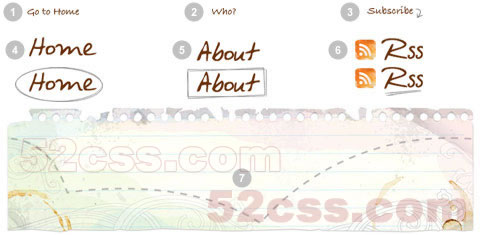
1. Main background
Open the Photoshop file. Turn off the menu text Layer Group and save the main background as menu-bg.jpg.
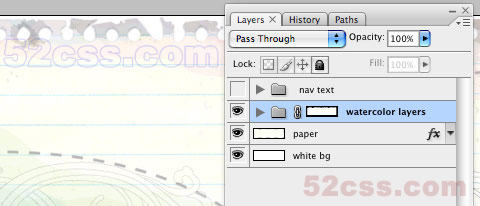
2. Button graphics
Turn off the background Layer Group and leave only the menu text layers visible. Make a rectangle selection cover the "home" item, go to menu Edit > Copy Merged (Cmd + Shift + C).
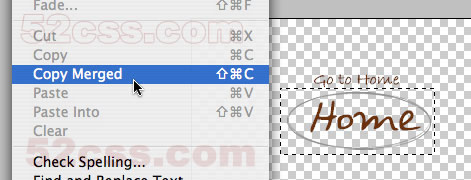
Create a new file and take note of the file dimension (w x h), in my case the "home" graphic is 144 x 58px. Paste the "home" graphic in the new file. Go to menu Image > Canvas Size, adjust the image height x 2 (58 + 58 = 116px). Duplicate the home graphic layer and align it to the bottom. Erase the highlight strokes in the upper layer.
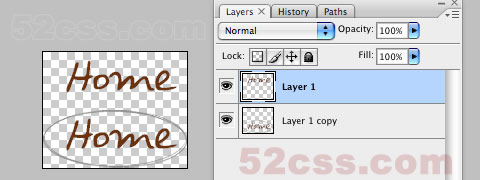
Here is how the hover effect will work. We will set the link button to 144 x 58px, when mouseover, we will shift the background image from top to bottom.
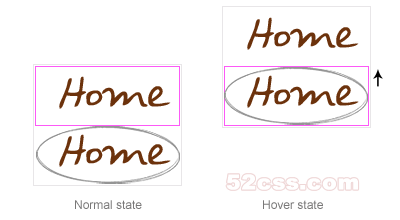
Repeat this step for the other buttons. You should have the follow graphics:
3. HTML source
When you are done with the graphics, let’s start coding. Start with an un-ordered list <ul>.
● note there is an id="menu" assigned to the<ul> tag
● an unique class name assigned to each link <a>
● an empty <span> tag (the purpose of this is to make the mouseover effect)
 Example Source Code [www.52css.com]
#menu
Reset the menu to no padding, no margin, and no list-style. Specify the width and height same dimension as the menu-bg.jpg. Then attach the menu background image. The key point to remember here is set the position property to relative.
#menu span
Specify the span element to display:none (so they will be invisible by default). Specify position:absolute, so we can place the mouseover GIF image on exact position.
#menu a
The key point here is the text-indent property. We specify the text-indent property with a negative value (-900%), so the text will be hidden.
#menu a:hover
When mouseover the link, we want to shift the background image from top to bottom.
#menu a:hover span
When mouseover the link, we want the span element to display:block.
#menu .home
Specify the width, height, and background image. Since we already specified all <a> element postition:absolute in previous step, now just say where the .home button should be by specifying the left and top property.
#menu .home span
Here we are specifying the width, height, background, and position of the span element of .home (mouseover GIF image)
#menu .about
Copy the .home rules and rename them to .about. Now just change the width, height, background, left, and top property.
#menu .rss
Repeat this step for .rss
All in one:
本实例是一位国外的朋友所写,不进行任何翻译,直接发出来,大家可以偿试阅读,如果遇到困难可以求助于翻译软件。
不断的提高自己的英文阅读能力也是我们一直所提倡的,让我们一起努力吧!
Overview
Here are the required graphics to assembe the menu
1. Main background
Open the Photoshop file. Turn off the menu text Layer Group and save the main background as menu-bg.jpg.
2. Button graphics
Turn off the background Layer Group and leave only the menu text layers visible. Make a rectangle selection cover the "home" item, go to menu Edit > Copy Merged (Cmd + Shift + C).
Create a new file and take note of the file dimension (w x h), in my case the "home" graphic is 144 x 58px. Paste the "home" graphic in the new file. Go to menu Image > Canvas Size, adjust the image height x 2 (58 + 58 = 116px). Duplicate the home graphic layer and align it to the bottom. Erase the highlight strokes in the upper layer.
Here is how the hover effect will work. We will set the link button to 144 x 58px, when mouseover, we will shift the background image from top to bottom.
Repeat this step for the other buttons. You should have the follow graphics:
3. HTML source
When you are done with the graphics, let’s start coding. Start with an un-ordered list <ul>.
● note there is an id="menu" assigned to the<ul> tag
● an unique class name assigned to each link <a>
● an empty <span> tag (the purpose of this is to make the mouseover effect)
 Example Source Code [www.52css.com]
<ul id="menu">
<li><a href="#" class="home">Home <span></span></a></li>
<li><a href="#" class="about">About <span></span></a></li>
<li><a href="#" class="rss">RSS <span></span></a></li>
</ul>
<li><a href="#" class="home">Home <span></span></a></li>
<li><a href="#" class="about">About <span></span></a></li>
<li><a href="#" class="rss">RSS <span></span></a></li>
</ul>
#menu
Reset the menu to no padding, no margin, and no list-style. Specify the width and height same dimension as the menu-bg.jpg. Then attach the menu background image. The key point to remember here is set the position property to relative.
Example Source Code [www.52css.com]
#menu {
list-style: none;
padding: 0;
margin: 0;
width: 774px;
height: 210px;
background: url(images/menu-bg.jpg) no-repeat;
position: relative;
}
list-style: none;
padding: 0;
margin: 0;
width: 774px;
height: 210px;
background: url(images/menu-bg.jpg) no-repeat;
position: relative;
}
#menu span
Specify the span element to display:none (so they will be invisible by default). Specify position:absolute, so we can place the mouseover GIF image on exact position.
Example Source Code [www.52css.com]
#menu span {
display: none;
position: absolute;
}
display: none;
position: absolute;
}
#menu a
The key point here is the text-indent property. We specify the text-indent property with a negative value (-900%), so the text will be hidden.
Example Source Code [www.52css.com]
#menu a {
display: block;
text-indent: -900%;
position: absolute;
outline: none;
}
display: block;
text-indent: -900%;
position: absolute;
outline: none;
}
#menu a:hover
When mouseover the link, we want to shift the background image from top to bottom.
Example Source Code [www.52css.com]
#menu a:hover {
background-position: left bottom;
}
background-position: left bottom;
}
#menu a:hover span
When mouseover the link, we want the span element to display:block.
Example Source Code [www.52css.com]
#menu a:hover span {
display: block;
}
display: block;
}
#menu .home
Specify the width, height, and background image. Since we already specified all <a> element postition:absolute in previous step, now just say where the .home button should be by specifying the left and top property.
Example Source Code [www.52css.com]
#menu .home {
width: 144px;
height: 58px;
background: url(images/home.gif) no-repeat;
left: 96px;
top: 73px;
}
width: 144px;
height: 58px;
background: url(images/home.gif) no-repeat;
left: 96px;
top: 73px;
}
#menu .home span
Here we are specifying the width, height, background, and position of the span element of .home (mouseover GIF image)
Example Source Code [www.52css.com]
#menu .home span {
width: 86px;
height: 14px;
background: url(images/home-over.gif) no-repeat;
left: 28px;
top: -20px;
}
width: 86px;
height: 14px;
background: url(images/home-over.gif) no-repeat;
left: 28px;
top: -20px;
}
#menu .about
Copy the .home rules and rename them to .about. Now just change the width, height, background, left, and top property.
Example Source Code [www.52css.com]
#menu .about {
width: 131px;
height: 51px;
background: url(images/about.gif) no-repeat;
left: 338px;
top: 97px;
}
#menu .about span {
width: 40px;
height: 12px;
background: url(images/about-over.gif) no-repeat;
left: 44px;
top: 54px;
}
width: 131px;
height: 51px;
background: url(images/about.gif) no-repeat;
left: 338px;
top: 97px;
}
#menu .about span {
width: 40px;
height: 12px;
background: url(images/about-over.gif) no-repeat;
left: 44px;
top: 54px;
}
#menu .rss
Repeat this step for .rss
Example Source Code [www.52css.com]
#menu .rss {
width: 112px;
height: 47px;
background: url(images/rss.gif) no-repeat;
left: 588px;
top: 94px;
}
#menu .rss span {
width: 92px;
height: 20px;
background: url(images/rss-over.gif) no-repeat;
left: 26px;
top: -20px;
}
width: 112px;
height: 47px;
background: url(images/rss.gif) no-repeat;
left: 588px;
top: 94px;
}
#menu .rss span {
width: 92px;
height: 20px;
background: url(images/rss-over.gif) no-repeat;
left: 26px;
top: -20px;
}
All in one:
Example Source Code [www.52css.com]
#menu {
list-style: none;
padding: 0;
margin: 0;
width: 774px;
height: 210px;
background: url(images/menu-bg.jpg) no-repeat;
position: relative;
}
#menu span {
display: none;
position: absolute;
}
#menu a {
display: block;
text-indent: -900%;
position: absolute;
outline: none;
}
#menu a:hover {
background-position: left bottom;
}
#menu a:hover span {
display: block;
}
#menu .home {
width: 144px;
height: 58px;
background: url(images/home.gif) no-repeat;
left: 96px;
top: 73px;
}
#menu .home span {
width: 86px;
height: 14px;
background: url(images/home-over.gif) no-repeat;
left: 28px;
top: -20px;
}
#menu .about {
width: 131px;
height: 51px;
background: url(images/about.gif) no-repeat;
left: 338px;
top: 97px;
}
#menu .about span {
width: 40px;
height: 12px;
background: url(images/about-over.gif) no-repeat;
left: 44px;
top: 54px;
}
#menu .rss {
width: 112px;
height: 47px;
background: url(images/rss.gif) no-repeat;
left: 588px;
top: 94px;
}
#menu .rss span {
width: 92px;
height: 20px;
background: url(images/rss-over.gif) no-repeat;
left: 26px;
top: -20px;
}
list-style: none;
padding: 0;
margin: 0;
width: 774px;
height: 210px;
background: url(images/menu-bg.jpg) no-repeat;
position: relative;
}
#menu span {
display: none;
position: absolute;
}
#menu a {
display: block;
text-indent: -900%;
position: absolute;
outline: none;
}
#menu a:hover {
background-position: left bottom;
}
#menu a:hover span {
display: block;
}
#menu .home {
width: 144px;
height: 58px;
background: url(images/home.gif) no-repeat;
left: 96px;
top: 73px;
}
#menu .home span {
width: 86px;
height: 14px;
background: url(images/home-over.gif) no-repeat;
left: 28px;
top: -20px;
}
#menu .about {
width: 131px;
height: 51px;
background: url(images/about.gif) no-repeat;
left: 338px;
top: 97px;
}
#menu .about span {
width: 40px;
height: 12px;
background: url(images/about-over.gif) no-repeat;
left: 44px;
top: 54px;
}
#menu .rss {
width: 112px;
height: 47px;
background: url(images/rss.gif) no-repeat;
left: 588px;
top: 94px;
}
#menu .rss span {
width: 92px;
height: 20px;
background: url(images/rss-over.gif) no-repeat;
left: 26px;
top: -20px;
}
相关文章
- CSS Grid 是一种二维布局系统,可以同时控制行和列,相比 Flex(一维布局),更适合用在整体页面布局或复杂模块结构中,这篇文章主要介绍了前端CSS Grid 布局详解,需要的朋2025-04-16
- CSS 中的 padding 和 margin 是两个非常基础且重要的属性,它们用于控制元素周围的空白区域,本文将详细介绍 padding 和 margin 的概念、区别以及如何在实际项目中使用它们2025-04-07
- will-change 是一个 CSS 属性,用于告诉浏览器某个元素在未来可能会发生哪些变化,本文给大家介绍CSS will-change 属性详解,感兴趣的朋友一起看看吧2025-04-07
- 本文给大家分享在 CSS 中,去除a标签(超链接)的下划线的几种方法,本文给大家介绍的非常详细,感兴趣的朋友一起看看吧2025-04-07
 在前端开发中,CSS(层叠样式表)不仅是用来控制网页的外观和布局,更是实现复杂交互和动态效果的关键技术之一,随着前端技术的不断发展,CSS的用法也日益丰富和高级,本文将2025-04-07
css中的 vertical-align与line-height作用详解
文章详细介绍了CSS中的`vertical-align`和`line-height`属性,包括它们的作用、适用元素、属性值、常见使用场景、常见问题及解决方案,感兴趣的朋友跟随小编一起看看吧2025-03-26浅析CSS 中z - index属性的作用及在什么情况下会失效
z-index属性用于控制元素的堆叠顺序,值越大,元素越显示在上层,它需要元素具有定位属性(如relative、absolute、fixed或sticky),本文给大家介绍CSS 中z - index属性的作用2025-03-21- 文章详细介绍了CSS中的打印媒体查询@mediaprint包括基本语法、常见使用场景和代码示例,如隐藏非必要元素、调整字体和颜色、处理链接的URL显示、分页控制、调整边距和背景等2025-03-18
CSS模拟 html 的 title 属性(鼠标悬浮显示提示文字效果)
本文介绍了如何使用CSS模拟HTML的title属性,通过鼠标悬浮显示提示文字效果,通过设置`.tipBox`和`.tipBox.tipContent`的样式,实现了提示内容的隐藏和显示,感兴趣的朋友一起2025-03-10
前端 CSS 动态设置样式::class、:style 等技巧(推荐)
本文介绍了Vue.js中动态绑定类名和内联样式的两种方法:对象语法和数组语法,通过对象语法,可以根据条件动态切换类名或样式;通过数组语法,可以同时绑定多个类名或样式,此外2025-02-26
最新评论