

vue3 头像上传 组件功能实现
更新时间:2023年05月18日 08:23:19 作者:ps酷教程
这篇文章主要介绍了vue3头像上传组件功能,用到了自定义组件v-model的双向绑定,使用axios + formData 上传文件,本文结合实例代码给大家介绍的非常详细,需要的朋友可以参考下
vue3 头像上传 组件功能
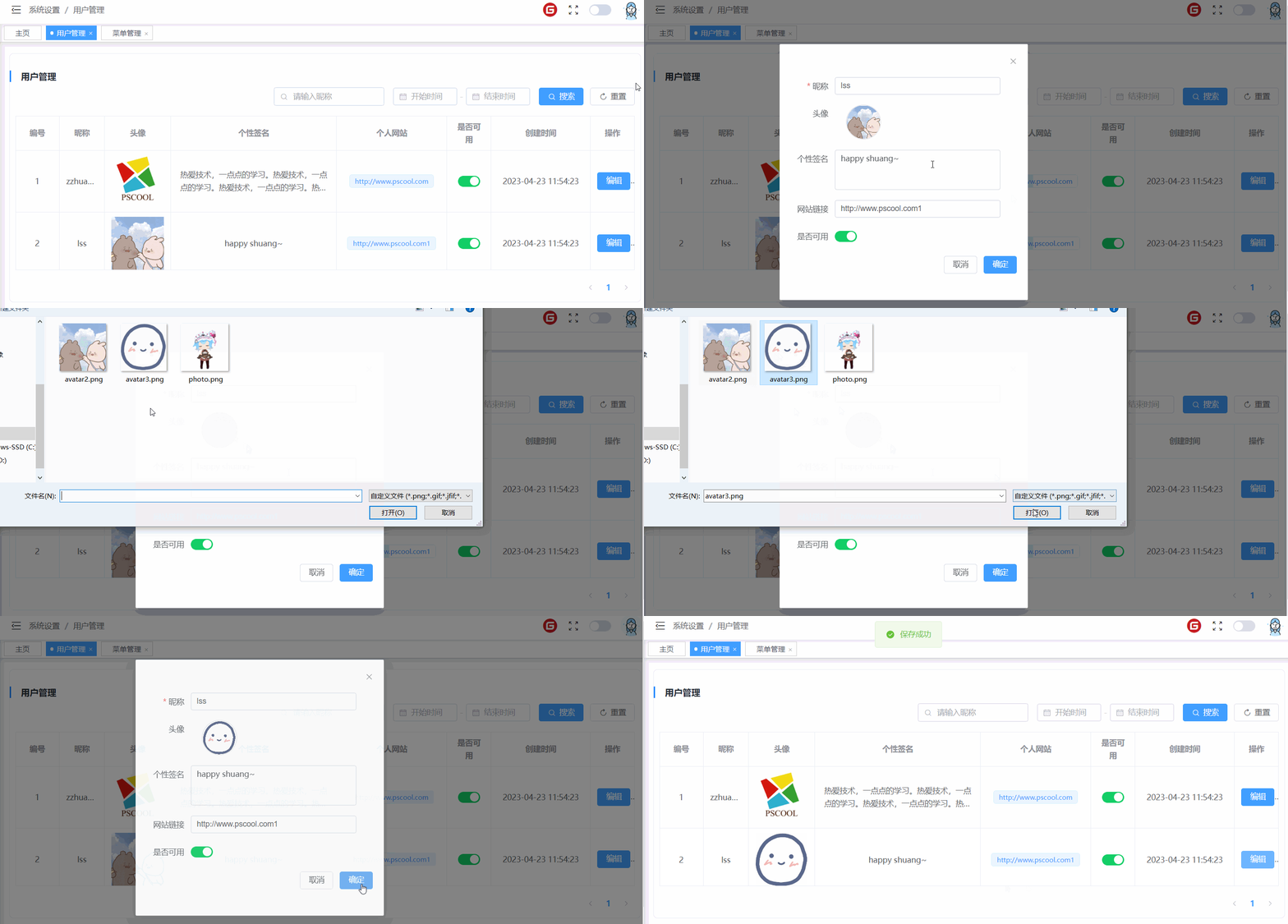
- 用到了
自定义组件v-model的双向绑定 - 使用
input的type=file这个原生html元素,通过监听change事件,获取到选择的文件(注意,选择完文件值后,要把这个隐藏的input的type=file元素的value置为空,否则,下次选择同样的图片,将不会触发change事件) - 使用
axios + formData 上传文件 - 后台做保存文件,以及
静态资源目录映射即可
前端
AvatarUpload.vue
<template>
    <div class="avatar-upload-wrapper">
        <!-- {{ modelValue }} -->
        <div :class="['avatar-box',{'avatar-box-border':imgUrl?false:true}]" @click="clickAvatarBox" :style="{width: size + 'px',height: size + 'px'}">
        	<!-- 隐藏的input的type=file -->
            <input type="file" hidden ref="fileInputRef" accept="image/x-png,image/gif,image/jpeg,image/bmp" @change="changeFile">
            <img v-if="imgUrl" :src="imgUrl" alt="">
            <div v-else class="avatar-marker">
                <i class="iconfont icon-jiahao"></i>
            </div>
        </div>
    </div>
</template>
<script setup>
    import Messager from '@/utils/messager'
    import axiosInstance from '@/utils/request'
    import { ref,reactive,watch } from 'vue'
    const emits = defineEmits(['update:modelValue'])
    const props = defineProps({
        size: {
            type: Number,
            default: 64
        },
        modelValue: {
            type: String,
            default: '' // 默认头像链接地址
        },
        maxSize: {
            type:Number,
            default: 5 // 默认最大不超过5M
        },
        serverUrl: {
            type:String,
            default: 'http://localhost:9091/static/img'
        }
    })
    const fileInputRef =ref(null)
    // const imgUrl = ref('http://localhost:9091/static/img/avatar/3026520210706112210298.png')
    const imgUrl = ref(props.modelValue)
    // console.log(imgUrl.value);
    // 监听头像url改变(打开弹框时, 传入的图片地址变化时, 同步修改imgUrl)
    watch(()=>props.modelValue,(newVal,oldVal)=>{
        imgUrl.value = newVal
    })
    function clickAvatarBox() {
        fileInputRef.value.click()
    }
    function changeFile() {
        console.log(123,fileInputRef.value.files[0].size);
        // 获取更改后的文件
        let file = fileInputRef.value.files[0]
        // 校验文件大小
        if(file.size / 1024 / 1024 > props.maxsize) {
            Messager.error('文件超过指定大小')
        }
        // 执行文件上传
        let formData = new FormData()
        formData.append("mfile", file)
        formData.append("type", "avatar")
        let config = {
            headers: {
                'Content-Type': 'multipart/form-data',
                'a':'b' // 随便自己带个什么请求头
            }
        } // 这个config可以不必携带, 当使用FormData传参时,
          // axios会自己带上'Content-Type': 'multipart/form-data',请求头
        axiosInstance.post('/file/uploadFile',formData,config ).then(res=>{
            console.log(res,'上传成功');
            imgUrl.value = props.serverUrl + res
            let img = new Image()
            img.src = imgUrl.value
            img.onload = ()=>{
                emits('update:modelValue', imgUrl.value)
            }
        })
    }
</script>
<style lang="scss" scoped>
    .avatar-box-border {
        border: 1px dashed #409eff !important;
    }
    .avatar-box {
        border-radius: 50%;
        margin-left: 20px;
        cursor: pointer;
        position: relative;
        border: 2px solid #eee;
        overflow: hidden;
        &:hover::before {
            content:'';
            display: block;
            position: absolute;
            width: 100%;
            height: 100%;
            background: rgba(0,0,0,.03);
        }
        img {
            width: 100%;
            height: 100%;
            object-fit: cover;
        }
        .avatar-marker {
            position: absolute;
            width: 100%;
            height: 100%;
            display: flex;
            align-items: center;
            justify-content: center;
            color: #409eff;
            i.iconfont {
                font-size: 24px;
            }
        }
    }
</style>
使用AvatarUpload.vue
<el-dialog v-model="userDialogVisible" width="450">
   <el-form :model="userForm" :rules="userFormRules" label-width="80">
        <el-form-item label="昵称" prop="nickname">
            <el-input v-model="userForm.nickname" style="width: 300px;"></el-input>
        </el-form-item>
        <!-- 使用头像上传组件 -->
        <el-form-item label="头像" prop="avatar">
            <avatar-upload v-model="userForm.avatar" />
        </el-form-item>
        <el-form-item label="个性签名" prop="bio">
            <el-scrollbar>
                <el-input type="textarea" :rows="3" v-model="userForm.bio" style="width: 300px;"></el-input>
            </el-scrollbar>
        </el-form-item>
        <el-form-item label="网站链接" prop="website">
            <el-input v-model="userForm.website" style="width: 300px;"></el-input>
        </el-form-item>
        <el-form-item label="是否可用" prop="disabled">
            <el-switch v-model="userForm.disabled" :active-value="0" :inactive-value="1" active-color="#13ce66"
                inactive-color="#eaecf0">
            </el-switch>
        </el-form-item>
        <el-form-item>
            <div style="margin-left: auto;">
                <el-button @click="userDialogVisible = false">取消</el-button>
                <el-button type="primary" @click="handleSave">确定</el-button>
            </div>
        </el-form-item>
    </el-form>
</el-dialog>
后端
上传接口
@PostMapping("uploadFile")
public Result<String> uploadFile(@RequestParam("mfile") MultipartFile mfile, String type) {
    return Result.ok(fileService.saveFile(mfile,type));
}
@Override
public String saveFile(MultipartFile mfile, String type) {
    String filePath = FilePathEnum.type(type).getPathPrefix() + SnowflakeIdWorker.generateId().substring(0, 8) + mfile.getOriginalFilename();
    String targetFilePath = fileSavePath + filePath;
    try {
        mfile.transferTo(new File(targetFilePath));
    } catch (IOException e) {
        throw BizException.SAVE_FILE_ERR;
    }
    return filePath;
}
配置mvc
@Configuration
public class WebMvcConfig implements WebMvcConfigurer {
    @Override
    public void addResourceHandlers(ResourceHandlerRegistry registry) {
        registry.addResourceHandler("/static/**")
                .addResourceLocations("file:D:\\Projects\\boot-blog\\src\\main\\resources\\static\\");
    }
}
到此这篇关于vue3 头像上传 组件的文章就介绍到这了,更多相关vue3 头像上传 组件内容请搜索脚本之家以前的文章或继续浏览下面的相关文章希望大家以后多多支持脚本之家!
相关文章

使用vue-cli3+typescript的项目模板创建工程的教程
这篇文章主要介绍了使用vue-cli3+typescript的项目模板创建工程,本文通过实例代码给大家介绍的非常详细,具有一定的参考借鉴价值,需要的朋友可以参考下2020-02-02 这篇文章主要介绍了vue多层嵌套路由,结合实例形式分析了vue.js多层嵌套路由的概念、原理及相关操作技巧,需要的朋友可以参考下2019-03-03
 这篇文章主要介绍了如何在vue 中使用柱状图 并自修改配置,帮助大家更好的理解和使用vue框架,感兴趣的朋友可以了解下2021-01-01
 这篇文章主要介绍了vue实现移动端项目多行文本溢出省略功能,具有很好的参考价值,希望对大家有所帮助。一起跟随小编过来看看吧2020-07-07
 这篇文章主要介绍了VUE中使用滚动组件-vueSeamlessScroll,需要的朋友可以参考下2023-10-10
 本篇文章主要介绍了浅谈vuex之mutation和action的基本使用,小编觉得挺不错的,现在分享给大家,也给大家做个参考。一起跟随小编过来看看吧2017-08-08
 当在做后台管理系统的时候,会用到用户的状态管理这个功能,本文主要介绍了element多选表格中使用Switch开关的实现,文中通过示例代码介绍的非常详细,对大家的学习或者工作具有一定的参考学习价值,需要的朋友们下面随着小编来一起学习学习吧2023-07-07
 Electron+Vite+Vue3的组合为开发者提供了一个高效、灵活的跨平台桌面应用开发框架,下面这篇文章主要介绍了vue3+vite+electron构建项目的相关资料,文中通过代码介绍的非常详细,需要的朋友可以参考下2026-03-03
 这篇文章主要介绍了vue的hash跳转原理,帮助大家更好的理解和学习使用vue框架,感兴趣的朋友可以了解下2021-03-03
 弹窗效果是在Web开发中经常用到的一种交互效果,它可以在用户点击某个按钮或者触发某个事件时显示一个悬浮框,提供用户与页面进行交互的机会,这篇文章主要给大家介绍了关于vue写一个全局弹窗组件通过js调用的方法,需要的朋友可以参考下2024-06-06
最新评论