

vue实现折叠展开收缩动画效果
更新时间:2023年11月14日 11:31:07 作者:ps酷教程
这篇文章主要介绍了vue实现折叠展开收缩动画,通过scrollHeight实现,本文通过实例代码给大家介绍的非常详细,感兴趣的朋友一起看看吧
学习链接
vue项目列表折叠面板动画效果实现
element-ui之el-collapse-transition(折叠展开动画)源码解析学习
通过scrollHeight实现
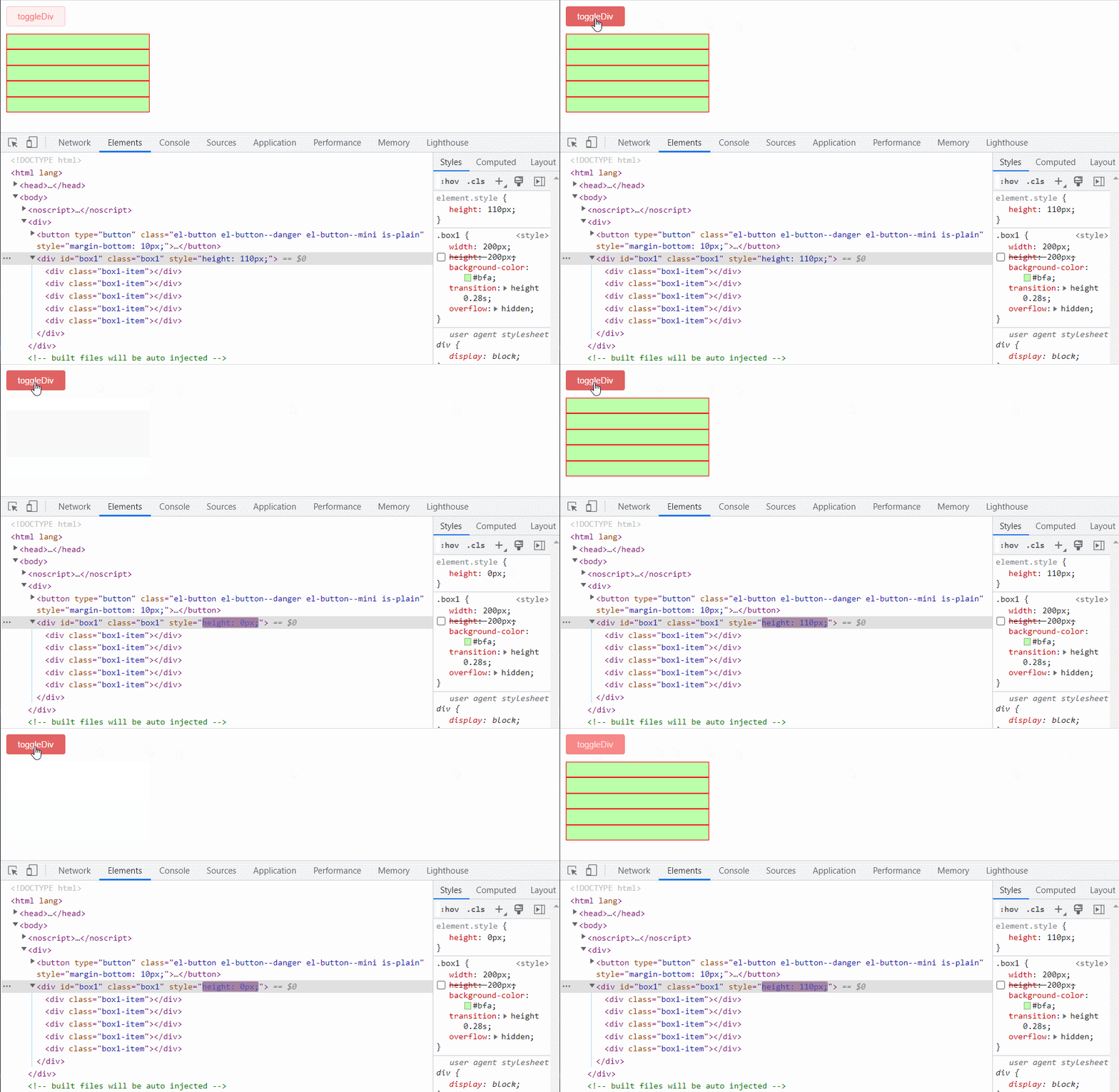
以下代码注意两点
- trainsition是需要有两个值,才能产生过渡动画的,所以一开始就需要获取到box1的高度(通过scrollHeight去获取它的高度)
- box1收缩,其实就是把它的height改为0,超出部分隐藏,这样子元素就隐藏了(但是注意,这个时候,仍然可以通过scrollHeight获取到box1的实际高度,尽管它的style的height已经是0了)
<template>
    <div>
        <el-button plain type="danger" @click="toggleDiv" size="mini" style="margin-bottom: 10px;" >toggleDiv</el-button>
        <div class="box1" ref="box1" id="box1">
            <div class="box1-item"></div>
            <div class="box1-item"></div>
            <div class="box1-item"></div>
            <div class="box1-item"></div>
            <div class="box1-item"></div>
        </div>
    </div>
</template>
<script>
export default {
    name: 'Collapse',
    components: {
    },
    data() {
        return {
            isCollapse: false,
        }
    },
    mounted() {
        // 刚开始的时候, 就必须先获取到这个元素的高度(transition需要有两个数值才能产生过渡), 它必须刚开始就是可见的(不能display:none)
        console.log('mounted', this.$refs['box1'].scrollHeight);
        this.$refs['box1'].style.height = this.$refs['box1'].scrollHeight + 'px'
    },
    methods: {
        toggleDiv() {
            this.isCollapse = !this.isCollapse
            if(this.isCollapse) {
                this.$refs['box1'].style.height = 0
            } else {
                // 这个时候,box1已经收缩了,但是需要展开,那就必须获取到它的高度(此时它的style的height为0)
                console.log( this.$refs['box1'].scrollHeight);
                this.$refs['box1'].style.height = this.$refs['box1'].scrollHeight + 'px'
            }
        }
    }
}
</script>
<style>
.box1 {
    width: 200px;
    /* height: 200px; */
    background-color: #bfa;
    transition: height 0.28s;
    overflow: hidden;
}
.box1 .box1-item {
    height: 20px;
    border: 1px solid red;
}
</style>
通过js获取auto时的高度去实现(效果不好)

虽然,实现效果并不怎么好,但是比较巧妙,它通过js设置height为auto,然后就可以获取元素的自然高度。这种获取高度的方式可以借鉴下
<template>
    <div>
        <el-button plain type="danger" @click="toggleDiv" size="mini" style="margin-bottom: 10px;" >toggleDiv</el-button>
        <div class="box1" ref="box1" id="box1">
            <div class="box1-item"></div>
            <div class="box1-item"></div>
            <div class="box1-item"></div>
            <div class="box1-item"></div>
            <div class="box1-item"></div>
        </div>
    </div>
</template>
<script>
export default {
    name: 'Collapse',
    components: {
    },
    data() {
        return {
            isCollapse: false,
        }
    },
    mounted() {
        console.log(this.$refs['box1'].scrollHeight); // 110
        this.$refs['box1'].style.height = 'auto'
        this.$refs['box1'].style.height = window.getComputedStyle(this.$refs['box1']).height
    },
    methods: {
        toggleDiv() {
            this.isCollapse = !this.isCollapse
            if(this.isCollapse) {
                this.$refs['box1'].style.height = 0
            } else {
                this.$refs['box1'].style.height = 'auto'
                let height = window.getComputedStyle(this.$refs['box1']).height
                // 这里修改的太快,transition都还没开始做动画
                this.$refs['box1'].style.height = 0
                this.$refs['box1'].style.height = height
            }
        }
    }
}
</script>
<style>
.box1 {
    width: 200px;
    background-color: #bfa;
    overflow: hidden;
}
.box1 .box1-item {
    height: 20px;
    border: 1px solid red;
}
</style>
优化
要使用setTimeout,才能在展开的时候,有过渡效果,不然两个修改高度的js在一起,它是不会有过渡的,可能跟浏览器的渲染有关系
<template>
    <div>
        <el-button plain type="danger" @click="toggleDiv" size="mini" style="margin-bottom: 10px;" >toggleDiv</el-button>
        <div class="box1" ref="box1" id="box1">
            <div class="box1-item"></div>
            <div class="box1-item"></div>
            <div class="box1-item"></div>
            <div class="box1-item"></div>
            <div class="box1-item"></div>
        </div>
    </div>
</template>
<script>
export default {
    name: 'Collapse',
    components: {
    },
    data() {
        return {
            isCollapse: false,
            styleObj: {}
        }
    },
    mounted() {
        console.log(this.$refs['box1'].scrollHeight); // 110
        this.$refs['box1'].style.height = 'auto'
        this.$refs['box1'].style.height = window.getComputedStyle(this.$refs['box1']).height
    },
    methods: {
        toggleDiv() {
            this.isCollapse = !this.isCollapse
            if(this.isCollapse) {
                this.$refs['box1'].style.height = 0
            } else {
                this.$refs['box1'].style.height = 'auto'
                let height = window.getComputedStyle(this.$refs['box1']).height
                console.log(height,1);
                this.$refs['box1'].style.height = 0
                setTimeout(()=> {
                    this.$refs['box1'].style.height = height
                })
            }
        }
    }
}
</script>
<style>
.box1 {
    width: 200px;
    background-color: #bfa;
    overflow: hidden;
    transition: all 0.5s;
}
.box1 .box1-item {
    height: 20px;
    border: 1px solid red;
}
</style>
通过grid实现

注意下面的grid网格布局是加给外面的这个容器,外面这个容器从0fr到1fr会产生动画。overflow:hidden是加给里面的这个div。这样就能实现从0->auto的高度变化过渡效果。
<!DOCTYPE html>
<html lang="en">
<head>
    <meta charset="UTF-8">
    <meta http-equiv="X-UA-Compatible" content="IE=edge">
    <meta name="viewport" content="width=device-width, initial-scale=1.0">
    <title>Document</title>
    <style>
        body {
            margin: 0;
        }
        .quick-example {
            margin: 1rem;
            padding: 1rem;
            background: hsl(200, 50%, 50% );
            border-radius: 0.5rem;
            display: grid;
            grid-template-rows: 0fr;
            transition: grid-template-rows 0.5s;
        }
        .quick-example>div {
            overflow: hidden;
        }
        .quick-example:hover {
            grid-template-rows: 1fr;
        }
    </style>
</head>
<body>
    <div class="quick-example">
        <div>
            this is amazing!
            this is amazing!
            this is amazing!
            this is amazing!
            this is amazing!
            this is amazing!
            this is amazing!
            this is amazing!
        </div>
    </div>
    <div>
    	[一段很长的文字Lorem1000]
    </div>
</body>
</html>
到此这篇关于vue实现折叠展开收缩动画的文章就介绍到这了,更多相关vue折叠展开收缩动画内容请搜索脚本之家以前的文章或继续浏览下面的相关文章希望大家以后多多支持脚本之家!
相关文章
 本篇文章主要介绍了浅谈Vue-cli 命令行工具分析,小编觉得挺不错的,现在分享给大家,也给大家做个参考。一起跟随小编过来看看吧2017-11-11
 这篇文章主要介绍了基于vue开发的在线付费课程应用过程,非常不错,具有参考借鉴价值,需要的朋友可以参考下2018-01-01
 本篇文章主要介绍了vue-cli的eslint相关用法,小编觉得挺不错的,现在分享给大家,也给大家做个参考。一起跟随小编过来看看吧2017-09-09
 使用vue3中的pinia,我们可以在多个页面间共享数据,但是一旦我们关闭或刷新页面,这些数据就会丢失,因此,我们需要有一种数据持久化的解决方案,下面我们就来看看具体如何解决的吧2023-10-10
 create-vue是Vue官方新的脚手架工具,底层切换到了vite(下一代前端工具链),为开发提供极速响应,下面这篇文章主要给大家介绍了关于vue-create创建VUE3项目的相关资料,需要的朋友可以参考下2024-03-03
 这篇文章主要为大家详细介绍了Vue的虚拟DOM和diff算法,文中示例代码介绍的非常详细,具有一定的参考价值,感兴趣的小伙伴们可以参考一下,希望能够给你带来帮助2022-02-02
VUE2—defineProperty和VUE3—proxy使用方式
Vue2和Vue3的响应式原理不同,Vue2使用Object.defineProperty,Vue3使用Proxy,Object.defineProperty可以监听某个属性,但不能监听整个对象,且无法监听对象属性的新增和删除,Proxy可以监听整个对象,且不会修改原数据,可以监听数组的长度变化2025-01-01 在实际开发中,我们经常会遇到将Vue项目部署到Tomcat服务器上的需求,下面这篇文章主要给大家介绍了关于tomcat部署前端vue项目(项目上线具体操作)的相关资料,需要的朋友可以参考下2024-07-07
 这篇文章详细介绍了Vue的生命周期,文中通过代码示例介绍的非常详细。对大家的学习有一定的参考借鉴价值,需要的朋友可以参考下2023-04-04
Vue3使用defineAsyncComponent实现异步组件加载的代码示例
在 Vue 3 中,异步组件加载是一种优化应用性能的重要手段,通过异步加载组件,可以减少初始加载时的资源体积,从而提升应用的加载速度和用户体验,本文将详细介绍如何使用 defineAsyncComponent 实现异步组件加载,并提供相关的代码示例,需要的朋友可以参考下2025-03-03
最新评论