

Vue3实现pdf预览功能第1/7页
更新时间:2025年03月26日 09:38:00 作者:一城烟雨_
在开发中,PDF预览和交互功能是一个常见的需求,无论是管理系统、在线教育平台,还是企业内部的知识库,能够高效地展示和操作PDF文件都能极大地提升用户体验,本文将详细介绍如何在Vue项目中实现pdf预览功能,需要的朋友可以参考下
1.使用到的插件 vue3-pdf-app 以及预览效果
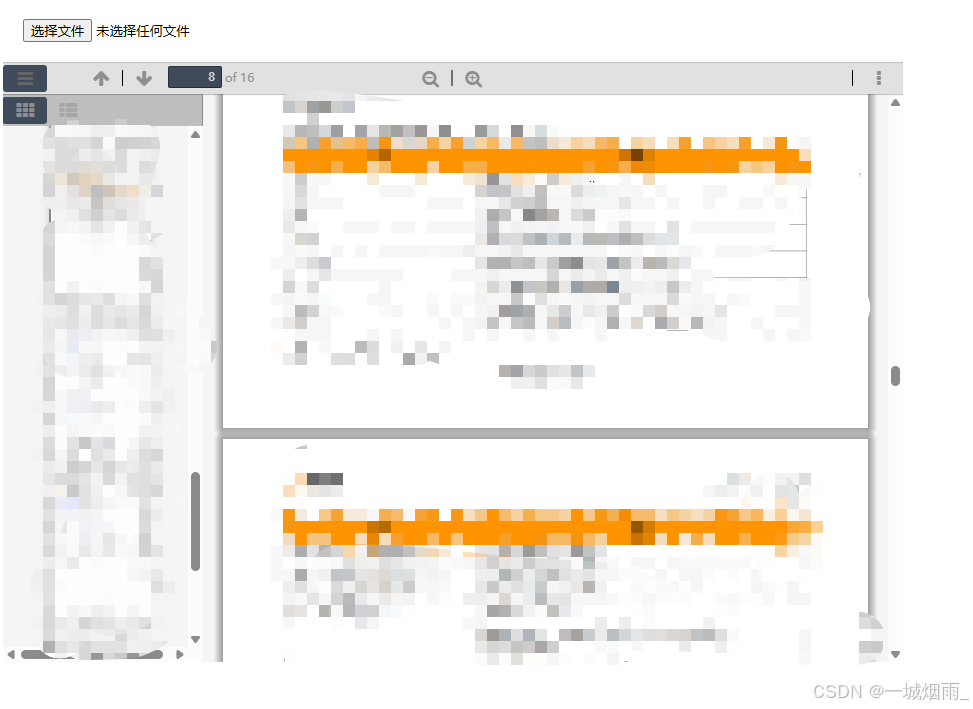
2.下载依赖
// 可以使用npm 以及pnpm
// 下载版本1.0.3
pnpm install vue3-pdf-app@^1.0.3
3.封装pdfModel组件复用
<template>
    <VuePdfApp :page-scale="pageScale" :theme="theme" :style="`width: ${viewerWidth}; height: ${viewerHeight};`"
        :pdf="src" :fileName="fileName" @pages-rendered="pagesRendered" v-bind="$attrs" :config="config"></VuePdfApp>
</template>


<script setup lang="ts">
import { computed, ref } from 'vue'
import VuePdfApp from 'vue3-pdf-app'
import 'vue3-pdf-app/dist/icons/main.css'
// 工具栏配置项
const config = ref({
    // 右侧其他区工具
    sidebar: {
        viewThumbnail: true,//启用缩略图视图
        viewOutline: true,//启用大纲视图
        viewAttachments: false,//启用附件视图
    },
    secondaryToolbar: {
        secondaryPresentationMode: true,//启用演示模式
        secondaryOpenFile: true, //启用打开文件功能
        secondaryPrint: true,//启用打印功能
        secondaryDownload: true,//启用下载功能
        secondaryViewBookmark: true,//启用书签视图
        firstPage: false,//启用跳转到第一页
        lastPage: false,//启用跳转到最后一页
        pageRotateCw: true,//启用顺时针旋转页面
        pageRotateCcw: true,//启用逆时针旋转页面
        cursorSelectTool: false,//启用选择工具
        cursorHandTool: false,//启用手形工具
        scrollVertical: false,//启用垂直滚动
        scrollHorizontal: false,//启用水平滚动
        scrollWrapped: false,//启用包裹滚动
        spreadNone: false,//启用无跨页模式
        spreadOdd: false,// 启用奇数页跨页模式
        spreadEven: false,//启用偶数页跨页模式
        documentProperties: false,//启用文档属性查看
    },
    // 配置左侧工具栏
    toolbar: {
        toolbarViewerLeft: {
            findbar: false,//启用查找条
            previous: true,// 启用上一页按钮
            next: true,//启用下一页按钮
            pageNumber: true,// 启用页码显示
        },
        //  配置右侧工具栏
        toolbarViewerRight: {
            presentationMode: false,//启用演示模式
            openFile: false,//启用打开文件功能
            print: false,//启用打印功能
            download: false,// 启用下载功能
            viewBookmark: false,// 启用书签视图
        },
        // 配置中间工具栏
        toolbarViewerMiddle: {
            zoomOut: true,// 启用缩小功能
            zoomIn: true,//启用放大功能。
            scaleSelectContainer: false,//启用缩放选择容器功能
        },
    },
    //启用错误包装,这可能用于显示错误信息或处理错误情况。
    errorWrapper: true,
})

interface Props {
    src: string | ArrayBuffer // pdf地址
    width?: string | number // 预览容器宽度
    height?: string | number // 预览容器高度
    pageScale?: number | string // 页面默认缩放规则,可选 'page-actual'|'page-width'|'page-height'|'page-fit'|'auto'
    theme?: string // 预览主题 可选 dark | light
    fileName?: string // 覆盖pdf文件名
}

const props = withDefaults(defineProps<Props>(), {
    src: '',
    width: '100%',
    height: '100%',
    pageScale: 'page-fit', // 默认自适应展示一页
    theme: 'dark',
    fileName: ''
})
const viewerWidth = computed(() => {
    if (typeof props.width === 'number') {
        return props.width + 'px'
    } else {
        return props.width
    }
})
const viewerHeight = computed(() => {
    if (typeof props.height === 'number') {
        return props.height + 'px'
    } else {
        return props.height
    }
})
const emit = defineEmits(['loaded'])
function pagesRendered(pdfApp: any) {
    // console.log('pdfApp页码渲染完成:', pdfApp)
    emit('loaded', pdfApp)
}
</script>


<style lang="less" scoped>
@themeColor: #1677FF;

:deep(*) {
    box-sizing: content-box;
}

// 定制化主题色
.pdf-app.dark {
    --pdf-app-background-color: rgb(83, 86, 89, 0);
    --pdf-sidebar-content-color: rgb(51, 54, 57);
    --pdf-toolbar-sidebar-color: #24364e;
    --pdf-toolbar-color: rgb(50, 54, 57);
    --pdf-loading-bar-color: #606c88;
    --pdf-loading-bar-secondary-color: @themeColor;
    --pdf-find-results-count-color: #d9d9d9;
    --pdf-find-results-count-font-color: #525252;
    --pdf-find-message-font-color: #a6b7d0;
    --pdf-not-found-color: #f66;
    --pdf-split-toolbar-button-separator-color: #fff;
    --pdf-toolbar-font-color: #d9d9d9;
    --pdf-button-hover-font-color: @themeColor;
    --pdf-button-toggled-color: #606c88;
    --pdf-horizontal-toolbar-separator-color: #fff;
    --pdf-input-color: #606c88;
    --pdf-input-font-color: #d9d9d9;
    --pdf-find-input-placeholder-font-color: @themeColor;
    --pdf-thumbnail-selection-ring-color: hsla(0, 0%, 100%, .15);
    --pdf-thumbnail-selection-ring-selected-color: rgb(147, 179, 242);
    --pdf-error-wrapper-color: #f55;
    --pdf-error-more-info-color: #d9d9d9;
    --pdf-error-more-info-font-color: #000;
    --pdf-overlay-container-color: rgba(0, 0, 0, .2);
    --pdf-overlay-container-dialog-color: #24364e;
    --pdf-overlay-container-dialog-font-color: #d9d9d9;
    --pdf-overlay-container-dialog-separator-color: #fff;
    --pdf-dialog-button-font-color: #d9d9d9;
    --pdf-dialog-button-color: #606c88;

    :deep(.thumbnail.selected>.thumbnailSelectionRing) {
        background-color: rgb(147, 179, 242);
    }
}

.pdf-app.light {
    --pdf-app-background-color: rgb(245, 245, 245);
    --pdf-sidebar-content-color: rgb(245, 245, 245);
    --pdf-toolbar-sidebar-color: rgb(190, 190, 190);
    --pdf-toolbar-color: rgb(225, 225, 225);
    --pdf-loading-bar-color: #3f4b5b;
    --pdf-loading-bar-secondary-color: #666;
    --pdf-find-results-count-color: #3f4b5b;
    --pdf-find-results-count-font-color: hsla(0, 0%, 100%, .87);
    --pdf-find-message-font-color: hsla(0, 0%, 100%, .87);
    --pdf-not-found-color: brown;
    --pdf-split-toolbar-button-separator-color: #000;
    --pdf-toolbar-font-color: rgb(142, 142, 142);
    --pdf-button-hover-font-color: #666;
    --pdf-button-toggled-color: #3f4b5b;
    --pdf-horizontal-toolbar-separator-color: #000;
    --pdf-input-color: #3f4b5b;
    --pdf-input-font-color: #d9d9d9;
    --pdf-find-input-placeholder-font-color: #666;
    --pdf-thumbnail-selection-ring-color: hsla(208, 7%, 46%, .7);
    --pdf-thumbnail-selection-ring-selected-color: #3f4b5b;
    --pdf-error-wrapper-color: #f55;
    --pdf-error-more-info-color: #d9d9d9;
    --pdf-error-more-info-font-color: #000;
    --pdf-overlay-container-color: hsla(208, 7%, 46%, .7);
    --pdf-overlay-container-dialog-color: #6c757d;
    --pdf-overlay-container-dialog-font-color: #d9d9d9;
    --pdf-overlay-container-dialog-separator-color: #000;
    --pdf-dialog-button-font-color: #d9d9d9;
    --pdf-dialog-button-color: #3f4b5b;

    :deep(.thumbnail.selected>.thumbnailSelectionRing) {
        background-color: rgb(105, 105, 105);
    }
}
</style>
4.页面使用(可以直接使用在线pdf链接 也可以上传pdf预览)
<template>
    <div style="margin: 20px;">
        <input type="file" @change="handleChange" />
    </div>
    <div class="pdfBox" v-if="pdfUrl !== ''">
        <PdfPreview page-scale="page-fit" :width="900" :height="600" theme="light" :src="pdfUrl" @loaded="onLoaded" />
    </div>
</template>

<script setup lang="ts">
import { ref } from 'vue';
import PdfPreview from './pdfModel.vue';

// const pdfUrl = ref<any>('http://storage.xuetangx.com/public_assets/xuetangx/PDF/PlayerAPI_v1.0.6.pdf');
const pdfUrl = ref<any>('');
// 判断文件加载完成
const onLoaded = (pdfApp: any) => {
    console.log('文件加载完成');
};

// 也可直接上传文件显示
let handleChange = (e: any) => {
    let files = e.target.files[0];
    let reader = new FileReader();
    reader.readAsArrayBuffer(files);
    reader.onload = function () {
        // docxSrc.value = reader.result;
        pdfUrl.value = reader.result;
    };
};
</script>

<style scoped lang="less">
.pdfBox {
    width: 900px;
    height: 600px;
    overflow: scroll;
    overflow-x: hidden;
    overflow-y: hidden;
}
</style>
5.设置中文
能看到在使用的时候操作栏全部都是英文
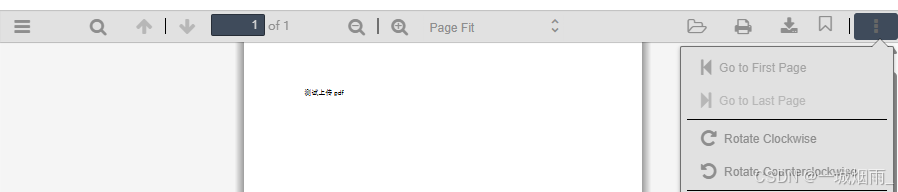
6.创建 viewer.properties文件与src同级
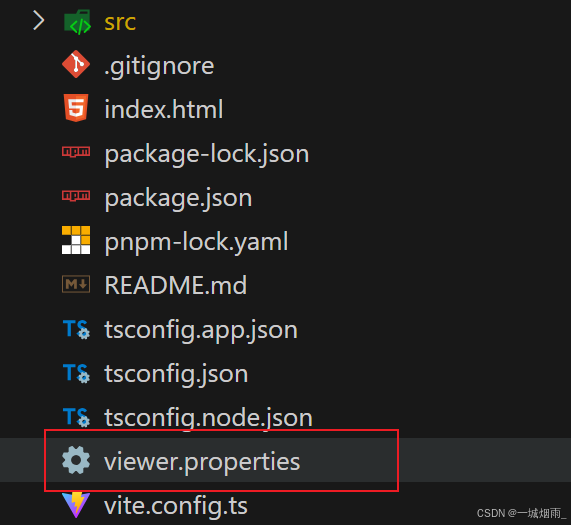
文件代码
# vue3-pdf-app插件转中文配置代码
# Copyright 2012 Mozilla Foundation
#
# Licensed under the Apache License, Version 2.0 (the "License");
# you may not use this file except in compliance with the License.
# You may obtain a copy of the License at
#
# http://www.apache.org/licenses/LICENSE-2.0
#
# Unless required by applicable law or agreed to in writing, software
# distributed under the License is distributed on an "AS IS" BASIS,
# WITHOUT WARRANTIES OR CONDITIONS OF ANY KIND, either express or implied.
# See the License for the specific language governing permissions and
# limitations under the License.
# Main toolbar buttons (tooltips and alt text for images)
previous.title=上一页
previous_label=上一页
next.title=下一页
next_label=下一页
# LOCALIZATION NOTE (page.title): The tooltip for the pageNumber input.
page.title=页面
# LOCALIZATION NOTE (of_pages): "{{pagesCount}}" will be replaced by a number
# representing the total number of pages in the document.
of_pages=/ {{pagesCount}}
# LOCALIZATION NOTE (page_of_pages): "{{pageNumber}}" and "{{pagesCount}}"
# will be replaced by a number representing the currently visible page,
# respectively a number representing the total number of pages in the document.
page_of_pages=({{pageNumber}} / {{pagesCount}})
zoom_out.title=缩小
zoom_out_label=缩小
zoom_in.title=放大
zoom_in_label=放大
zoom.title=缩放
presentation_mode.title=切换到演示模式
presentation_mode_label=演示模式
open_file.title=打开文件
open_file_label=打开
print.title=打印
print_label=打印
download.title=下载
download_label=下载
bookmark.title=当前在看的内容(复制或在新窗口中打开)
bookmark_label=当前在看
save.title=保存
save_label=保存
bookmark1.title=当前页面(在当前页面查看 URL)
bookmark1_label=当前页面
# Secondary toolbar and context menu
tools.title=工具
tools_label=工具
first_page.title=转到第一页
first_page_label=转到第一页
last_page.title=转到最后一页
last_page_label=转到最后一页
page_rotate_cw.title=顺时针旋转
page_rotate_cw_label=顺时针旋转
page_rotate_ccw.title=逆时针旋转
page_rotate_ccw_label=逆时针旋转
cursor_text_select_tool.title=启用文本选择工具
cursor_text_select_tool_label=文本选择工具
cursor_hand_tool.title=启用手形工具
cursor_hand_tool_label=手形工具
scroll_page.title=使用页面滚动
scroll_page_label=页面滚动
scroll_vertical.title=使用垂直滚动
scroll_vertical_label=垂直滚动
scroll_horizontal.title=使用水平滚动
scroll_horizontal_label=水平滚动
scroll_wrapped.title=使用平铺滚动
scroll_wrapped_label=平铺滚动
spread_none.title=不加入衔接页
spread_none_label=单页视图
spread_odd.title=加入衔接页使奇数页作为起始页
spread_odd_label=双页视图
spread_even.title=加入衔接页使偶数页作为起始页
spread_even_label=书籍视图
# Document properties dialog box
document_properties.title=文档属性…
document_properties_label=文档属性…
document_properties_file_name=文件名:
document_properties_file_size=文件大小:
# LOCALIZATION NOTE (document_properties_kb): "{{size_kb}}" and "{{size_b}}"
# will be replaced by the PDF file size in kilobytes, respectively in bytes.
document_properties_kb={{size_kb}} KB ({{size_b}} 字节)
# LOCALIZATION NOTE (document_properties_mb): "{{size_mb}}" and "{{size_b}}"
# will be replaced by the PDF file size in megabytes, respectively in bytes.
document_properties_mb={{size_mb}} MB ({{size_b}} 字节)
document_properties_title=标题:
document_properties_author=作者:
document_properties_subject=主题:
document_properties_keywords=关键词:
document_properties_creation_date=创建日期:
document_properties_modification_date=修改日期:
# LOCALIZATION NOTE (document_properties_date_string): "{{date}}" and "{{time}}"
# will be replaced by the creation/modification date, and time, of the PDF file.
document_properties_date_string={{date}}, {{time}}
document_properties_creator=创建者:
document_properties_producer=PDF 生成器:
document_properties_version=PDF 版本:
document_properties_page_count=页数:
document_properties_page_size=页面大小:
document_properties_page_size_unit_inches=英寸
document_properties_page_size_unit_millimeters=毫米
document_properties_page_size_orientation_portrait=纵向
document_properties_page_size_orientation_landscape=横向
document_properties_page_size_name_a3=A3
document_properties_page_size_name_a4=A4
document_properties_page_size_name_letter=文本
document_properties_page_size_name_legal=法律
# LOCALIZATION NOTE (document_properties_page_size_dimension_string):
# "{{width}}", "{{height}}", {{unit}}, and {{orientation}} will be replaced by
# the size, respectively their unit of measurement and orientation, of the (current) page.
document_properties_page_size_dimension_string={{width}} × {{height}} {{unit}}({{orientation}})
# LOCALIZATION NOTE (document_properties_page_size_dimension_name_string):
# "{{width}}", "{{height}}", {{unit}}, {{name}}, and {{orientation}} will be replaced by
# the size, respectively their unit of measurement, name, and orientation, of the (current) page.
document_properties_page_size_dimension_name_string={{width}} × {{height}} {{unit}}({{name}},{{orientation}})
# LOCALIZATION NOTE (document_properties_linearized): The linearization status of
# the document; usually called "Fast Web View" in English locales of Adobe software.
document_properties_linearized=快速 Web 视图:
document_properties_linearized_yes=是
document_properties_linearized_no=否
document_properties_close=关闭
print_progress_message=正在准备打印文档…
# LOCALIZATION NOTE (print_progress_percent): "{{progress}}" will be replaced by
# a numerical per cent value.
print_progress_percent={{progress}}%
print_progress_close=取消
# Tooltips and alt text for side panel toolbar buttons
# (the _label strings are alt text for the buttons, the .title strings are
# tooltips)
toggle_sidebar.title=切换侧栏
toggle_sidebar_notification2.title=切换侧栏(文档所含的大纲/附件/图层)
toggle_sidebar_label=切换侧栏
document_outline.title=显示文档大纲(双击展开/折叠所有项)
document_outline_label=文档大纲
attachments.title=显示附件
attachments_label=附件
layers.title=显示图层(双击即可将所有图层重置为默认状态)
layers_label=图层
thumbs.title=显示缩略图
thumbs_label=缩略图
current_outline_item.title=查找当前大纲项目
current_outline_item_label=当前大纲项目
findbar.title=在文档中查找
findbar_label=查找
additional_layers=其他图层
# LOCALIZATION NOTE (page_landmark): "
相关文章
 这篇文章主要介绍了vue动态绑定class的几种常用方式,结合实例形式总结分析了vue.js常见的对象方法、数组方法进行class动态绑定相关操作技巧,需要的朋友可以参考下2019-05-05
 这篇文章主要介绍了vue2中使用less简易教程,由于不需要手动配置webpack,所以vue中使用less是非常简单的,只需要安装less,less-loadder就ok了2018-03-03
 这篇文章主要介绍了vue:el-input输入时限制输入的类型操作,具有很好的参考价值,希望对大家有所帮助。一起跟随小编过来看看吧2020-08-08
 这篇文章主要介绍了vue项目支付功能,本文通过实例代码给大家介绍的非常详细,对大家的学习或工作具有一定的参考借鉴价值,需要的朋友可以参考下2022-01-01
 vue-router 也叫 vue 路由,根据不同的路径,来执行不同的组件,这篇文章主要介绍了VUE项目中引入vue-router,需要的朋友可以参考下2023-05-05
 这篇文章主要给大家介绍了关于vue3中如何使用d3.js绘制流程图的相关资料,D3.js是由javaScript语言编写绘图库,其原理是通过调用一系列内置函数,生成SVG,并在网页渲染,需要的朋友可以参考下2023-10-10
 这篇文章主要介绍了Vue状态管理工具Pinia的安装与使用,一步一步学习如何将pinia运用到项目实战中去,文中有详细的安装教程和使用方法,并通过代码示例讲解的非常详细,需要的朋友可以参考下2024-03-03
 这篇文章主要介绍了Vue实现双token无感刷新,双token机制,尤其是指在OAuth 2.0授权协议中广泛使用的access token(访问令牌)和refresh token(刷新令牌)组合,文中通过代码示例讲解的非常详细,需要的朋友可以参考下2024-03-03
 今天要讲讲Vue2.0了。最近将公司App3.0用vue2.0构建了一个web版,因为是第一次使用vue,而且一开始使用的时候2.0出来一个月不到,很多坑都是自己去踩的,现在项目要上线了,所以记录一些过程2017-01-01
 最近发现好多小伙伴在面试的过程中会问到vue如何使用less和scss,所以下面这篇文章主要给大家介绍了关于Less在Vue中的使用方法,需要的朋友可以参考下2023-10-10
最新评论