

基于Uniapp+vue3实现微信小程序地图固定中心点范围内拖拽选择位置功能及实现步骤
更新时间:2025年08月18日 11:06:04 作者:编程猪猪侠
本文分步骤给大家介绍基于Uniapp+vue3实现微信小程序地图固定中心点范围内拖拽选择位置功能,本文结合实例代码给大家介绍的非常详细,对大家的学习或工作具有一定的参考借鉴价值,需要的朋友参考下吧
一、功能概述与实现步骤
1.1 功能需求
- 显示地图并固定中心点标记
- 绘制服务区域多边形边界
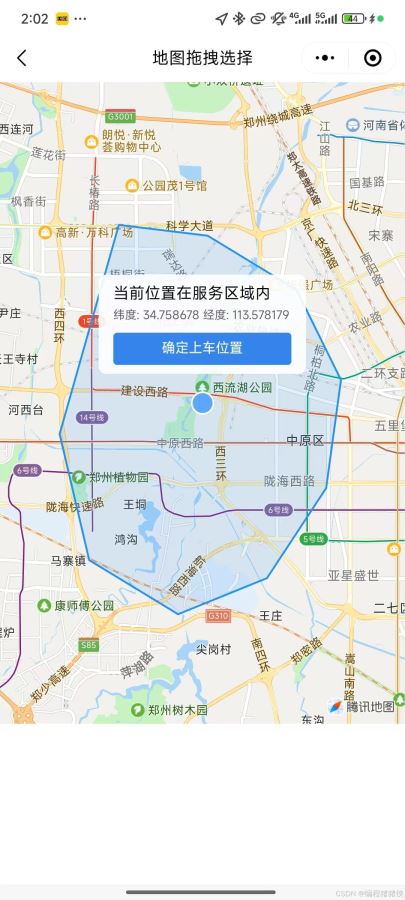
- 实时检测拖拽后位置是否在服务区内
- 提供位置确认和超出范围提示功能
1.2 实现步骤分解
第一步:初始化地图基础配置
- 创建Map组件并设置基本属性
- 定义服务区域多边形坐标
- 设置地图初始中心点
第二步:实现地图交互逻辑
- 监听地图拖拽事件
- 获取拖拽后中心点坐标
- 判断坐标是否在服务区内
第三步:实现覆盖层UI
固定中心点标记
位置信息显示面板
操作按钮(确认/返回服务区)
二、分步骤代码实现
2.1 第一步:地图基础配置
<template>
  <view class="map-container">
    <map
      id="map"
      style="width: 100%; height: 80vh"
      :latitude="center.latitude"
      :longitude="center.longitude"
      :polygons="polygons"
      @regionchange="handleMapDrag"
      :show-location="true"
    >
      <!-- 覆盖层将在第三步添加 -->
    </map>
  </view>
</template>

<script setup>
import { ref, onMounted } from "vue";

// 服务区域边界坐标
const serviceAreaPolygon = [
  { latitude: 34.808, longitude: 113.55 },
  { latitude: 34.805, longitude: 113.58 },
  // ...其他坐标点
  { latitude: 34.808, longitude: 113.55 } // 闭合多边形
];

// 中心点位置
const center = ref({
  latitude: 34.747,
  longitude: 113.625
});

// 多边形配置
const polygons = ref([{
  points: serviceAreaPolygon,
  strokeWidth: 2,
  strokeColor: "#1E90FF",
  fillColor: "#1E90FF22"
}]);

// 初始化地图上下文
const mapContext = ref(null);
onMounted(() => {
  mapContext.value = uni.createMapContext("map");
});
</script>
2.2 第二步:地图交互逻辑实现
// 当前坐标点
const currentPos = ref({ ...center.value });
// 是否在服务区内
const isInServiceArea = ref(true);

// 地图拖拽事件处理
const handleMapDrag = (e) => {
  if (e.type === "end") {
    mapContext.value.getCenterLocation({
      success: (res) => {
        currentPos.value = {
          latitude: res.latitude,
          longitude: res.longitude
        };
        // 判断是否在服务区内
        isInServiceArea.value = isPointInPolygon(
          currentPos.value,
          serviceAreaPolygon
        );
      }
    });
  }
};

// 射线法判断点是否在多边形内
function isPointInPolygon(point, polygon) {
  const { latitude, longitude } = point;
  let inside = false;

  for (let i = 0, j = polygon.length - 1; i < polygon.length; j = i++) {
    const xi = polygon[i].longitude, yi = polygon[i].latitude;
    const xj = polygon[j].longitude, yj = polygon[j].latitude;

    const intersect = ((yi > latitude) !== (yj > latitude))
      && (longitude < (xj - xi) * (latitude - yi) / (yj - yi) + xi);

    if (intersect) inside = !inside;
  }

  return inside;
}
2.3 第三步:覆盖层UI实现
<!-- 在map标签内添加 -->
<cover-view class="center-marker"></cover-view>

<cover-view class="info-box" :class="{ 'out-of-range': !isInServiceArea }">
  <cover-view v-if="isInServiceArea">
    当前位置在服务区域内
  </cover-view>
  <cover-view v-else class="error">
    当前选择位置超出服务区域
  </cover-view>

  <cover-view class="coords">
    纬度: {{ currentPos.latitude.toFixed(6) }}
    经度: {{ currentPos.longitude.toFixed(6) }}
  </cover-view>

  <cover-view
    v-if="!isInServiceArea"
    class="recenter-btn"
    @tap="centerToServiceArea"
  >
    查看最近的服务区域
  </cover-view>

  <cover-view
    v-else
    class="confirm-btn"
    @tap="confirmLocation"
  >
    确定上车位置
  </cover-view>
</cover-view>
2.4 第四步:业务功能完善
// 返回服务区中心
const centerToServiceArea = () => {
  const center = getPolygonCenter(serviceAreaPolygon);
  currentPos.value = { ...center };
  isInServiceArea.value = true;

  mapContext.value.moveToLocation({
    latitude: center.latitude,
    longitude: center.longitude
  });
};

// 计算多边形中心点
function getPolygonCenter(polygon) {
  let latSum = 0, lngSum = 0;
  polygon.forEach(point => {
    latSum += point.latitude;
    lngSum += point.longitude;
  });
  return {
    latitude: latSum / polygon.length,
    longitude: lngSum / polygon.length
  };
}

// 确认位置
const confirmLocation = () => {
  uni.showToast({
    title: `位置已确认: ${currentPos.value.latitude.toFixed(6)}, ${currentPos.value.longitude.toFixed(6)}`,
    icon: "none"
  });
  // 实际业务中可以触发回调或跳转
};
三、完整实现代码
<template>
  <view class="map-container">
    <map
      id="map"
      style="width: 100%; height: 80vh"
      :latitude="center.latitude"
      :longitude="center.longitude"
      :polygons="polygons"
      @regionchange="handleMapDrag"
      :show-location="true"
    >
      <cover-view class="center-marker"></cover-view>

      <cover-view class="info-box" :class="{ 'out-of-range': !isInServiceArea }">
        <cover-view v-if="isInServiceArea">当前位置在服务区域内</cover-view>
        <cover-view v-else class="error">当前选择位置超出服务区域</cover-view>

        <cover-view class="coords">
          纬度: {{ currentPos.latitude.toFixed(6) }}
          经度: {{ currentPos.longitude.toFixed(6) }}
        </cover-view>

        <cover-view
          v-if="!isInServiceArea"
          class="recenter-btn"
          @tap="centerToServiceArea"
        >
          查看最近的服务区域
        </cover-view>

        <cover-view
          v-else
          class="confirm-btn"
          @tap="confirmLocation"
        >
          确定上车位置
        </cover-view>
      </cover-view>
    </map>
  </view>
</template>

<script setup>
import { ref, onMounted } from "vue";

// 服务区域边界
const serviceAreaPolygon = [
  { latitude: 34.808, longitude: 113.55 },
  { latitude: 34.805, longitude: 113.58 },
  { latitude: 34.79, longitude: 113.61 },
  { latitude: 34.765, longitude: 113.625 },
  { latitude: 34.735, longitude: 113.62 },
  { latitude: 34.71, longitude: 113.6 },
  { latitude: 34.7, longitude: 113.57 },
  { latitude: 34.715, longitude: 113.54 },
  { latitude: 34.75, longitude: 113.53 },
  { latitude: 34.808, longitude: 113.55 }
];

const center = ref(getPolygonCenter(serviceAreaPolygon));
const currentPos = ref({ ...center.value });
const isInServiceArea = ref(true);
const mapContext = ref(null);

const polygons = ref([{
  points: serviceAreaPolygon,
  strokeWidth: 2,
  strokeColor: "#1E90FF",
  fillColor: "#1E90FF22"
}]);

onMounted(() => {
  mapContext.value = uni.createMapContext("map");
});

const handleMapDrag = (e) => {
  if (e.type === "end") {
    mapContext.value.getCenterLocation({
      success: (res) => {
        currentPos.value = {
          latitude: res.latitude,
          longitude: res.longitude
        };
        isInServiceArea.value = isPointInPolygon(
          currentPos.value,
          serviceAreaPolygon
        );
      }
    });
  }
};

function isPointInPolygon(point, polygon) {
  const { latitude, longitude } = point;
  let inside = false;

  for (let i = 0, j = polygon.length - 1; i < polygon.length; j = i++) {
    const xi = polygon[i].longitude, yi = polygon[i].latitude;
    const xj = polygon[j].longitude, yj = polygon[j].latitude;

    const intersect = ((yi > latitude) !== (yj > latitude))
      && (longitude < (xj - xi) * (latitude - yi) / (yj - yi) + xi);

    if (intersect) inside = !inside;
  }

  return inside;
}

function getPolygonCenter(polygon) {
  let latSum = 0, lngSum = 0;
  polygon.forEach(point => {
    latSum += point.latitude;
    lngSum += point.longitude;
  });
  return {
    latitude: latSum / polygon.length,
    longitude: lngSum / polygon.length
  };
}

const centerToServiceArea = () => {
  const center = getPolygonCenter(serviceAreaPolygon);
  currentPos.value = { ...center };
  isInServiceArea.value = true;

  mapContext.value.moveToLocation({
    latitude: center.latitude,
    longitude: center.longitude
  });
};

const confirmLocation = () => {
  uni.showToast({
    title: `位置已确认: ${currentPos.value.latitude.toFixed(6)}, ${currentPos.value.longitude.toFixed(6)}`,
    icon: "none"
  });
};
</script>

<style scoped>
.map-container {
  width: 100%;
  height: 100vh;
  position: relative;
}

.center-marker {
  position: absolute;
  top: 50%;
  left: 50%;
  transform: translate(-50%, -50%);
  width: 20px;
  height: 20px;
  background-color: #5ca7fc;
  border-radius: 50%;
  border: 2px solid white;
  z-index: 999;
}

.info-box {
  position: absolute;
  top: 20%;
  left: 50%;
  transform: translateX(-50%);
  background: rgba(255, 255, 255, 0.9);
  padding: 12px 16px;
  border-radius: 8px;
  width: 80%;
  box-shadow: 0 2px 8px rgba(0,0,0,0.1);
}

.info-box.out-of-range {
  background: rgba(255, 240, 240, 0.9);
}

.coords {
  font-size: 12px;
  color: #666;
  margin: 8px 0;
}

.error {
  color: #f56c6c;
  font-weight: bold;
}

.recenter-btn, .confirm-btn {
  margin-top: 10px;
  padding: 8px 12px;
  border-radius: 4px;
  text-align: center;
  font-size: 14px;
}

.recenter-btn {
  background: #606266;
  color: white;
}

.confirm-btn {
  background: #409eff;
  color: white;
}
</style>
四、总结
本文分步骤详细讲解了如何使用Uni-app实现地图位置选择功能,从基础配置到完整实现,重点介绍了:
- 地图基础配置方法
- 多边形区域绘制与判断
- 交互逻辑的实现
- 覆盖层UI的开发技巧
- .moveToLocation移动api 只有在真机才能实现,微信开发者工具不支持
- 可直接复制完整代码到单页测试运行,欢迎补充问题
五、实现效果
到此这篇关于基于Uniapp+vue3实现微信小程序地图固定中心点范围内拖拽选择位置功能及实现步骤的文章就介绍到这了,更多相关uniapp vue拖拽选择位置内容请搜索脚本之家以前的文章或继续浏览下面的相关文章希望大家以后多多支持脚本之家!
相关文章
 这篇文章主要给大家介绍了关于Vue使用Three.js加载glTF模型的相关资料,文中通过示例代码介绍的非常详细,对大家学习或者使用Vue具有一定的参考学习价值,需要的朋友们下面来一起学习学习吧2020-06-06
 这篇文章主要介绍了vue实现显示消息提示框功能,具有很好的参考价值,希望对大家有所帮助,如有错误或未考虑完全的地方,望不吝赐教2024-04-04
 如何在我们切换tab标签的时候,缓存标签最后操作的内容,简单来说就是每个标签页中设置的比如搜索条件及结果、分页、新增、编辑等数据在切换回来的时候还能保持原样,这篇文章介绍vue3 keep-alive实现tab页面缓存功能,感兴趣的朋友一起看看吧2023-04-04
vue在自定义组件上使用v-model和.sync的方法实例
自定义组件的v-model和.sync修饰符其实本质上都是vue的语法糖,用于实现父子组件的"数据"双向绑定,下面这篇文章主要给大家介绍了关于vue在自定义组件上使用v-model和.sync的相关资料,需要的朋友可以参考下2022-07-07 本篇文章主要介绍了vue滚动行为,小编觉得挺不错的,现在分享给大家,也给大家做个参考。一起跟随小编过来看看吧2017-09-09
 这篇文章主要给大家介绍了关于vue将某个组件打包成js并在其他项目使用的相关资料,文中通过示例代码介绍的非常详细,对大家具有一定的参考借鉴价值,需要的朋友可以参考下2023-07-07
 这篇文章给大家介绍了Vue.js 表单控件操作的相关知识,本文通过实例演示了input和textarea元素中使用v-model的方法,本文给大家介绍的非常不错,具有参考借鉴价值,需要的朋友参考下吧2018-03-03
 这篇文章主要介绍了vue项目刷新当前页面的三种方式(重载当前页面数据),本文结合实例代码给大家介绍的非常详细,对大家的学习或工作具有一定的参考借鉴价值,需要的朋友可以参考下2023-01-01
 本文详细探讨了Vue项目打包后常见的路径问题,包括静态资源路径错误、路由路径错误、环境变量路径错误和publicPath配置错误,并提供了相应的解决方案,通过正确配置这些路径,可以有效解决Vue项目在打包后的资源加载问题,确保项目在生产环境中的正常运行2025-11-11
 这篇文章主要介绍了Vue 实现树形视图数据功能,利用简单的树形视图实现的,在实现过程中熟悉了组件的递归使用,感兴趣的朋友跟随脚本之家小编一起学习吧2018-05-05
最新评论