

Windows 8技巧:关于windows 8的文件管理 File创建和String Stream Buffer方式读写的
发布时间:2013-04-22 17:59:45 作者:佚名  我要评论
我要评论
我要评论本篇文章小编为大家介绍,Windows 8技巧:关于windows 8的文件管理 File创建和String Stream Buffer方式读写的方法。需要的朋友参考下
在本文中我们将学习Windows 8中的文件创建和多种读写方式以及设置文档库访问权限和文件类型的访问。
当然我们需要做以下准备工作:
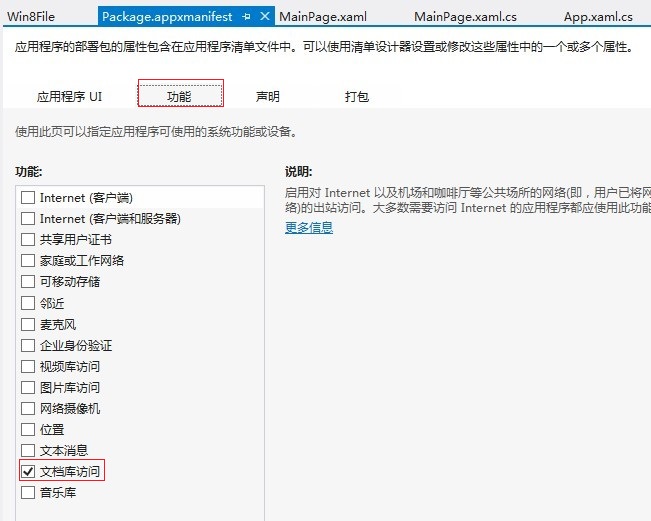
首先:设置程序允许访问的文件位置为:"库\文档",设置方法:点击”Package.appxmanifest“,然后选择”功能“选项卡,在功能列表中勾选”文档库访问“。如下图:
其次:设置程序允许以上文件夹内的文件类型,本实例中设置为txt后缀的文件:设置方法:点击”Package.appxmanifest“,然后选择”声明“选项卡,在可用声明下拉列表中选择”文件类型关联“,点击”添加“按钮,并且在右边的列表中添加”支持的文件类型为.txt,并且设置名称为txt,当然你也可以继续添加允许访问dat文件等,如下图:

准备工作做好了,我们需要创建一个项目,然后写入一下代码进行访问文件以及文件夹,创建文件和读写文件。
Xaml代码:
复制代码
代码如下:<Grid Background="{StaticResource ApplicationPageBackgroundThemeBrush}">
<!--显示区-->
<TextBlock HorizontalAlignment="Left" Margin="137,42,0,0" TextWrapping="Wrap" Text="文件名:"
VerticalAlignment="Top" Height="23" Width="43"/>
<TextBox HorizontalAlignment="Left" Margin="185,33,0,0" TextWrapping="Wrap"
Text="test.txt" VerticalAlignment="Top" Width="121" Name="tbFileName"/>
<TextBox HorizontalAlignment="Left" Margin="457,33,0,0" TextWrapping="Wrap"
Text="默认需要添加的文件内容" VerticalAlignment="Top" Width="431" Name="tbContent"/>
<TextBlock HorizontalAlignment="Left" Margin="396,42,0,0" TextWrapping="Wrap" Text="文件内容:"
VerticalAlignment="Top" Height="23" Width="61"/>
<TextBlock HorizontalAlignment="Left" Margin="127,317,0,0" TextWrapping="Wrap" Text="提示:"
VerticalAlignment="Top" Height="23" Width="761" Name="tb_show"/>
<!--创建文件以及普通string写入读取文本-->
<Button Content="创建文件" HorizontalAlignment="Left" Margin="127,99,0,0"
Name="btnCreateFile" VerticalAlignment="Top" Click="btnCreateFile_Click"/>
<Button Content="写入string文件" HorizontalAlignment="Left" Margin="430,99,0,0"
x:Name="btnWriteFile_Copy" VerticalAlignment="Top" Click="btnWriteFile_Copy_Click"/>
<Button Content="读取string文件" HorizontalAlignment="Left" Margin="757,99,0,0"
x:Name="btnReadFile" VerticalAlignment="Top" Click="btnReadFile_Click"/>
<!--Buffer方式写入和读取-->
<Button Content="写入Buffer数据" HorizontalAlignment="Left" Margin="127,173,0,0"
x:Name="btnWriteBufferFile" VerticalAlignment="Top" Click="btnWriteBufferFile_Click" />
<Button Content="读取Buffer数据" HorizontalAlignment="Left" Margin="754,173,0,0"
x:Name="btnReadBufferFile" VerticalAlignment="Top" Click="btnReadBufferFile_Click"/>
<!--Stream方式写入和读取-->
<Button Content="写入Stream数据" HorizontalAlignment="Left" Margin="127,243,0,0"
x:Name="btnWriteStreamFile" VerticalAlignment="Top" Click="btnWriteStreamFile_Click" />
<Button Content="读取Stream数据" HorizontalAlignment="Left" Margin="748,243,0,0"
x:Name="btnReadStreamFile" VerticalAlignment="Top" Click="btnReadStreamFile_Click"/>
</Grid>
cs代码:
复制代码
代码如下:/// <summary>
/// An empty page that can be used on its own or navigated to within a Frame.
/// </summary>
public sealed partial class MainPage : Page
{</p> <p> public MainPage()
{
this.InitializeComponent();
}</p> <p> /// <summary>
/// Invoked when this page is about to be displayed in a Frame.
/// </summary>
/// <param name="e">Event data that describes how this page was reached. The Parameter
/// property is typically used to configure the page.</param>
protected override void OnNavigatedTo(NavigationEventArgs e)
{
}</p> <p> //获取“库\文档”文件夹
StorageFolder storageFolder = KnownFolders.DocumentsLibrary;</p> <p> //创建文件以及普通string写入读取文本
private async void btnCreateFile_Click(object sender, RoutedEventArgs e)
{
StorageFile sf= await storageFolder.CreateFileAsync(this.tbFileName.Text.Trim(),
CreationCollisionOption.ReplaceExisting);
tb_show.Text = "提示:创建了文件--" + this.tbFileName.Text.Trim();
}</p> <p> private async void btnWriteFile_Copy_Click(object sender, RoutedEventArgs e)
{
try
{
string writestr = this.tbContent.Text.Trim() + "text方式";
StorageFile sf = await storageFolder.GetFileAsync(this.tbFileName.Text.Trim());
await FileIO.WriteTextAsync(sf, writestr);
tb_show.Text = "提示:文件写入成功,写入内容为-“" + writestr + "”";
}
catch (Exception ex)
{
tb_show.Text = "提示:未找到该文件,请先创建文件";
}
}</p> <p> private async void btnReadFile_Click(object sender, RoutedEventArgs e)
{
try
{
StorageFile sf = await storageFolder.GetFileAsync(this.tbFileName.Text.Trim());
string filecontent= await FileIO.ReadTextAsync(sf,UnicodeEncoding.Utf8);
tb_show.Text = "提示:文件以string方式读取成功,读取的内容为-“" + filecontent+"”";
}
catch (Exception ex)
{
tb_show.Text = "提示:未找到该文件,请先创建文件";
}
}
//Buffer方式写入和读取
private async void btnWriteBufferFile_Click(object sender, RoutedEventArgs e)
{
try
{
string writestr = this.tbContent.Text.Trim() + "buffer方式";
StorageFile sf = await storageFolder.GetFileAsync(this.tbFileName.Text.Trim());
IBuffer buffer = GetBufferFromString(writestr);
await FileIO.WriteBufferAsync(sf, buffer);
tb_show.Text = "提示:文件写入成功,写入内容为-“" + writestr + "”";
}
catch (Exception ex)
{
tb_show.Text = "提示:未找到该文件,请先创建文件";
}
}</p> <p> private async void btnReadBufferFile_Click(object sender, RoutedEventArgs e)
{
StorageFile sf = await storageFolder.GetFileAsync(this.tbFileName.Text.Trim());
IBuffer buffer = await FileIO.ReadBufferAsync(sf);
using (DataReader dataReader = DataReader.FromBuffer(buffer))
{
string filecontent = dataReader.ReadString(buffer.Length);
tb_show.Text = "提示:文件以Buffer方式读取成功,读取的内容为-“" + filecontent + "”";
}
}</p> <p> //将String转为Buffer
private IBuffer GetBufferFromString(String str)
{
using (InMemoryRandomAccessStream memoryStream = new InMemoryRandomAccessStream())
{
using (DataWriter dataWriter = new DataWriter(memoryStream))
{
dataWriter.WriteString(str);
return dataWriter.DetachBuffer();
}
}
}</p> <p> //Stream方式写入和读取
private async void btnWriteStreamFile_Click(object sender, RoutedEventArgs e)
{
try
{
string writestr = this.tbContent.Text.Trim() + "Stream方式";
StorageFile sf = await storageFolder.GetFileAsync(this.tbFileName.Text.Trim());
using (StorageStreamTransaction transaction = await sf.OpenTransactedWriteAsync())
{
using (DataWriter dataWriter = new DataWriter(transaction.Stream))
{
dataWriter.WriteString(writestr);
transaction.Stream.Size = await dataWriter.StoreAsync(); // reset stream size to override the file
await transaction.CommitAsync();
tb_show.Text = "提示:文件写入成功,写入内容为-“" + writestr + "”";
}
}
}
catch (Exception ex)
{
tb_show.Text = "提示:未找到该文件,请先创建文件";
}
}</p> <p> private async void btnReadStreamFile_Click(object sender, RoutedEventArgs e)
{
StorageFile sf = await storageFolder.GetFileAsync(this.tbFileName.Text.Trim());
using (IRandomAccessStream readStream = await sf.OpenAsync(FileAccessMode.Read))
{
using (DataReader dataReader = new DataReader(readStream))
{
UInt64 size = readStream.Size;
if (size <= UInt32.MaxValue)
{
UInt32 numBytesLoaded = await dataReader.LoadAsync((UInt32)size);
string filecontent = dataReader.ReadString(numBytesLoaded);
tb_show.Text = "提示:文件以Stream方式读取成功,读取的内容为-“" + filecontent + "”";
}
}
}
}
}
如需源码请点击 Win8File_jb51net.rar 下载。VS2012+Windows8开发。
相关文章
Win8.1 KB5021294补丁月度更新汇总!(附完整更新日志)
微软已向用户发布了Win8.1月度更新汇总,补丁为KB5021294,下文为大家带来了详细的更新介绍,需要的朋友一起看看吧2022-12-15
微软警告:Win8.1系统即将停止支持,将很快弹窗提醒,建议购买 Win11/1
6月24日消息,据报道,微软正准备开展行动,通知Windows8.1用户关于该产品的停止支持日期,下面随小编一起来看看吧2022-06-24 这篇文章主要介绍了win8系统怎么加密文件?win8系统加密文件详细操作方法的相关资料,需要的朋友可以参考下本文详细内容介绍2022-06-13
win8系统如何设置开机密码?Win8系统设置开机密码操作教程
这篇文章主要介绍了win8系统如何设置开机密码?Win8系统设置开机密码操作教程的相关资料,需要的朋友可以参考下本文详细内容介绍2022-06-13 这篇文章主要介绍了Win8系统在后台运行打印机程序操作教程的相关资料,需要的朋友可以参考下本文详细内容介绍2022-06-13
Win8系统安全证书过期怎么办?Win8系统安全证书过期的解决方法
这篇文章主要介绍了Win8系统安全证书过期怎么办?Win8系统安全证书过期的解决方法的相关资料,需要的朋友可以参考下本文详细内容介绍2022-06-13 如何解决Win10浏览器打不开网页但能上网?最近很多用户向小编反应升级了win10系统之后在下载软件或者打开第三方网页的时候会出现病毒误报,该怎么办呢?跟随小编来看看吧2020-12-31
 Win8临时文件夹如何修改路径?Win8临时文件夹文件过多会影响速度,我们可以通过修改文件路径很好的解决这一问题,下面让我们来看看如何修改2020-12-22
 Win8系统如何设置鼠标左右键互换?最近很多小伙伴向小编咨询关于Win8系统设置鼠标左右键互换的问题,下面就跟随小编一起学习吧2020-12-11
 Win8系统怎么关闭系统还原?最近很多win8系统的用户向小编咨询想要关闭系统还原,不知道如何操作,不妨我们一起来看看下文的教程吧2020-12-09


最新评论