

Android 中 FrameLayout 布局及属性的使用详解
FrameLayout 是 Android 中常用的布局之一,它允许子视图堆叠在一起,可以在不同位置放置子视图。在这篇博客中,我们将详细介绍 FrameLayout 的属性及其作用。
<FrameLayout xmlns:android="http://schemas.android.com/apk/res/android"
    android:layout_width="match_parent"
    android:layout_height="match_parent">
在上面的代码中,我们定义了一个 FrameLayout,设置其宽度和高度均为 match_parent,使其填充其父视图的整个空间。
android:layout_width 和 android:layout_height
这两个属性决定了 FrameLayout 的宽度和高度。它们的取值可以是:
match_parent:视图的大小与其父视图相匹配。wrap_content:视图的大小根据其内容来确定。固定值(如100dp):设置固定的宽度或高度,不会随着内容或父视图的变化而变化。
android:layout_gravity
这个属性用于设置子视图在 FrameLayout 中的对齐方式。它的取值可以是:
top:子视图位于顶部。bottom:子视图位于底部。left:子视图位于左侧。right:子视图位于右侧。center:子视图位于中心。
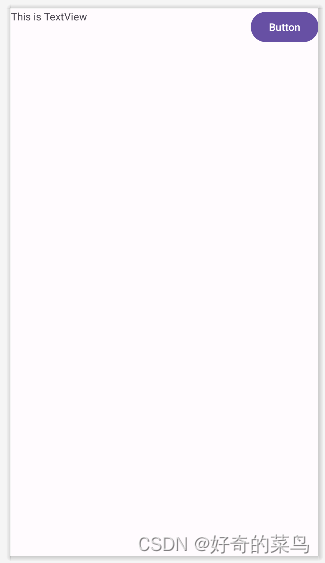
<TextView
    android:id="@+id/textView"
    android:layout_width="wrap_content"
    android:layout_height="wrap_content"
    android:layout_gravity="left"
    android:text="This is TextView" />
在上面的示例中,TextView 的 android:layout_gravity 设置为 left,使其位于 FrameLayout 的左侧。
<Button
    android:id="@+id/button1"
    android:layout_width="wrap_content"
    android:layout_height="wrap_content"
    android:layout_gravity="right"
    android:text="Button" />
而 Button 的 android:layout_gravity 设置为 right,使其位于 FrameLayout 的右侧。
通过合理地使用这些属性,可以轻松实现 FrameLayout 中子视图的灵活布局和对齐。 FrameLayout 在实现简单布局时非常方便,特别适用于叠加式布局,如显示叠加的图层或浮动按钮等。
希望这篇博客能帮助你更深入地理解 FrameLayout 布局及其属性的使用!
到此这篇关于Android 中 FrameLayout 布局及属性的使用详解的文章就介绍到这了,更多相关Android FrameLayout 布局内容请搜索脚本之家以前的文章或继续浏览下面的相关文章希望大家以后多多支持脚本之家!
相关文章
 本篇文章主要介绍了Android利用GridView实现单选效果的相关知识,具有很好的参考价值。下面跟着小编一起来看下吧2017-05-05
 这篇文章主要为大家介绍了Android flutter Dio锁的巧妙实现方法示例详解,有需要的朋友可以借鉴参考下,希望能够有所帮助,祝大家多多进步,早日升职加薪2023-01-01
Android应用开发中Fragment与Activity间通信示例讲解
这篇文章主要介绍了Android应用开发中Fragment与Activity间通信实例讲解,需要的朋友可以参考下2016-02-02
Ubuntu中为Android增加硬件抽象层(HAL)模块访问Linux内核驱动程序
本文主要介绍在Ubuntu上为Android HAL模块访问Linux内核驱动程序,这里给大家提供方法和一个小的测试程序代码,以及常遇到的问题和解决方法,有需要的小伙伴可以参考下2016-08-08 这篇文章主要介绍了Android弹出窗口实现方法,涉及Android TextView及鼠标事件的响应相关技巧,需要的朋友可以参考下2016-01-01
 这篇文章主要介绍了Android SQLite数据库的增 删 查找操作,需要的朋友可以参考下2017-02-02
Android中通知Notification使用实例(振动、灯光、声音)
这篇文章主要介绍了Android中通知Notification使用实例,实现振动,灯光,声音等效果,感兴趣的小伙伴们可以参考一下2016-01-01 这篇文章主要介绍了Android仿QQ附近的人搜索展示功能的相关资料,需要的朋友可以参考下2016-05-05
 这篇文章主要介绍了Android中View自定义组合控件的基本编写方法,可以在布局的时候更加随意地继承,需要的朋友可以参考下2016-04-04
 这篇文章主要为大家详细介绍了Android拖动条的实现代码,具有一定的参考价值,感兴趣的小伙伴们可以参考一下2017-09-09
最新评论