

win7安装mongodb及命令运行教程
发布时间:2013-12-24 14:56:00 作者:佚名  我要评论
我要评论
我要评论win7安装mongodb及命令运行教程,中间遇到了小小的问题,So,把整个过程记录一下
下载最新的:

下载完后文件名为:mongodb-win32-x86_64-2.4.6.zip
解压到当你要安装的目录,然后我把目录名给改短了一下,叫mongodb246,放在了e盘下。
2:用cmd运行目录下bin下的mongod.exe来安装服务:
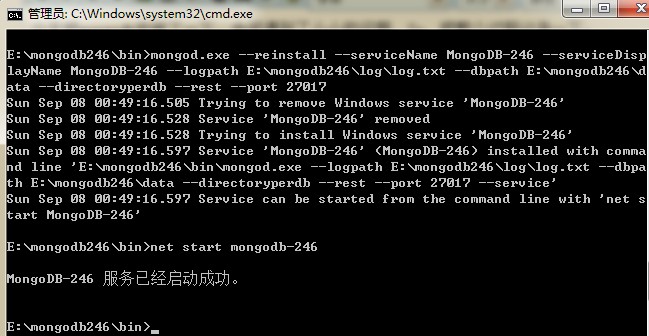
--reinstall 是重新安装,首次安装没有开--reset参数,所以用了重装参数。
--install 是安装。
另外中间我犯了一个错,把logpath 弄成了文件夹(本应该是一个文件名称),结果搞了一个失败的服务,还删不掉。。悲催。
(后来重启电脑后,那个删不掉的服务自己消失了)
具体的参数如下,比较多,简单的就是像我上面的图一样,参考着写就可以了:
如果看不懂E文,可以复制拿去Google翻译文档。
复制代码
代码如下:E:\mongodb246\bin>mongod.exe -help
Allowed options:</p> <p>General options:
-h [ --help ] show this usage information
--version show version information
-f [ --config ] arg configuration file specifying additional options
-v [ --verbose ] be more verbose (include multiple times for more
verbosity e.g. -vvvvv)
--quiet quieter output
--port arg specify port number - 27017 by default
--bind_ip arg comma separated list of ip addresses to listen on
- all local ips by default
--maxConns arg max number of simultaneous connections - 20000 by
default
--logpath arg log file to send write to instead of stdout - has
to be a file, not directory
--logappend append to logpath instead of over-writing
--pidfilepath arg full path to pidfile (if not set, no pidfile is
created)
--keyFile arg private key for cluster authentication
--setParameter arg Set a configurable parameter
--auth run with security
--cpu periodically show cpu and iowait utilization
--dbpath arg directory for datafiles - defaults to \data\db\
--diaglog arg 0=off 1=W 2=R 3=both 7=W+some reads
--directoryperdb each database will be stored in a separate
directory
--ipv6 enable IPv6 support (disabled by default)
--journal enable journaling
--journalCommitInterval arg how often to group/batch commit (ms)
--journalOptions arg journal diagnostic options
--jsonp allow JSONP access via http (has security
implications)
--noauth run without security
--nohttpinterface disable http interface
--nojournal disable journaling (journaling is on by default
for 64 bit)
--noprealloc disable data file preallocation - will often hurt
performance
--noscripting disable scripting engine
--notablescan do not allow table scans
--nssize arg (=16) .ns file size (in MB) for new databases
--profile arg 0=off 1=slow, 2=all
--quota limits each database to a certain number of files
(8 default)
--quotaFiles arg number of files allowed per db, requires --quota
--repair run repair on all dbs
--repairpath arg root directory for repair files - defaults to
dbpath
--rest turn on simple rest api
--slowms arg (=100) value of slow for profile and console log
--smallfiles use a smaller default file size
--syncdelay arg (=60) seconds between disk syncs (0=never, but not
recommended)
--sysinfo print some diagnostic system information
--upgrade upgrade db if needed
Windows Service Control Manager options:
--install install Windows service
--remove remove Windows service
--reinstall reinstall Windows service (equivalent to --remove
followed by --install)
--serviceName arg Windows service name
--serviceDisplayName arg Windows service display name
--serviceDescription arg Windows service description
--serviceUser arg account for service execution
--servicePassword arg password used to authenticate serviceUser
Replication options:
--oplogSize arg size to use (in MB) for replication op log. default is
5% of disk space (i.e. large is good)
Master/slave options (old; use replica sets instead):
--master master mode
--slave slave mode
--source arg when slave: specify master as <server:port>
--only arg when slave: specify a single database to replicate
--slavedelay arg specify delay (in seconds) to be used when applying
master ops to slave
--autoresync automatically resync if slave data is stale
Replica set options:
--replSet arg arg is <setname>[/<optionalseedhostlist>]
--replIndexPrefetch arg specify index prefetching behavior (if secondary)
[none|_id_only|all]
Sharding options:
--configsvr declare this is a config db of a cluster; default port
27019; default dir /data/configdb
--shardsvr declare this is a shard db of a cluster; default port
27018
安装好后,浏览器运行:http://127.0.0.1:28017 打开有东西就说明装上了,按理是localhost:端口可上的,不知我电脑是有缓存还是咋的,没反应,换上IP刷新就好了。
打开是这么个界面:
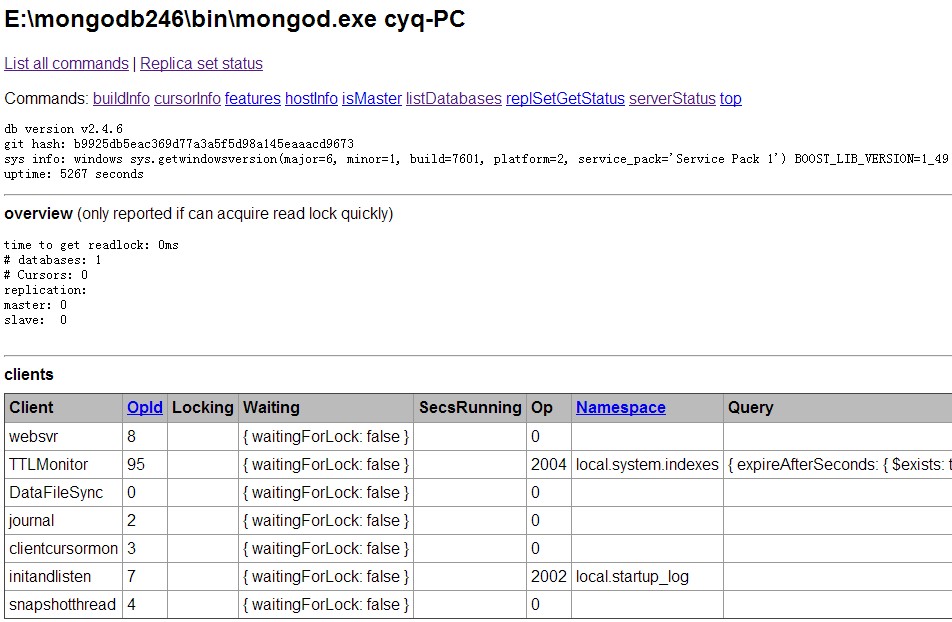
目前着实没看出什么信息,基本正常到此,可能会被卡住,不知道后续干什么了。
3:链接进入命令模式:
正常来说,在cmd命令下,运行E:\>mongodb246\bin\mongo.exe,(路径自己弄对)直接就连上了:
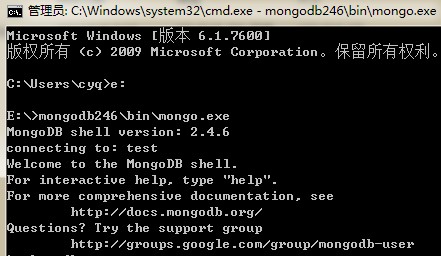
之后可以运行点命令测试下,如:
相关基础命令可以看:http://docs.mongodb.org/manual/tutorial/getting-started/
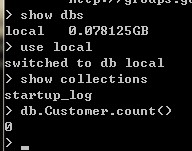
再接下来,就是怎么用代码开发的问题了
相关文章

网络工程师必备的6款配置文件编辑神器:替代Notepad++!
本期文章介绍了六种网工必备工具,这些工具是网络工程师日常工作中必不可少的,也是那些立志成为网络工程师的人应该熟悉的2026-04-13
首个版本v1.111已上线! VS Code开启周更狂飙模式
026年3月10日,微软宣布将Visual Studio Code(VS Code)更新节奏从月更提速至周更,并发布首个周更版本v1.1112026-03-11- 还在手动打开浏览器、点击按钮、检查控制台报错?太累了!现在,最新的VS Code 1.110中AI可以直接调试浏览器2026-03-10
 今天带大家来共同学习VC++6.0无法正常运行怎么办?下面就是详细完整的操作步骤,快跟小编一起来学习一下2026-02-27
vscode调试c代码始终找不到exe可执行文件的详细及解决办法
在 VS Code 中调试 C++ 项目时,常见报错:“无法启动调试会话:找不到可执行文件”,这个问题问题通常是由于环境配置不当、缺少编译步骤、路径设置错误、或是launch.json2026-02-27vscode入门! 小白都能看懂的VS Code保姆级级使用教程
相对于其它前端工具来说,VSCode显得更加的流畅,今天就将我的学习经历和大家分享一下,希望可以帮助到有需要的人2026-02-27- 2026年真正值得装、用得上、不鸡肋的 VSCode 插件,其实没那么多——挑10个“神级”不难,但得是每天打开就用、关掉就难受的那种2026-02-10
VS Code 和 VSCodium怎么选? vscode 和 vscodium之间的区别
咱们今天就来聊聊 Visual Studio Code (VS Code) 和 VSCodium的相似与区别,详细请看下文介绍2026-01-10
如何启用.NET Framework3.5? 一键安装net3.5解决软件依赖问题
你是否曾在安装某些软件时遇到过“需要.NET Framework 3.5”的提示?实,只需要几步简单的操作,你就可以轻松解决这个问题2025-10-28- 在软件开发过程中,重构是一个非常重要的环节,重构可以提高代码的可读性、可维护性和可扩展性,使代码更加健壮和易于理解,本文将介绍如何使用 VSCode 进行 Java 代码重构2025-09-20

最新评论