

手把手教你CSS水平、垂直居中的10种方式(小结)
 我要评论
我要评论面试必备,工作一定会用到。emmm大家都懂的,话不多说,先直接贴一个总结和效果图。
总结
- PC端有兼容性要求,子元素宽高固定,推荐absolute + 负margin
- PC端有兼容要求,子元素宽高不固定,推荐absolute + transform
- PC端无兼容性要求,推荐flex
- 移动端推荐使用flex
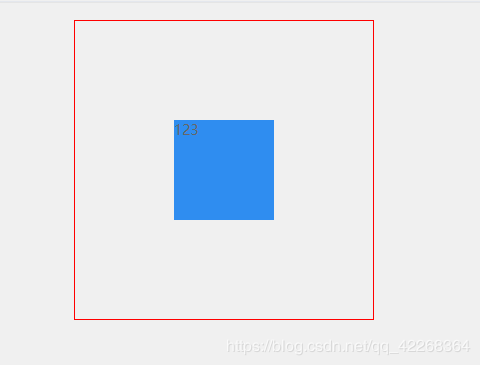
要怎么实现上面这幅图的效果呢,下面为大家总结了10中常用的方法。首先我先创建一个公共的模板样式
<template>
  <div class="two">
    <div class="parent">
      <div class="child">123</div>
    </div>
  </div>
</template>

<style lang="less" scoped>
.parent{
  margin: 0 auto;
  width: 300px;
  height: 300px;
  border: 1px solid red;
  box-sizing: border-box;
  .child {
    height: 100px;
    width: 100px;
    background: #2f8df0;
  }
}
</style>
然后具体用到的样式单独写在方法里面,首先先介绍4个平时布局的技巧。
1.水平居中div里面的div,设置子元素的宽度。
.parent{
	width:300px;
    margin:0 auto;
}
注意:如果子元素设置了display:table-cell,那么margin:0 auto;将会失效。
2.设置文字垂直居中,设置包含文字div的高。
.child{
    text-align:center
    line-height:100px //知道子元素的高,设置和高一样的高度
}
3.两个或者多个块级元素垂直居中对齐,父元素设置height和line-height相等。
 .parent{
     line-height: 300px; //知道父元素的高,设置和高一样的高度
	 }
   .child1{
    display: inline-block;
    vertical-align: middle;
    line-height: initial;  //initial 关键字用于设置 CSS 属性为它的默认值。
   }
   .child2{
    display: inline-block;
    vertical-align: middle;
    line-height: initial;  //initial 关键字用于设置 CSS 属性为它的默认值。
   }
4.让一个元素充满当前整个容器,设置absolute
.parent{
position: absolute;
top: 0;
bottom: 0;
left: 0;
right: 0;
}
OK,介绍完毕,下面开始介绍CSS实现水平垂直居中的方式。
1.不需要设置子元素的宽高,需要设置父元素的高度。使用 absolute + transform (推荐)
.parent{
   position: relative
}
.child{
    position: absolute;
    top:50%;
    left:50%;
    transform:translate(-50%,-50%)
}

// 备注一下,如果只需要上下居中那就只要保留top,只要左右居中的话就保留left,translate设置
   translateY(-50%)或者translateX(-50%)
2.不需要设置子元素的宽高,不需要设置父元素的宽高。 使用flex布局(建议移动端直接使用flex
pc端看需要兼容的情况。)
.parent{
  display:flex;
  align-items:center;
  justify-content:center;
}
.child{

}
3.不需要设置子元素的宽高,需要设置父元素的高度。使用 lineheight。
注意:这种方法需要通过text-align在子元素中将文字显示重置为想要的效果
.parent{
    line-height: 300px;  //设置和父元素的高度一样
    text-align: center;
}
.child{
    display: inline-block;
    vertical-align: middle;
    line-height: initial; //initial 关键字用于设置 CSS 属性为它的默认值。
    text-align: left;  //将文字显示重置为想要的效果
}
4.不需要设置子元素的宽高,需要设置父元素的高度。使用css-table (使用之后此元素的margin:0 auto会失效)
.parent{
    display: table-cell;
    vertical-align: middle;
    text-align: center;
}
.child{
  display: inline-block;
}
5.设置子元素的宽高,设置父元素的高度。 使用absolute + 负margin
.parent{
   position: relative
}
.child{
    position: absolute;
    top: 50%;
    left: 50%;
    margin-left: -50px; //知道子元素的宽高
    margin-top: -50px;  //知道子元素的宽高
}
6.设置子元素的宽高,设置父元素的高度。使用 absolute + margin auto
.parent{
   position: relative
}
.child{
    position: absolute;
    top: 0;
    left: 0;
    right: 0;
    bottom: 0;
    margin: auto;
}
7.设置子元素的宽高,设置父元素的高度。 使用 absolute + calc(这种方法兼容性依赖calc的兼容性)
.parent{
   position: relative
}
.child{
    position: absolute;
    top: calc(50% - 50px);
    left: calc(50% - 50px);
}
8.使用writing-mode(使用起来比较复杂,不推荐)
 //公共的样式在最上面
 <div class="parent">
      <div class="box-child">
        <div class="child">123</div>
      </div>
    </div>
.parent{
     writing-mode: vertical-lr; //改变文字显示的方向
    text-align: center;
}
.box-child{
    writing-mode: horizontal-tb;
    display: inline-block;
    text-align: center;
    width: 100%;
}
.child{
    text-align: left; //将文字显示重置为想要的效果
    margin: 0 auto;
}
9.不需要设置子元素的宽高,不需要设置父元素的宽高。 使用grid布局(不建议使用,目前兼容性不是很好)
.parent{
    display: grid;
}
.child{
     align-self: center;
     justify-self: center;
}
10.使用table布局(纯粹凑方法,这年头,谁还用table布局呀,哈哈哈哈)
<table>
    <tbody>
        <tr>
            <td class="parent">
                <div class="child">123</div>
            </td>
        </tr>
    </tbody>
</table>
.parent{
    text-align: center;
}
.child{
    display: inline-block;
}
以上就是本文的全部内容,希望对大家的学习有所帮助,也希望大家多多支持脚本之家。
相关文章
 这篇文章主要介绍了使用CSS实现盒子水平垂直居中的方法(8种),文中通过示例代码介绍的非常详细,对大家的学习或者工作具有一定的参考学习价值,需要的朋友们下面随着小编来2020-11-11
- 这篇文章主要介绍了CSS 水平居中并限定最大的宽度实现,文中通过示例代码介绍的非常详细,对大家的学习或者工作具有一定的参考学习价值,需要的朋友们下面随着小编来一起学2020-09-14
- 这篇文章主要介绍了CSS实现子元素div水平垂直居中的示例,文中通过示例代码介绍的非常详细,对大家的学习或者工作具有一定的参考学习价值,需要的朋友们下面随着小编来一起2020-09-03
CSS中的translate(-50%,-50%)实现水平垂直居中效果
这篇文章主要介绍了CSS中的translate(-50%,-50%)实现水平垂直居中效果,本文通过实例代码给大家介绍的非常详细,对大家的学习或工作具有一定的参考借鉴价值,需要的朋友可以2020-09-02- 这篇文章主要介绍了css3 flex实现div内容水平垂直居中的几种方法,文中通过示例代码介绍的非常详细,对大家的学习或者工作具有一定的参考学习价值,需要的朋友们下面随着小2020-03-27
- 这篇文章主要介绍了CSS3 不定高宽垂直水平居中的几种方式,文中通过示例代码介绍的非常详细,对大家的学习或者工作具有一定的参考学习价值,需要的朋友们下面随着小编来一起2020-03-26
 在前端面试中经常会遇到css居中效果的实现,今天小编给大家分享几种css垂直水平居中的方法,通过实例代码给大家讲解,需要的朋友参考下吧2020-02-27
 如何让子元素在父容器中水平垂直居中呢,下面我们来列举几种常见的方法,通过真实场景分析给大家详解web前端之css水平居中代码解析,感兴趣的朋友跟随小编一起看看吧2021-05-20

最新评论