

OpenClaw最新版本高频操作与实战技巧
 我要评论
我要评论作者前言:最近在折腾一个特别有意思的开源项目 —— OpenClaw,一款可以运行在自己电脑上的"个人 AI 助手网关",支持 WhatsApp、Telegram、Discord、Slack、iMessage、Matrix 等十几个主流通道,还能同时跑多个隔离的 Agent(相当于多个不同人格的 AI 助理)。
用了一段时间后,我把自己平时高频使用的命令行操作整理成这篇实战教程,一篇文章掌握 OpenClaw 90% 的日常用法。从零安装到多 Agent 协同、从通道接入到远程访问、从定时任务到故障排查,全都帮你梳理清楚。
如果你也想拥有一个 24 小时在线、能自动收发消息、能调用手机相机、能定时发日报的本地 AI 助手,这篇文章你一定要收藏。

一、什么是 OpenClaw?
用一句话说:OpenClaw 是一个跑在你本机的 AI 助手运行时,能让 GPT / Claude / Gemini 等大模型"长在"你的 IM 上。
它的核心能力大概是这样:
| 能力 | 说明 |
|---|---|
| 多通道接入 | WhatsApp / Telegram / Discord / Slack / iMessage / Signal / Matrix / Google Chat / 微信 / QQ / 飞书 … |
| 多 Agent | 每个 agent 独立 workspace、独立会话、独立记忆 |
| Gateway 网关 | 一个 WebSocket 服务统一管所有通道,支持 Tailscale 远程访问 |
| 节点 (Nodes) | iOS / Android / Mac 作为配对设备,可调用相机、屏幕、位置、Canvas |
| 协议桥 | 内置 MCP Server / ACP Bridge,可无缝接入 Codex、Claude Code、Cursor 等 |
| 定时任务 | Cron 每天自动执行 AI 任务并投递到指定通道 |
| 插件/技能 | 支持 ClawHub 插件和工作区 Skills |
运行时要求:Node 24(推荐)或 Node 22.16+,支持 macOS / Linux / Windows。
二、一分钟极速安装
OpenClaw 的安装体验做得相当好,基本上一条命令跑完引导,一条命令启动:
# 1. 全局安装 CLI(三选一)
npm install -g openclaw@latest
pnpm add -g openclaw@latest
bun add -g openclaw@latest
# 2. 交互式引导 + 自动安装后台守护进程
openclaw onboard --install-daemon
引导过程会问你几个问题:
- 你想用哪家大模型?(OpenAI / Anthropic / Gemini / 本地 Ollama / LM Studio / …)
- API Key 是啥?
- Gateway 监听哪个端口?(默认 18789)
- 要不要安装后台服务?(推荐 Yes,这样开机自启)
小贴士:如果你已经在用 Codex / Claude CLI 订阅,可以直接选 openai-codex 或 claude-cli,完全不用手输 key,OpenClaw 会自动复用它们的登录凭据。
验证安装:
openclaw --version
openclaw status
如果看到 Gateway 状态 running、Health ok,恭喜你,已经跑起来了。
三、开箱必备:10 个最常用的命令
我按使用频率给你排了个序,这 10 条命令基本覆盖 80% 的日常场景:
openclaw status                          # ① 看一眼整体状态(最常用!)
openclaw doctor                          # ② 出问题先跑它
openclaw gateway restart                 # ③ 改完配置重启网关
openclaw logs --follow                   # ④ 实时看日志
openclaw channels list                   # ⑤ 查看接入了哪些通道
openclaw channels status --probe         # ⑥ 实时探测每个通道是否健康
openclaw agents list --bindings          # ⑦ 查看 agent 和通道的绑定
openclaw agent -m "hello" --deliver      # ⑧ 和 AI 聊一句并投递到默认通道
openclaw message send --to +86xxx -m "x" # ⑨ 主动发消息
openclaw config get agents.list          # ⑩ 读配置
四、接入第一个聊天通道
OpenClaw 支持的通道很多,这里挑三个最典型的演示。
4.1 Telegram(最简单)
去 @BotFather 创建 bot,拿到 token:
# 方式一:明文传入
openclaw channels add --channel telegram --token 123456:ABCDEF...

# 方式二:走环境变量(推荐)
export TELEGRAM_BOT_TOKEN=123456:ABCDEF...
openclaw channels add --channel telegram --use-env
加完后重启 Gateway:
openclaw gateway restart
openclaw channels status --probe
然后到 Telegram 里给你的 bot 发条消息,AI 就会自动回复了。
4.2 Discord
Discord Developer Portal 创建应用和 Bot:
export DISCORD_BOT_TOKEN=xxx
openclaw channels add --channel discord --token "$DISCORD_BOT_TOKEN"
4.3 WhatsApp(需要扫码)
# 交互式扫码登录
openclaw channels login --channel whatsapp --account personal
终端会弹出一个二维码,用手机 WhatsApp 扫描即可完成配对。多个账号就跑多次:
openclaw channels login --channel whatsapp --account biz
openclaw channels login --channel whatsapp --account family
4.4 批量查看接入情况
openclaw channels list --json
openclaw channels status --probe
openclaw channels capabilities --channel discord --json
五、启动与管理 Gateway(核心网关)
Gateway 是 OpenClaw 的"心脏",所有通道、Agent、RPC 调用都经过它。
5.1 前台运行(调试时最常用)
openclaw gateway --port 18789 --verbose
5.2 作为后台服务运行(生产推荐)
openclaw gateway install         # 安装服务(macOS=launchd / Linux=systemd / Windows=schtasks)
openclaw gateway start
openclaw gateway status
openclaw gateway stop
openclaw gateway restart
openclaw gateway uninstall
5.3 查看运行状态
openclaw gateway status --json
openclaw gateway health
openclaw gateway probe          # 深度探测:本地 + 远程 gateway 全扫一遍
openclaw gateway discover       # 扫描局域网内的 Gateway(Bonjour)
openclaw gateway usage-cost --days 7    # 最近 7 天 LLM 消耗成本
5.4 低级 RPC 调用(调试利器)
openclaw gateway call status
openclaw gateway call logs.tail --params '{"sinceMs":60000}'
踩坑提示:改了
~/.openclaw/openclaw.json配置后,一定要openclaw gateway restart,否则新配置不生效。
六、配置管理:改配置不用手撕 JSON
OpenClaw 提供了非交互式的 config 命令,告别手动改 JSON:
# 查看配置文件路径
openclaw config file

# 读取单个配置
openclaw config get gateway.port
openclaw config get agents.list[0].id

# 写入配置
openclaw config set gateway.port 19000 --strict-json
openclaw config set agents.defaults.heartbeat.every "2h"

# 删除配置
openclaw config unset plugins.entries.brave

# 验证配置是否合法
openclaw config validate --json

# 导出 JSON Schema(给 IDE 补全用)
openclaw config schema > openclaw.schema.json
交互式向导:
openclaw configure                          # 全量向导
openclaw configure --section channels       # 只配通道
openclaw configure --section gateway        # 只配网关
七、和 AI 对话:agent 命令详解
openclaw agent 是无头对话入口,跑一轮 agent 并拿到结果:
# 最简:写一句话让 AI 回
openclaw agent -m "今天该做什么?"

# 开启高强度思考(需模型支持)
openclaw agent -m "帮我 review 这段代码..." --thinking high

# 指定某个 agent(多 agent 场景)
openclaw agent --agent work -m "总结一下今天日程"

# 把结果自动投递到 Slack 某个频道
openclaw agent -m "生成周报" --deliver --reply-channel slack --reply-to "#weekly"

# JSON 输出(写脚本用)
openclaw agent -m "list 3 ideas" --json --timeout 120

# 保持在同一个会话里(多轮对话)
openclaw agent --session-id my-coding-session -m "继续刚才的话题"
关键参数速查:
| 参数 | 作用 |
|---|---|
-m | 消息内容(必填) |
--agent <id> | 指定 agent |
--session-id <id> | 保持多轮上下文 |
--thinking <off|low|medium|high|xhigh> | 思考深度 |
--deliver | 投递到某个通道 |
--local | 嵌入式运行,不走 Gateway |
--json | JSON 输出 |
八、多 Agent 协同:给不同通道配不同"人格"
这是 OpenClaw 最有意思的功能之一。一个 Gateway 里可以跑多个 Agent,每个 Agent 有独立的 workspace、记忆、模型、权限。
8.1 创建多个 Agent
# 开一个专门处理编程任务的 agent,用 Claude Opus
openclaw agents add coding \
  --workspace ~/.openclaw/workspace-coding \
  --model anthropic/claude-opus-4-6 \
  --non-interactive

# 开一个社交聊天的 agent,用 GPT
openclaw agents add social \
  --workspace ~/.openclaw/workspace-social \
  --model openai/gpt-5.4 \
  --non-interactive

# 开一个运维告警的 agent
openclaw agents add ops \
  --workspace ~/.openclaw/workspace-ops \
  --model anthropic/claude-sonnet-4-6 \
  --non-interactive
8.2 绑定通道(路由规则)
# Telegram coding 频道 -> coding agent
openclaw agents bind --agent coding --bind telegram:coding

# 整个 WhatsApp -> social agent
openclaw agents bind --agent social --bind whatsapp

# Discord 的 ops 服 + Slack team-a -> ops agent
openclaw agents bind --agent ops --bind discord:ops
openclaw agents bind --agent ops --bind slack:team-a
绑定粒度超细,支持按 通道 → 账号 → 群组 → 某个用户 逐级匹配,原则是 最具体的规则优先。
8.3 查看绑定关系
openclaw agents list --bindings --json
openclaw agents bindings --agent coding
8.4 解绑和删除
openclaw agents unbind --agent ops --bind slack:team-a
openclaw agents unbind --agent ops --all
openclaw agents delete coding --force
8.5 举个实际场景
老板的需求:个人 WhatsApp 交给"家庭助手",公司 WhatsApp 交给"工作助手"。
// ~/.openclaw/openclaw.json 片段
{
  agents: {
    list: [
      { id: "home", default: true, workspace: "~/.openclaw/workspace-home" },
      { id: "work", workspace: "~/.openclaw/workspace-work" }
    ]
  },
  bindings: [
    { agentId: "home", match: { channel: "whatsapp", accountId: "personal" } },
    { agentId: "work", match: { channel: "whatsapp", accountId: "biz" } }
  ]
}
应用:
openclaw gateway restart
openclaw agents list --bindings
搞定!两个 WhatsApp 号,两个完全独立的 AI,互不串线。
九、消息高阶玩法:广播、投票、编辑、置顶
openclaw message 是通用的消息操作命令,功能非常丰富。
9.1 发消息
# 发文本
openclaw message send --channel telegram --target @mychat -m "hello"

# 发图片
openclaw message send --channel telegram --target @mychat --media ./chart.png

# 引用回复某条消息
openclaw message send --channel discord --target channel:123 -m "同意" --reply-to 456
9.2 广播到所有通道
openclaw message broadcast --channel all \
  --targets +86139xxxx --targets @tgchat --targets channel:discord123 \
  --message "服务器 10 分钟后重启" \
  --dry-run         # 先预演,确认没问题再去掉
9.3 发投票(Discord / Telegram)
openclaw message poll --channel discord --target channel:123 \
  --poll-question "今天吃什么?" \
  --poll-option 火锅 --poll-option 烤肉 --poll-option 轻食 \
  --poll-multi --poll-duration-hours 2
9.4 加表情反应 / 读取历史 / 编辑 / 删除 / 置顶
openclaw message react --channel slack --target C123 --message-id 456 --emoji "🎉"
openclaw message read --channel discord --target channel:123 --limit 50
openclaw message edit --channel slack --target C123 --message-id T123 -m "已更新"
openclaw message delete --channel telegram --target @mychat --message-id 42
openclaw message pin --channel discord --target channel:123 --message-id 456
9.5 Discord 管理命令
openclaw message timeout --guild-id 123 --user-id 456 --duration-min 30 --reason "spam"
openclaw message kick --guild-id 123 --user-id 456
openclaw message ban --guild-id 123 --user-id 456 --delete-days 1
十、定时任务:每天早上自动发晨报
openclaw cron 让 AI 按时工作,非常实用:
# 每天早上 7 点,让 AI 总结昨晚消息并发到 Slack
openclaw cron add \
  --name "Morning brief" \
  --cron "0 7 * * *" \
  --session isolated \
  --message "总结昨晚团队聊天重要信息" \
  --announce --channel slack --to "channel:C1234567890" \
  --light-context

# 查看所有定时任务
openclaw cron list

# 手动触发一次(不等到 cron 时间)
openclaw cron run <job-id>

# 查看运行历史
openclaw cron runs --id <job-id> --limit 20

# 修改投递目标
openclaw cron edit <job-id> --channel telegram --to "@team-channel"

# 暂停 / 启用 / 删除
openclaw cron disable <job-id>
openclaw cron enable  <job-id>
openclaw cron rm      <job-id>
还支持一次性任务(--at)和间隔任务(--every 10m),详细可参考 openclaw cron add --help。
十一、远程访问:Tailscale + 手机扫码配对
OpenClaw 和 Tailscale 集成得非常好,两条命令就能把你本地的 AI 助手变成全球可达:
# 本机 Gateway 通过 Tailscale Serve 暴露(仅你自己的 Tailnet 内可达)
openclaw gateway --bind tailnet --tailscale serve

# 远程笔记本接入
openclaw --profile remote onboard --mode remote \
  --remote-url wss://mymac.tailnet.ts.net:18789 \
  --remote-token "$OPENCLAW_GATEWAY_TOKEN"

# 给手机生成配对二维码(扫一下即可接入)
openclaw qr --remote
附加能力:把手机变成 Node 节点
# 手机上安装 OpenClaw iOS/Android 端 → 扫码配对
# PC 端审批
openclaw nodes pending
openclaw nodes approve <requestId>

# 之后你的 AI 就能调用手机相机
openclaw nodes camera snap --node phone --facing back
openclaw nodes location get --node phone --accuracy precise

# Mac 作为节点:让 AI 远程打开网页、截屏
openclaw nodes canvas navigate https://example.com --node mac
openclaw nodes screen record --node mac --duration 20s --out ./rec.mp4
想象一下:“Siri,用我家 Mac 打开淘宝搜一下 XXX 并截图发我 Telegram” —— 这些都能脚本化实现。
十二、故障排查:doctor 一把梭
碰到问题怎么办?记住这套排查三板斧:
# 第一步:看状态
openclaw status --deep
openclaw health --verbose

# 第二步:实时日志
openclaw logs --follow
openclaw channels logs --channel all --lines 500

# 第三步:自动修复
openclaw doctor
openclaw doctor --deep
openclaw doctor --fix
doctor --fix 能自动修复 90% 的常见问题:
- Gateway 服务安装不正确
- Workspace 缺失
AGENTS.md - SecretRef 引用断裂
- 通道凭据过期
- 端口占用 / 旧进程残留
如果 doctor 都救不了,还有终极大招:
openclaw reset --scope config           # 只重置配置
openclaw reset --scope config+creds+sessions   # 重置配置+凭据+会话(workspace 保留)
openclaw onboard --reset                # 重置后再重新引导
十三、模型与 Provider 切换
# 看当前在用什么模型
openclaw models status

# 列出所有可用模型
openclaw models list --all

# 切换默认模型
openclaw models set anthropic/claude-sonnet-4-6
openclaw models set-image openai/gpt-image-1

# 配置失败回退链(主模型挂了自动切换)
openclaw models fallbacks add openai/gpt-5.4
openclaw models fallbacks list

# 登录各家 Provider
openclaw models auth login --provider openai
openclaw models auth login --provider anthropic --method claude-cli --set-default
openclaw models auth login-github-copilot     # GitHub Copilot 特殊 OAuth

# 探活测试(看哪些 key 过期了)
openclaw models status --probe --json
独立推理能力(可以脱离 agent 单独调用):
openclaw infer model run --prompt "写一首关于龙虾的诗" --json
openclaw infer image generate --prompt "一只戴皇冠的龙虾,像素风" --json
openclaw infer audio transcribe --file ./meeting.m4a --json
openclaw infer tts convert --text "你好" --output ./out.mp3 --json
openclaw infer web search --query "OpenClaw 最新版本" --json
这些命令相当于给你提供了一套标准化的 LLM 工具 CLI,可以直接在 shell 脚本里用。
十四、安全加固:API Key 不再明文落盘
千万别把 API Key 明文写进 openclaw.json,万一误传到 Git 就炸了。
正确做法:用 SecretRef 把 key 引用到环境变量:
# 1. 在 shell 或 ~/.openclaw/.env 里配置
export DISCORD_BOT_TOKEN=xxx
echo "OPENAI_API_KEY=sk-xxx" >> ~/.openclaw/.env

# 2. 配置改成引用
openclaw config set channels.discord.token \
  --ref-provider default \
  --ref-source env \
  --ref-id DISCORD_BOT_TOKEN

# 3. Dry-run 先预演
openclaw config set channels.discord.token \
  --ref-provider default --ref-source env --ref-id DISCORD_BOT_TOKEN \
  --dry-run

# 4. 审计一下有没有明文 key 残留
openclaw secrets audit --check
openclaw security audit --deep

# 5. 热重载
openclaw secrets reload
如果企业场景需要更安全的密钥管理,还支持 file 和 exec 形式的 Provider(比如接入 HashiCorp Vault)。
十五、升级、备份、卸载
升级
openclaw update                        # 升级到最新 stable
openclaw update --channel beta         # 切换到 beta 通道
openclaw update --channel dev          # nightly
openclaw update status
openclaw update wizard
备份
openclaw backup create --output ./openclaw-backup.tar.gz --verify
openclaw backup verify ./openclaw-backup.tar.gz --json
卸载
openclaw uninstall                 # 交互选择要删除什么
openclaw uninstall --all --yes     # 全删(服务 + 状态 + workspace + 应用)
openclaw uninstall --dry-run       # 先预览
附:高频命令速查表
复制保存这张表,平时用的时候翻一翻就够了:
| 场景 | 命令 |
|---|---|
| 装 OpenClaw | npm i -g openclaw@latest && openclaw onboard --install-daemon |
| 看状态 | openclaw status --deep |
| 看日志 | openclaw logs --follow |
| 启/停网关 | openclaw gateway start | stop | restart |
| 加通道 | openclaw channels add --channel <name> --token <token> |
| 登录 WhatsApp | openclaw channels login --channel whatsapp --account personal |
| 通道健康探测 | openclaw channels status --probe |
| 查看 Agent 绑定 | openclaw agents list --bindings |
| 加 Agent | openclaw agents add <id> --workspace <dir> --model <m> --non-interactive |
| 绑定 Agent | openclaw agents bind --agent <id> --bind <channel[:account]> |
| 跟 AI 聊 | openclaw agent -m "..." --thinking high |
| 发消息 | openclaw message send --to <dest> -m "..." |
| 广播 | openclaw message broadcast --channel all --targets ... -m ... |
| 加定时任务 | openclaw cron add --name ... --cron ... --message ... |
| 手动触发 cron | openclaw cron run <job-id> |
| 切模型 | openclaw models set <provider>/<model> |
| 模型登录 | openclaw models auth login --provider openai |
| 配置读取 | openclaw config get <path> |
| 配置写入 | openclaw config set <path> <value> |
| 配置校验 | openclaw config validate --json |
| 一键诊断 | openclaw doctor --fix |
| 一键升级 | openclaw update |
| 一键备份 | openclaw backup create --verify |
| 扫码配对 | openclaw qr |
| Tailscale 远程 | openclaw gateway --bind tailnet --tailscale serve |
写在最后
OpenClaw 给我的最大感受是:它把"把大模型装进生活"这件事做成了一套工程化、可运维的系统。你可以当它是玩具,也可以用它搭一个全天候的 AI 秘书、代码助手、社群机器人。
我个人目前的用法:
- Telegram 绑定
codingagent → 做代码 review、翻译、写 commit message - WhatsApp 绑定
homeagent → 家庭日常、购物清单、日历管理 - Slack 绑定
opsagent → 接告警、自动值班、每日站会纪要 - Discord 绑定
socialagent → 社群机器人 - iPhone Node → 远程截图、拍照、查位置
- Cron 定时任务 → 每天晨报、周报、月度总结
如果你也有类似需求,强烈建议动手玩一下。这篇教程涵盖了我平时 90% 以上的操作,从零开始跟着敲一遍,差不多 30 分钟就能搭好一个属于你自己的多通道 AI 助手。
以上就是OpenClaw最新版本高频操作与实战技巧的详细内容,更多关于OpenClaw操作与实战技巧的资料请关注脚本之家其它相关文章!
相关文章
 这篇文章主要为大家介绍了如何解决 OpenClaw 无法识别 Windows 上 Ollama 下载的模型的问题,关键在于正确建立 WSL 和 Windows 文件系统之间的连接,并确保 OpenClaw 能够访2026-04-29
Windows10一键部署OpenClaw小龙虾的保姆级教程(2026年)
OpenClaw 是 2026 年初爆火的开源本地 AI 智能体框架,本文为Windows10用户提供了OpenClaw(小龙虾)AI智能体的安装教程,包括下载、解压、启动、配置等步骤,并针对Win10系统2026-04-28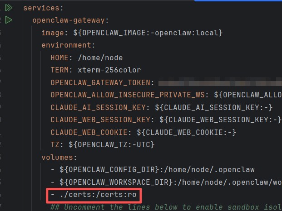 部署OpenClaw的过程看似简单,却因为细节问题踩了不少坑,这篇文章主要介绍了docker部署openclaw遇到的一些踩坑记录,文中通过代码及图文介绍的非常详细,需要的朋友可以参考下2026-04-28
 OpenClaw支持多Agent并行部署,满足场景隔离、多角色协作等需求,核心分为 “单Gateway多 Agent” 和 “双Gateway独立部署” 两种方式,具有一定的参考价值,感兴趣的可以2026-04-27
OpenClaw接入大模型API的完整配置流程(Windows实测可用)
这篇文章主要介绍了在Windows上首次安装OpenClaw的详细步骤和关键配置项,帮助用户解决安装和配置过程中可能遇到的问题,特别是如何正确配置BaseURL、APIKey、模型名和Gatewa2026-04-27
2026年Openclaw快速接入DeepSeek V4 Pro的完整教学指南
DeepSeek v4 重磅发布,博查 Model API 在首发当日便已支持v4 全系的调用,那么如何在 OpenClaw 平台中通过修改配置文件接入博查 Model API 以使用 DeepSeek V4 系列模型呢2026-04-27
OpenClaw如何切换不同AI模型?2026年OpenClaw模型配置与切换指南
OpenClaw 是一个强大的 AI 助手框架,支持多种国产大语言模型,本文档详细介绍如何配置和切换 OpenClaw 使用的模型,帮助你根据不同场景选择最合适的模型2026-04-24
Ubuntu安装OpenClaw报错Gateway service check failed的原因及解决方法
OpenClaw近期受到较多关注,但在安装过程中,用户常因环境配置和依赖问题导致失败,这篇文章主要介绍了Ubuntu安装OpenClaw报错Gateway service check failed的原因及解决方法,2026-04-24
Docker部署OpenClaw后容器内无法使用代理的解决方法
在本地跑得好好的OpenClaw,一放到Docker容器里,代理就不生效了,如果你正在经历这些,别怀疑人生——这不是你的问题,是Docker网络和OpenClaw代理解析逻辑的双重夹击,我2026-04-23 Skill 是 OpenClaw 的核心扩展机制,通过编写一个 SKILL.md 文件,你就能教会 AI Agent 新的能力,本文将和大家分享8个常用的openclaw Skill,感兴趣的小伙伴可以跟随小编一2026-04-22
最新评论